6.3.3 Creating Curriculum Components (CCs) Part 3
Reviewing and Revising the Existing CCs
3. Creating a New CC from CC Patterns
|
|
|
| Figure 6.56: Adding a New CC from the CC Patterns (1) | |
- Since this learning design focuses on creating a product for the elderly, your colleague may argue that brainstorming alone is insufficient. They might recommend adding an interview section to foster a user-centered mindset. In this case, CC Patterns can offer a quick and practical solution.
-
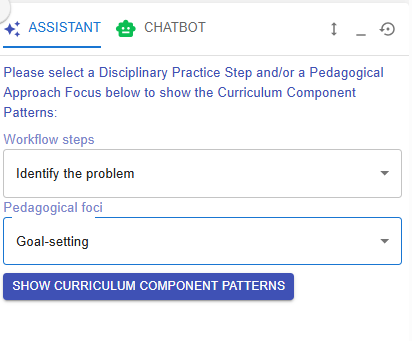
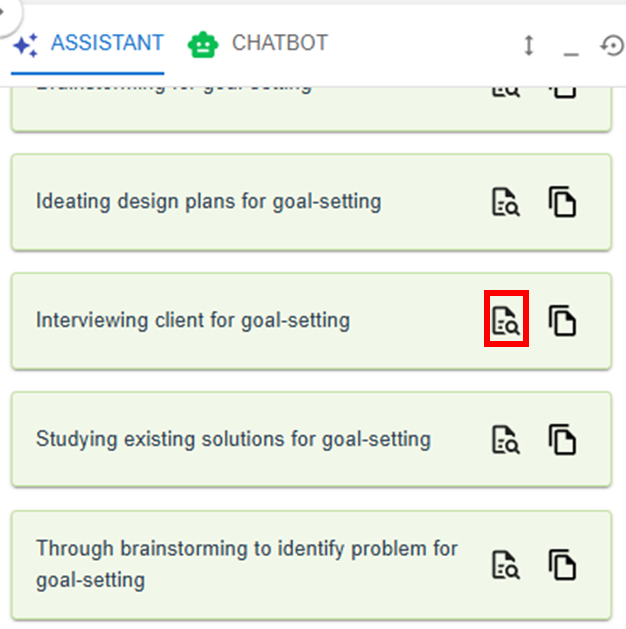
To retrieve the task pattern related to conducting client interviews, you can select "Identify problem" for the workflow steps and "Goal-setting" for the pedagogical focus in the Learning Design Facilitator. It will then recommend relevant task patterns for you. You can click the
 button to explore the details of the task pattern "Interviewing client for goal-setting".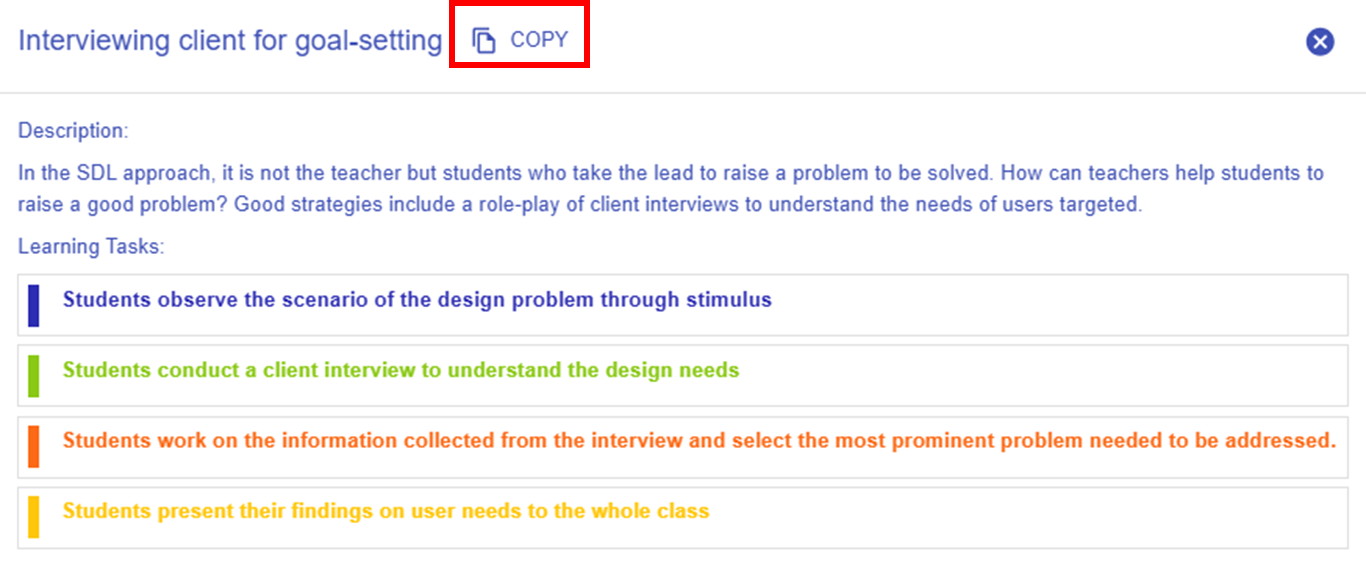
Figure 6.57: Adding a New CC from the CC Patterns (2)
- You can use the targeted CC pattern directly by clicking "COPY" button in the pop-up window, or by clicking the
 button in the Learning Design Facilitator. The CC pattern details will be auto-filled into the LDS.
 -
Please refer to the instructions under 2. Reviewing the CC Patterns and Task Patterns to update your newly created CC.
* You can continue adding more tasks to complete your Curriculum Component (CC), and add additional CCs to finalize your course design by repeating the steps mentioned above.
Additional: Information Window, and Header
- There is some additional information to help you analyse the learning design.
|
Item |
Description |
Example |
|---|---|---|
| 1. Information Window |
Figure 6.58: Information Window in the CC Section |
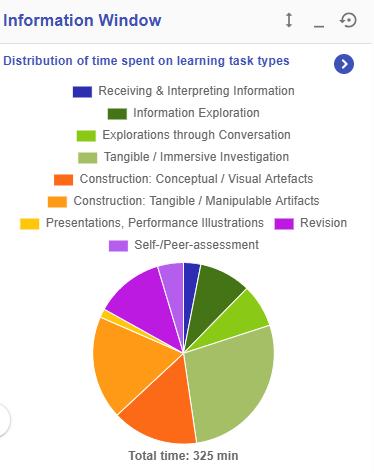
In the CC section, the information window will visualise your overall CC design with the pie chart
|
| 2. Header |
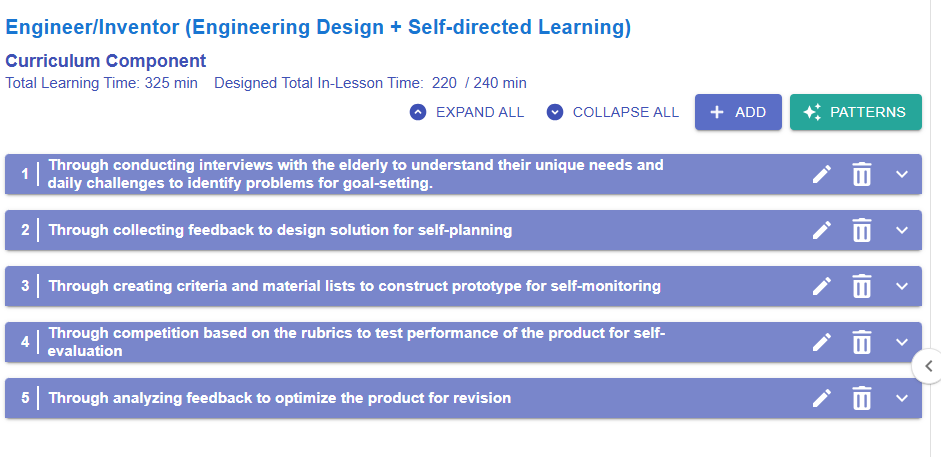
Figure 6.59: Example of a Curriculum Component Sequence
Total Learning Time: 325 min
Designed Total In-Lesson Time: 220 / 240 min
Expand all
Collapse all
|
|