10.1 Sharing Designs Publicly
In this section, we will explore how to share your learning design with public users.
|
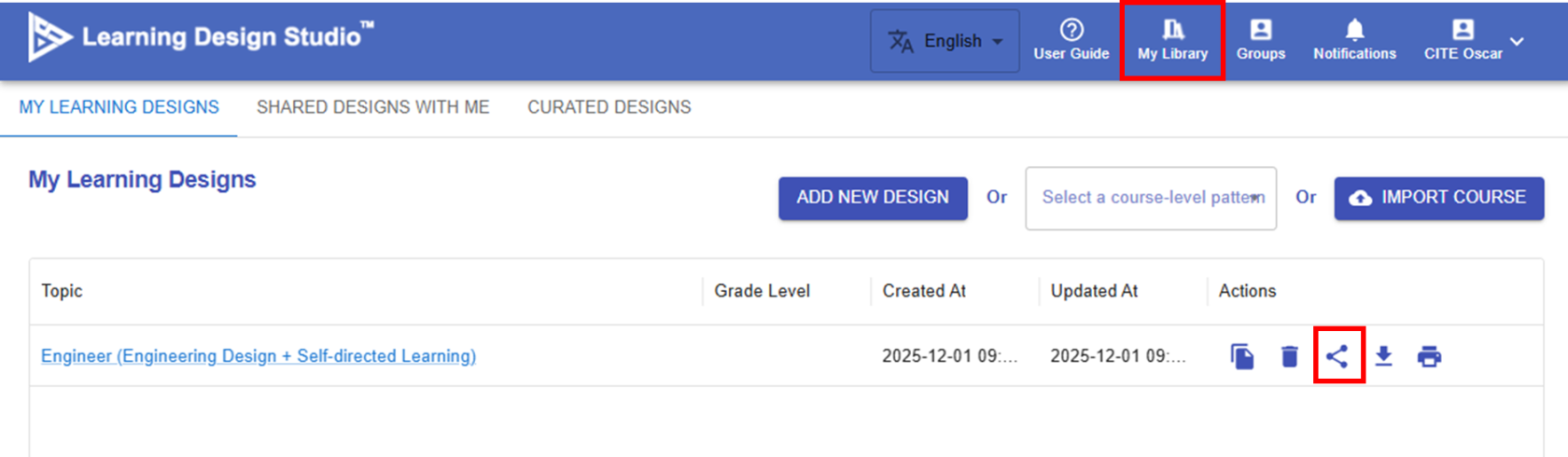
1. Clicking the Share Button There are two places where the Share button can be found. The first is on the My Library page.
Figure 10.1: Sharing the Design (1)
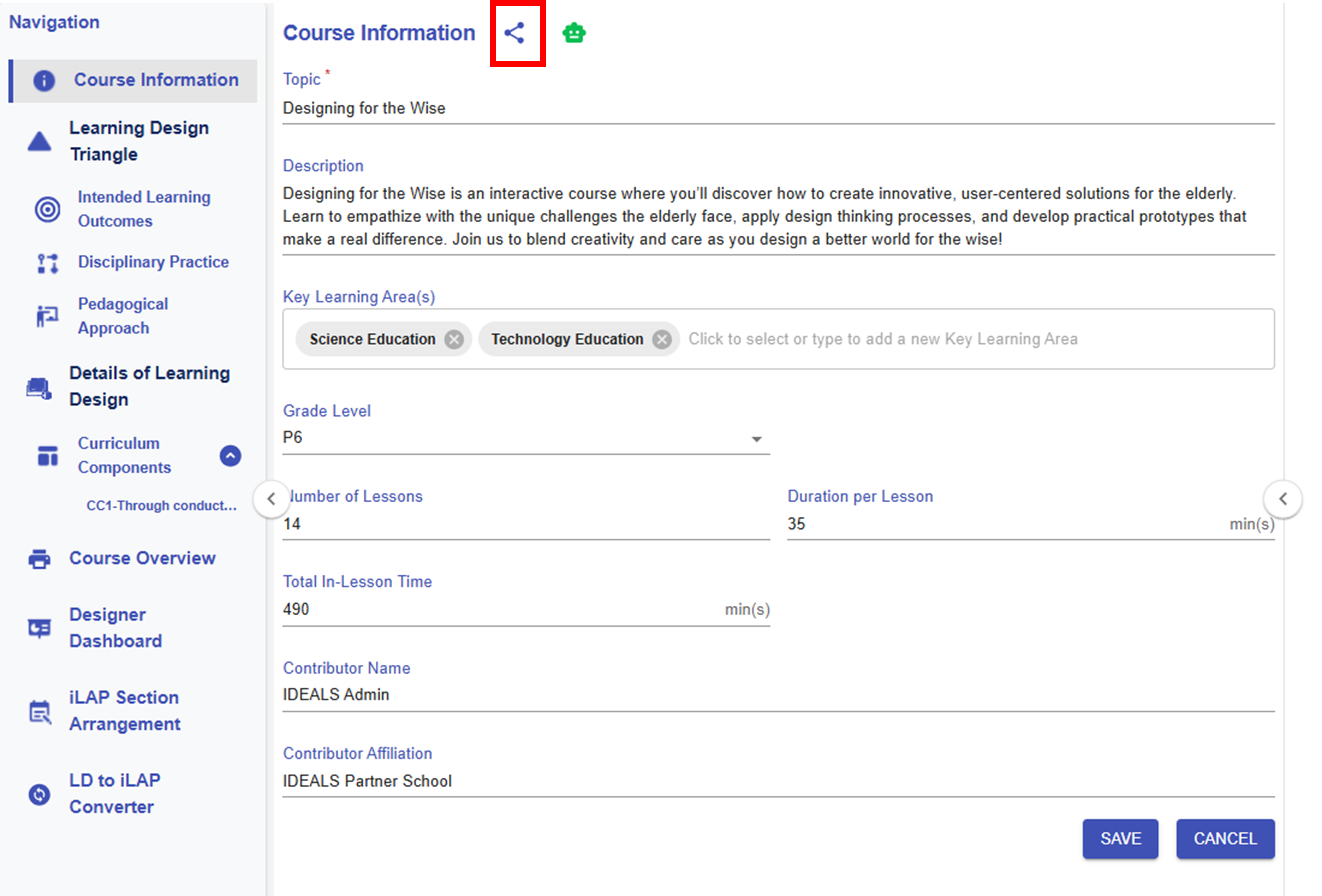
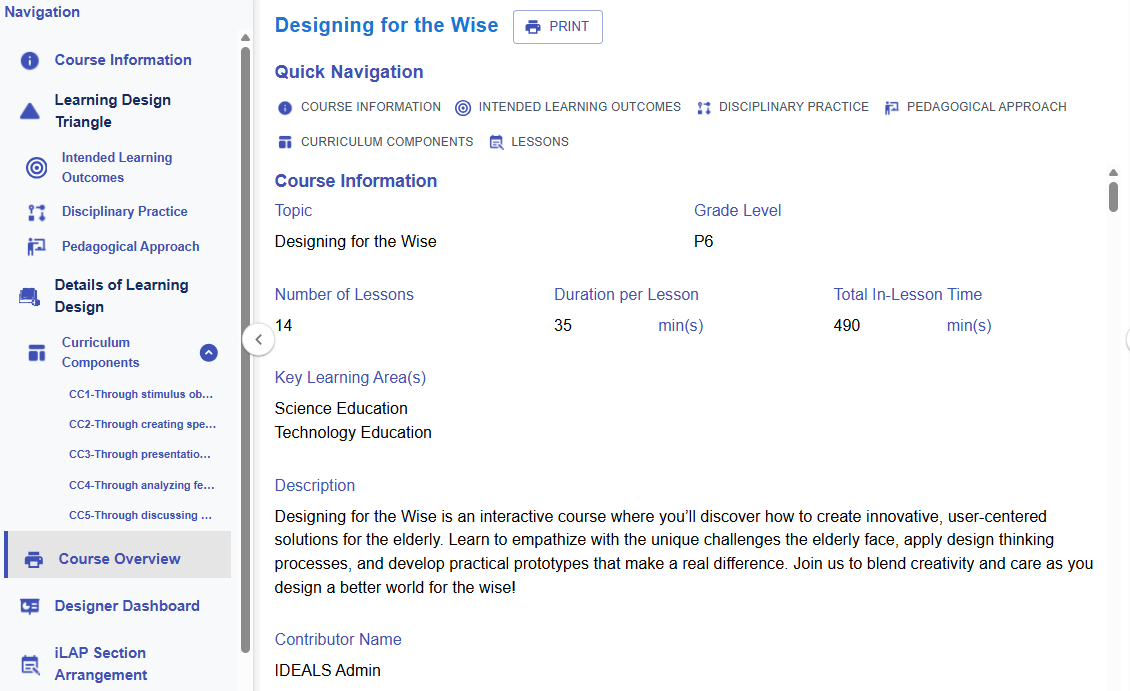
The second location is the Course Information page within a learning design.
Figure 10.2: Sharing the Design (2)
|
|
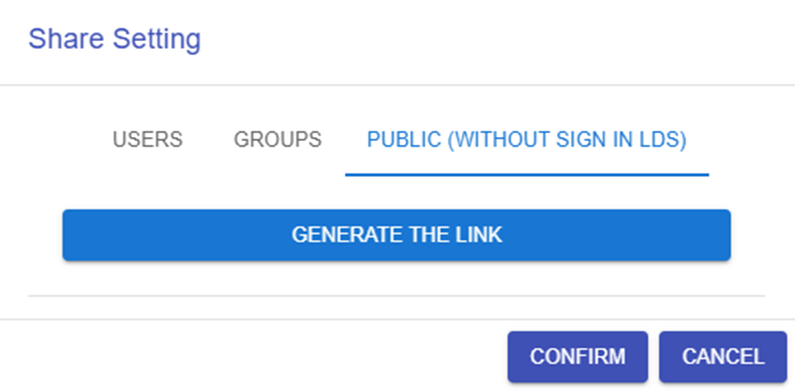
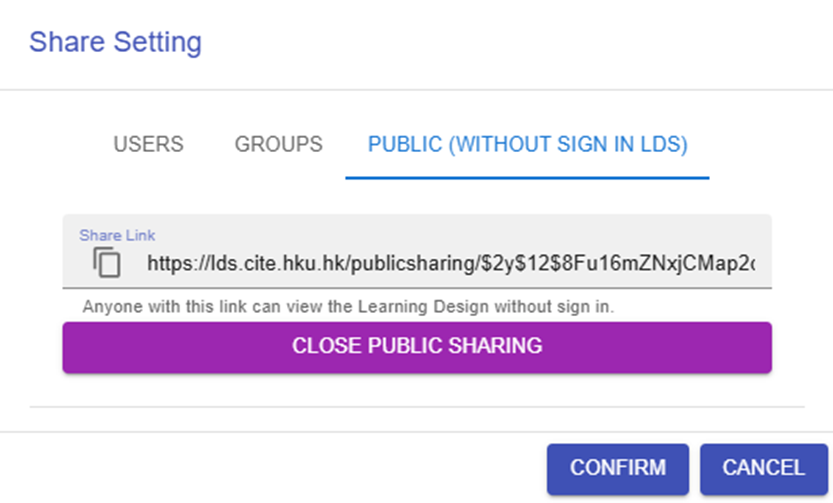
2. Generating / Closing the Shareable Link
Figure 10.3: Enabling the Link for Public Sharing
|
|
3. View the Learning Design
Figure 10.4: Public View of the Shared Design
|