10.2 Sharing Designs with Individual Users

In this section, we will explore how to share your learning design with individual users.

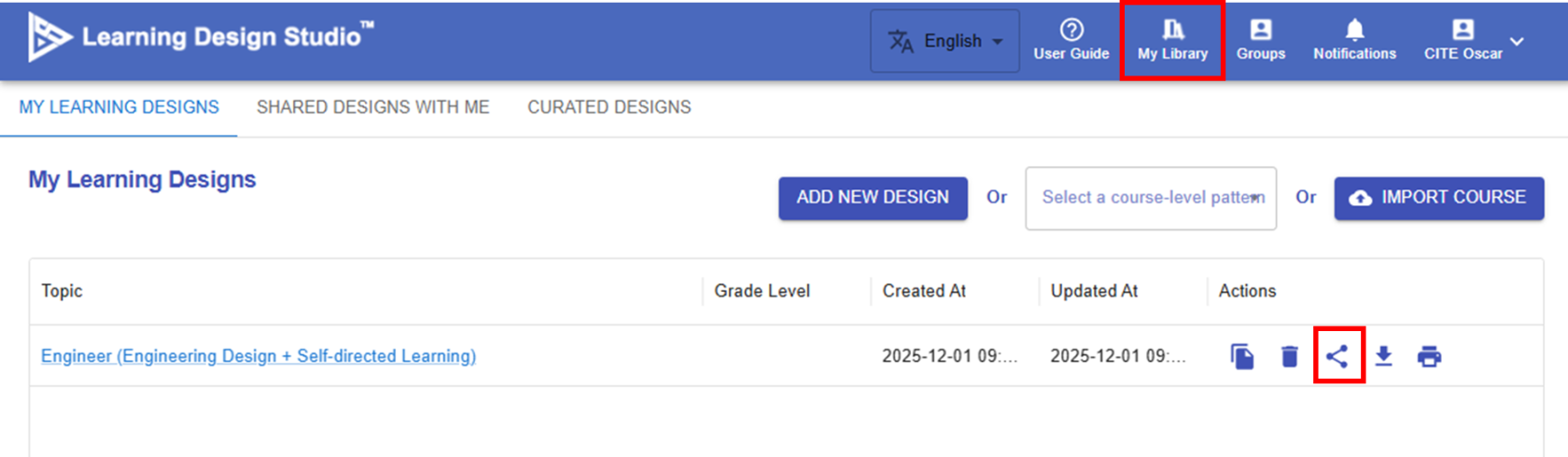
1. Clicking the Share Button


image.png

Figure 10.5: Sharing the Design


  • By clicking the image.pngbutton,  a pop-up window with several sharing options will appear.


2. Selecting a User

image.png


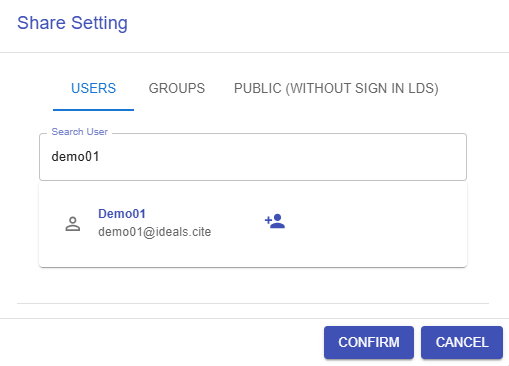
Figure 10.6: Searching for the user


  • Select "USERS" and search for the user by their name or email.


3. Visiting the Shared Designs


image.png


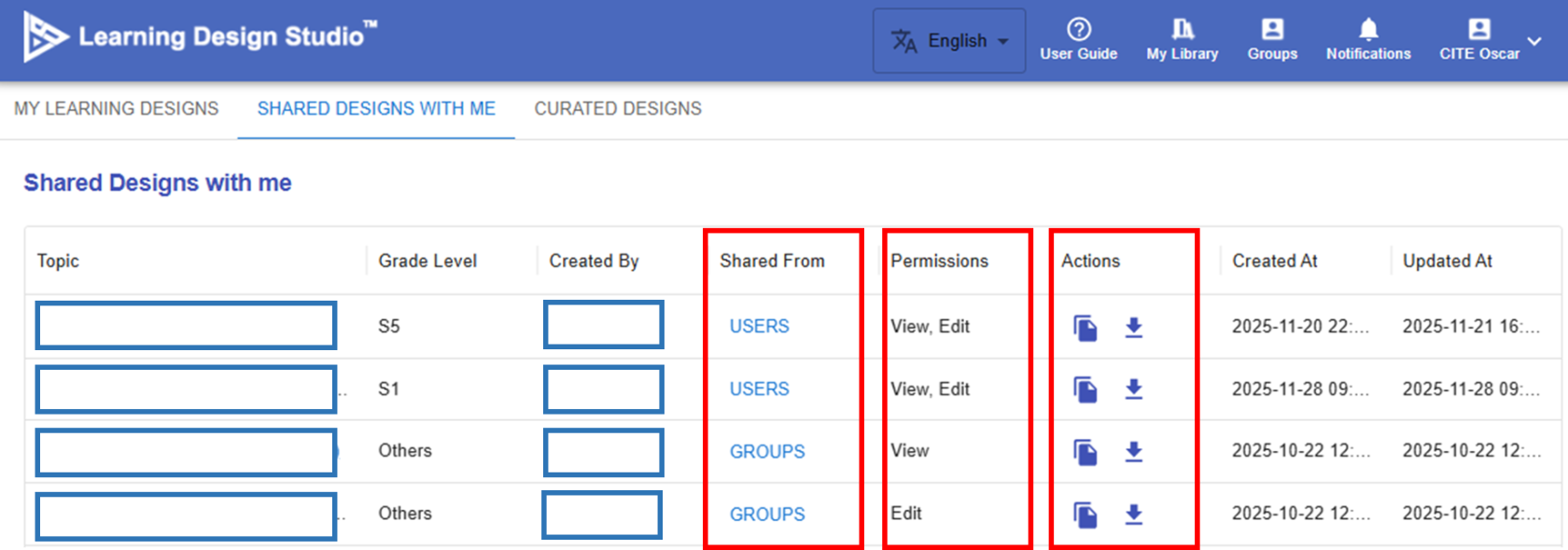
Figure 10.7: The Library of Shared Design


  • By selecting "SHARED DESIGNS WITH ME", you can view a list of designs that have been shared with you.


    In the "Shared From" column, you will see "GROUPS" or "USERS", indicating whether the design was shared by a group or a individual user.


  •  

    The "Permissions" column shows whether you have "Edit" or "View" access, so you will be able to either modify or only view the design accordingly.

  •  

    In the "Actions" column, you will see image.png and image.pngbuttons. You can click the image.png button to copy the design to your own library. Any edits you make to this copy will not affect the original shared design. You can also click the image.png button to export the design and use the import function (introduced in the previous section) to reuse the design later.