3.2 Cohort Sync Enrolment
By using the "Cohort sync" enrolment method, teachers can automatically add all students from a school-defined cohort to a course.
The advantage is that whenever the membership of the cohort changes (students added or removed), the enrolment list in the course will be automatically updated. Teachers do not need to manually manage enrolments for each course, saving significant time and effort.
3.2.1 Creating a New Cohort
If your school provided the student list to the IDEALS team via HKEdCity’s EdData service before starting to use iLAP, we will have already uploaded the students and created cohorts, by classes, in iLAP for you. This allows teachers to assign cohorts to courses immediately, without needing to create them manually.
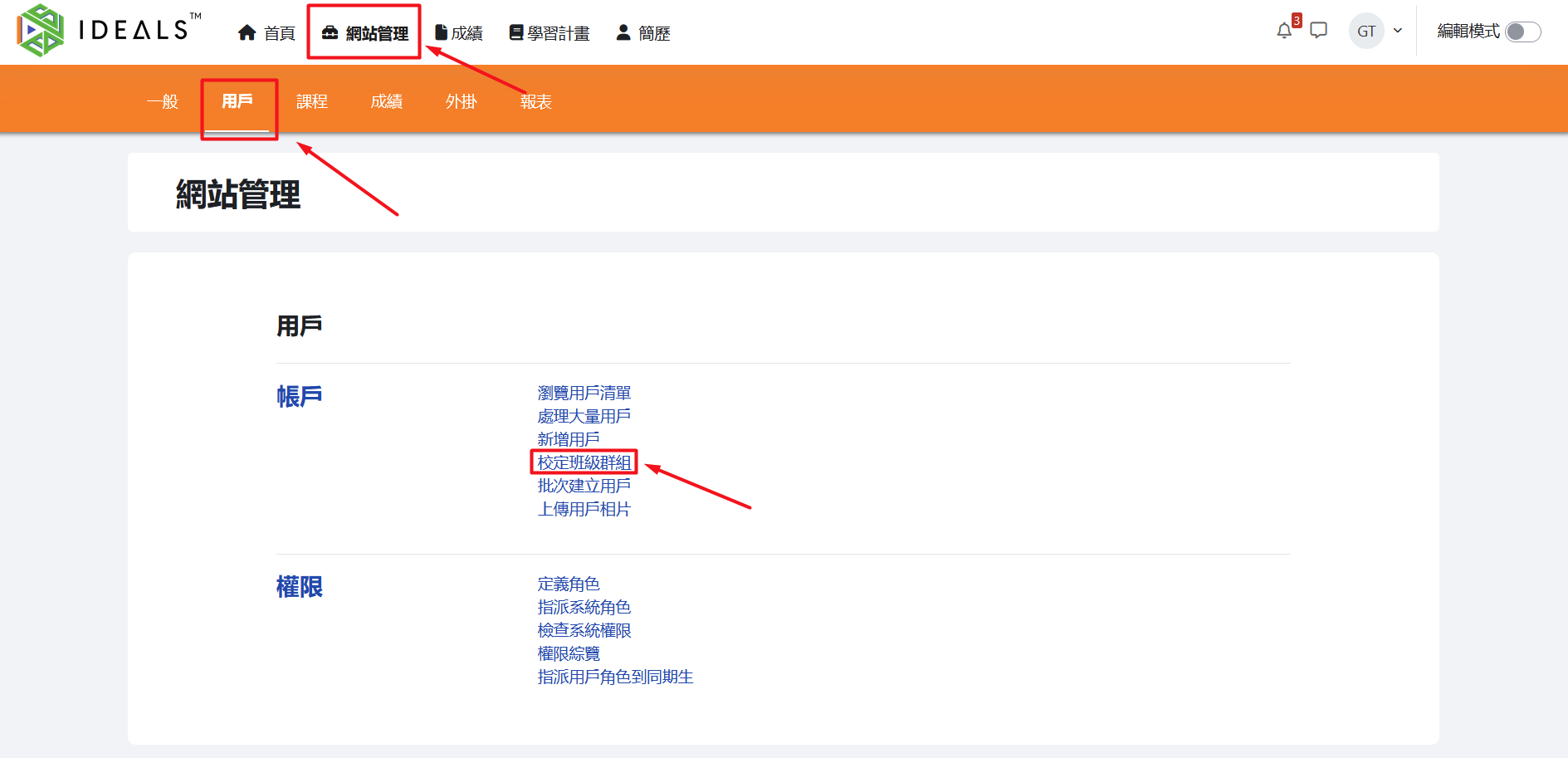
After logging in to iLAP, click "Site administration" → "Users", then under "Accounts", click "Cohorts".
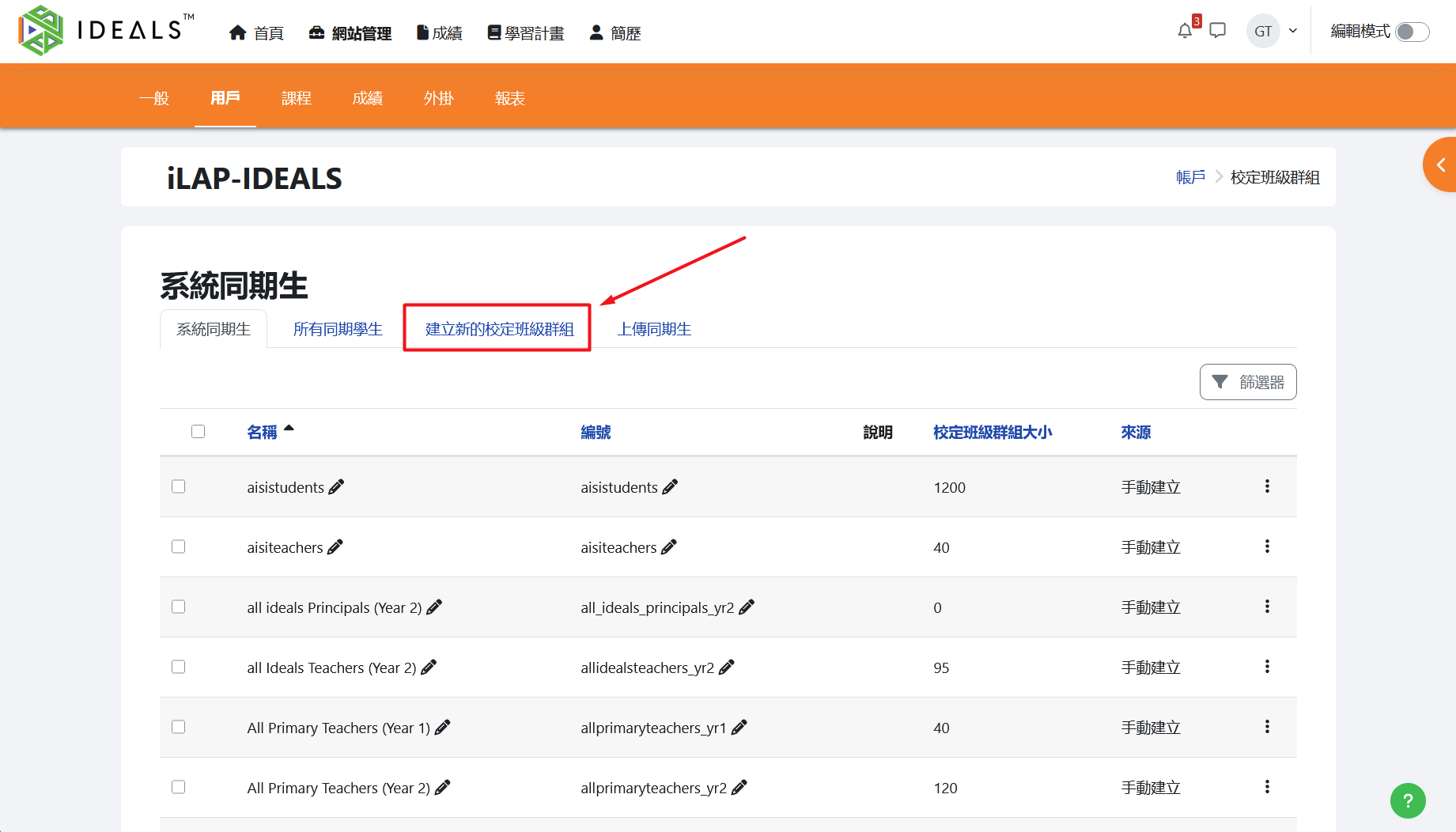
On the "System cohorts" page, click "Add a new cohort" to create a new one.
In the future, you can return to this page to view, edit, or delete any "system" or "all" cohorts.
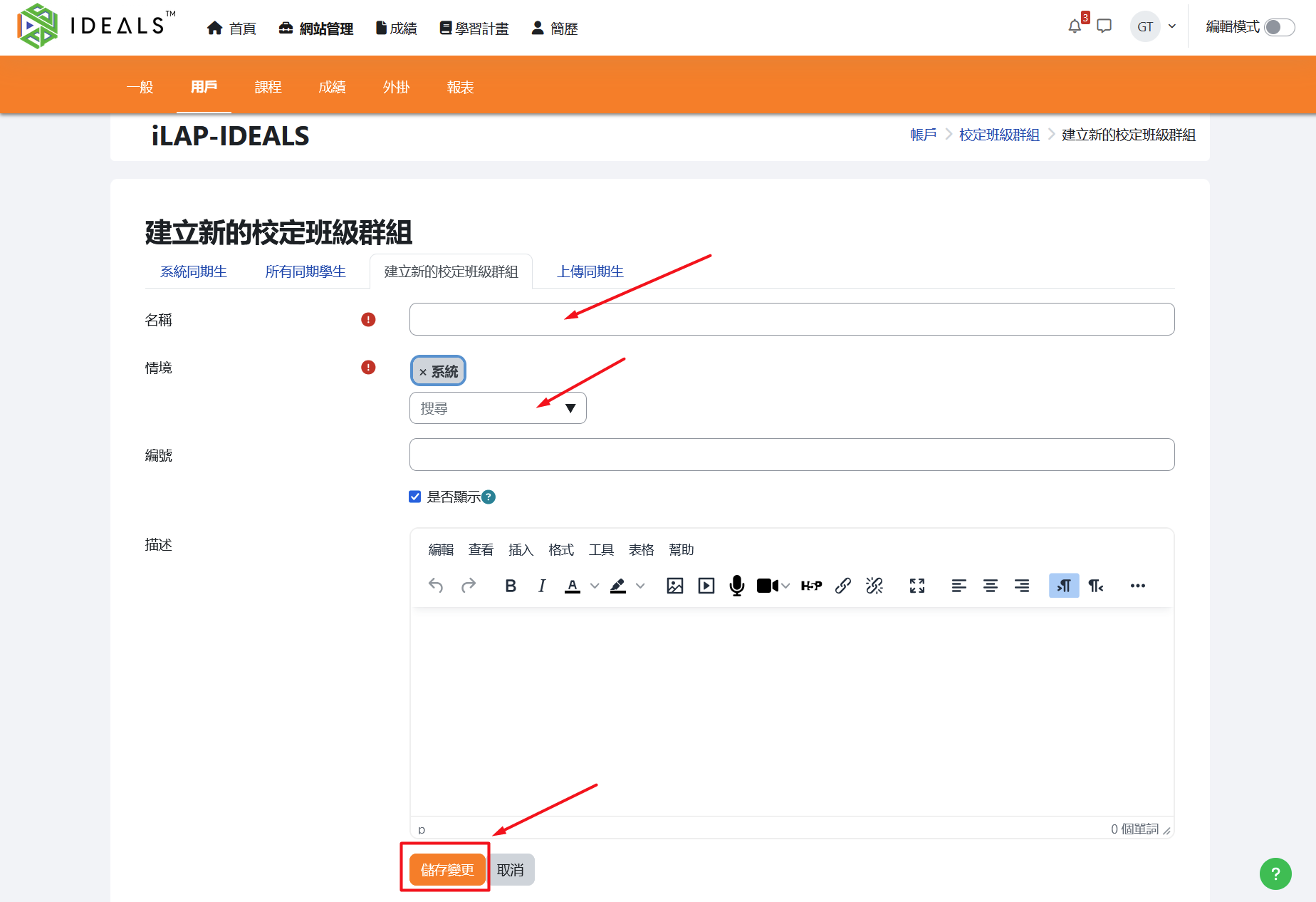
On the "Add a new cohort" page, fill in the required information:
- Name (required): Enter the name of the cohort.
- Context (required): Here you need to specify where this cohort will be available:
- System: Default setting; the highest level. The cohort can be used in any course (but this will increase the number of selectable cohorts in the list).
- A specific "Course category": The cohort can only be used in courses within this course category.
- ID number (optional): Assign a unique identifier to the cohort. This is useful when uploading users.
- Description: (Optional) Enter a description for the cohort.
After filling in the details, click "Save changes" to create the new cohort.
3.2.2 Using "Cohort sync" as the Enrolment Method
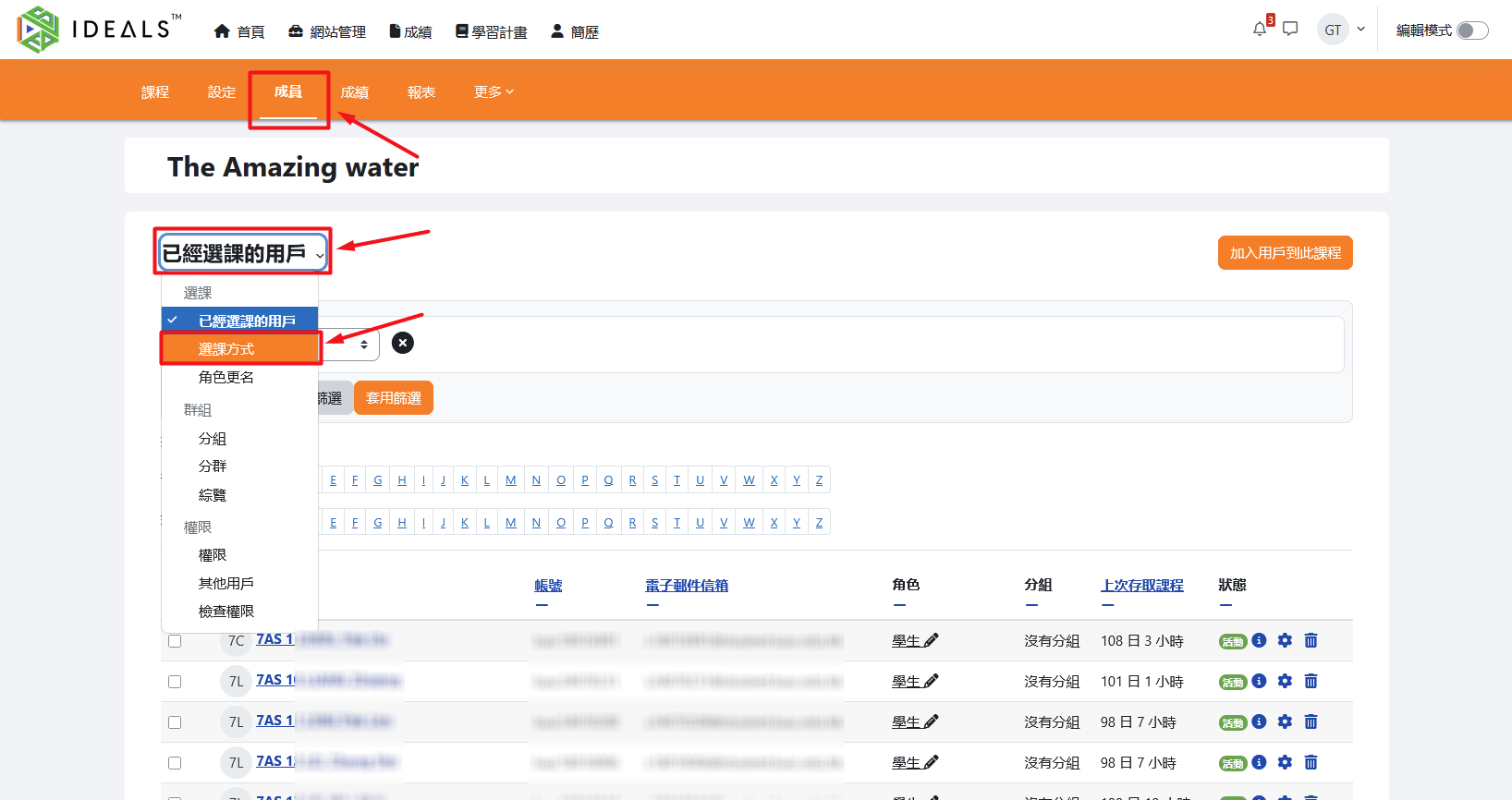
In the target course, click "Participants" in the course menu, then open the "Enrolled users" dropdown, and finally click on "Enrolment methods."
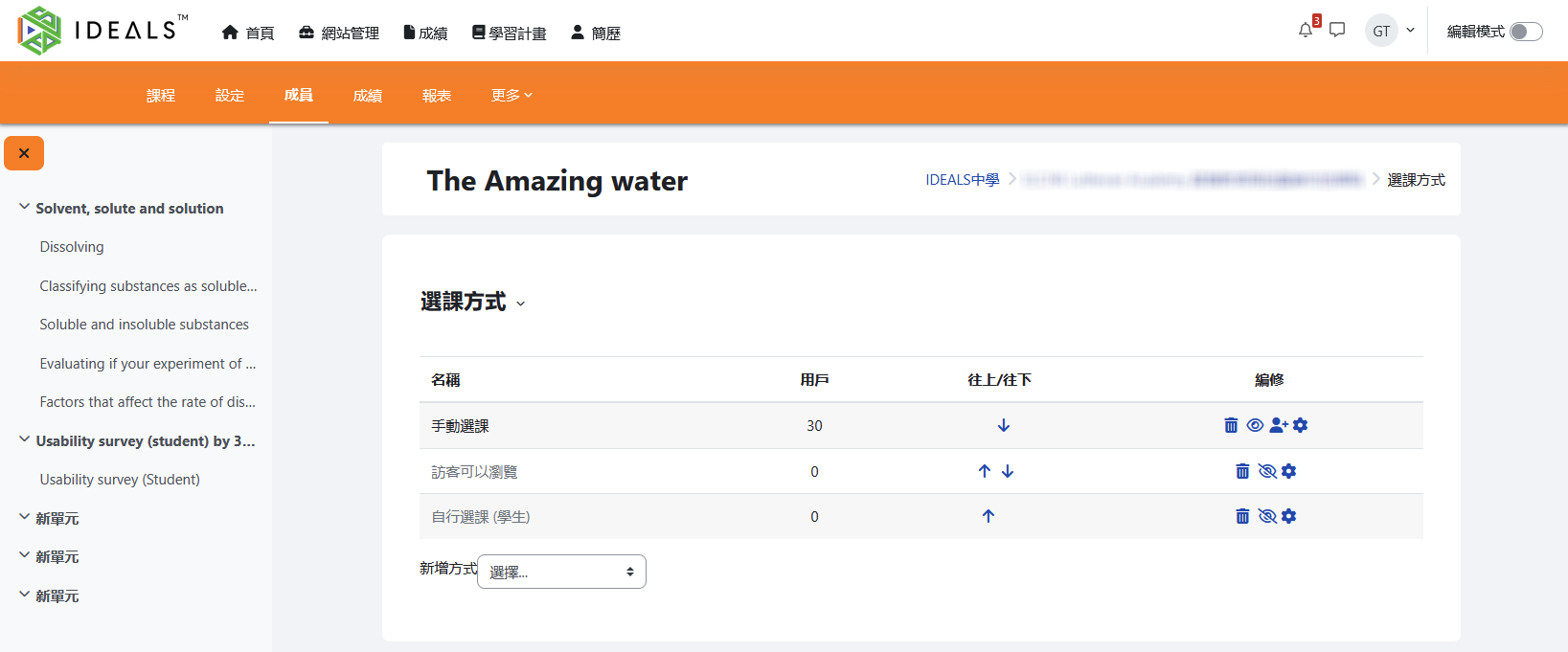
Switch to the "Enrolment methods" page, where you will see a list of existing enrolment methods (such as Manual enrolments, Guest access, Self enrolment, etc.).
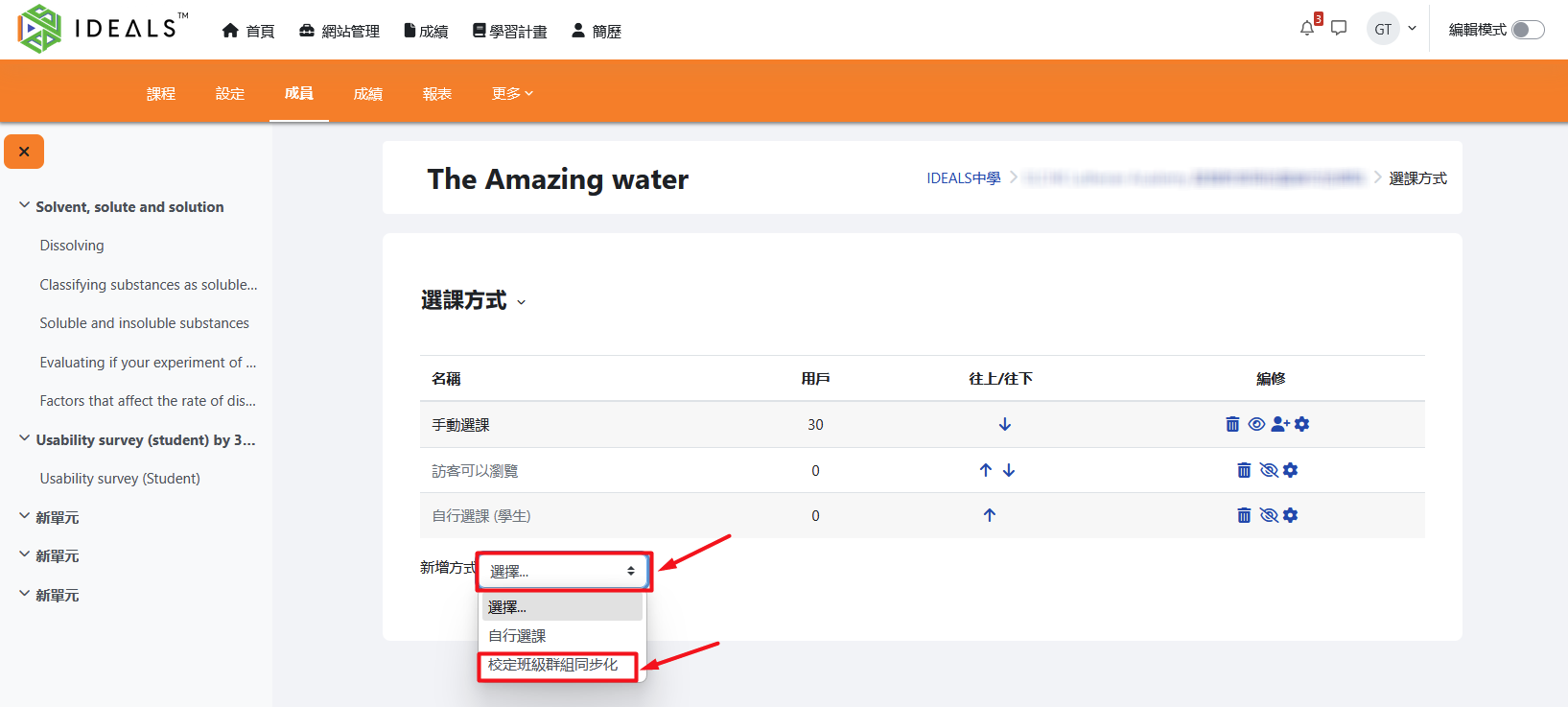
At the bottom of the list, select "Cohort sync" from the "Add method" dropdown menu.
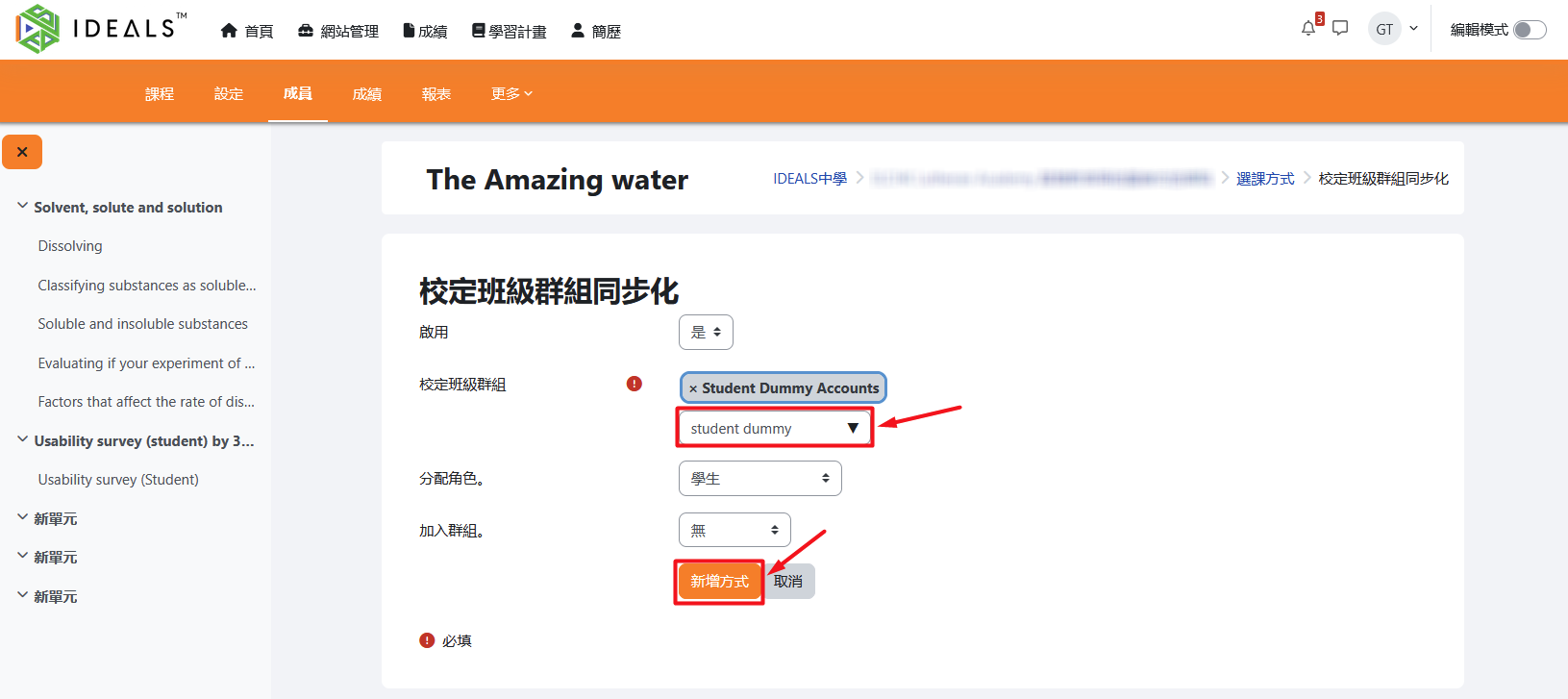
On the "Cohort sync" settings page, configure the following details:
- Enable: Default is "Yes".
- Cohort: Enter and search for the cohort you want to sync, then select the desired cohort from the results.
- Assign role: Default is "Student".
- Add to group: You may choose whether to add students to a specific course group, but it’s generally not recommended to manage this here.
After confirming the settings, click "Add method" to complete the setup.
After completion, students in the cohort will be automatically enrolled in the course. In the future, whenever the list of students in the cohort changes (members are added or removed), the course participants will be automatically synchronized.
3.2.3 Deleting a "Cohort sync" enrolment method
If you need to remove this enrolment method, return to the "Enrolment methods" page. Find the cohort sync method you wish to remove, and click the "trash can" icon on the right to delete it.
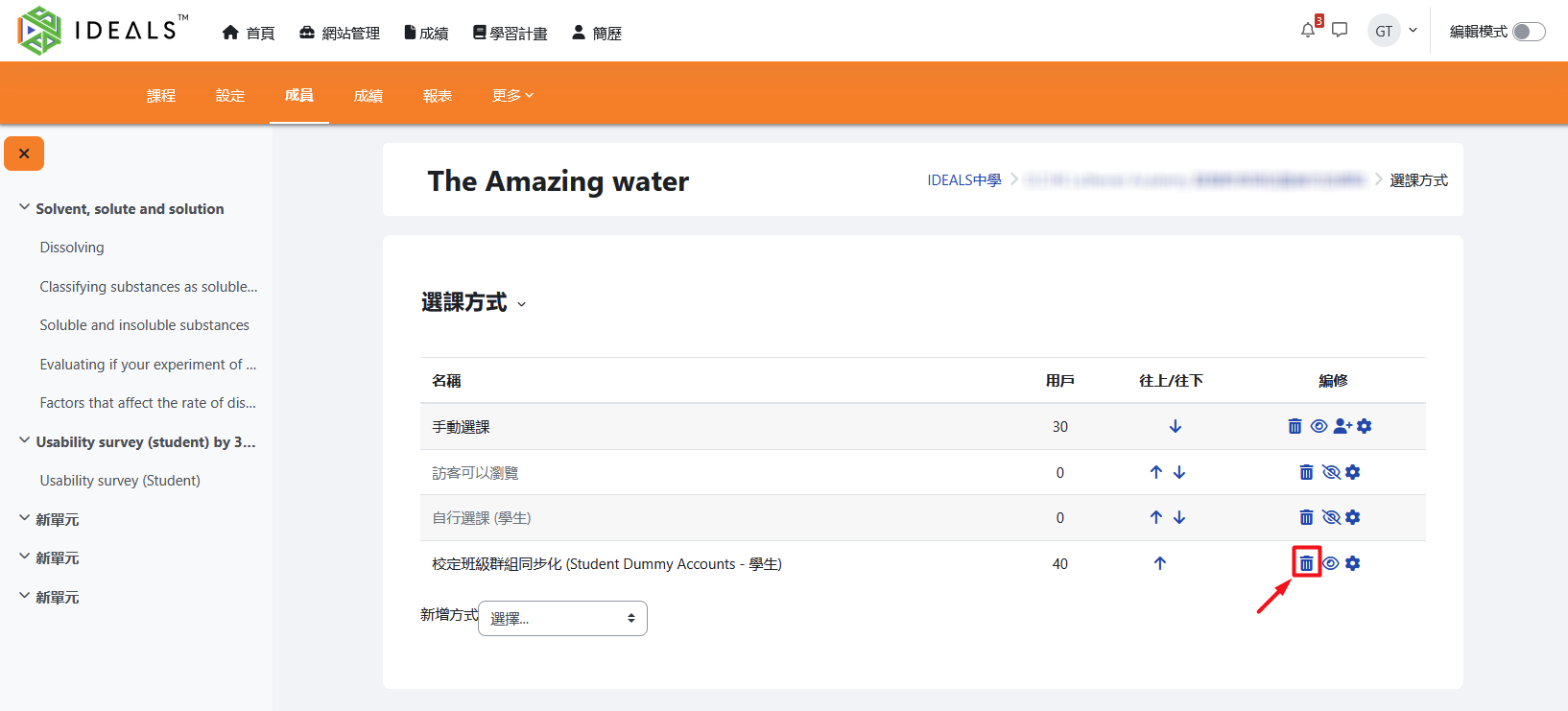
On the confirmation screen, click "Continue" to complete the deletion of this enrolment method.