
2.6 Delete Course Category
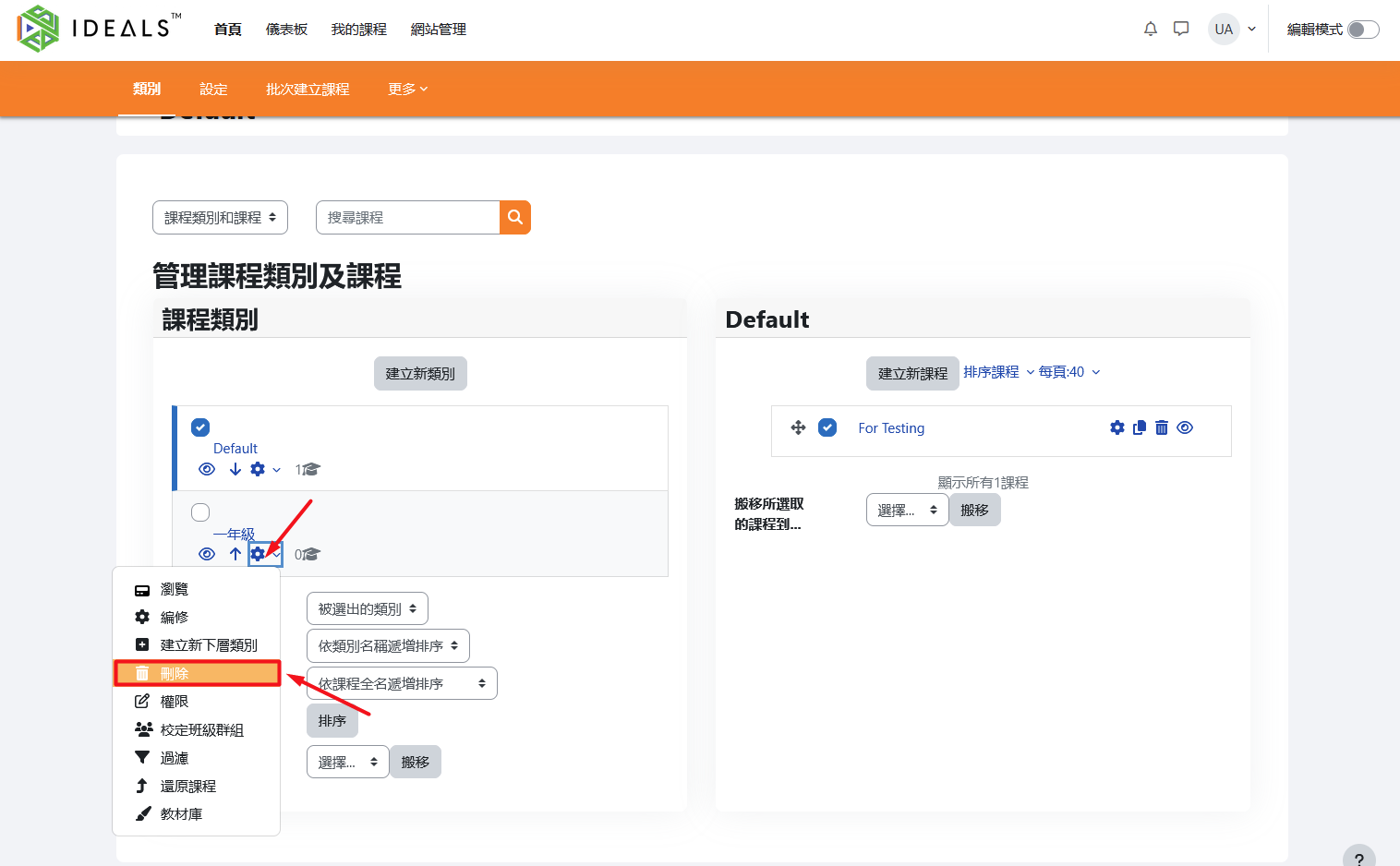
On the "Manage Course Categories and Courses" page (for instructions on how to access this page, please refer to 2.3.1), click the "gear" icon (⚙️) next to the category name on the left, then click the trash can icon (🗑️) labeled "Delete" in the menu.
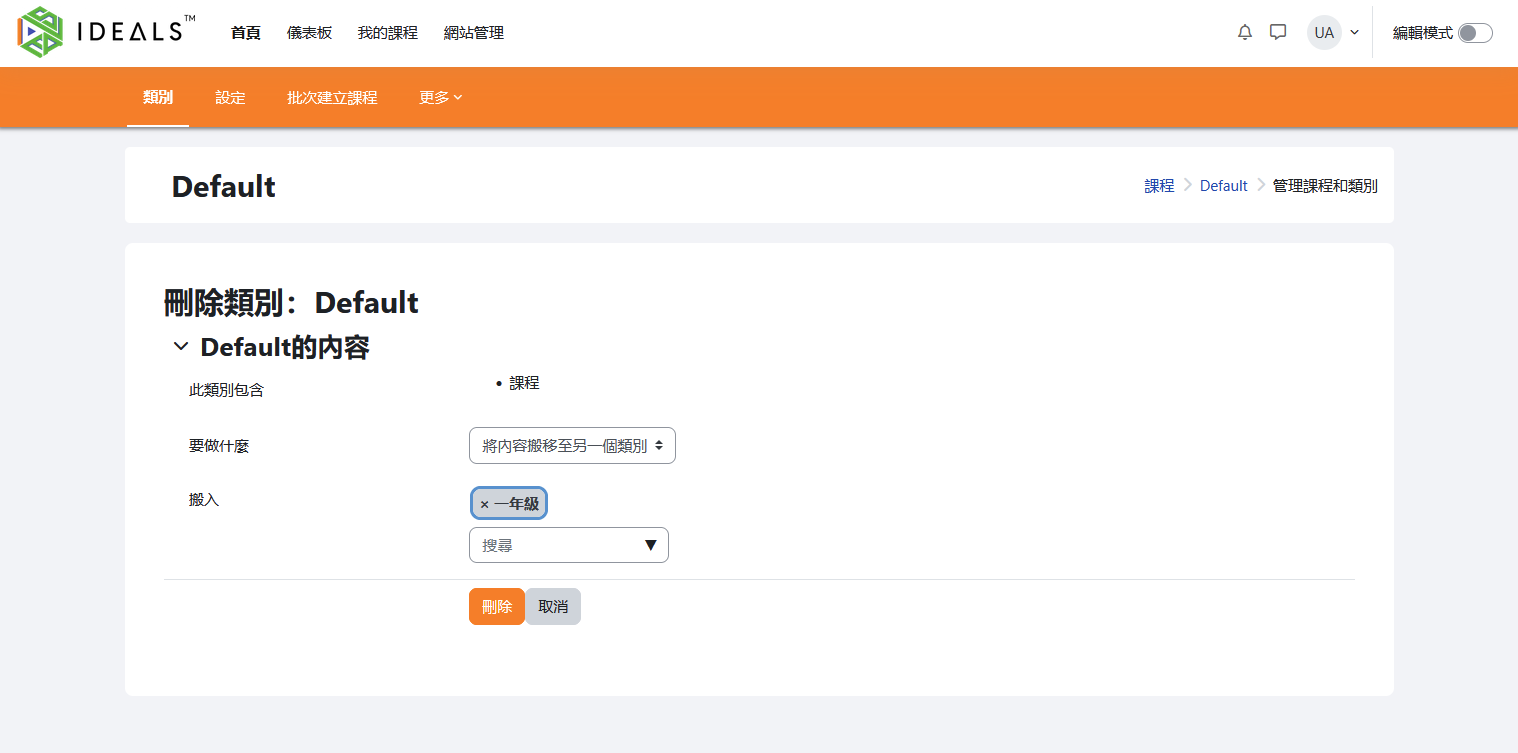
The system will display a delete confirmation screen, as shown in the image below. The screen will display:
- The category name
- A list of subcategories and courses contained in this category
- A "What to do" dropdown menu with two options:
- "Move contents to another category" (you can choose to move courses to another category to prevent data loss)
- "Delete all — cannot be undone"
- "Delete" and "Cancel" buttons
The steps are as follows:
- Check the subcategories and courses contained in this category. If there are any courses that need to be kept, it is recommended to use the dropdown menu to move them to another category first.
- If you are sure you want to delete this category and all its contents, select "Delete all — cannot be undone," then click the "Delete" button.
- If you do not wish to delete, you can click "Cancel" to go back to the previous step.
Note: Selecting "Delete all" will also delete all subcategories and courses under this category. Please proceed with caution.