3.1 Manual Enrolment
This method is more suitable for enrolling individual students into a course, but you can still select more than one student at a time.
3.1.1 Go to the "Participants" page of the course
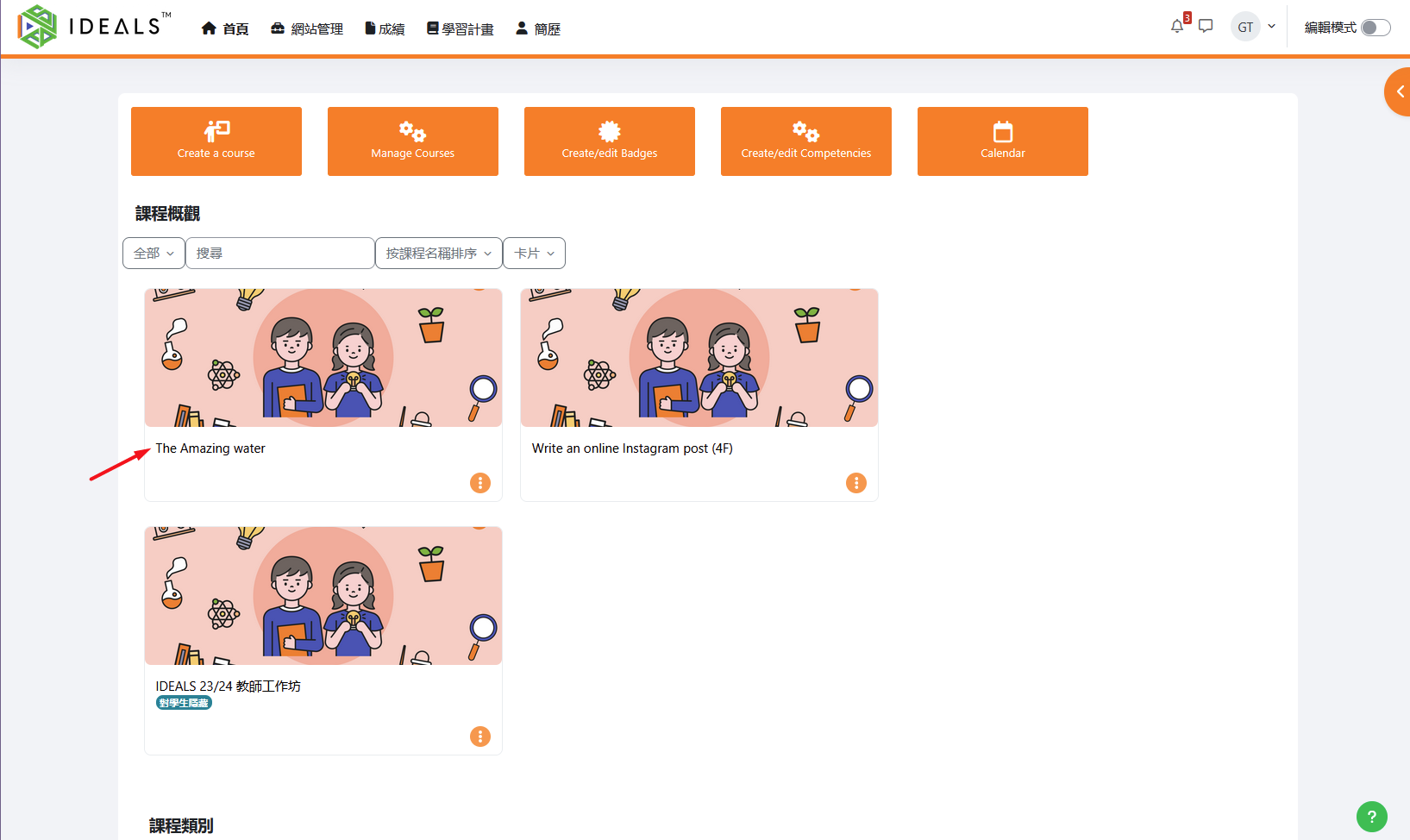
After logging in to the iLAP homepage, teachers can enter a target course either directly from the "My Courses" section on the homepage or by browsing the course categories list.
For example, in the image below, select this course:
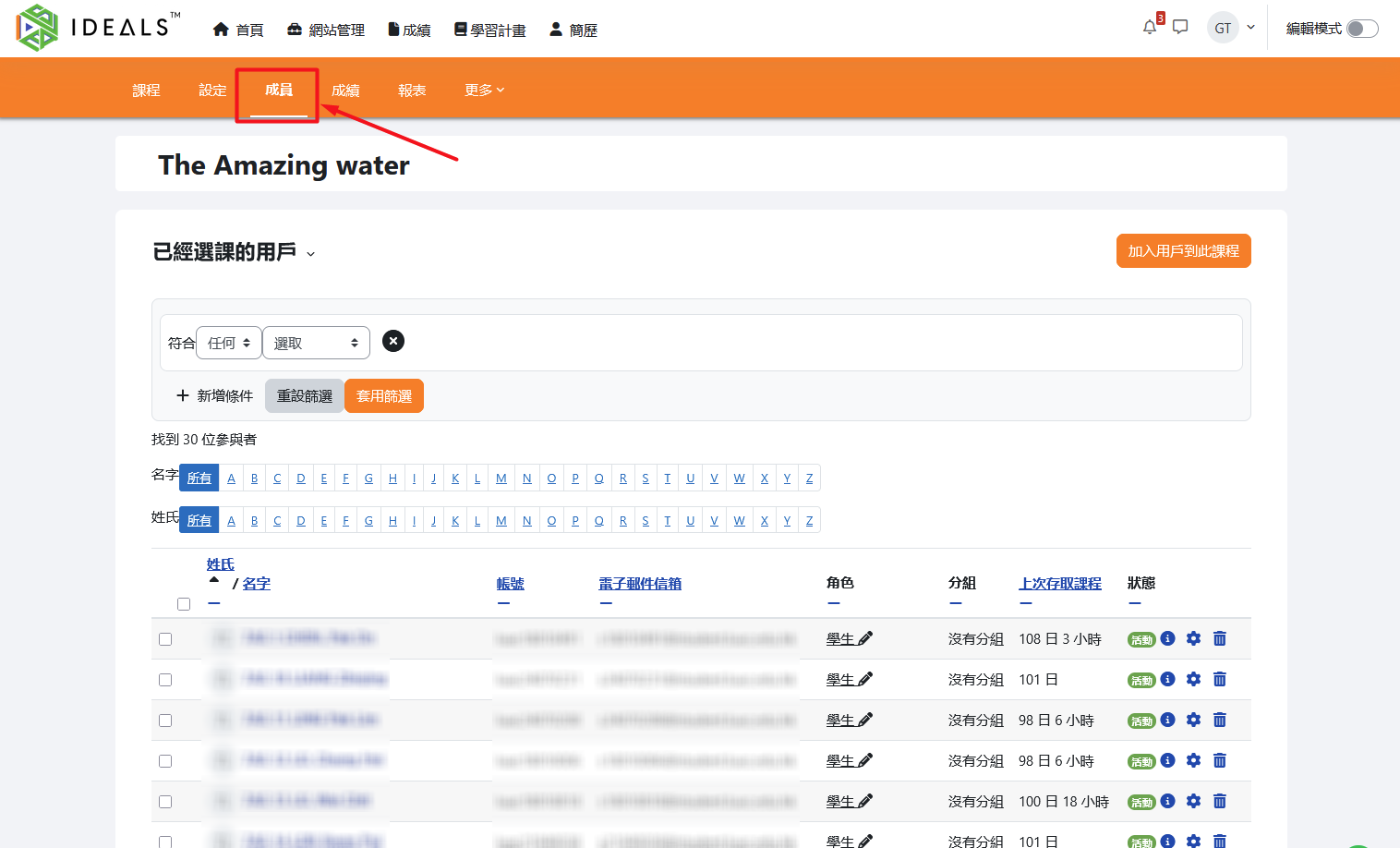
In the course menu, click on "Participants" to enter the "Enrolled users" page.
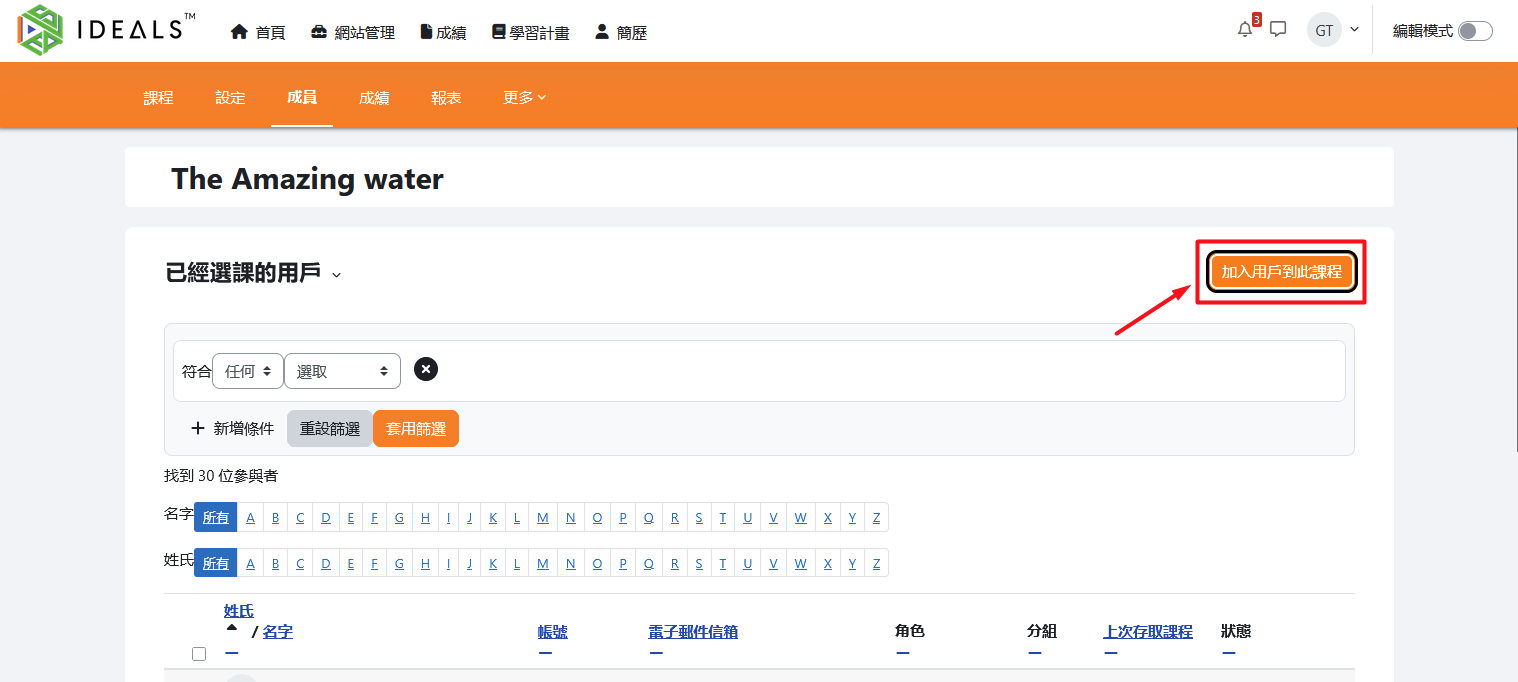
Teachers can manually enrol students using either of the two methods described below.
3.1.2 Method 1: Quick Enrolment ("Enrol users" button)
On the "Enrolled users" page, click the "Enrol users" button.
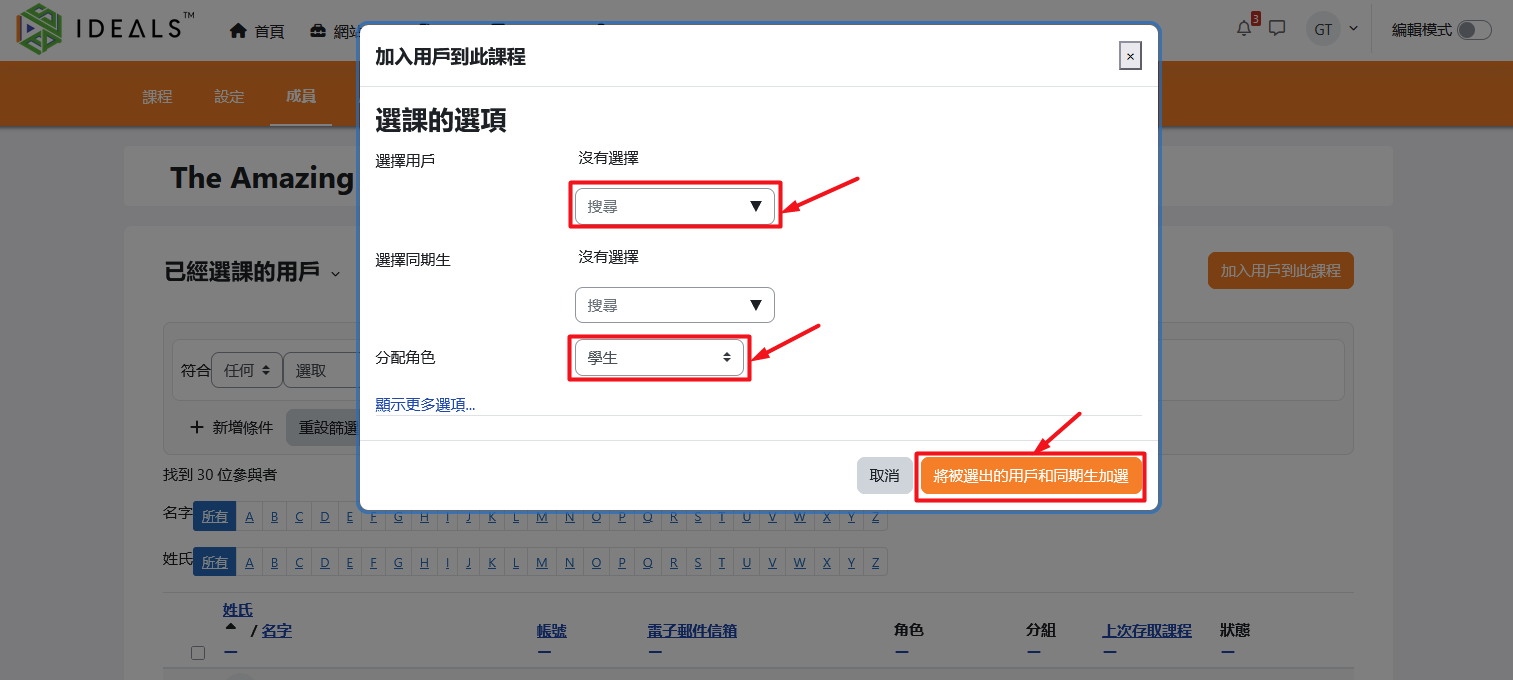
In the "Enrolment options" window:
- Select users: In the "Select users" field, enter the student's name, username, or email address to search and select the user.
- Select cohort: This option is similar to using "Cohort sync," but it is not recommended to use this here.
- Assign role: In the "Assign roles" dropdown, choose "Student."
After confirming your selections, click the "Enrol selected users and cohorts" button to complete the process. The students will immediately become members of the course with the "Student" role.
3.1.3 Method 2: Detailed Manual Enrolment ("Enrolment methods" → "Manual enrolment")
On the "Enrolled users" page, select "Enrolment methods" from the menu on the left.
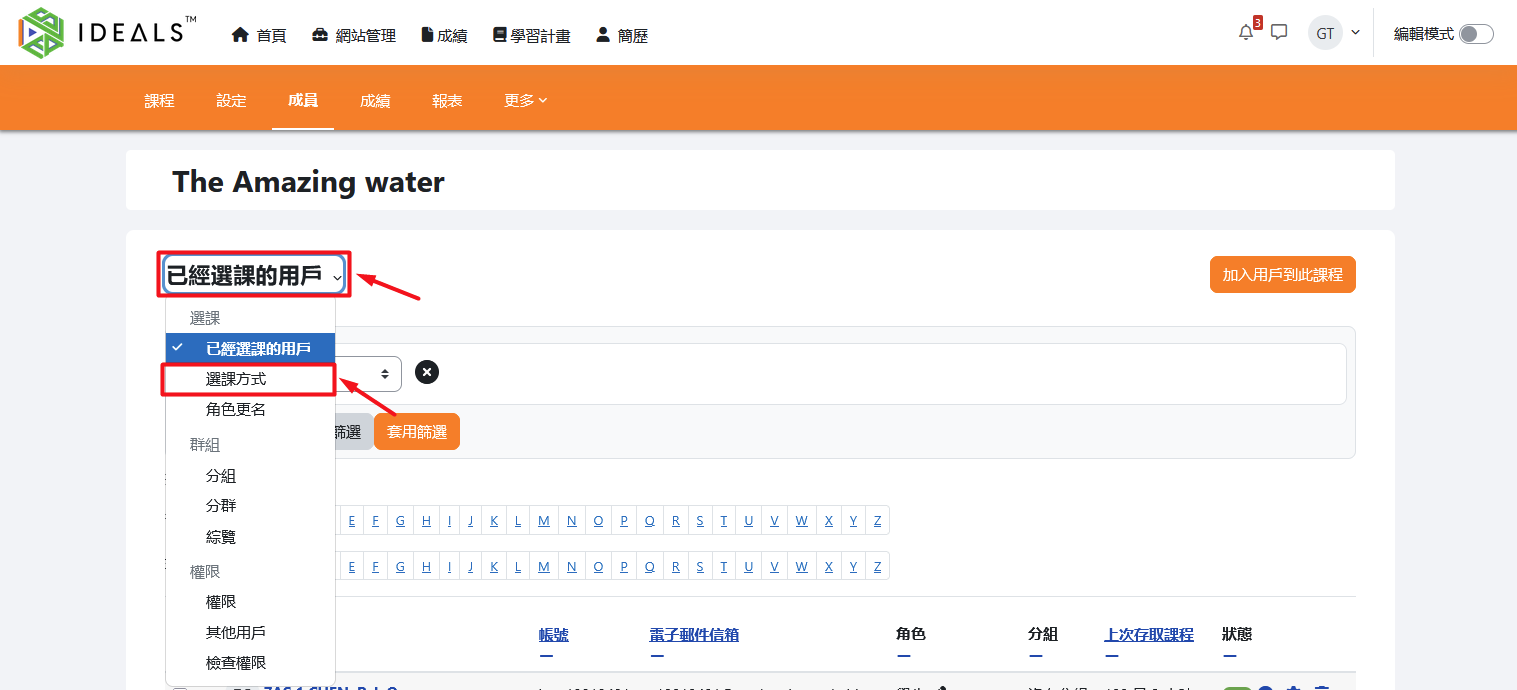
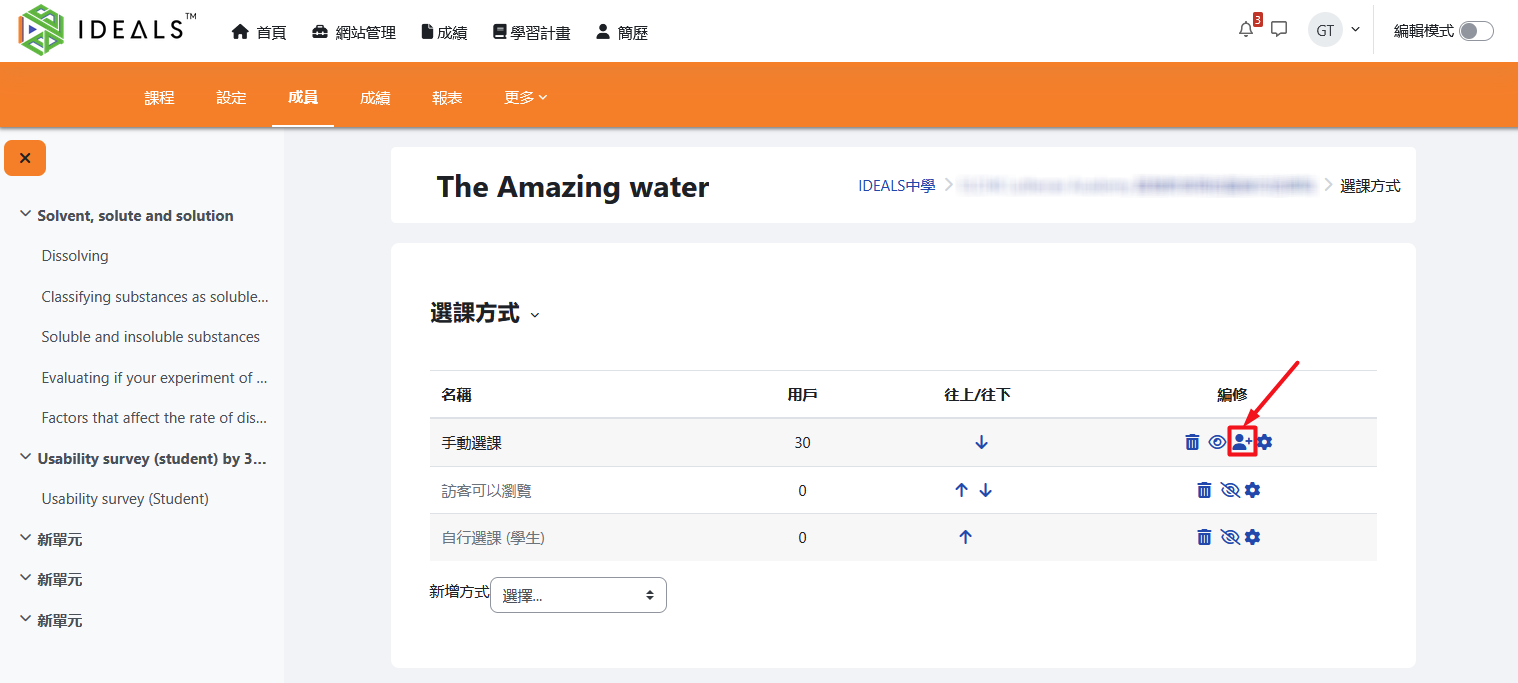
A list of available enrolment methods will be displayed (such as Manual enrolment, Guest access, Self-enrolment (Student), etc.). On the row for "Manual enrolment," click the "Manage" icon (the icon of a person with a plus sign 👤) on the right.
After entering the "Manage manual enrolments" screen, you can search for users on the right by entering their name, username, or email address to find the target student. Then, select the "Assign roles" option (default is "Student"), and click "Add" to move them to the "Enrolled users" list on the left.
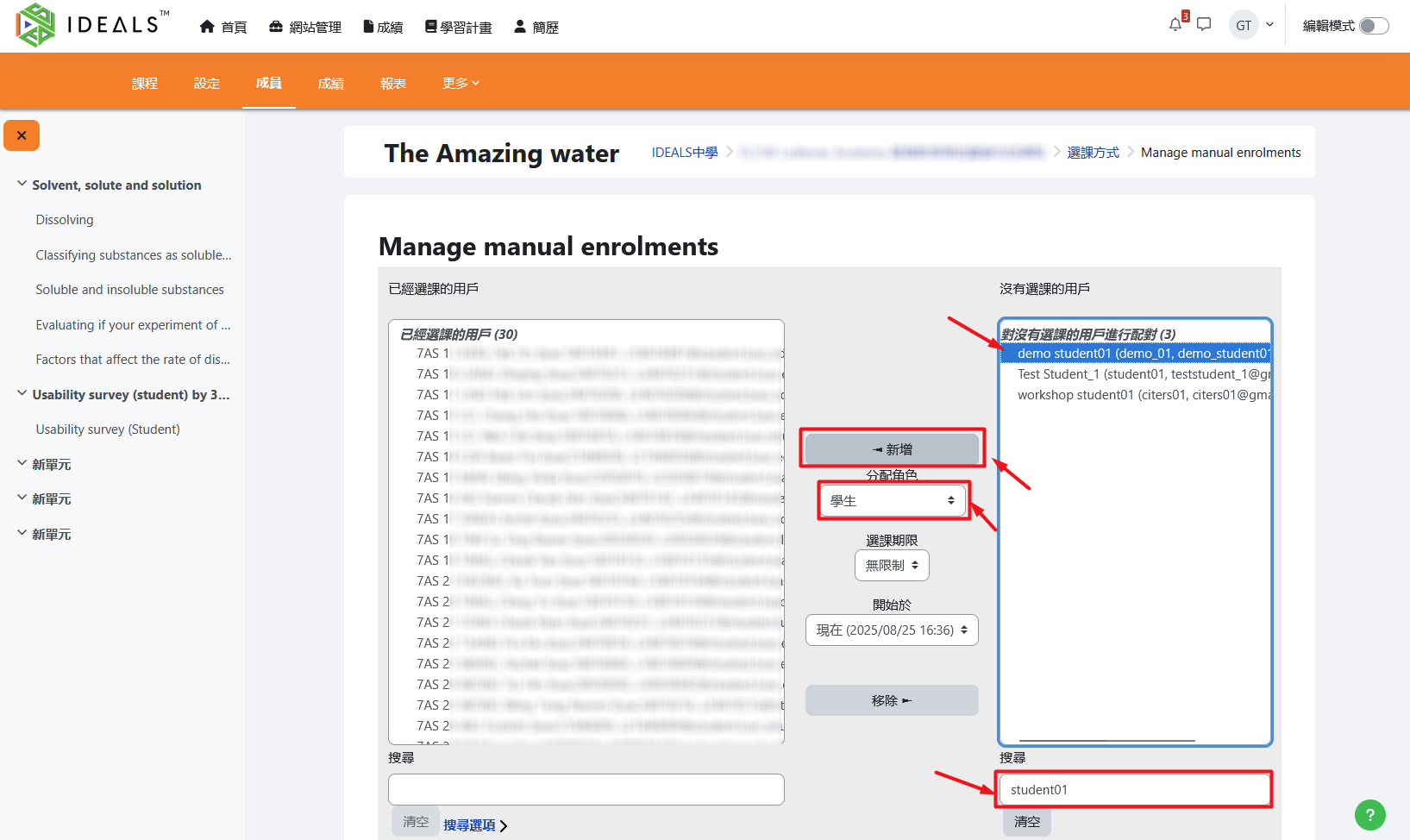
Once completed, the enrolled student will be added to the course.
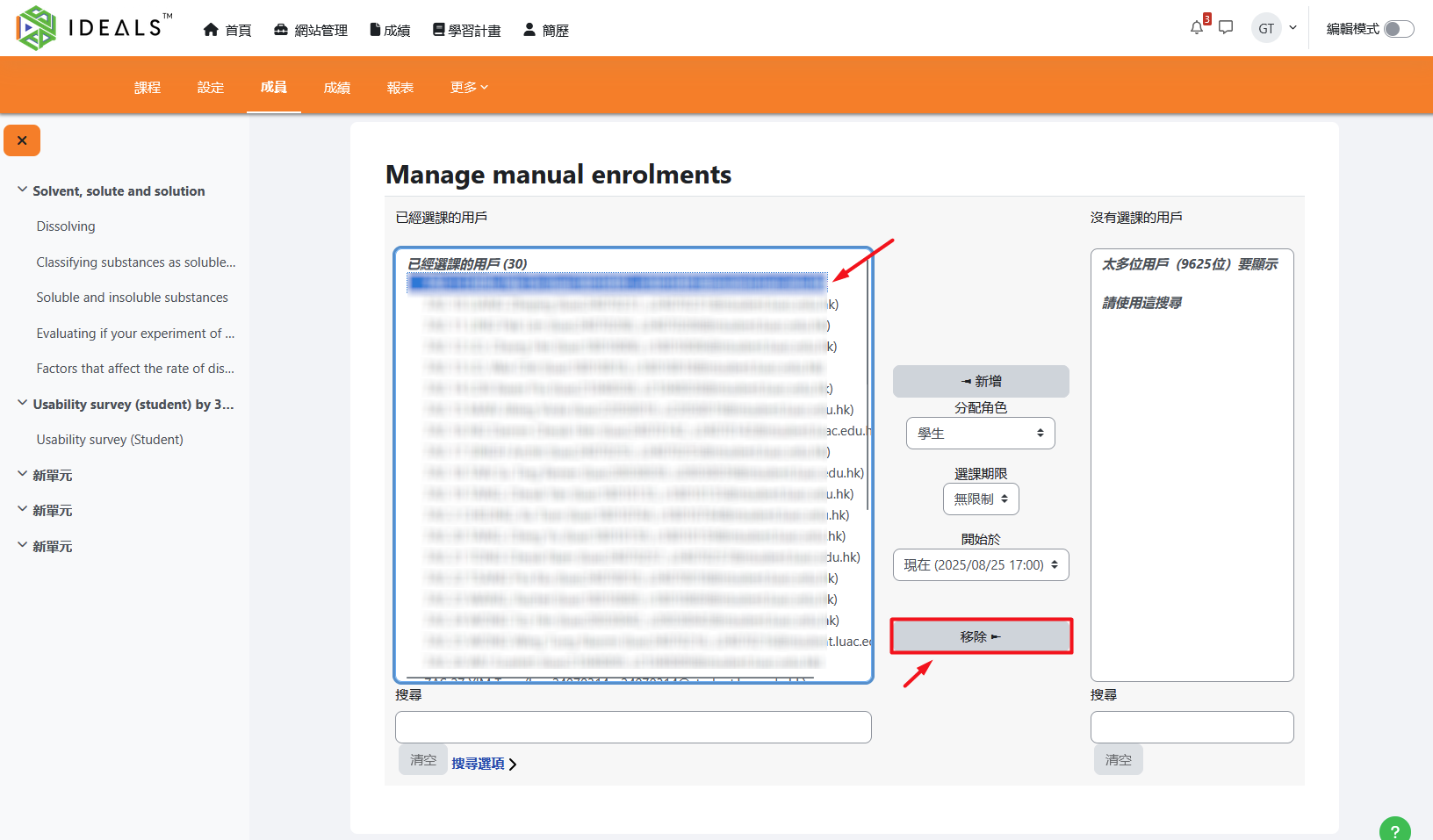
If you wish to remove a user's manual enrolment in the future, go to the "Manage manual enrolments" screen for that course. In the "Enrolled users" list on the left, select the target user, then click "Remove" to move them to the "Not enrolled users" list on the left.