
5.3.1 Creating Curriculum Components (CCs) Part 1
After completing the three core elements of the Learning Design Triangle (LDT) to establish the contextual framework for the entire learning design, we will explore how to develop Curriculum Components (CCs) and learning tasks that align with these elements, transforming overarching design concepts into actionable teaching practices. For a detailed theoretical explanation of Curriculum Components (CC), see Chapter 2.5 – Curriculum Component Sequence.
The following instructions will guide you in creating the first CC for your learning design.
Creating the First CC
The first Curriculum Component (CC) marks the beginning of the course, "Designing for the Wise." It is designed to help learners get started and build a strong foundation for subsequent learning. CC1 prepares students by developing their skills in identifying problems and goal-setting for the inquiry.
Step 1: Adding a New CC
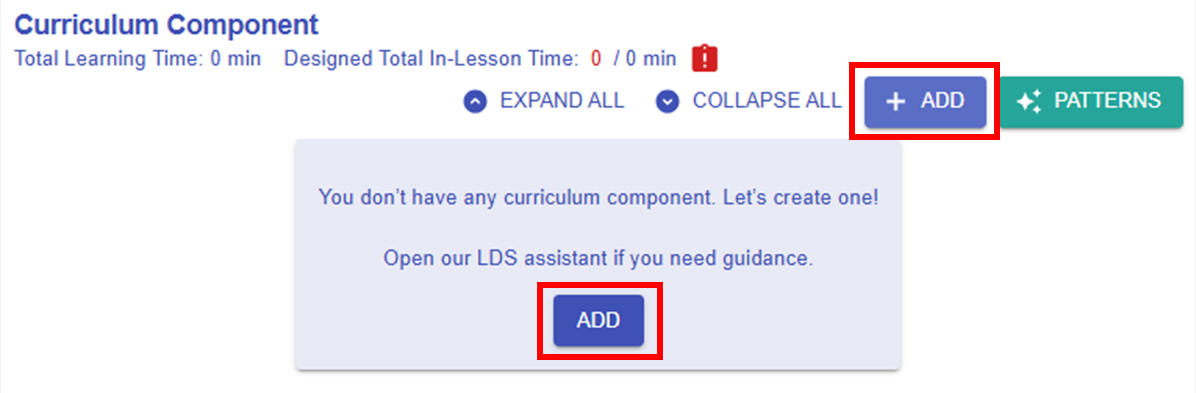
Figure 5.27: Adding a New CC
- By clicking the
 button , you can open the CC builder.
Step 2: Mapping the LDT Elements to the CC
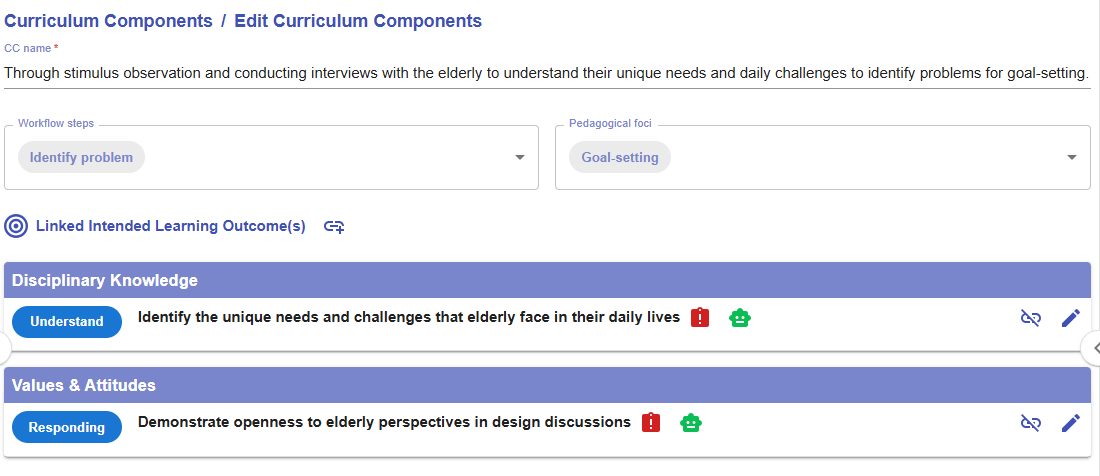
Figure 5.28: The Interface of the CC builder
- Please read the introduction below to guide you in creating a CC.
|
1. CC Name
💡Formula of naming a CC Through the 1) focal task(s) to 2) achieve the intended learning outcome to 3) implement the workflow step(s) of a disciplinary practice for 4) applying the focus or foci of the pedagogical approach.
|
|
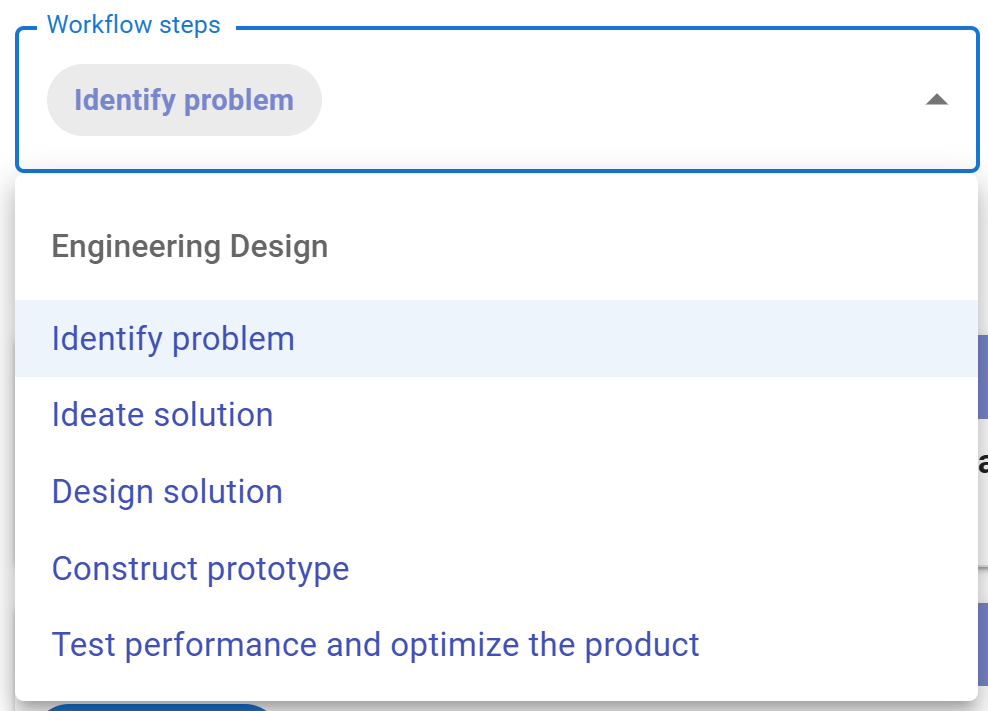
2. Workflow steps
Figure 5.29: The Workflow Steps of Engineering Design
|
|
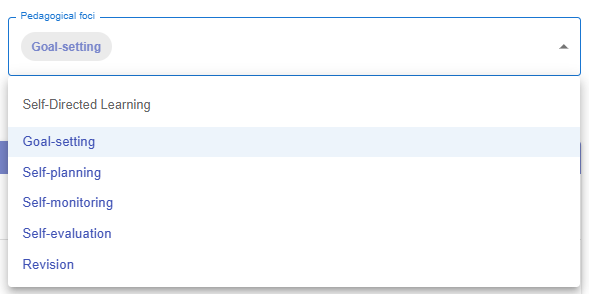
3. Pedagogical foci
Figure 5.30: The Pedagogical Foci of Self-directed Learning
|
|
4. Linked Intended Learning Outcomes (ILOs)
4.1. The Link Button
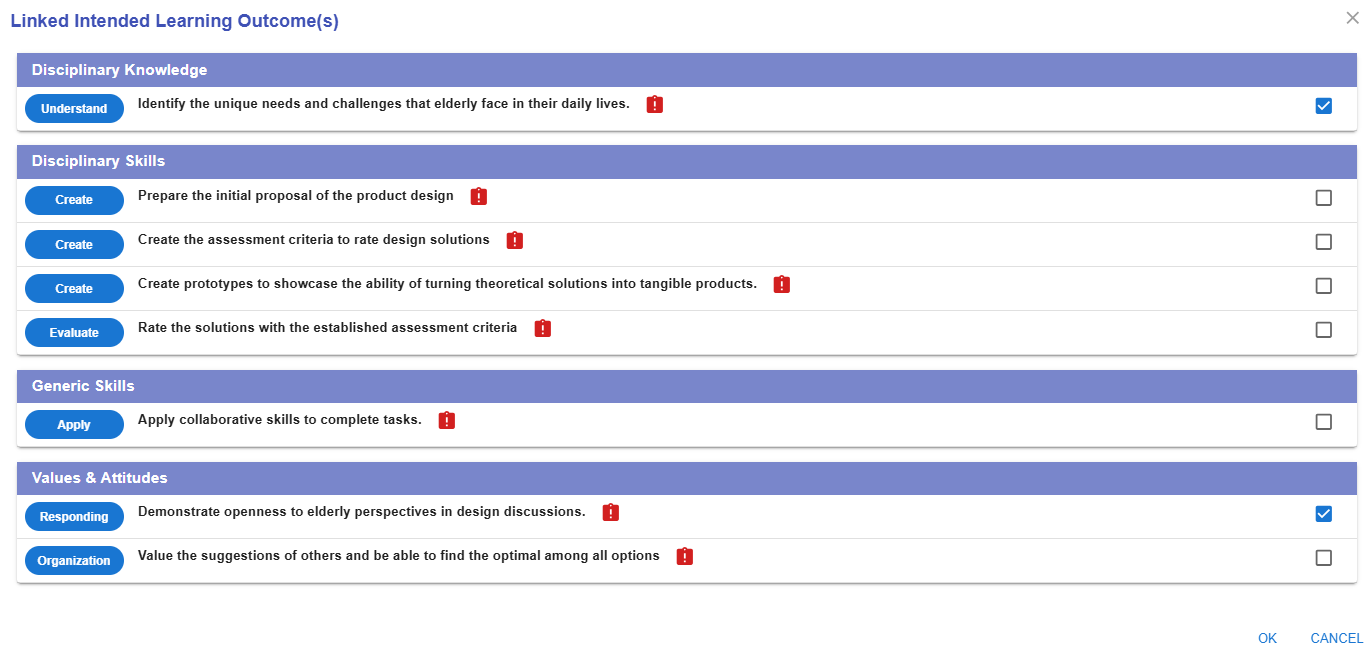
4.2 Selecting the Appropriate ILOs
Figure 5.32: Linking the ILOs to a CC (2)
E.g.
4.3 The Alert Icon and Complete Icon
Figure 5.33: Unassessed ILOs in a CC
4.4 The Unlink Button
Figure 5.34: Dissociating the ILOs from the CC
|



 will appear as a reminder. Once an assessment is assigned, this will be replaced with a complete icon
  . We will discuss how to assign an assessment in the next section.
