6.2.1 Intended Learning Outcomes (ILOs)
The course-level pattern Engineer/Inventor (Engineering Design + Self-directed Learning) has provided some intended learning outcome patterns for you. However, you still need to customise the patterns or add new ILOs to complete your learning design.
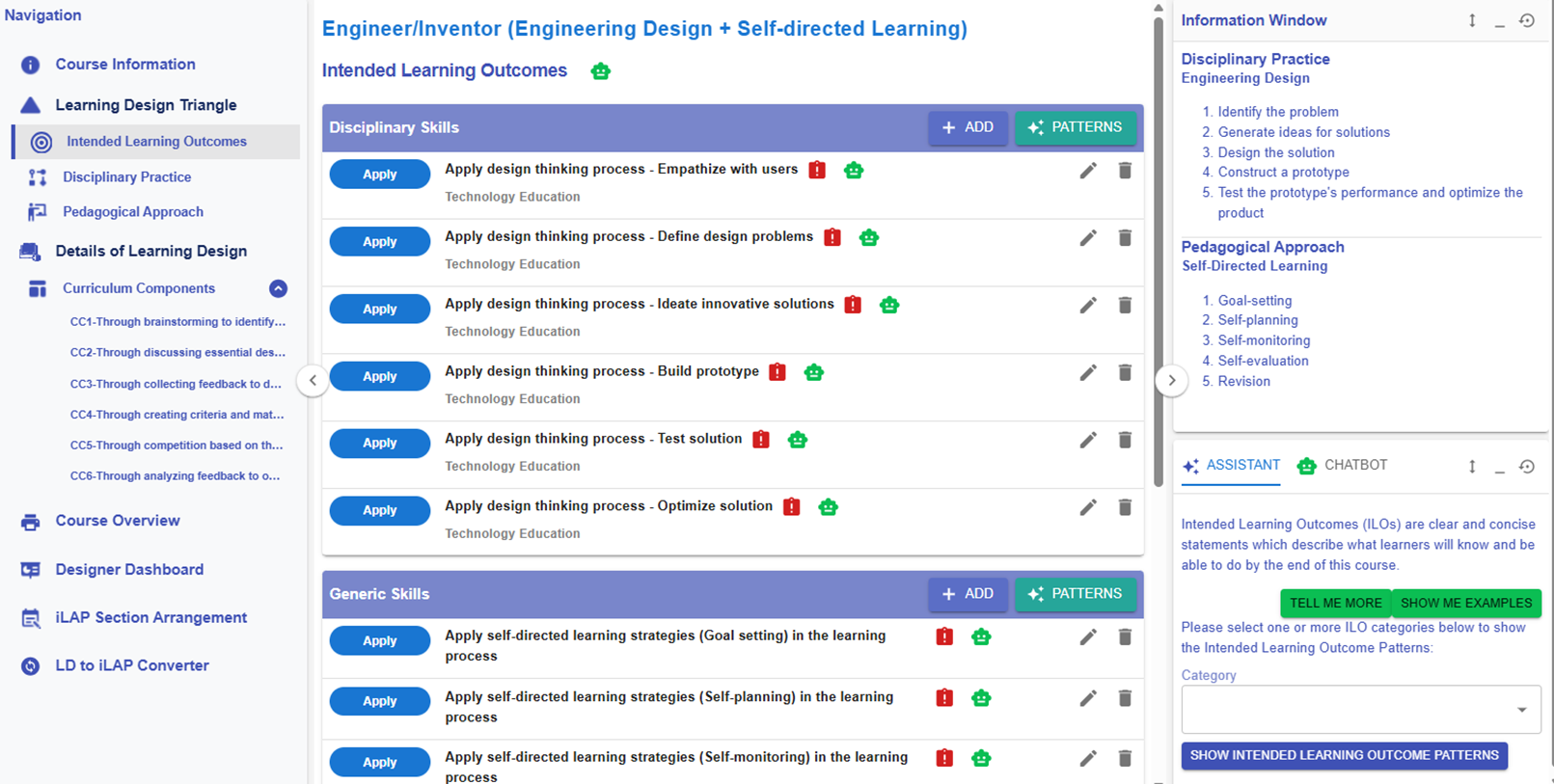
Figure 6.4: Learning Design Triangle Section - Intended Learning Outcomes
For the following part, you will explore how to add the new ILOs to the design.
🌟 For guidance on developing strong ILOs, refer to Chapter 2.2 - Intended Learning Outcomes (ILOs)
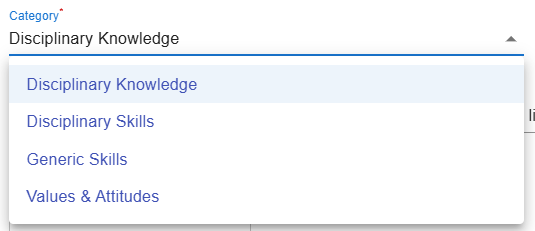
In the LDS, there are four categories of Intended Learning Outcomes (ILOs):
- Disciplinary Knowledge: The core concepts, theories, facts, and frameworks that are recognized and developed within a particular field or area of study.
- Disciplinary Skills: The specific techniques, methods, and competencies associated with a particular field or area of study.
- Generic Skills: The broad abilities that help people succeed in education, work, and daily life, regardless of a particular field or area of study.
- Values & Attitudes: The beliefs, principles, and dispositions that guide a person's behavior, decision-making, and interactions with others.
Adding a New ILO
There are two ways to add a new ILO: (1) using the ILO patterns or (2) writing it yourself.
1. Use the ILO Patterns
- You will use our pre-defined pattern to indicate what students is expected to achieve as a result of the learning process.

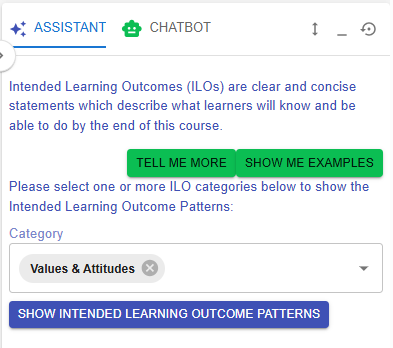
Figure 6.5: Intended Learning Outcomes - Values & Attitude
- For example, if you want to create an ILO for the Values & Attitude category, we can create one by using the ILO patterns.
 |
 |
|
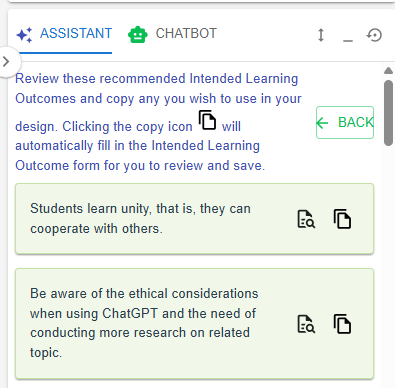
Figure 6.6: The ILOs Patterns in the LDS Facilitator
Figure 6.7: Details of the Targeted ILO Pattern (1)
|
|
 button to instantly activate the pattern list.
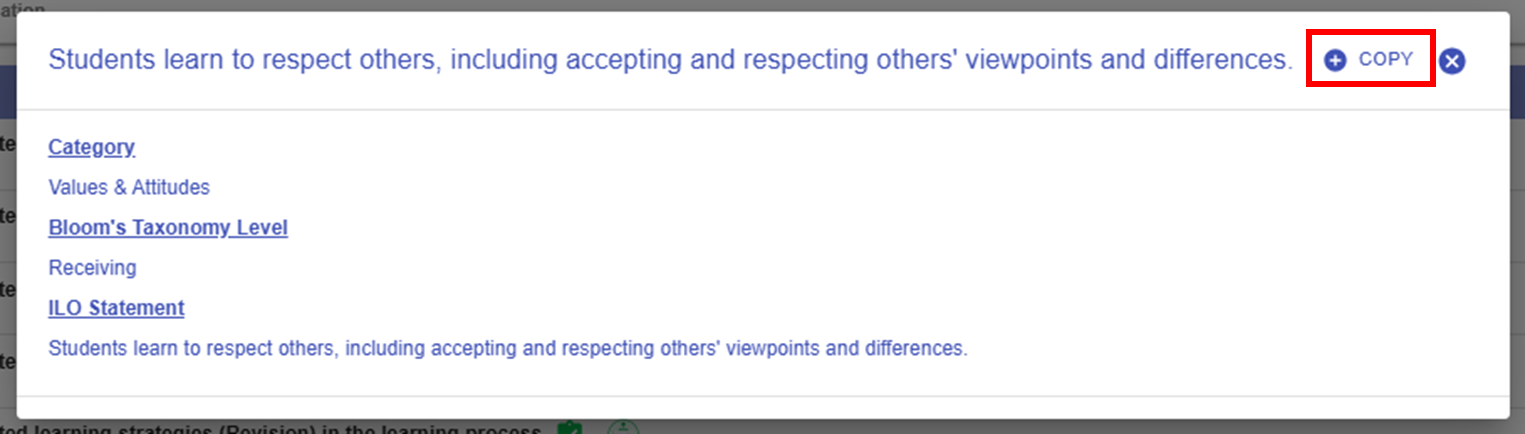
 button in the Learning Design Facilitator. The ILO pattern details will be auto-filled into the LDS.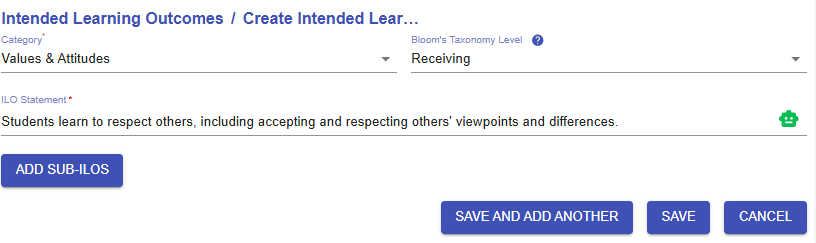
2. Writing it Yourself
- In addition to using patterns, you may write a full ILO yourself.

Figure 6.9: Adding a New ILO
- If you have not added any ILOs before, you can click the
 or
or  button to add a new ILO.
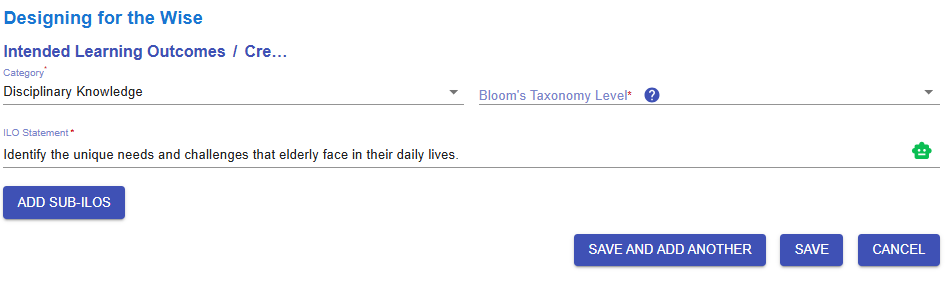
Figure 6.10: Interface of the ILO Builder (1)
- We will review each field in the ILO Builder below.
|
1. Subject/Discipline(s)
Figure 6.11: Interface of the ILO Builder (2)
|
|
2. Category
Figure 6.12: Interface of the ILO Builder (3)
|
|
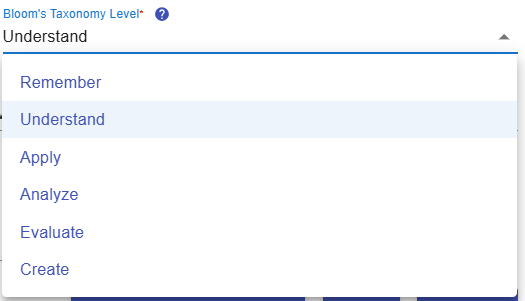
3. Bloom's Taxonomy Level
Figure 6.13: Interface of the ILO Builder (4)
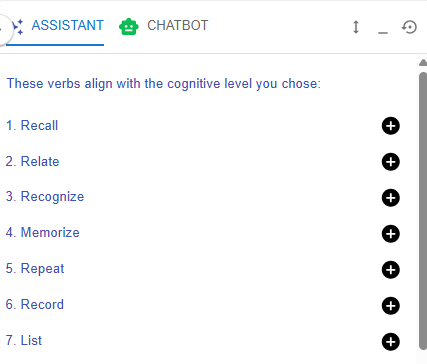 Figure 6.14: Writing a ILO with the Learning Design Facilitator
|
|
4. ILO and Learning Design Facilitator
Figure 6.15: Interface of the ILO Builder (5)
Figure 6.16: Writing a ILO with the Chatbot
|
|
5. Sub-ILO(s)
Figure 6.17: Interface of the ILO Builder (6)
|


 to request feedback from the chatbot on your ILO.