5.3.2 Creating Curriculum Components (CCs) Part 2
Creating the First CC (Cont.)
Step 3: Creating the Task Sequence for the CC
- After deciding on the intended learning outcomes, workflow steps, and pedagogical focus of the CC, the next step is to assign and sequence the learning tasks and assessments.
- Below is an example of a completed CC with well-sequenced tasks and assessments, which we will examine in this section.
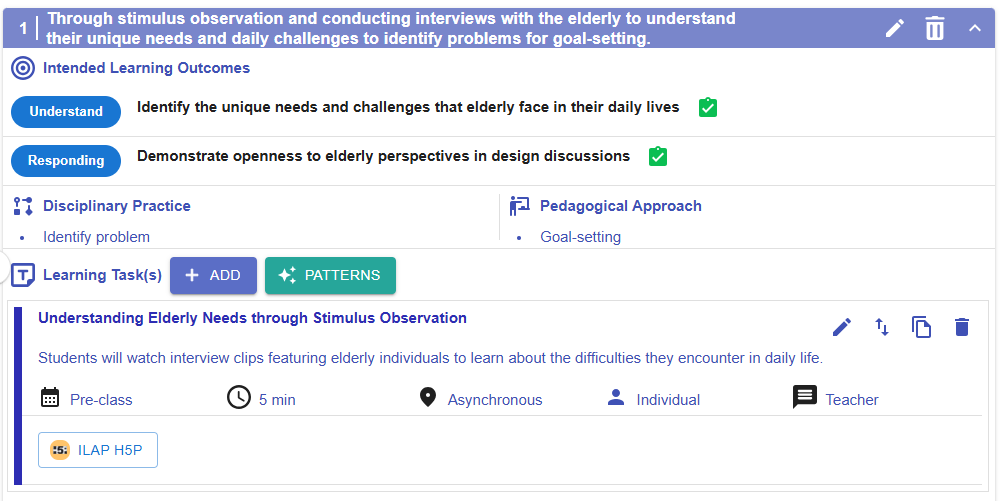
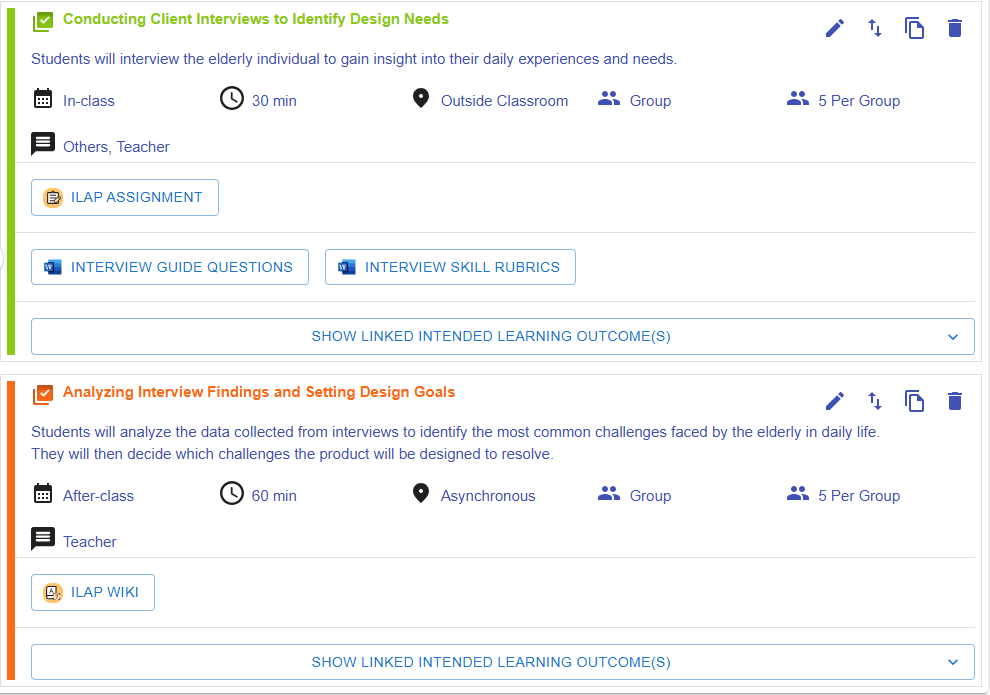
Figure 5.35: An Example of a Completed CC
Creating a Task
- We will use the "Conducting Client Interviews to Identify Design Needs" task to demonstrate how to add a task
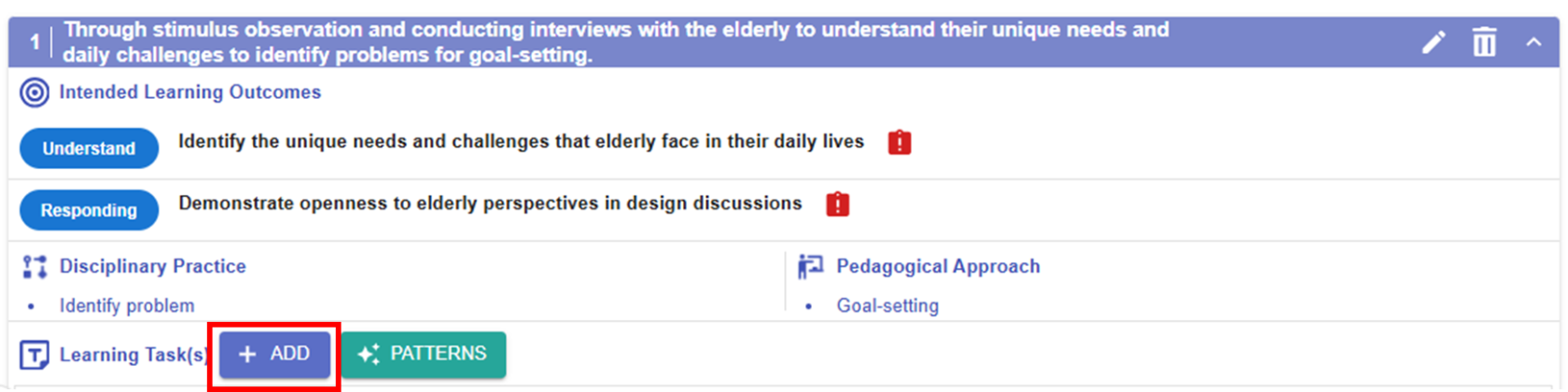
Figure 5.36: Adding New Learning Task(s)
- By clicking the
 button , you can open the Task builder.
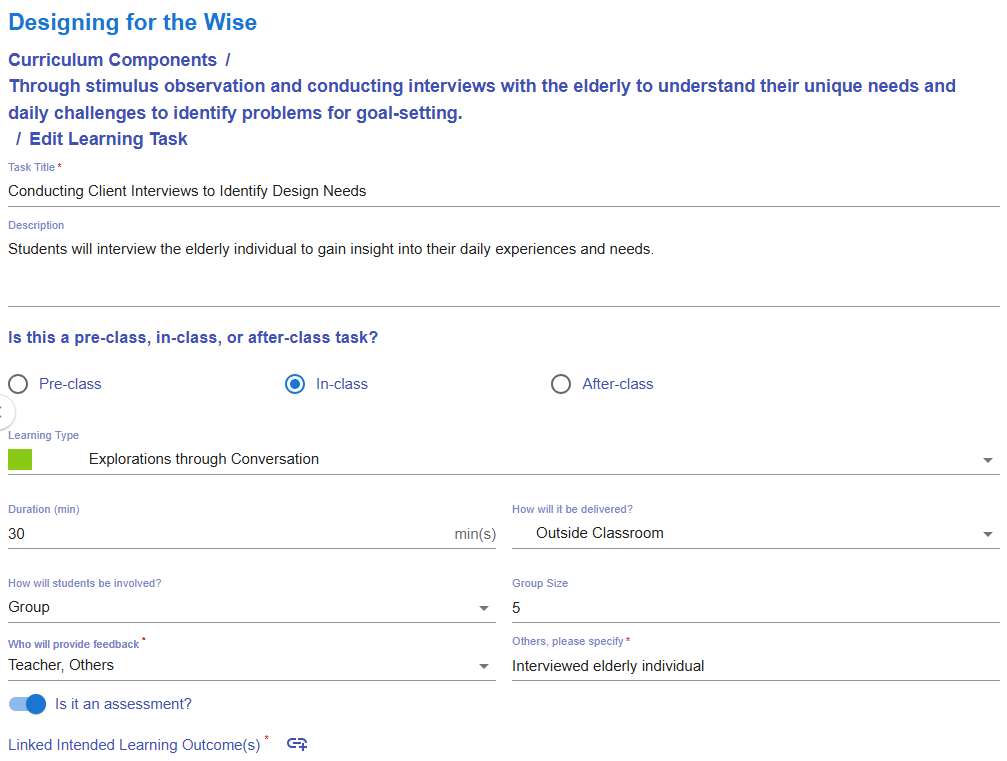
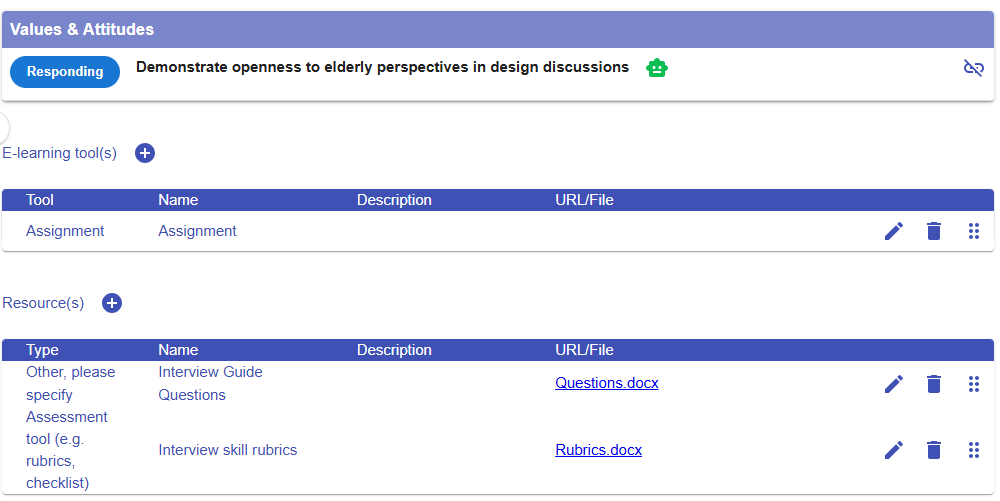
Figure 5.37: Interface of the Task Builder
- Please read the introduction below to guide you in creating a task.
|
Item |
Example of this CC |
|---|---|
|
1. Task Information
Figure 5.38: Task Information |
Task title: Conducting Client Interviews to Identify Design Needs
Description: Students will interview the elderly individual to gain insight into their daily experiences and needs. |
|
2. Stage
Figure 5.39: Stage |
In-class |
|
3.
Figure 5.40:
|
|
|
4. Duration
Figure 5.41: Duration |
|
|
5. Delivery Mode
Figure 5.42: Delivery Mode |
|
|
6. Social Organization
Figure 5.43: Social Organization |
|
|
7. Feedback Provider
Figure 5.44: Feedback Provider |
Teacher |
|
8. Assessment
Figure 5.45: Triggering the Assessment Option in a Task |
Each learning task can serve as both a learning activity and an assessment.
If you select the assessment option, you will need to
|
|
9. E-learning Tool
Figure 5.46: Interface for Adding E-learning Tool(s) to a Task |
The e-learning tools section allows you to select the type of tool you want to use
For example, if you want to create a space for students to submit their homework, you can choose the Assignment tool, as demonstrated here. |
|
10. Resources
Figure 5.47: Interface for Adding Resource(s) to a Task |
The resource section allows you to select the type of resource or tool you want to use to support the learning process.
For example,
|
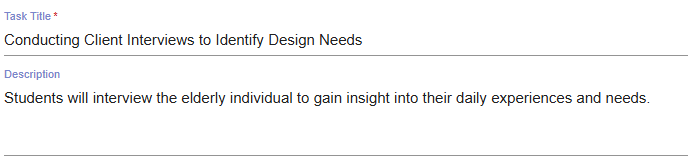



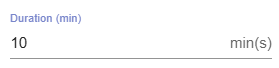
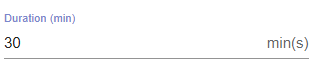
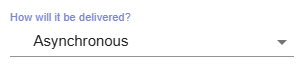
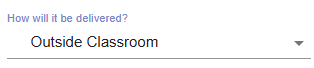
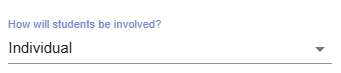


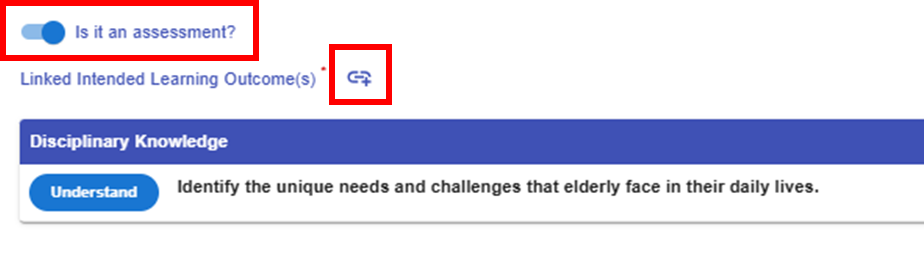
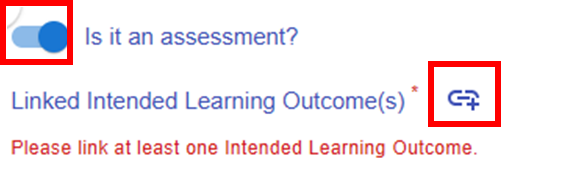
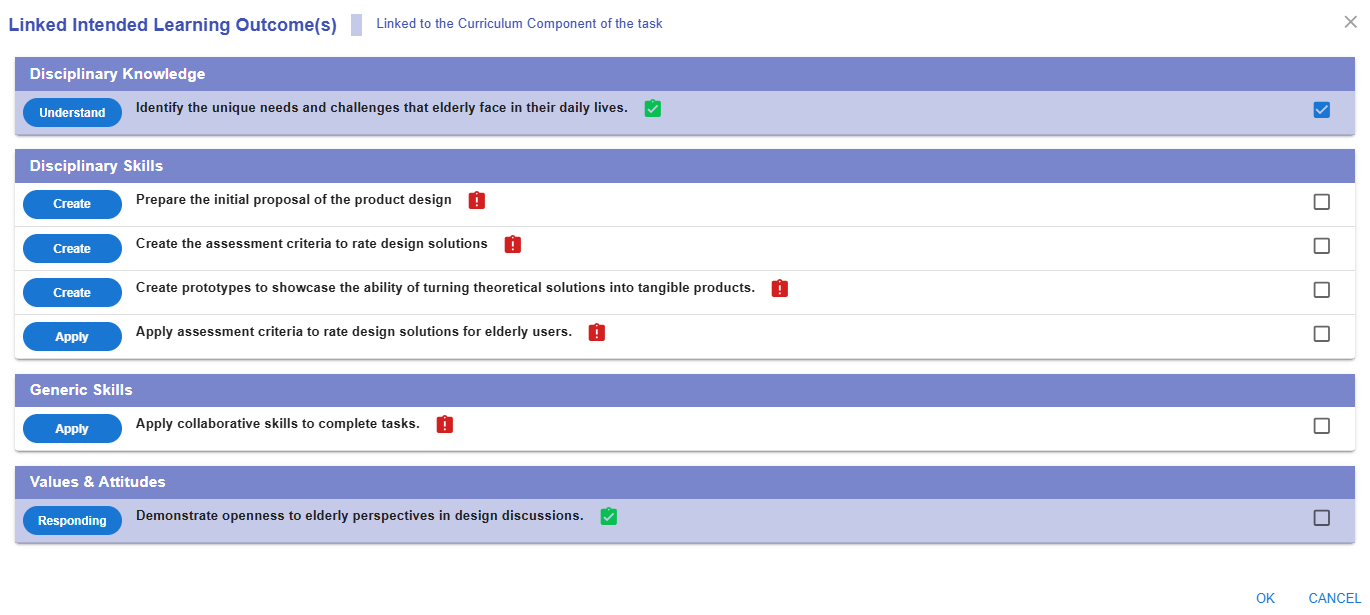
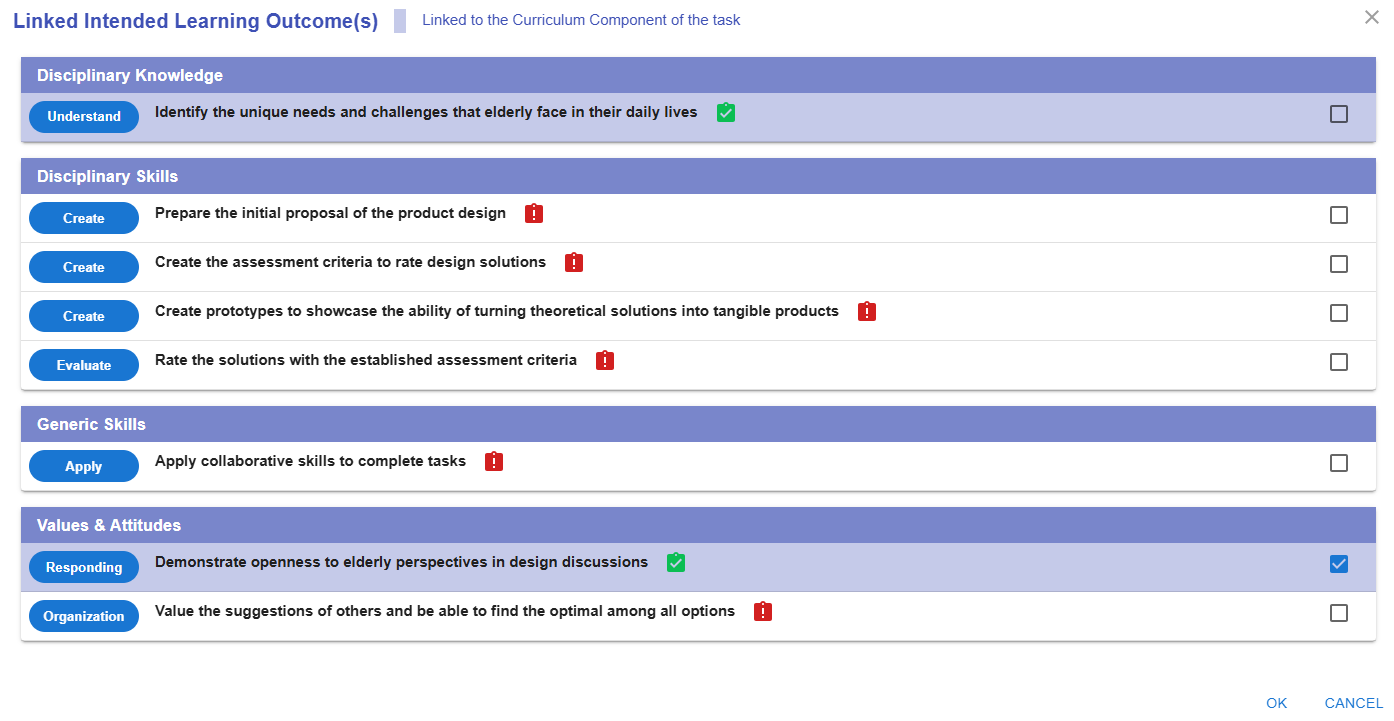
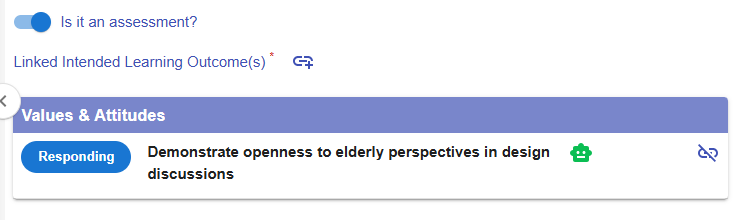
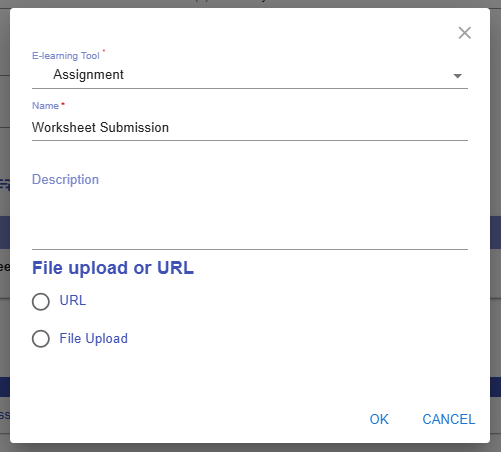
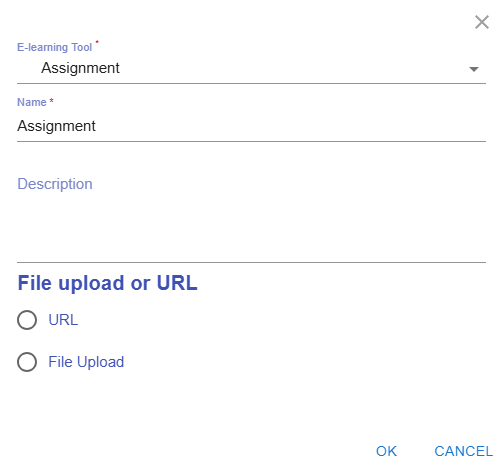
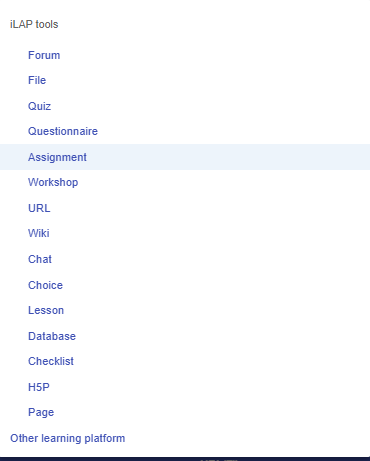
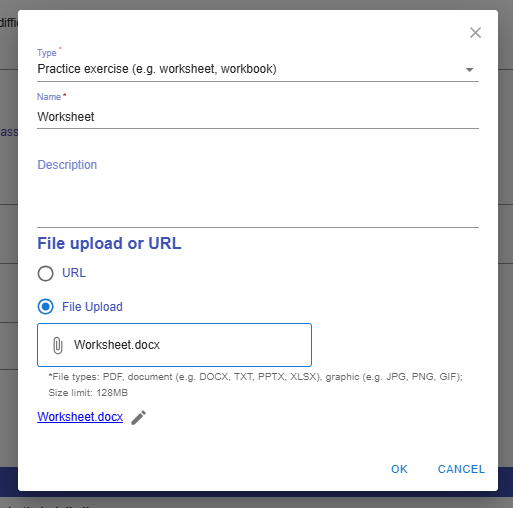
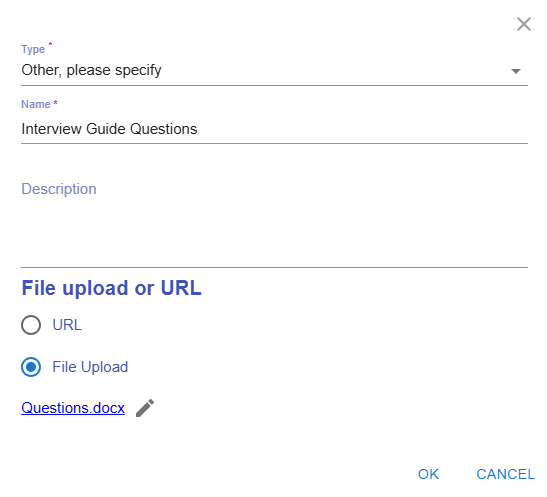
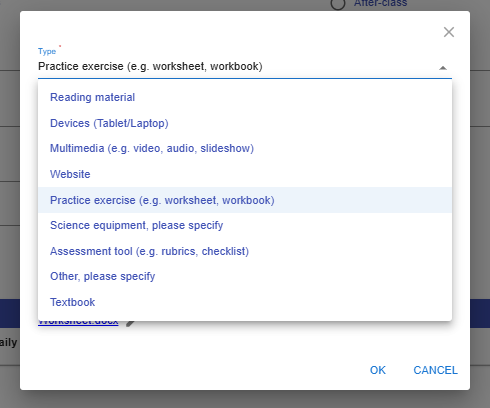
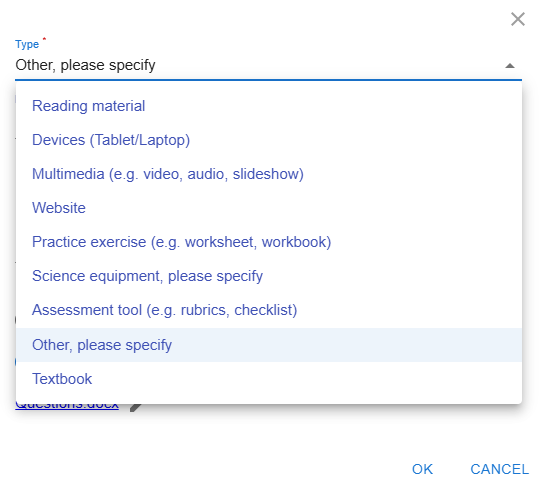
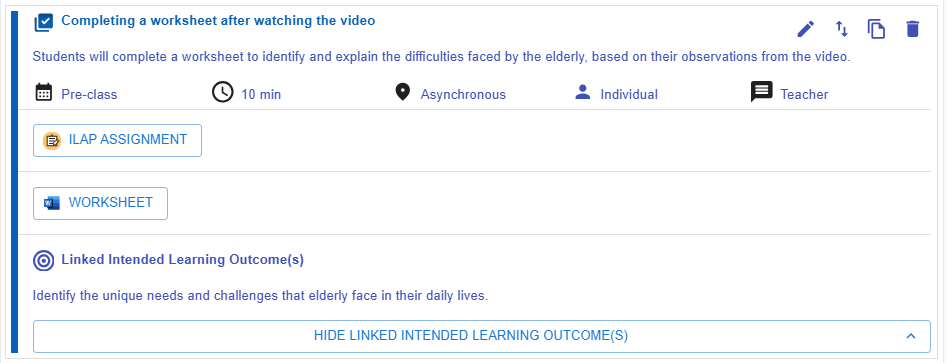
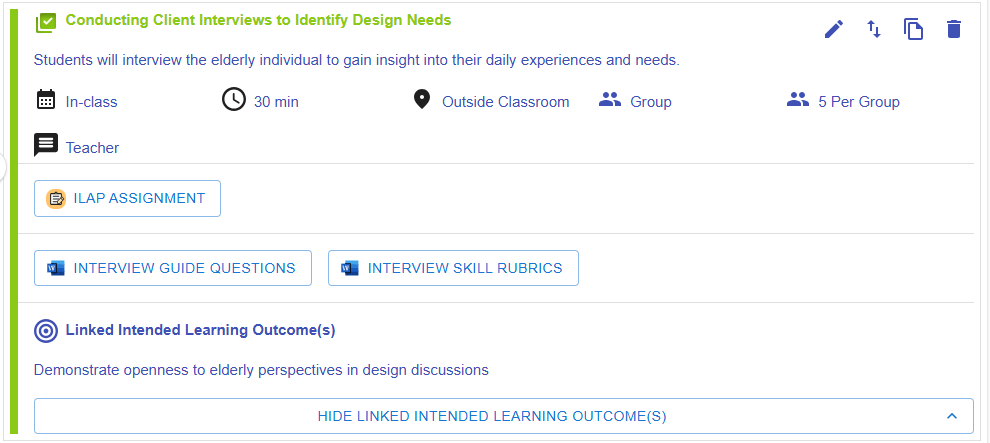
Figure 5.48: Preview of a Learning Task
- The task appears in the CC page.
A Quick Reminder
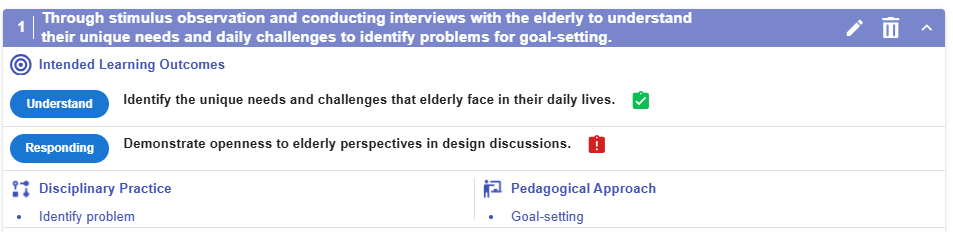
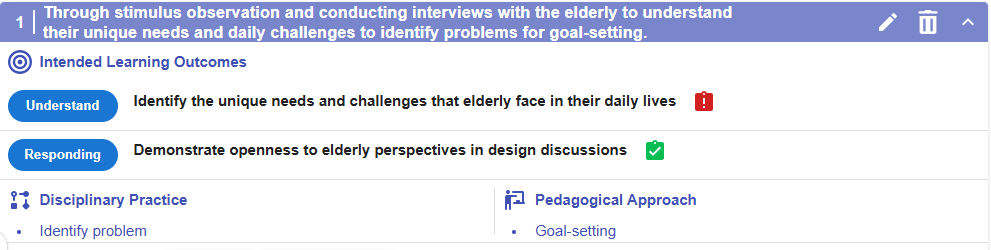
Figure 5.49: Preview of a CC
-
The LDS will remind you to assign assessments to any unassessed learning outcomes within
athespecificCC.CC that have not yet been assessed. - * You can continue adding more tasks to complete your Curriculum Component (CC), and add additional CCs to finalize your learning design by repeating the steps mentioned above.
Additional: Information Window, and Header
- There is some additional information to help you analyze the learning design.
|
Item |
Description |
Example |
|---|---|---|
| 1. Information Window |
Figure 5.50: Information Window in the CC Section |
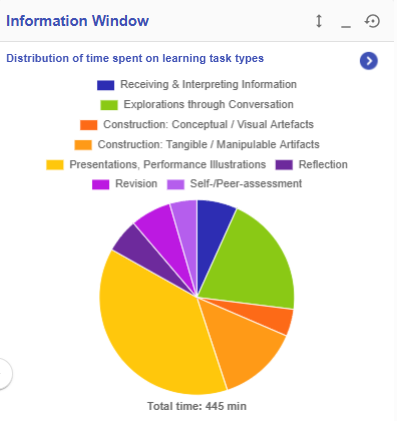
In the CC section, the information window will visualise your overall CC design with the pie chart
|
| 2. Header |
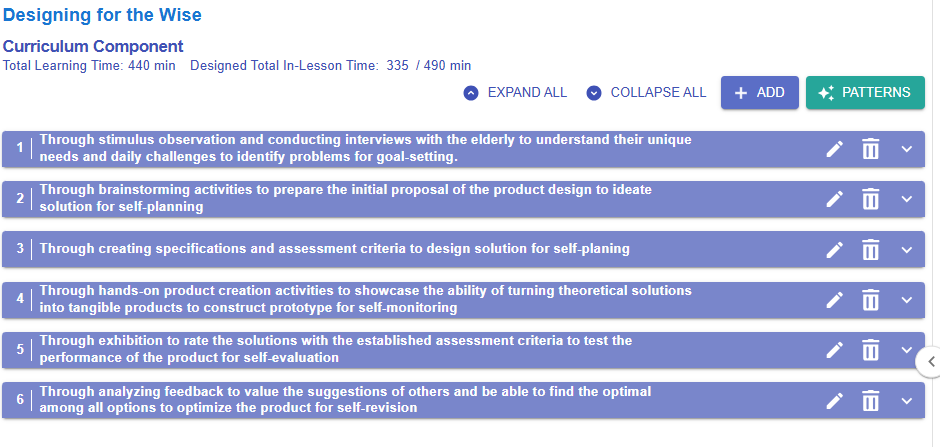
Figure 5.51: An Example of a Curriculum Component Sequence
Total Learning Time: 440 min
Designed Total In-Lesson Time: 335 / 490 min
Expand all
Collapse all
|
|