
2.6 Delete Course Category
在「管理課程類別及課程」頁面On the "Manage Course Categories and Courses" page (如何進入此頁,請參閱for instructions on how to access this page, please refer to 2.3.1)左側類別名稱旁,點擊旁邊的「齒輪」圖示(1), click the "gear" icon (⚙️),再按清單中的垃圾桶圖示() next to the category name on the left, then click the trash can icon (🗑️)「刪除」。) labeled "Delete" in the menu.
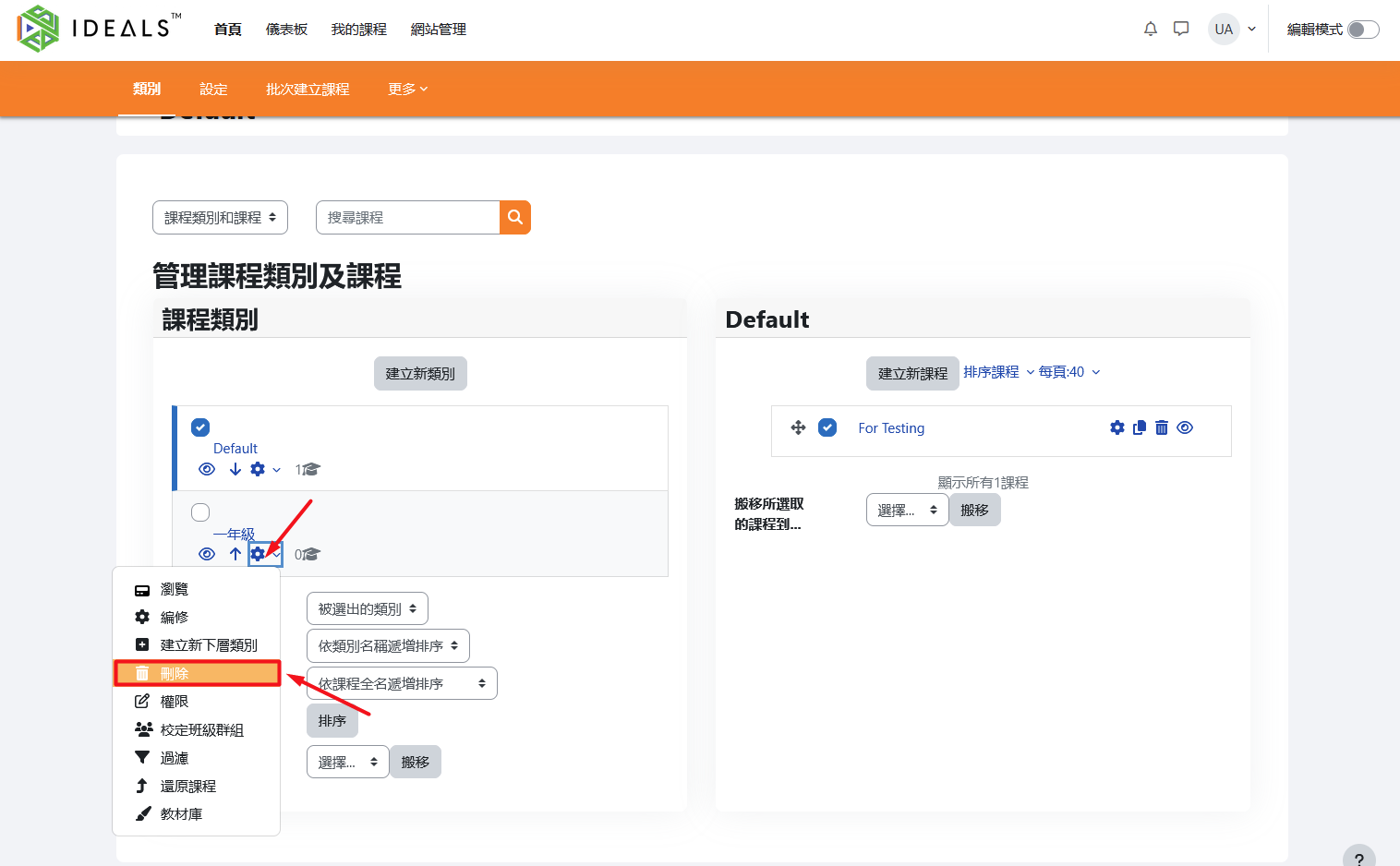
系統會跳出刪除確認畫面,如下圖所示,畫面會顯示:The system will display a delete confirmation screen, as shown in the image below. The screen will display:
類別名稱The category name此類別包含的下層類別和課程列表A list of subcategories and courses contained in this category「要做甚麼」下拉選單,有兩個選項:A "What to do" dropdown menu with two options:「將內容搬移至另一個類別」(可選擇將課程搬移到其他類別,避免資料遺失)"Move contents to another category" (you can choose to move courses to another category to prevent data loss)「刪除全部--無法還原」"Delete all — cannot be undone"
「刪除」及「取消」按鈕
"Delete" and "Cancel" buttons
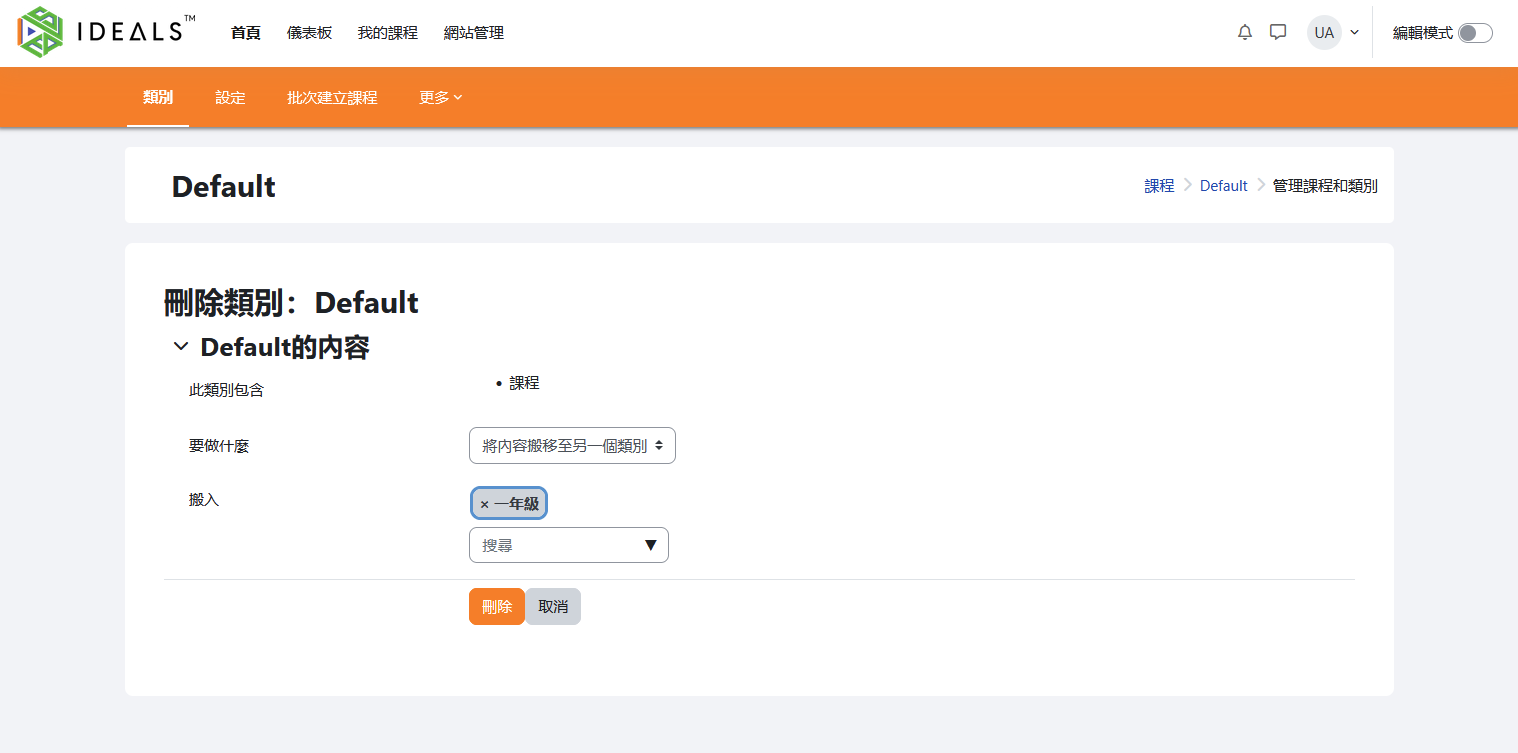
操作步驟如下:The steps are as follows:
請檢查此類別下包含的下層類別和課程,如有需要保留的課程,建議先透過下拉選單將內容搬移至其他類別。Check the subcategories and courses contained in this category. If there are any courses that need to be kept, it is recommended to use the dropdown menu to move them to another category first.若確定要刪除本類別及其所有內容,請選擇「刪除全部--無法還原」,再點擊「刪除」按鈕。If you are sure you want to delete this category and all its contents, select "Delete all — cannot be undone," then click the "Delete" button.若不想刪除,可點擊「取消」返回上一步。
If you do not wish to delete, you can click "Cancel" to go back to the previous step.
注意:選擇「刪除全部」會同時刪除其下所有下層類別和課程,請謹慎操作。
Note: Selecting "Delete all" will also delete all subcategories and courses under this category. Please proceed with caution.