2.3 Basic Operations for Course Categories
本章將說明如何在This chapter explains how to perform basic operations such as adding, editing, sorting, and deleting course categories on the "Manage Course Categories and Courses" page of the iLAP 平台的「管理課程類別及課程」頁面,進行課程類別的新增、編輯、排序及刪除等基本操作。platform.
2.3.1 進入課程類別管理頁面Accessing the Course Category Management Page
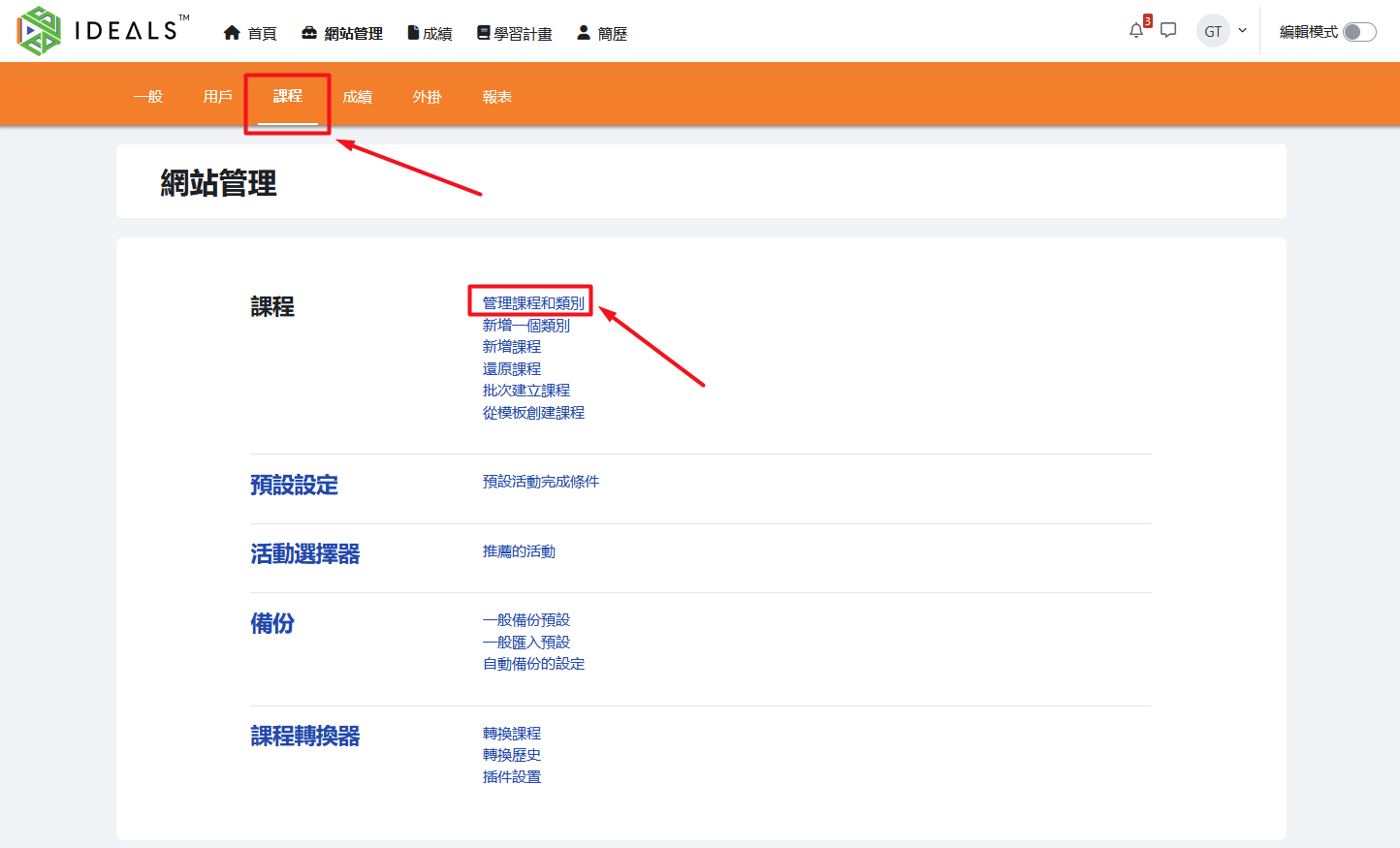
登入After iLAPlogging 後,進入首頁,在頁頂主選單,點擊「網站管理」。in to iLAP, go to the homepage and click "Site Administration" in the main menu at the top of the page.

進入「網站管理」後,選擇「課程」分頁,再點擊「管理課程和類別」。After entering "Site Administration" page, select the "Courses" tab, then click "Manage Courses and Categories."
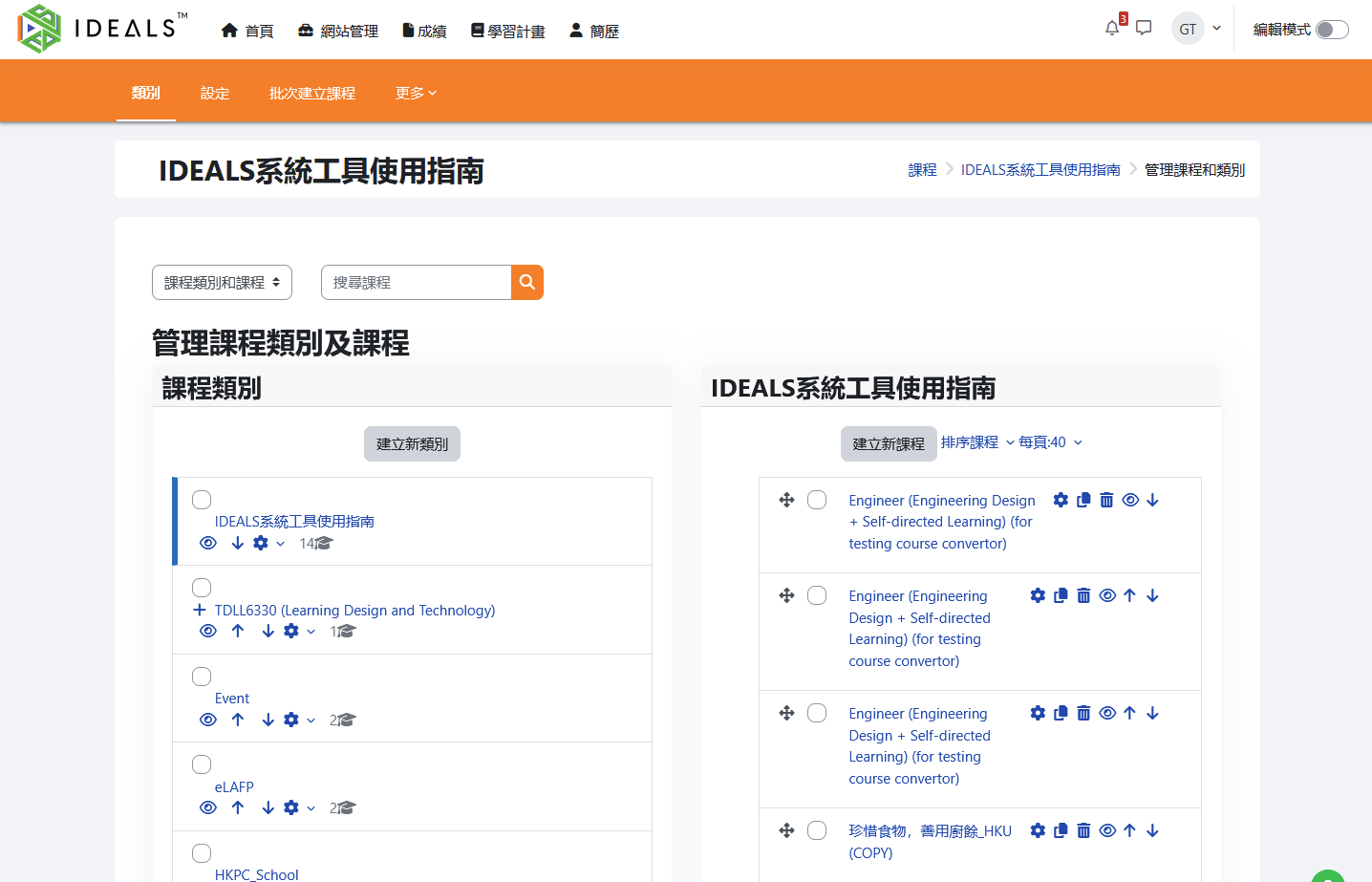
你會見到如圖所示的管理介面,左側為「課程類別」樹狀結構,右側為所選類別下的課程列表。You will see a management interface as shown in the figure: on the left is the "Course Categories" tree structure, and on the right is the list of courses under the selected category.
2.3.2 新增課程類別Add a Course Category
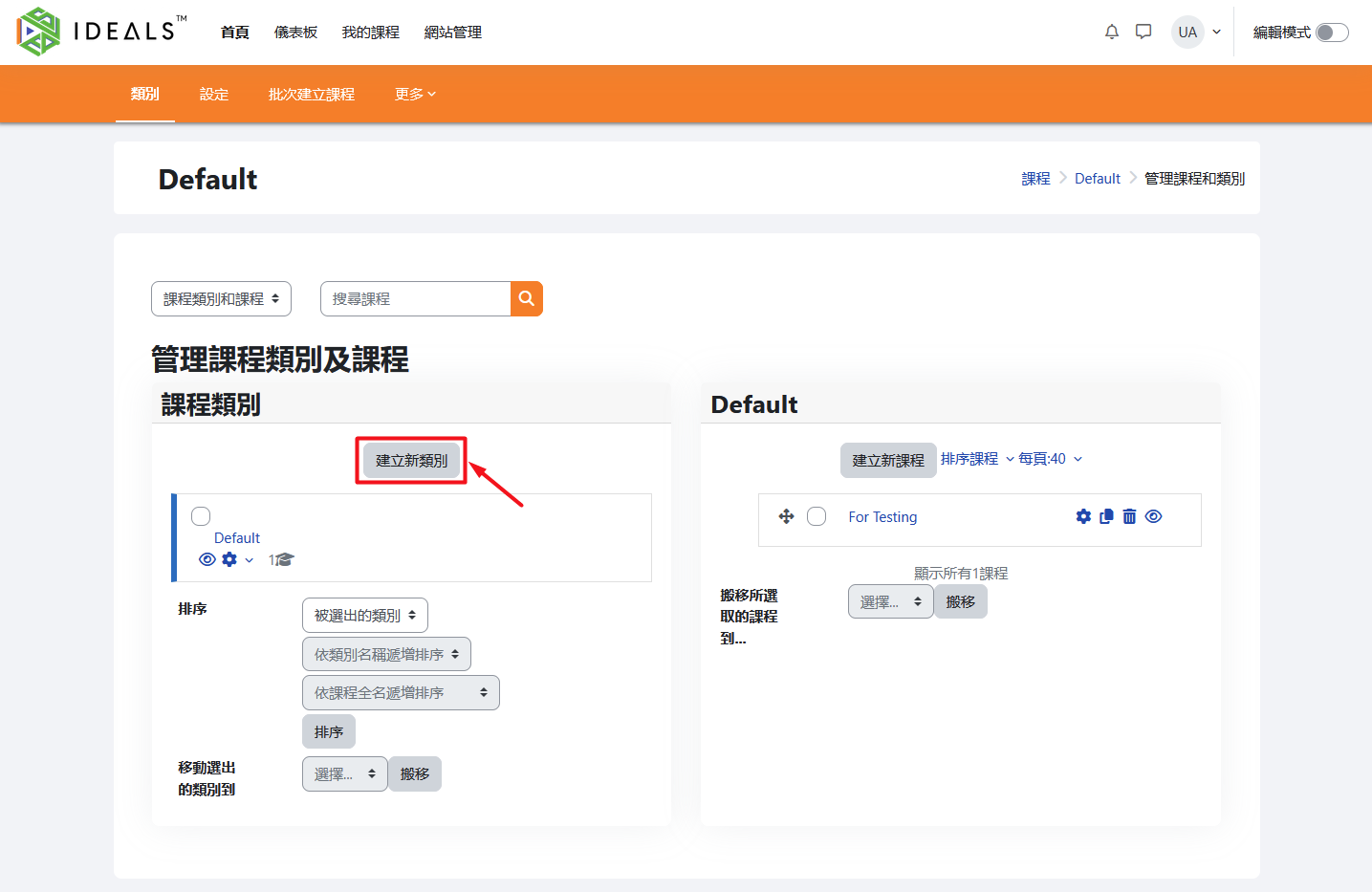
在左側「課程類別」區塊,點擊「建立新類別」按鈕。In the "Course Categories" section on the left, click the "Create New Category" button.
剛開始使用iLAP時,只有一個叫"Default"的課程類別,你可以隨意編輯或刪除它。When you first start using iLAP, there will only be one course category called "Default." You can edit or delete it as you wish.
填寫類別資料:Fill in the Course Category Information:
「父類別」:選擇這個類別的上層(預設為"ParentDefault,即在Default下面,也可選其他已存在類別或「最上層」)。Category": Select the parent category for this category (the default is "Default," meaning it will be placed under Default, but you can also choose another existing category or "Top").「類別名稱」:輸入新的課程類別名稱(如「"Category Name": Enter the name of the new course category (e.g., "2024-2025學年」或「數學科」)。
2025 Academic Year" or "Mathematics").其他非必填的欄位可根據需要填寫。Other optional fields can be filled in as needed.
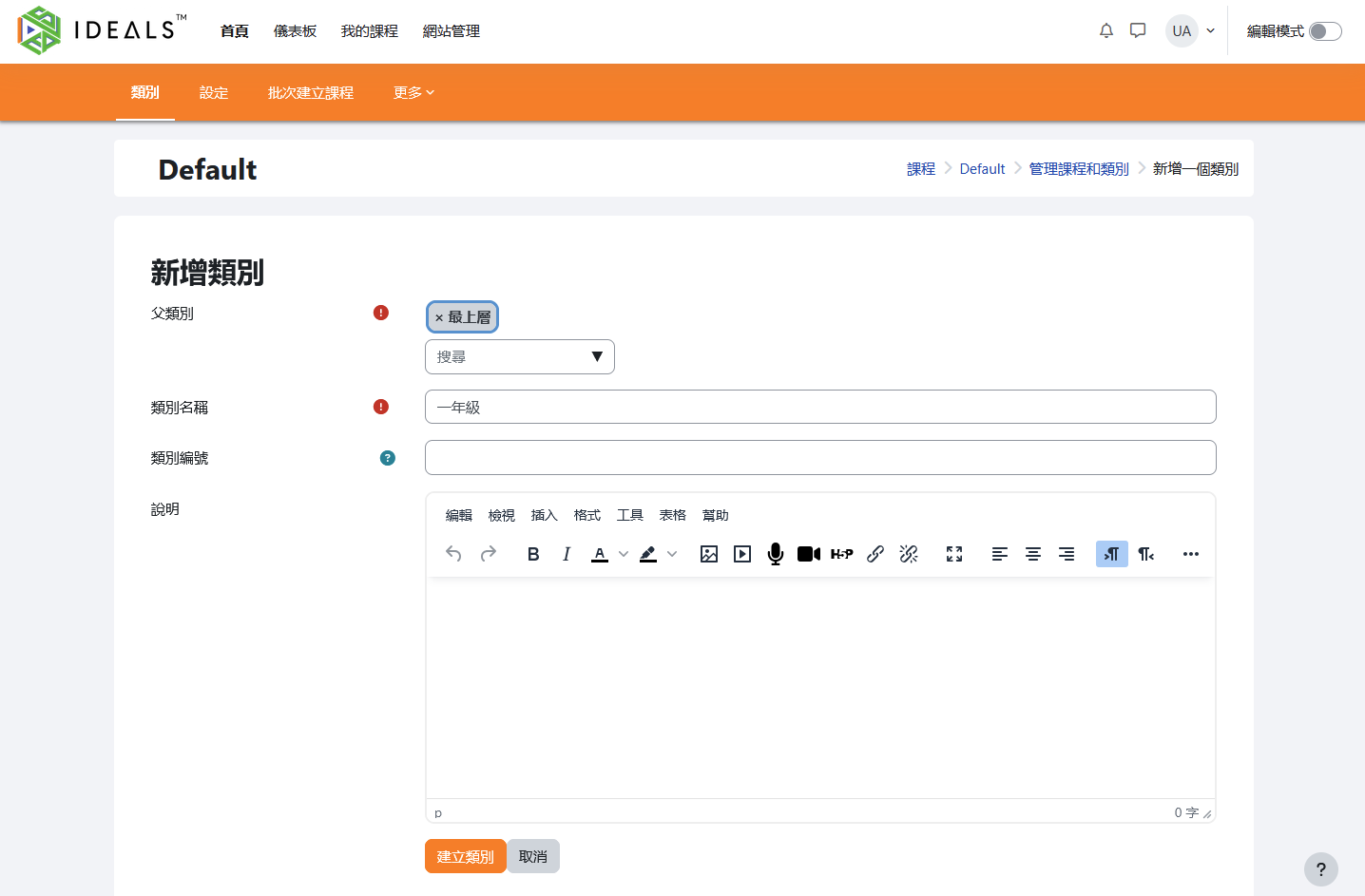
填寫完成後,按「建立類別」按鈕。After completing the form, click the "Create Category" button.
新增的課程類別會即時顯示在左側結構圖下方。The newly added course category will be immediately displayed in the structure tree on the left.