
1.2 Backup a Course
由於Since iLAP 是基於is developed based on Moodle, courses can also be backed up as offline compressed files. In addition to restoring the backup within iLAP, teachers may also restore the backup file to a compatible version of Moodle, such as a school-hosted Moodle 開發的系統,因此同樣可以將課程備份為離線壓縮檔案。除了在platform.
As iLAP 內進行還原外,老師亦可將此備份檔還原至相容版本的has additional plugins installed beyond standard Moodle, including both custom-developed plugins and free third-party plugins, some activities or resources may not display or function properly when restored to another Moodle 平台上(例如學校自設的platform. Moodle)。The completeness of the restoration also depends on the Moodle version. If subscribing schools require further support in this area, please contact the project team at ideals@hku.hk .
由於After iLAPlogging 額外安裝了原生in Moodleto 以外的插件iLAP, (Plugins),包括自行開發及免費的第三方插件,當還原至其他go Moodleto 平台時,部分活動或資源可能無法正常顯示或運作。還原時的完整性亦與Moodle版本有關,若訂閱學校在此方面需要進一步支援,歡迎聯絡計劃團隊the (ideals@hku.hk)。homepage and select any course to enter its course main page.
登入In iLAPthe 後,進入首頁,先選擇任何一個課程,進入它的課程主頁面。
在課程選單中點擊「更多」,再點擊「重複使用課程」。menu, click "More", then click "Course reuse".
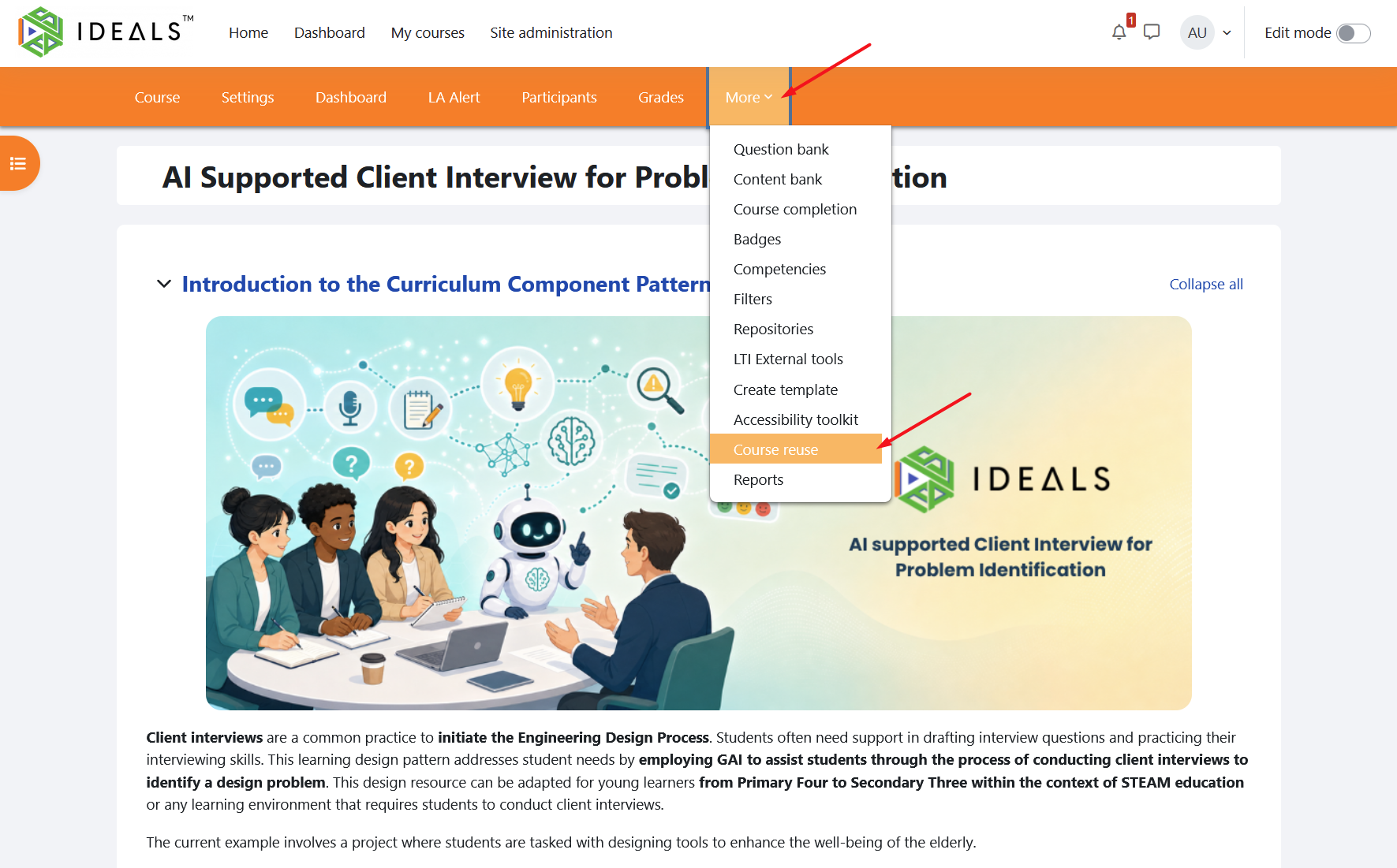
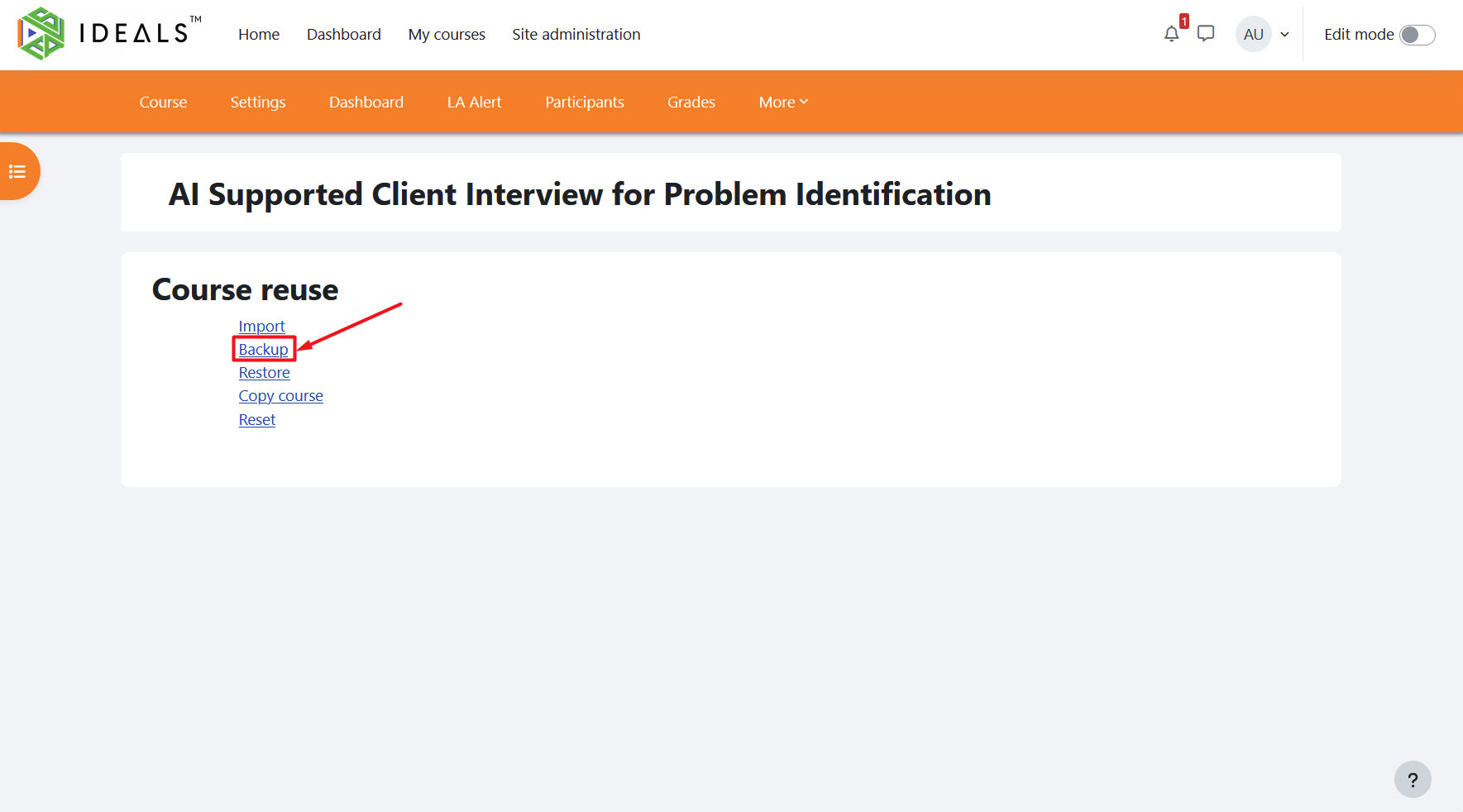
再在新頁面中選擇「備份」。On the new page, select "Backup".
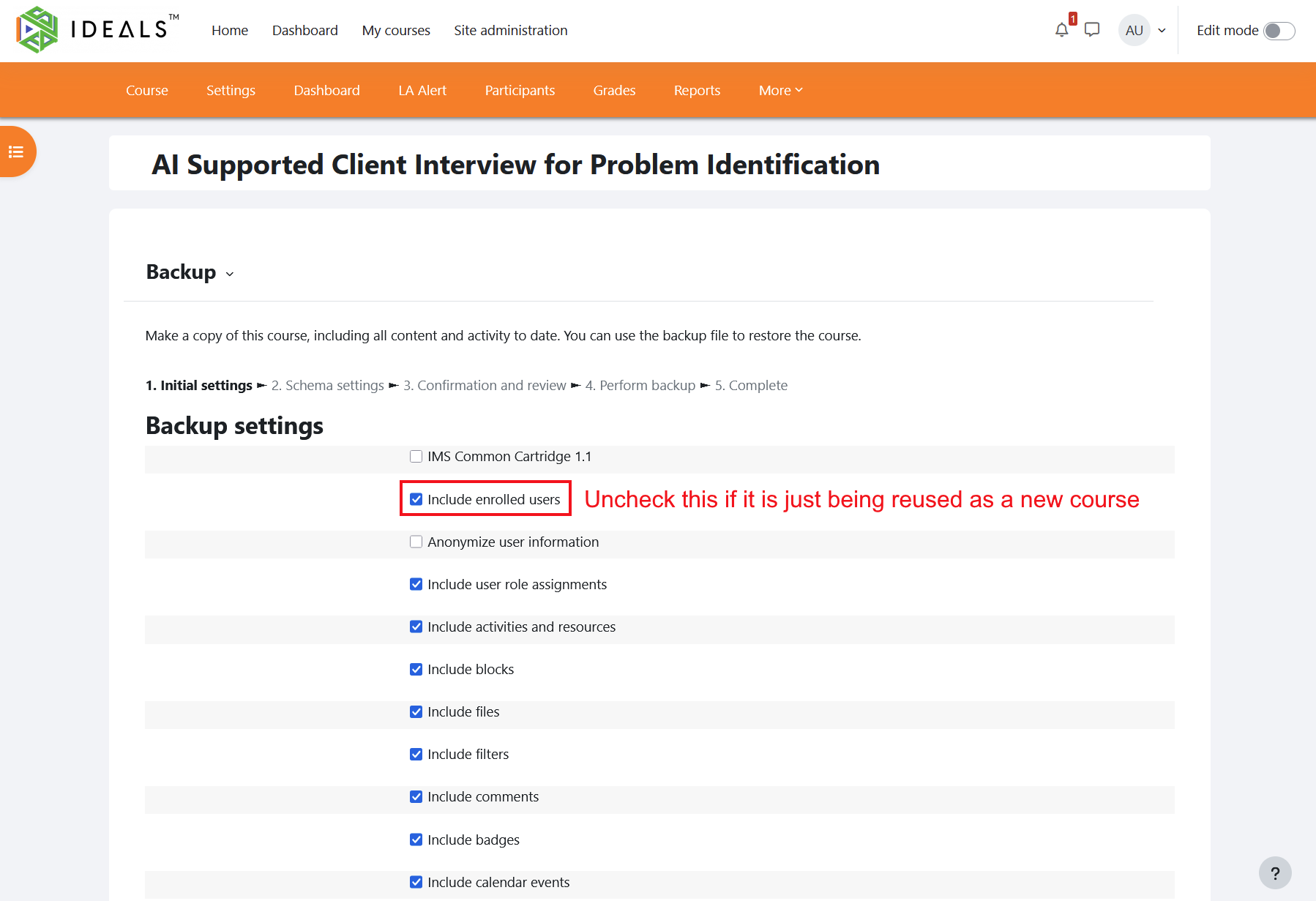
在「備份設定」頁面中,預設設定會將課程連同用戶數據(即包括課程內所有用戶的帳戶及他們所產生的數據)一同備份。若您備份課程的目的只是為了在新課程中重用資源,您可以取消勾選「包含有選課的用戶」,這樣也能有效縮減備份檔案的容量。On the "Backup" settings page, the default settings will back up the course together with user data, including the accounts of all users in the course and the data they have generated. If you are backing up the course only to reuse resources in a new course, you may uncheck "Include enrolled users". This can also effectively reduce the size of the backup file.
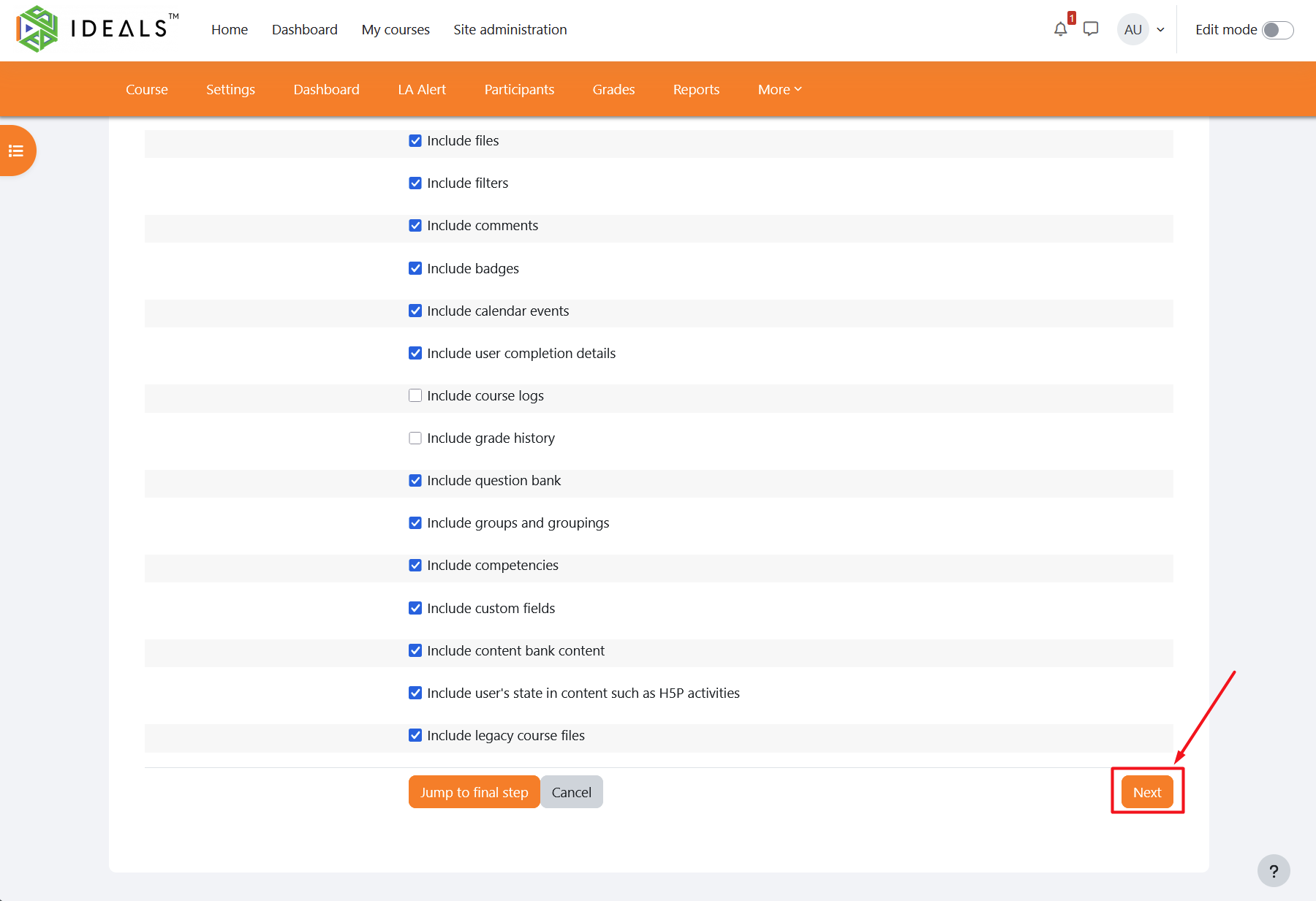
完成備份設定後,請向下捲動至頁尾,並點擊「下一個」按鈕。After completing the backup settings, scroll down to the bottom of the page and click "Next".(若您不需要逐一選擇要備份的課程內容,亦可直接點擊「跳到最後一步驟」。)(If you do not need to select the course content to be backed up item by item, you may also click "Jump to final step".)
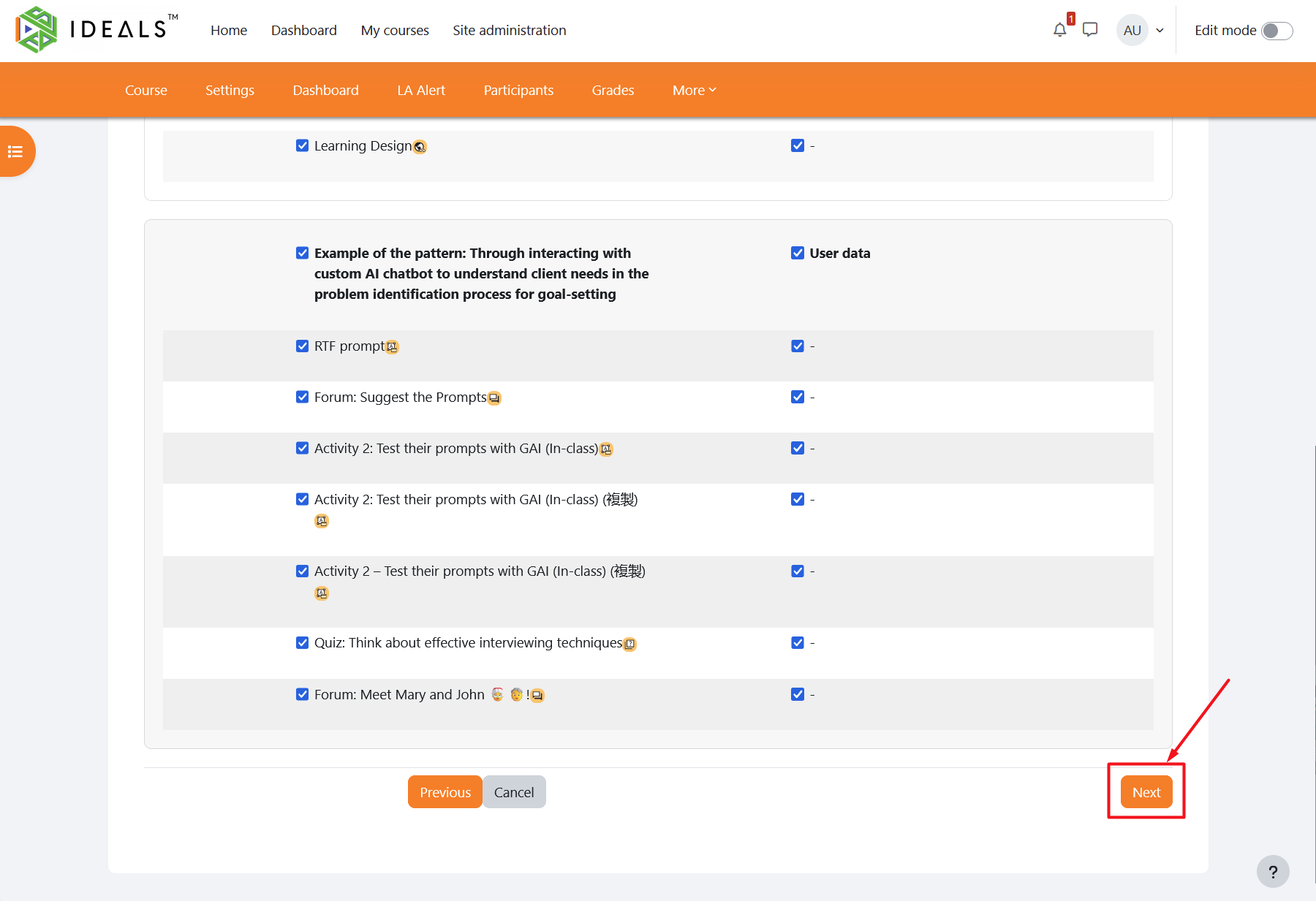
你可在這頁逐一選擇(預設是全選)要備份的課程內容,包括那一個單元、活動、資源,及是否包括用戶資料等。完成後請捲動至頁尾,再點擊「下一個」按鈕。On this page, you can select the course content to be backed up item by item (by default, all items are selected). You may choose which sections, activities, and resources to include, and whether to include user data. When you have finished, scroll down to the bottom of the page and click "Next".
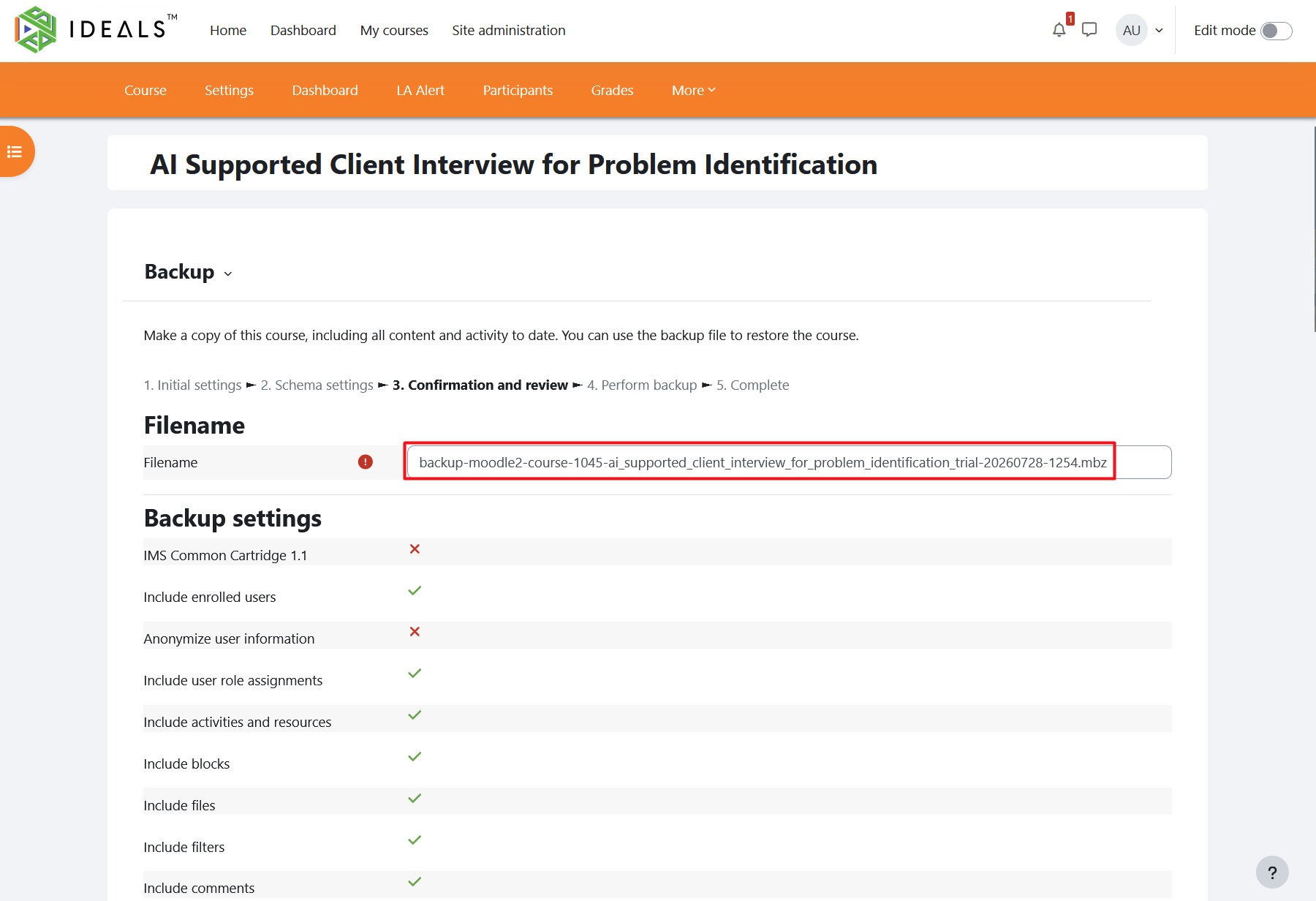
請在這頁確認及檢查你所選擇的備份設定,你亦可更改自動產生的檔案名稱。On the next page, confirm and review the backup settings you have selected. You may also change the automatically generated file name.
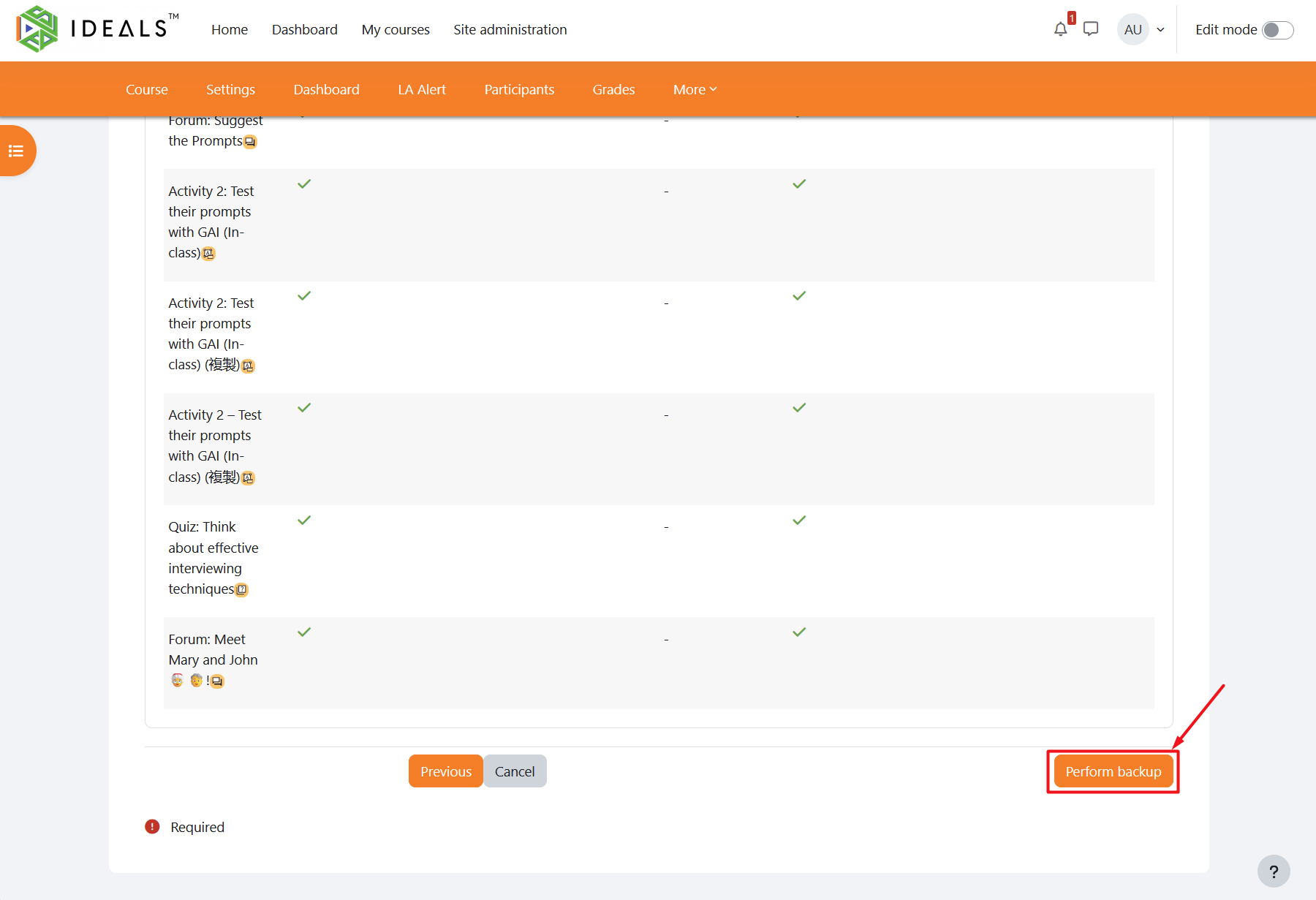
最後請向下捲動至頁尾,並點擊「執行備份」按鈕,系統隨即開始備份程序。Finally, scroll down to the bottom of the page and click "Perform backup". The system will then start the backup process.
The time required for the backup depends on the number of activities and resources in the course and whether user data is included. In general, it should be completed within a few seconds to several tens of seconds.備份所需的時間是視乎課程內的活動/資源數量和是否備份用戶資料,一般數秒至數十秒肉便會完成,。
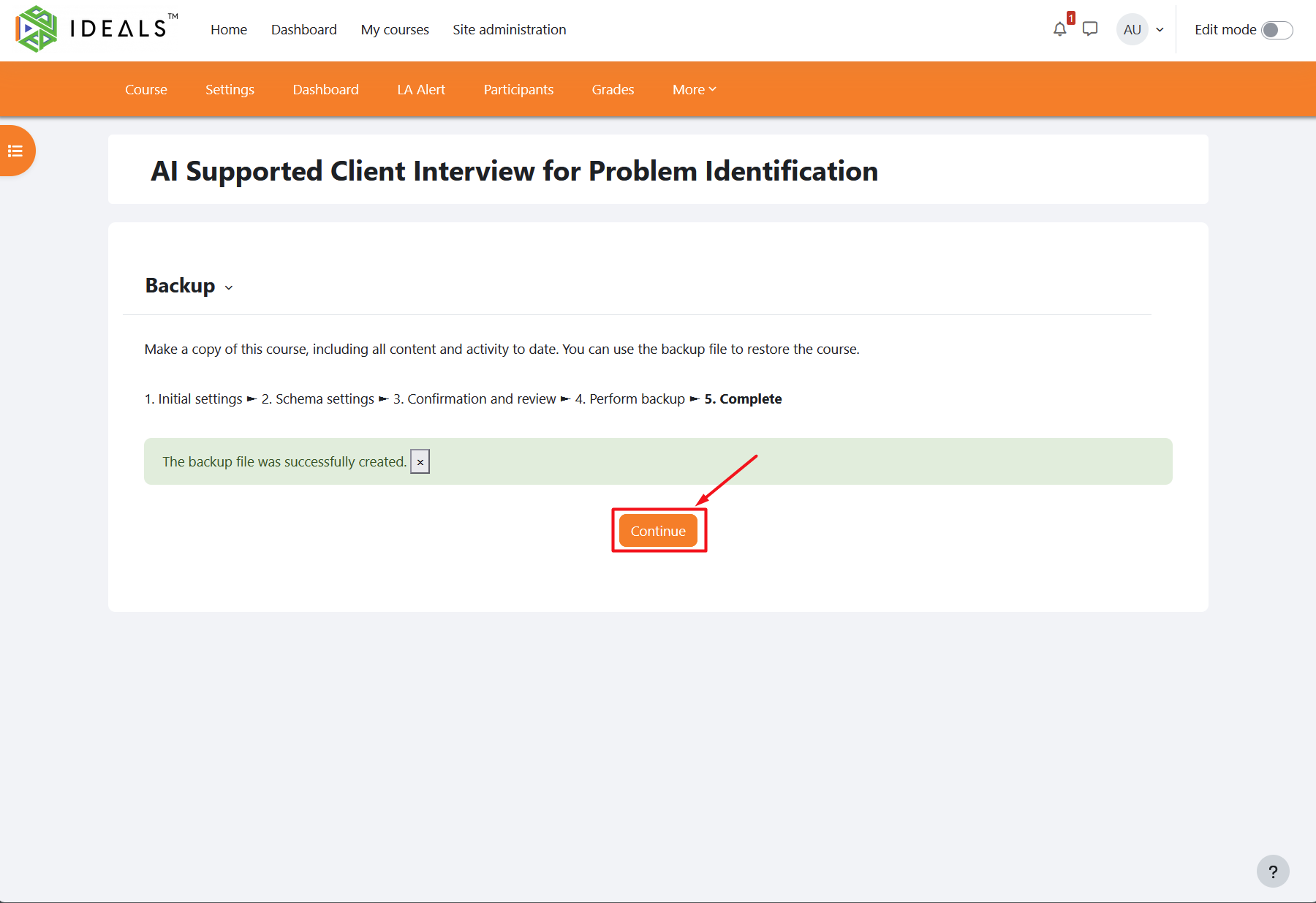
備份完成後,畫面會顯示「備份檔已經成功建立」的成功訊息,請點擊「繼續」按鈕。When the backup is complete, the message "The backup file was successfully created" will be displayed. Click "Continue".
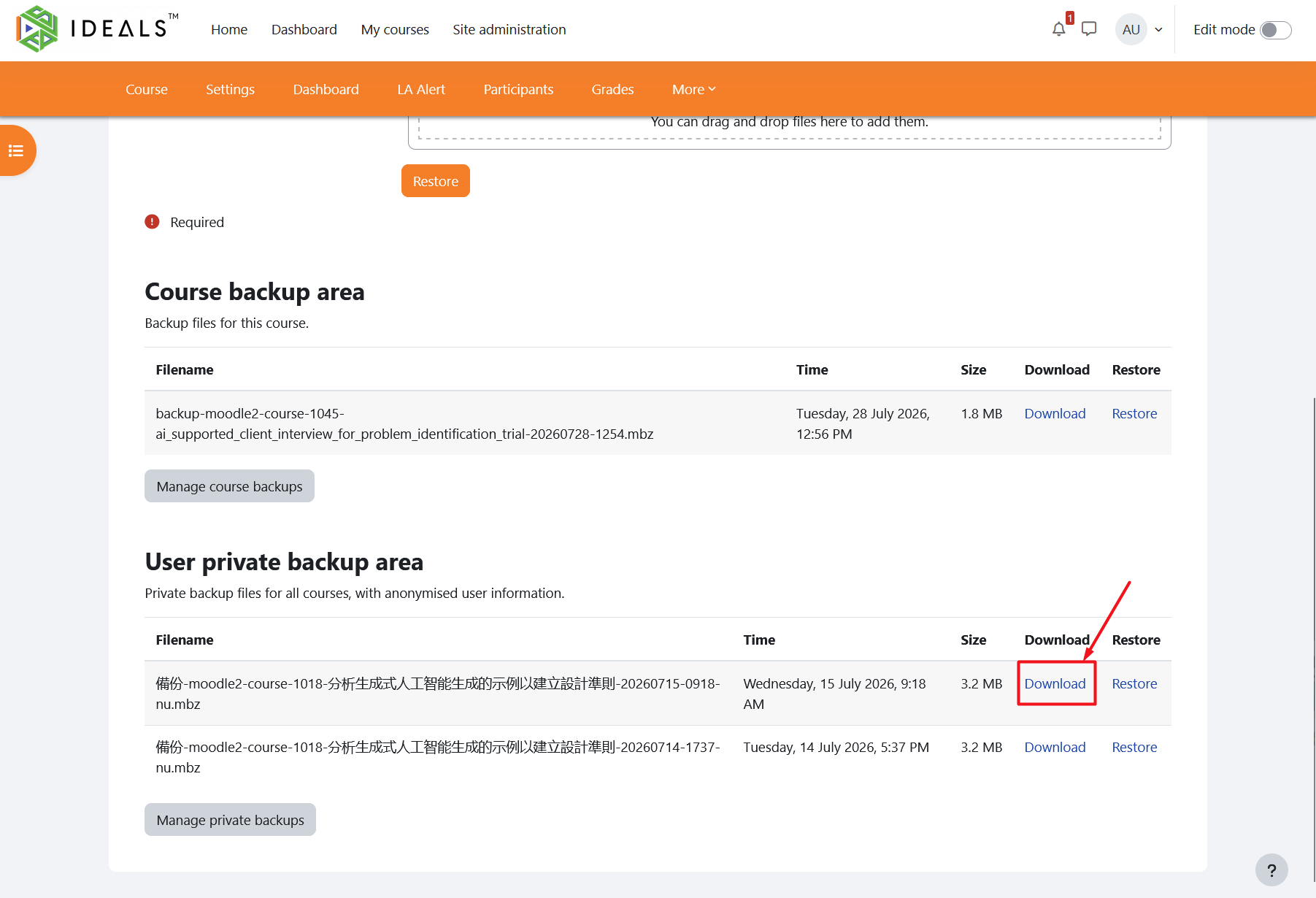
跳轉到該課程「選原」的頁面後,請向下捲動至「用戶私人備份區」。After being redirected to the course "Restore" page, scroll down to the "User private backup area".
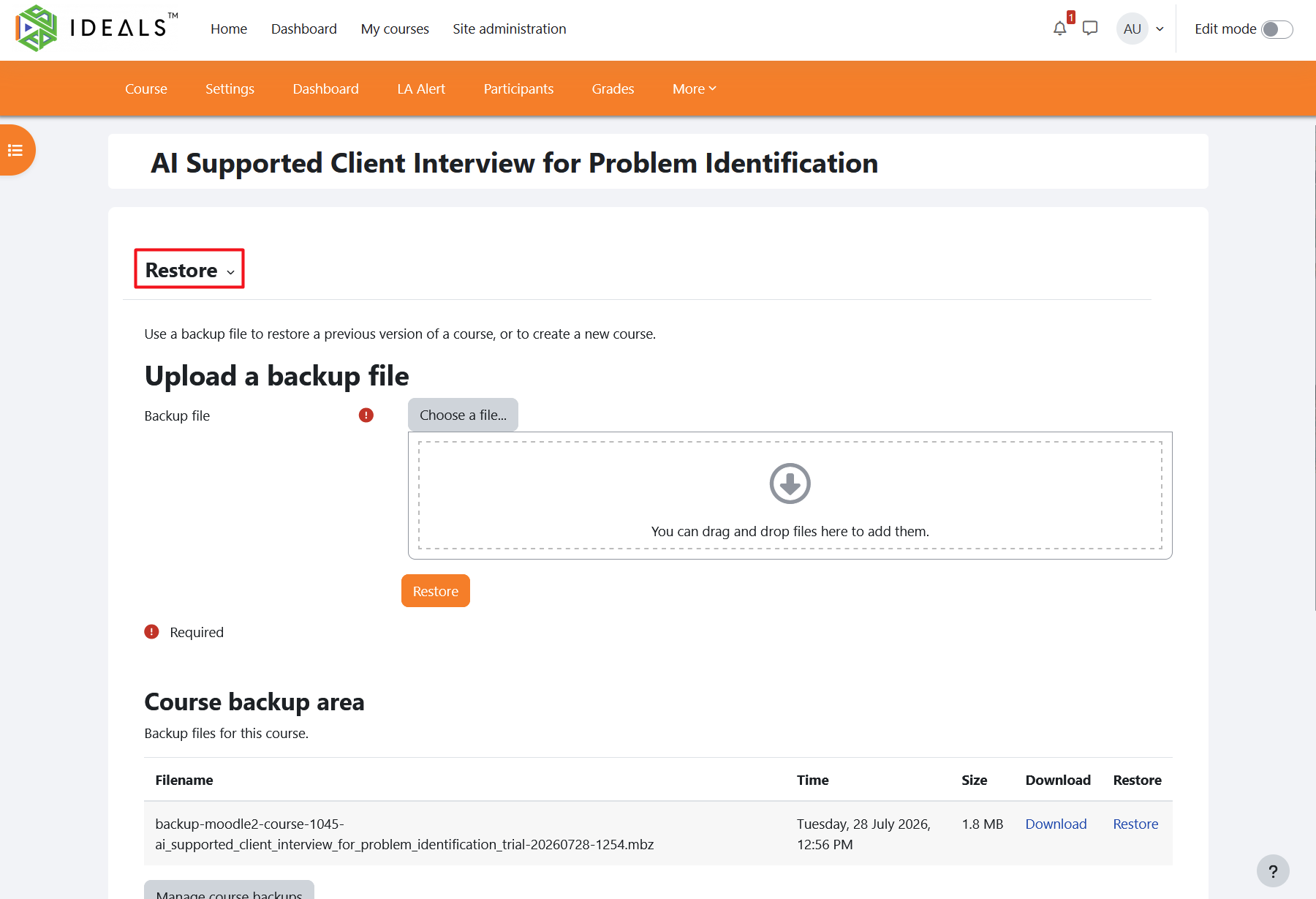
你可以在「用戶私人備份區」根據檔案名稱或時間,找到剛才備份的課程,及以前備份過的課程。請按旁邊的「下載」連結下載MBZ格式的檔案到你的電腦內。In the "User private backup area", you can find the course you just backed up, as well as previous course backups, by checking the file name or time.
Click the "Download" link beside the file to download the backup file in MBZ format to your computer.
如果你下一步想還原課程備份到另一個Moodle平台,請參閱Moodle的官方用戶指南:If you would like to restore the course backup to another Moodle platform, please refer to Moodle's official user guide: https://docs.moodle.org/405/en/Course_restore (只提供英文版本)。.