
8.1 iLAP Section Arrangement
If you are subscribed to IDEALS, you can convert your completed learning design into a practical online course on the IDEALS Learning Management Platform (iLAP). (Click here to subscribe!)
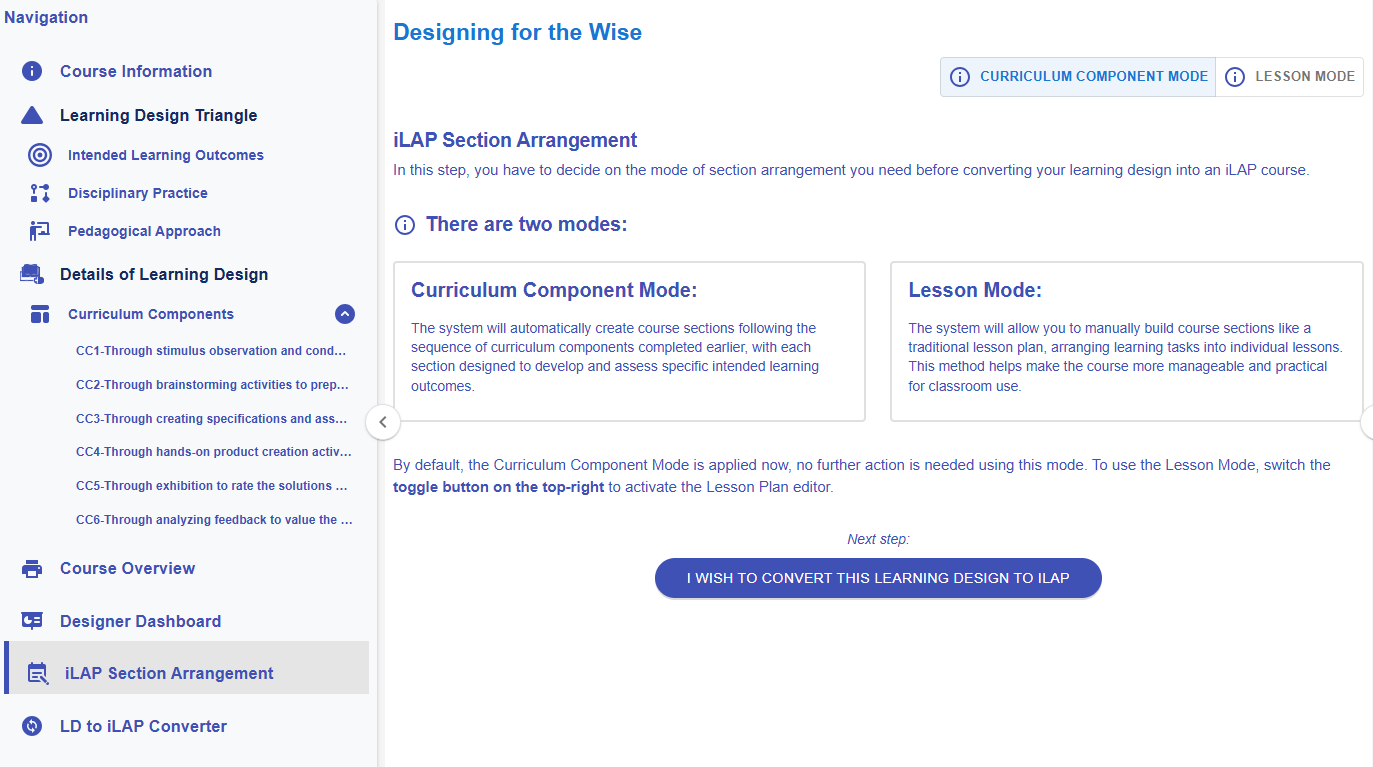 Figure 8.1: iLAP Section Arrangement
We offer two modes for the conversion: Curriculum Component (CC) mode and Lesson mode.
- You can switch between the two modes at any time by clicking the
 button in the top-right corner, without losing any data.
 - In CC mode, the system automatically creates course sections based on your curriculum components, so no additional effort is required.
- In Lesson mode, you manually build course sections, arranging learning tasks into individual lessons—similar to a traditional lesson plan.
Demonstration of the Lesson Mode
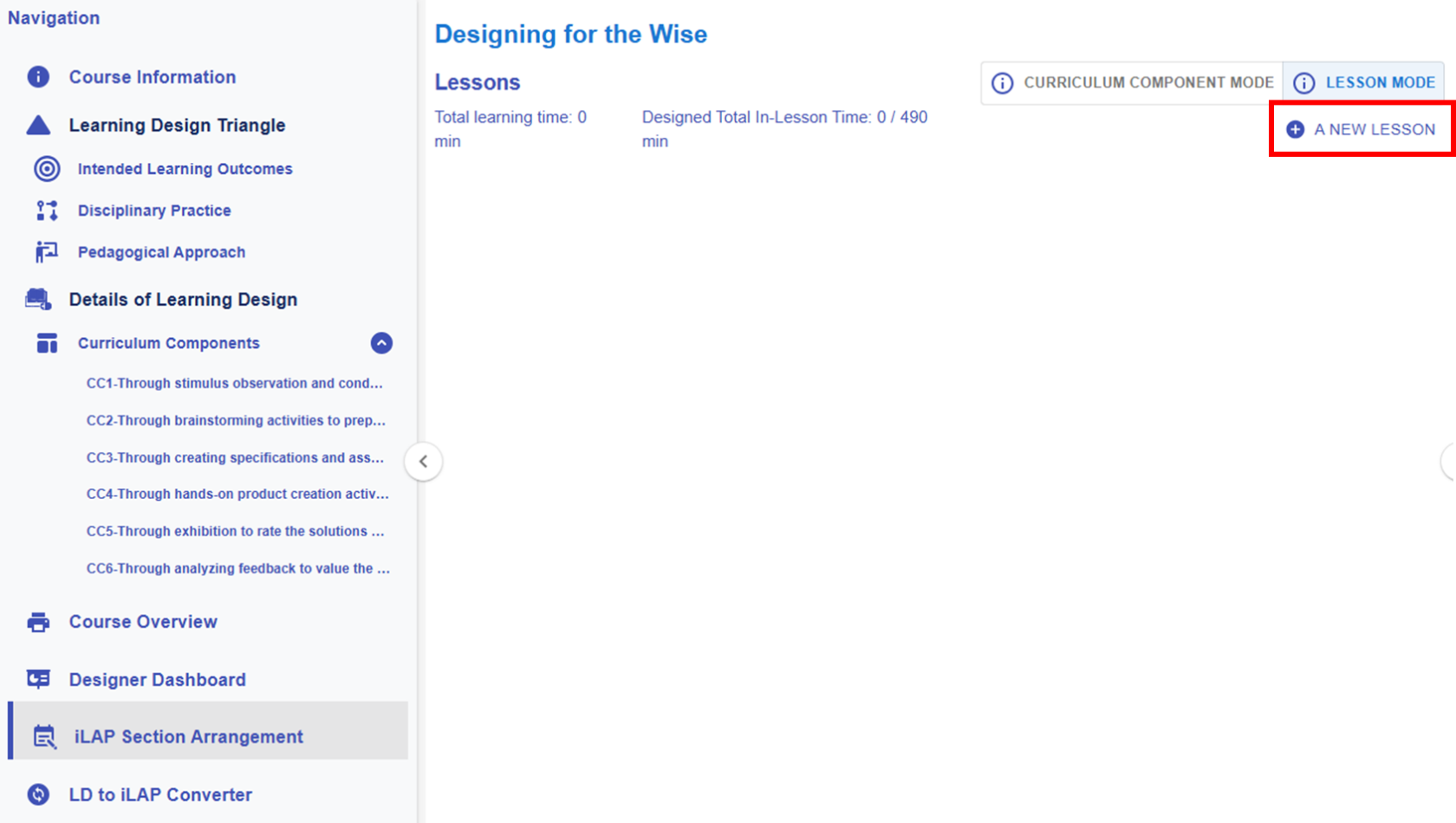
Figure 8.1: Details of Learning Design Section - Lesson Arrangement
You can click the  "A NEW LESSON" button to create an empty lesson block for assigning learning tasks later.
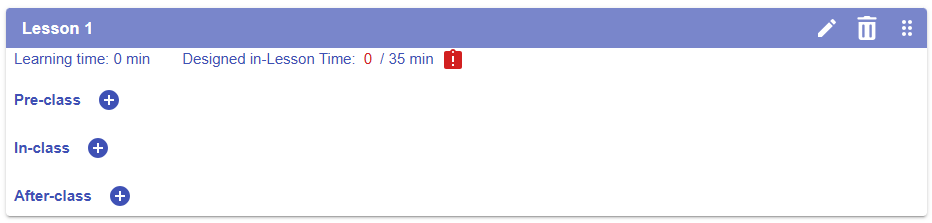
Figure 8.2: An Empty Lesson Block
Adding a Task to a Lesson
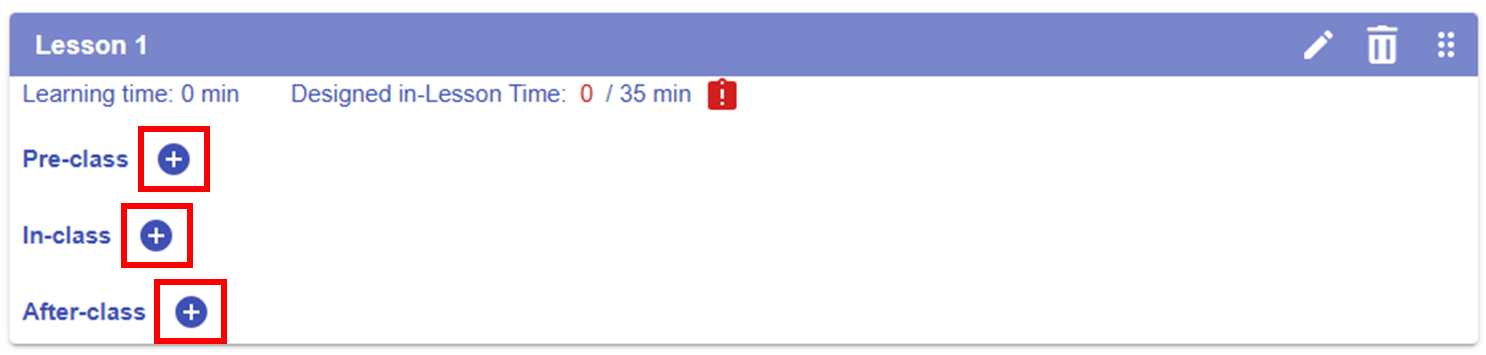
Figure 8.3: Adding a Task to a Lesson (1)
By clicking the button next to "Pre-class" "In-class" or "After-class", a pop-up window will appear, allowing you to view the created curriculum components and learning tasks.
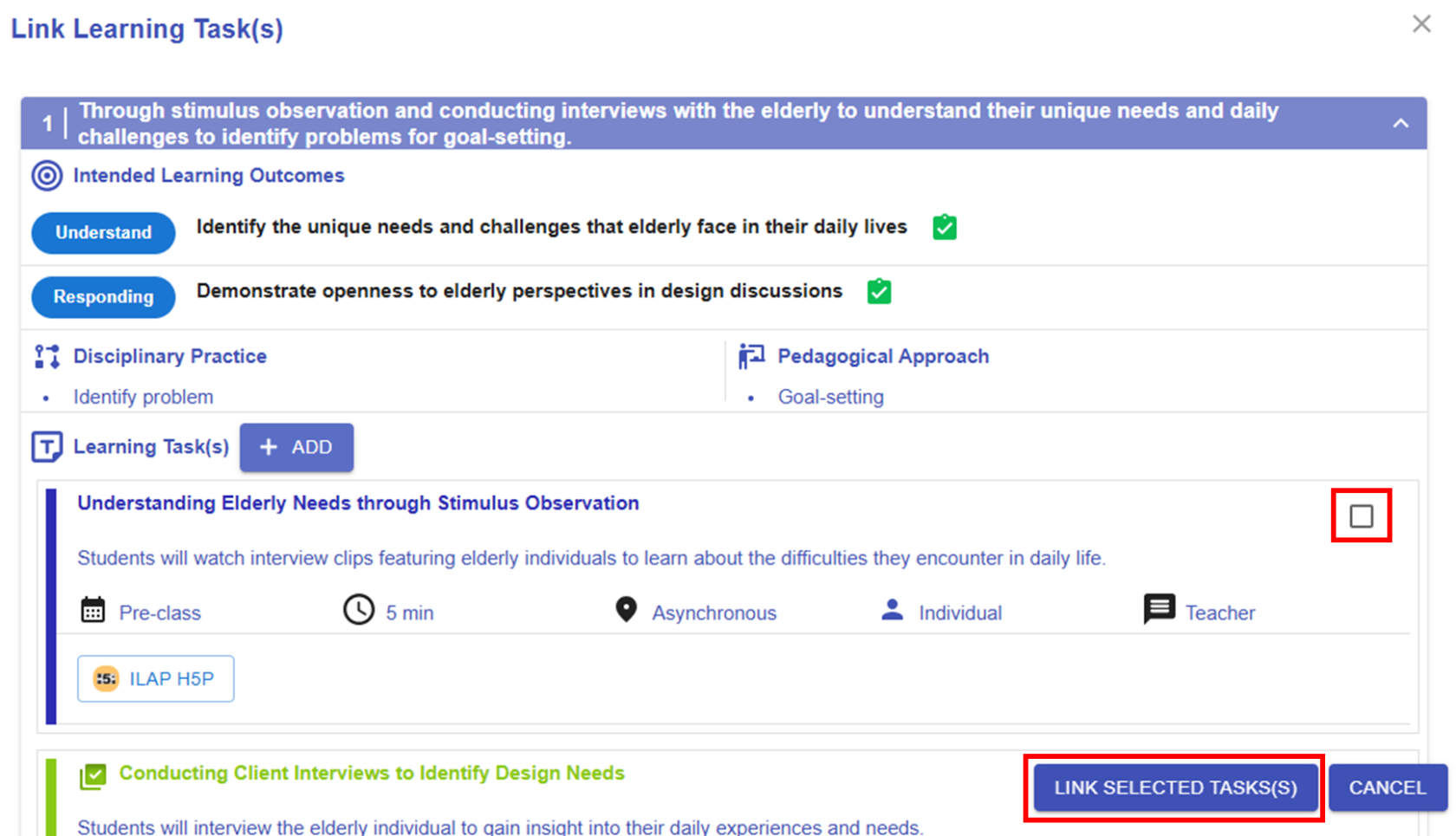
Figure 8.4: Adding a Task to a Lesson (2)
You can select the appropriate learning task(s) by clicking the checkbox in the top-right corner of each task. Then, click the "LINK SELECTED TASK(S)" button to assign the selected tasks to the targeted lesson.
Revising and Rearranging a Task
Below is a sample overrun lesson. We will need to revise the task details or move the task to a different stage or lesson.
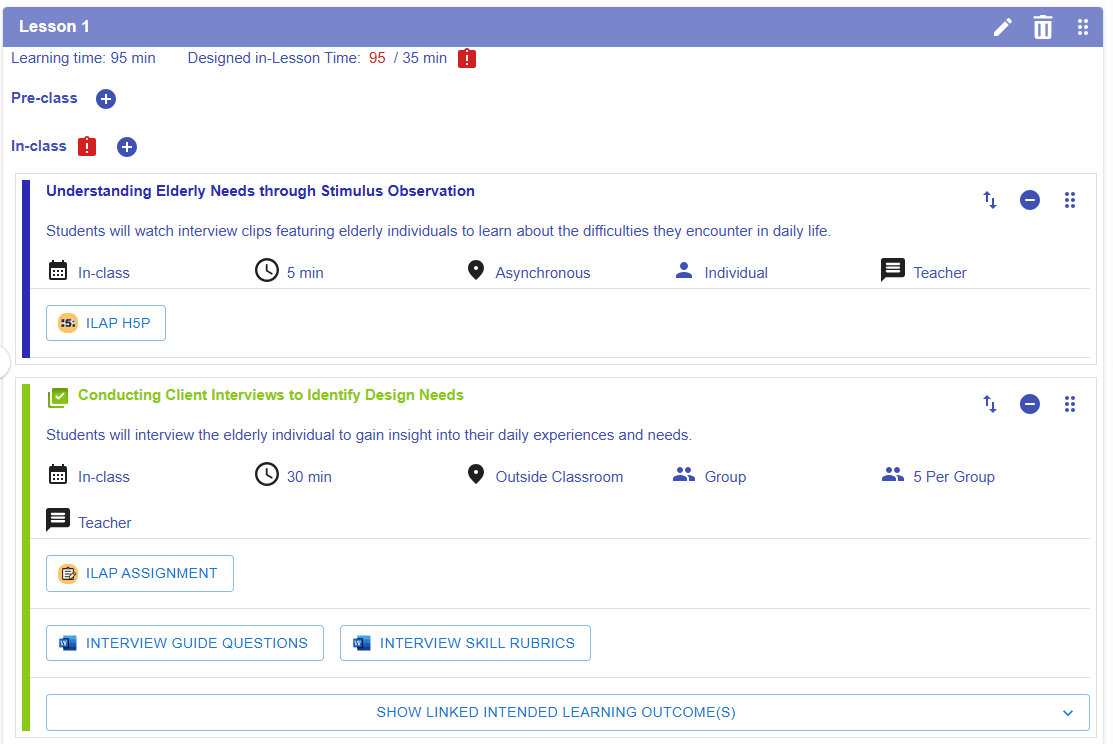
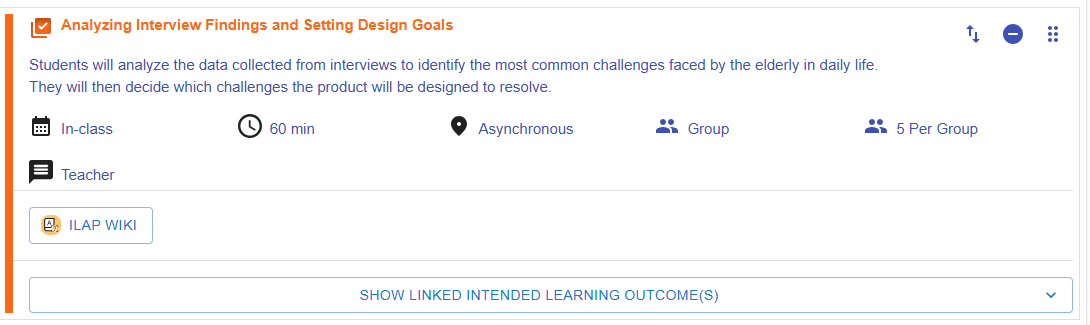
Figure 8.5: A sample Overrun Lesson
|
1. Alert for Overrun Lesson Plan
Figure 5.56: Alert for Overrun Lesson Plan
|
|
2. Rearranging a Task
Figure 8.6: Moving a Task (1)
Figure 8.7: Moving a Task (2)
|


 button next to the In-Class Session.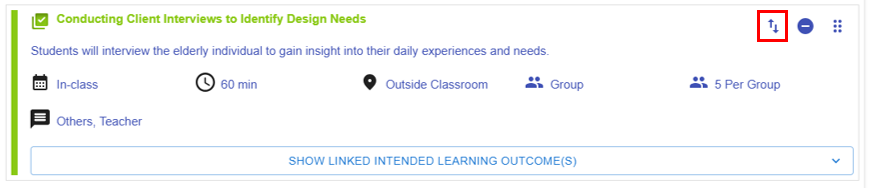
 button, a pop-up window will appear, allowing you to move the task to a stage in a different lesson.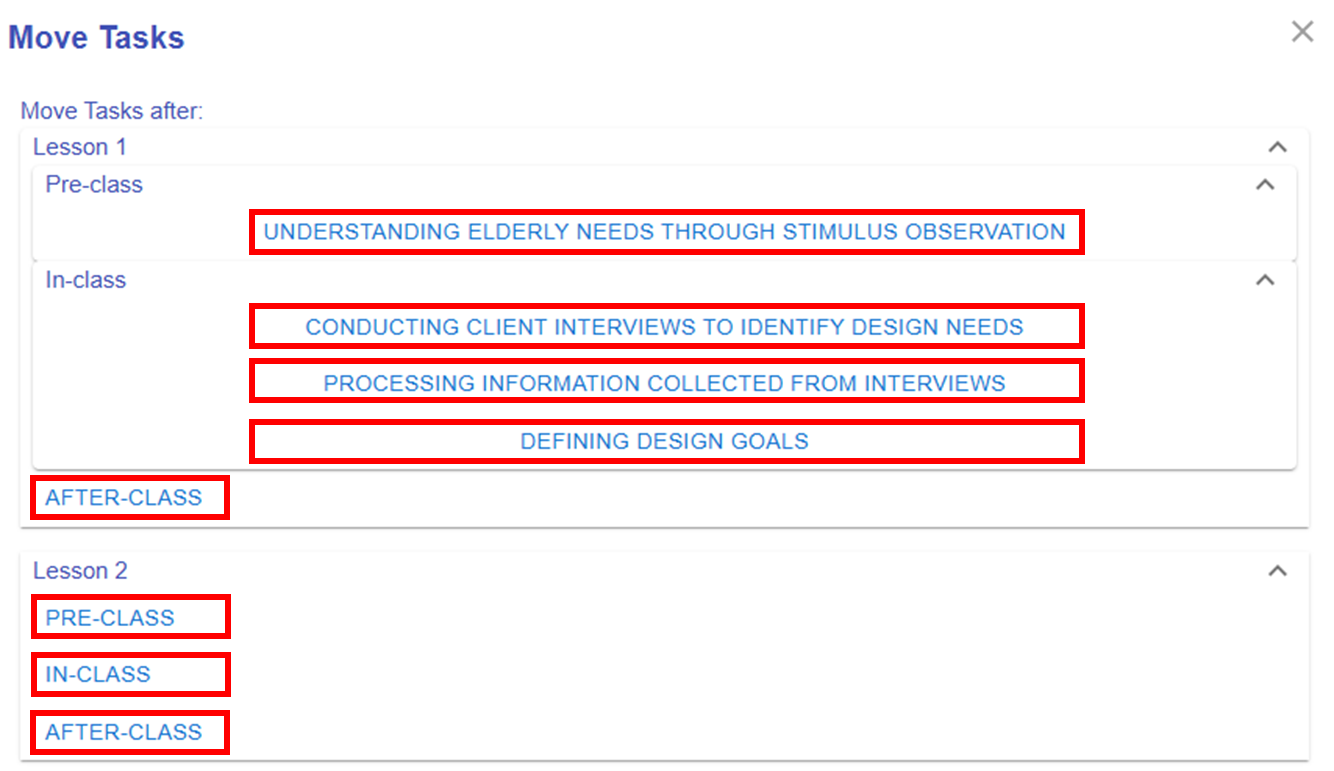
*Please repeat the mentioned steps to complete the lesson plan.