
7.1 iLAP Section Arrangement
As mentioned, the LDS supports the practical implementation of your design by allowing you to assign the predefined learning tasks within each Curriculum Component (CC) to create the lesson plan. This step bridges the gap between your ideal CC Sequence and the realities of classroom instruction, enabling you to revise and adapt your plans to ensure they are both feasible and effective in practice. In this section, you will learn how to use the lesson builder to assign the predefined learning tasks from each Curriculum Component (CC) to individual lessons.
If you are subscribed to our iLAP platform, the structure you confirm in this section will be used to convert your lesson plan into an online course on iLAP. (Click here to subscribe!)
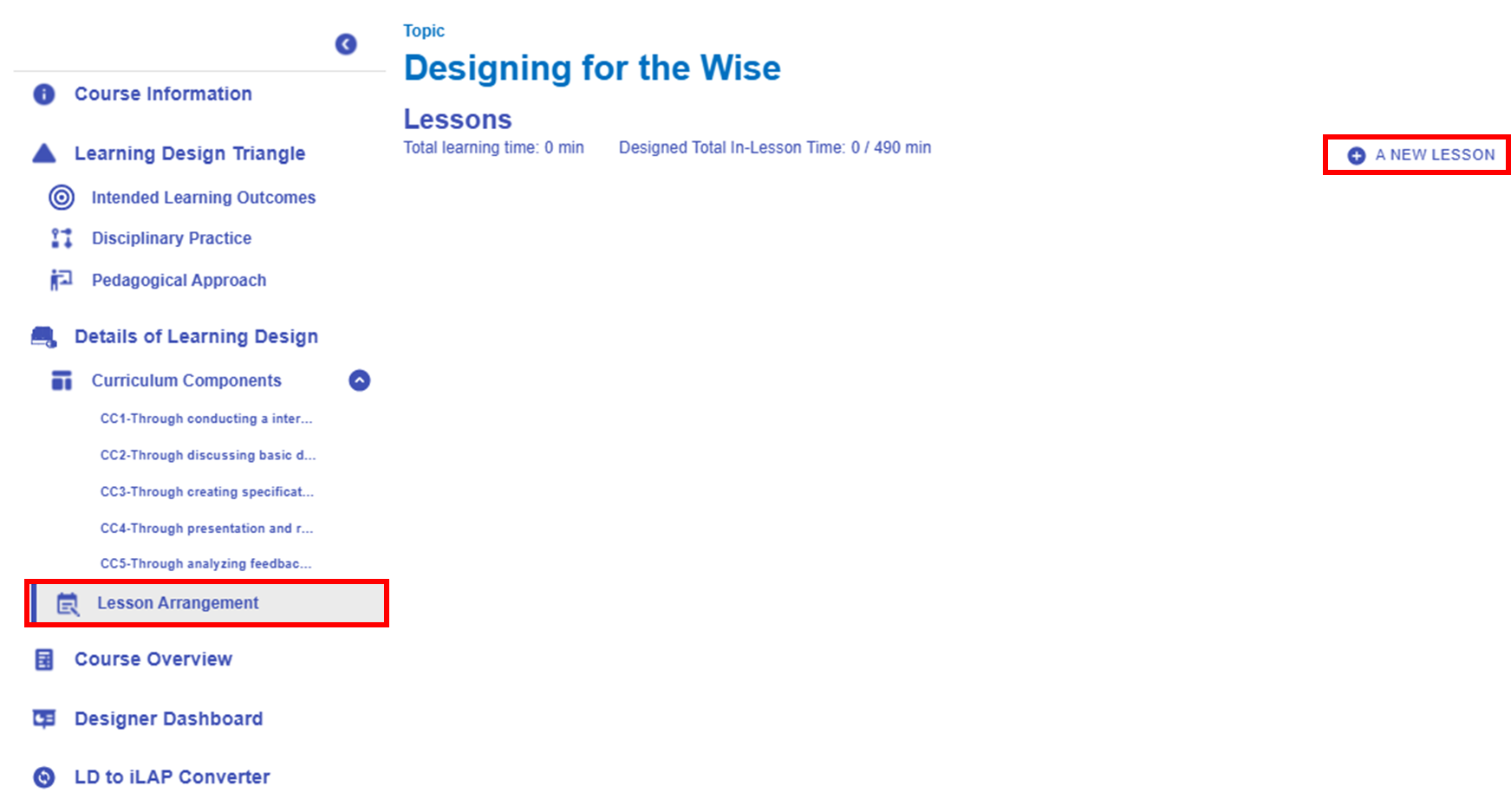
Figure 7.1: Details of Learning Design Section - Lesson Arrangement
You can click the  "A NEW LESSON" button to create an empty lesson block for assigning learning tasks later.
 Figure 7.2: An Empty Lesson Block
Adding a Task to a Lesson

Figure 7.3: Adding a Task to a Lesson (1)
By clicking the button next to "Pre-class" "In-class" or "After-class", a pop-up window will appear, allowing you to view the created curriculum components and learning tasks.
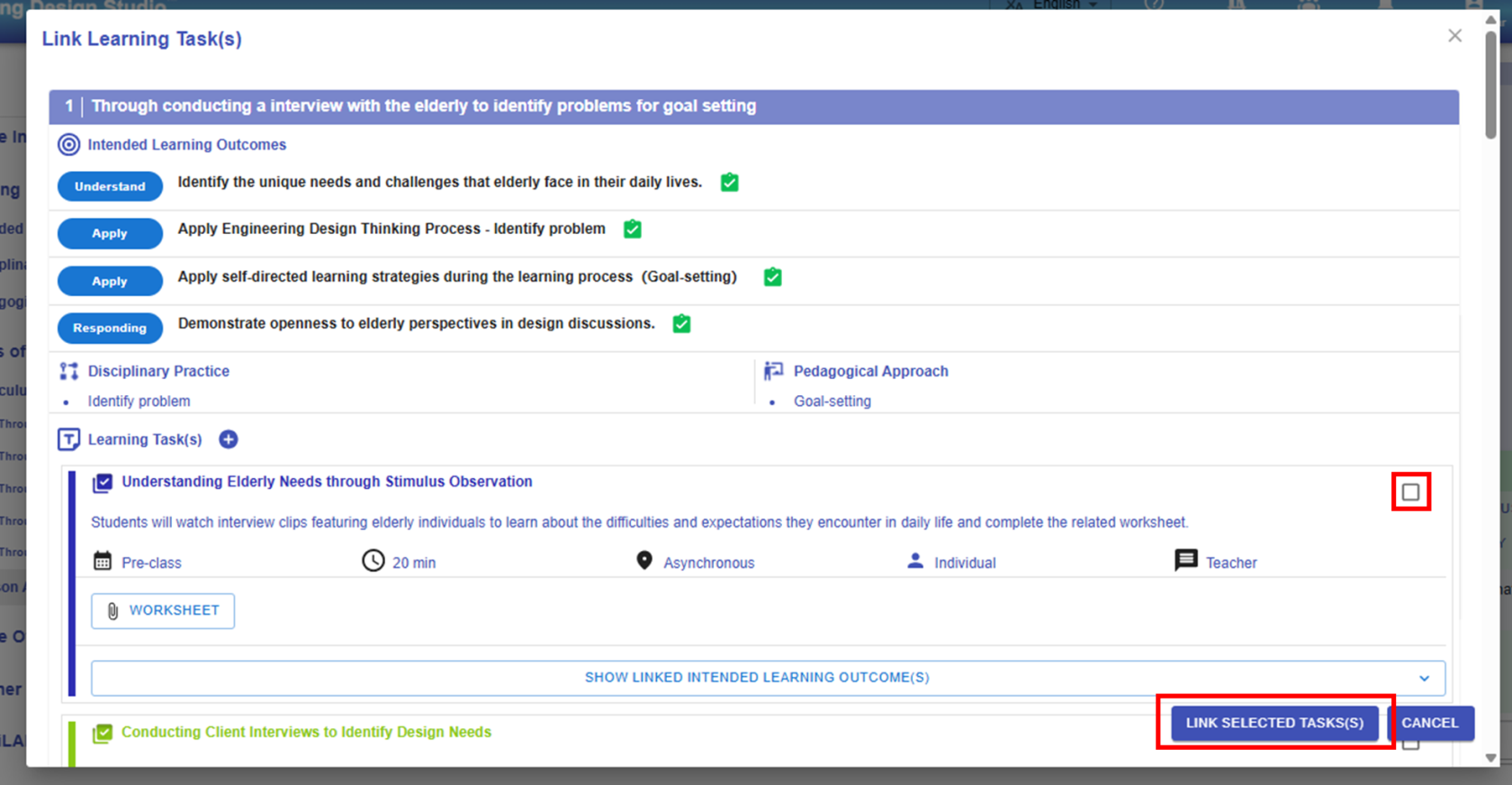 Figure 7.4: Adding a Task to a Lesson (2)
You can select the appropriate learning task(s) by clicking the checkbox in the top-right corner of each task. Then, click the "LINK SELECTED TASK(S)" button to assign the selected tasks to the targeted lesson.
Revising and Rearranging a Task
Below is a sample overrun lesson. We will need to revise the task details or move the task to a different stage or lesson.
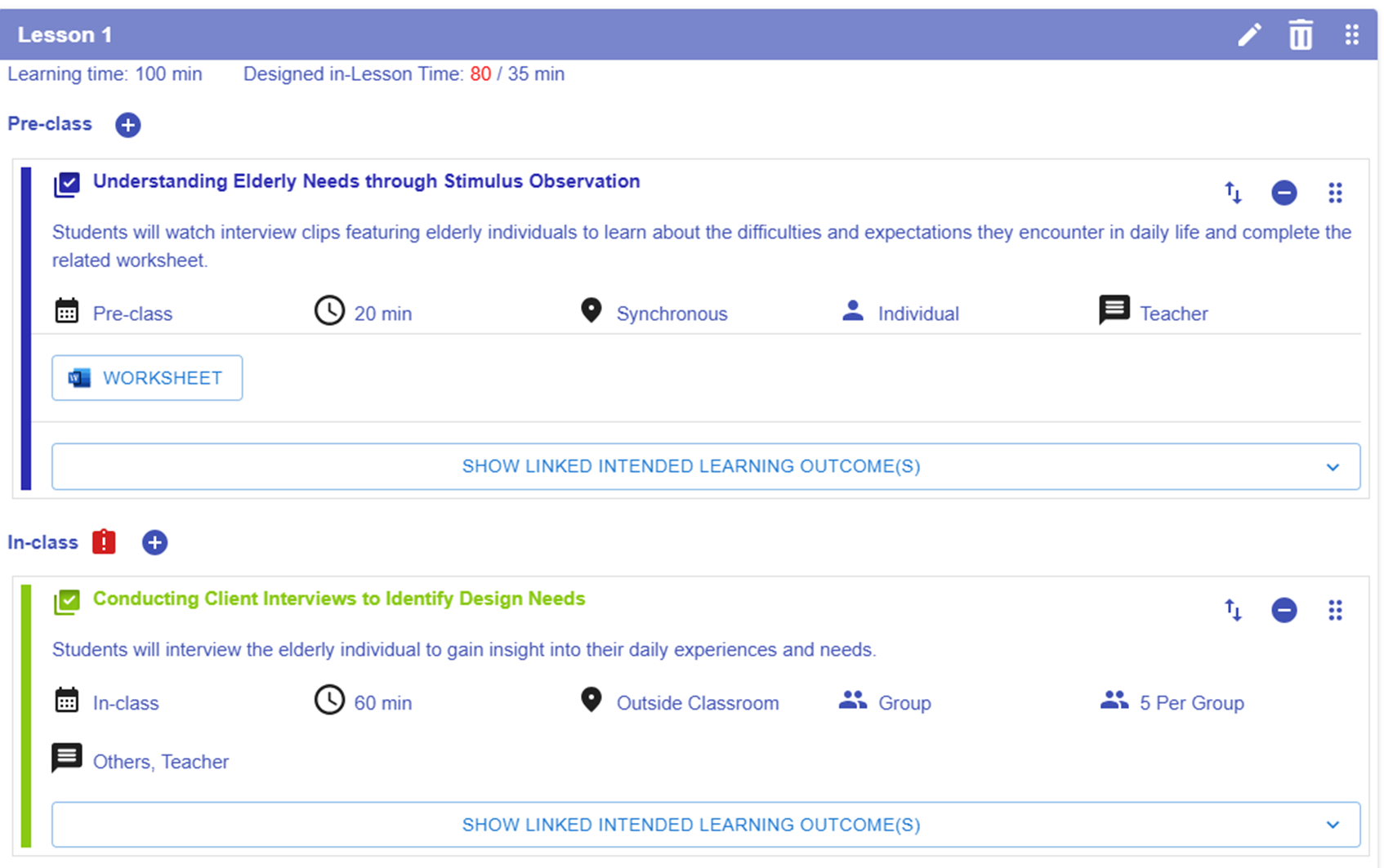
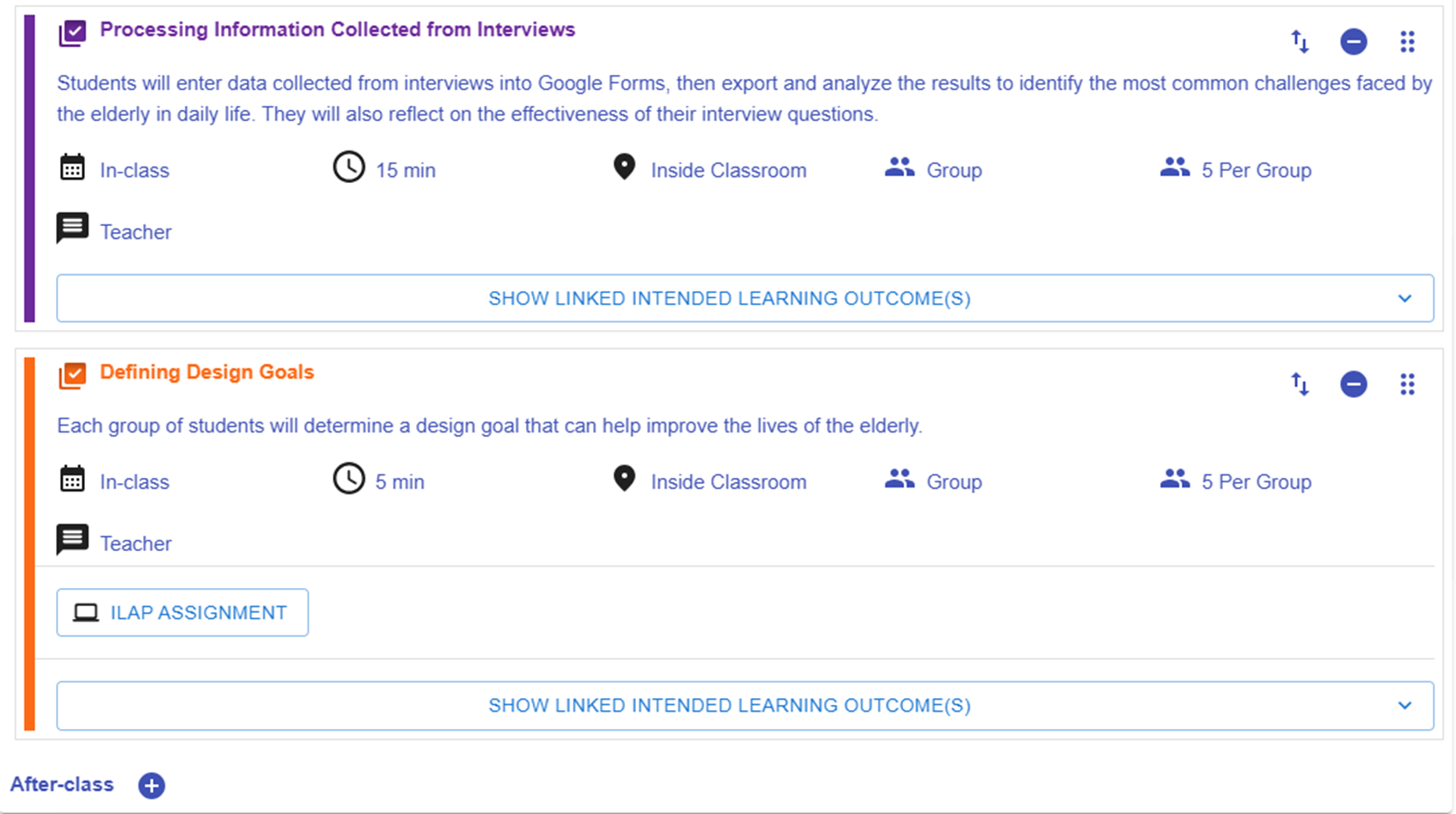
Figure 7.5: A sample Overrun Lesson
|
1. Alert for Overrun Lesson Plan
Figure 5.56: Alert for Overrun Lesson Plan
|
|
2. Rearranging a Task
Figure 7.6: Moving a Task (1)
Figure 7.7: Moving a Task (2)
|


 button next to the In-Class Session.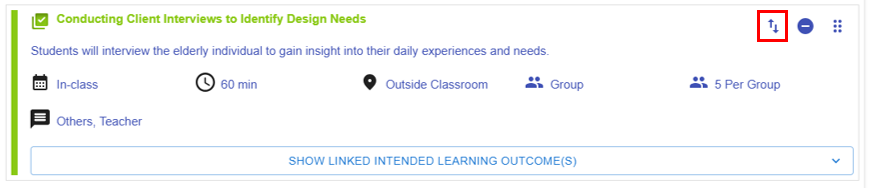
 button, a pop-up window will appear, allowing you to move the task to a stage in a different lesson.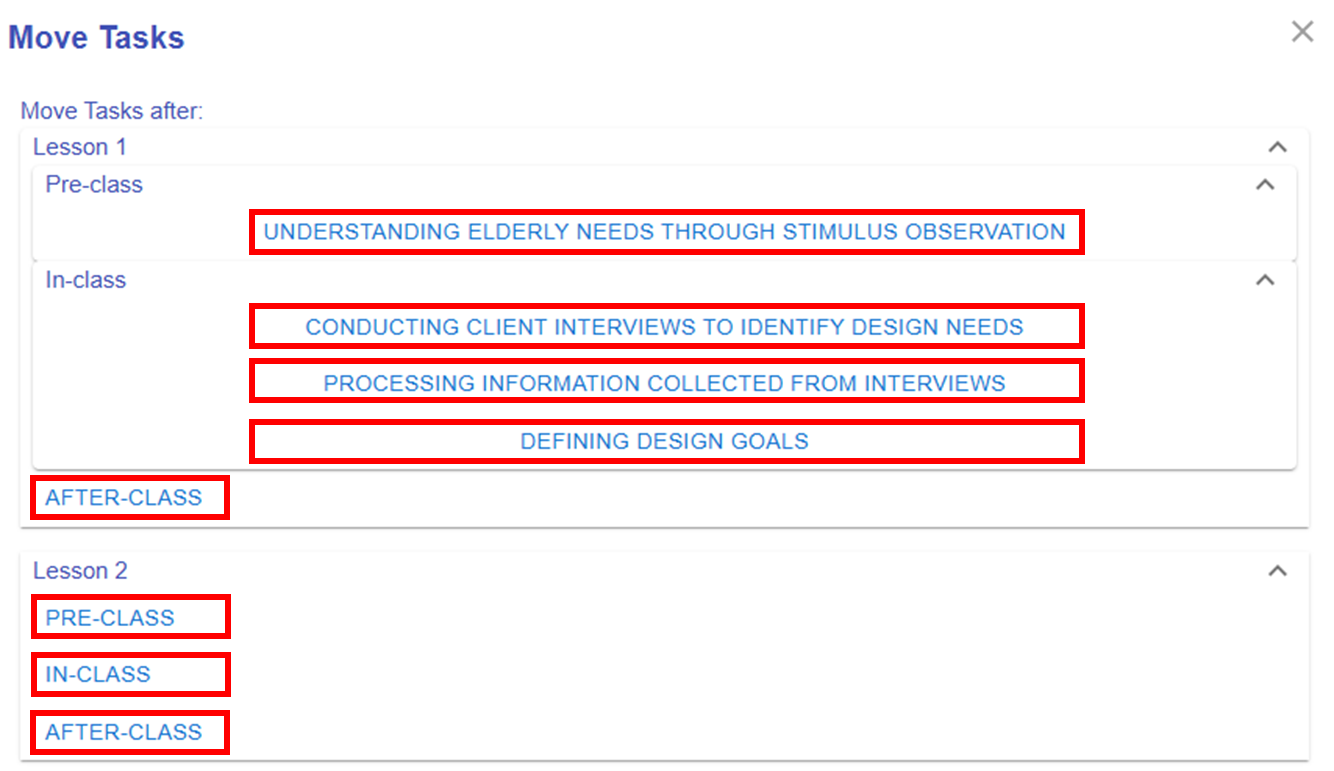
*Please repeat the mentioned steps to complete the lesson plan.