
3.1 UI Overview and Terminology
Welcome to the Learning Design Studio (LDS)! Starting with this chapter, you will begin exploring the LDS interface and features to create your own learning design.
Main User Interface Overview
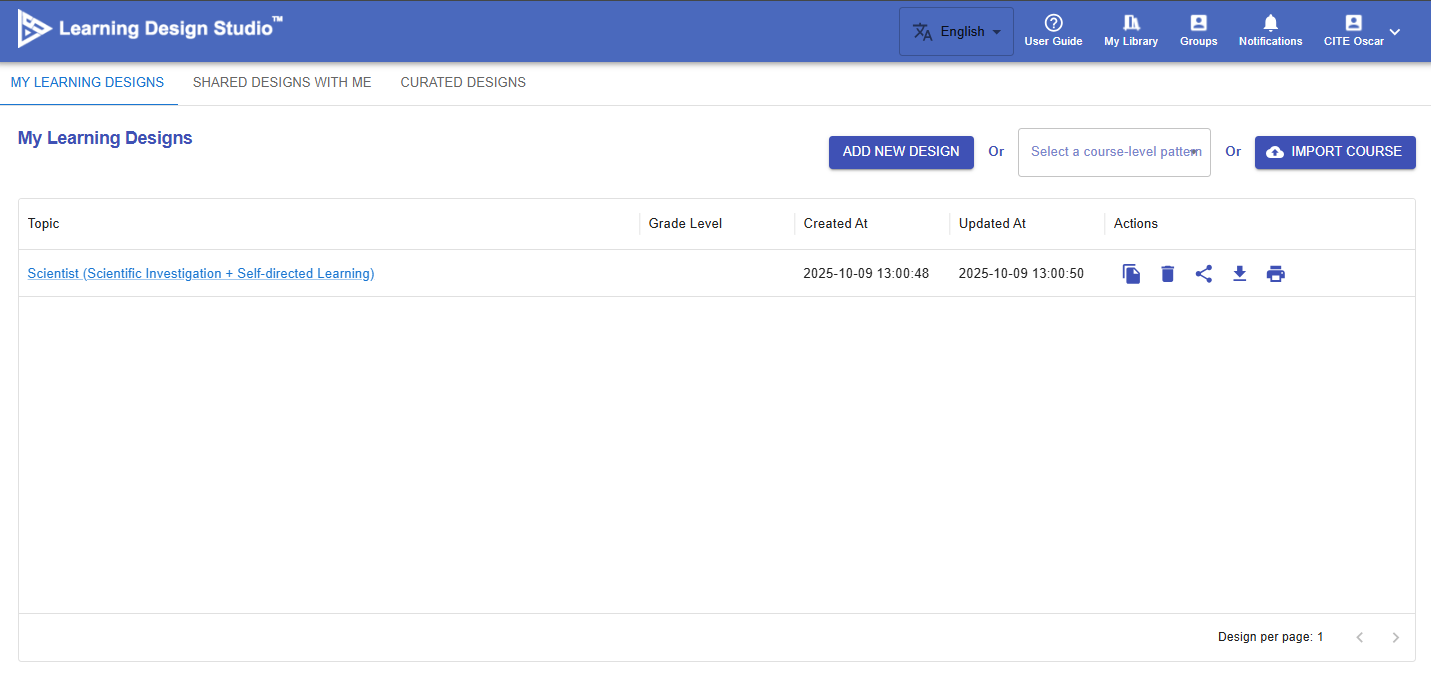
Figure 3.1: Main User Interface

|
Item |
Description |
Tutorial |
|---|---|---|
| 1. Languages |
The LDS currently supports English, Traditional Chinese, and Simplified Chinese. |
N/A |
| 2. User Guide |
A simple navigation to the LDS. |
N/A |
| 3. My Library |
You can access and manage your learning designs in one place. Create new designs, edit existing ones, and easily view designs shared with you by others. |
Ch 4-9 |
| 4. Groups |
You can create groups for your school or organization, invite members to join, and collaboratively share and co-create learning designs. |
Ch 10 |
| 5. Notifications |
You will receive a notification when there are important updates or invitations from the group. |
NA |
| 6. Profile |
You can update your email address and display name in the LDS. |
NA |
Learning Design Interface Overview
When you enter the Learning Design section, the user interface is divided into three panels:
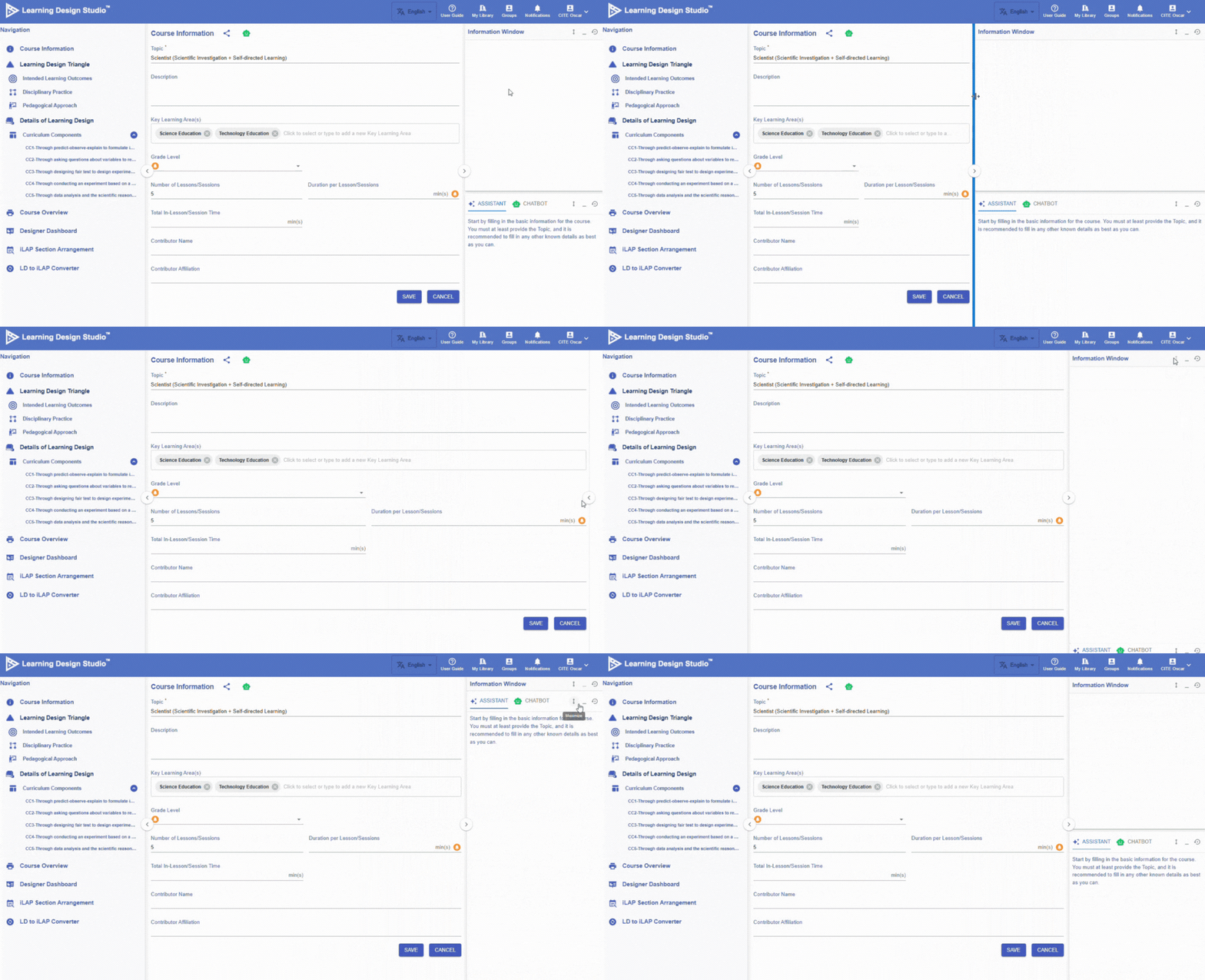 Figure 3.3 Panel-Based Interface
You can drag the edge of a panel to resize it, or click the  button to collapse or expand the panel.