# 5.3.2 Creating Curriculum Components (CCs) Part 2

#### **Creating the First CC (Cont.)** 

**Step 3: Creating the Task Sequence for the CC**

- After deciding on the intended learning outcomes, workflow steps, and pedagogical focus of the CC, the next step is to assign and sequence the learning tasks and assessments.
- Below is an example of a completed CC with well-sequenced tasks and assessments, which we will examine in this section.

[![image.png](https://ideals-doc.cite.hku.hk/uploads/images/gallery/2025-12/scaled-1680-/sPiimage.png)](https://ideals-doc.cite.hku.hk/uploads/images/gallery/2025-12/scaled-1680-/sPiimage.png)[![image.png](https://ideals-doc.cite.hku.hk/uploads/images/gallery/2025-12/scaled-1680-/Pn8image.png)](https://ideals-doc.cite.hku.hk/uploads/images/gallery/2025-12/scaled-1680-/Pn8image.png)

Figure 5.35: An Example of a Completed CC

<span style="text-decoration: underline;">3.1 Creating a Task</span>

- We will use the "Conducting Client Interviews to Identify Design Needs" task to demonstrate how to add a task

[![image.png](https://ideals-doc.cite.hku.hk/uploads/images/gallery/2025-12/scaled-1680-/JJeimage.png)](https://ideals-doc.cite.hku.hk/uploads/images/gallery/2025-12/scaled-1680-/JJeimage.png)

Figure 5.36: Adding New Learning Task(s)

- By clicking the ![image.png](https://ideals-doc.cite.hku.hk/uploads/images/gallery/2025-12/scaled-1680-/5Urimage.png) button , you can open the Task builder.

[![image.png](https://ideals-doc.cite.hku.hk/uploads/images/gallery/2025-12/scaled-1680-/bM6image.png)](https://ideals-doc.cite.hku.hk/uploads/images/gallery/2025-12/scaled-1680-/bM6image.png)[![image.png](https://ideals-doc.cite.hku.hk/uploads/images/gallery/2025-12/scaled-1680-/7hJimage.png)](https://ideals-doc.cite.hku.hk/uploads/images/gallery/2025-12/scaled-1680-/7hJimage.png)

Figure 5.37: Interface of the Task Builder

- Please read the introduction below to guide you in creating a task.

<table border="1" id="bkmrk-1.-task-information-" style="border-collapse: collapse; width: 100%; height: 1124.85px;"><colgroup><col style="width: 63.5158%;"></col><col style="width: 36.4603%;"></col></colgroup><tbody><tr style="height: 46.5625px;"><th style="border-width: 1px; vertical-align: middle; height: 46.5625px;"><span style="color: rgb(255, 255, 255);">**Item**</span>

</th><th style="height: 46.5625px; border-width: 1px; vertical-align: middle;">**Example of this CC**

</th></tr><tr style="height: 260.6px;"><td class="align-center" style="height: 260.6px;">**1. Task Information**

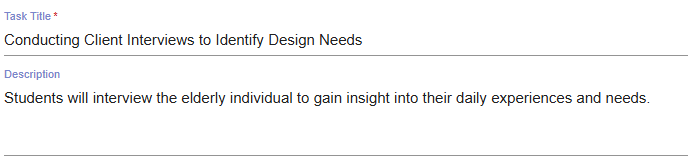
- Provide a clear task title and description for a learning task.
![image.png](https://ideals-doc.cite.hku.hk/uploads/images/gallery/2025-12/scaled-1680-/Cu5image.png)


Figure 5.38: Task Information</td><td style="height: 260.6px;">**Task title:**

Conducting Client Interviews to Identify Design Needs

**Description**:

Students will interview the elderly individual to gain insight into their daily experiences and needs.

</td></tr><tr style="height: 157.413px;"><td class="align-left" style="height: 157.413px;">**2. Stage**

- Is this a pre-class, in-class, or after-class task?

![image.png](https://ideals-doc.cite.hku.hk/uploads/images/gallery/2025-12/scaled-1680-/tDFimage.png)

Figure 5.39: Stage

</td><td style="height: 157.413px;">In-class

</td></tr><tr style="height: 165.175px;"><td style="height: 165.175px;">**3. Task Type**

- Please refer to **Chapter 2.6 - Task Taxonomy** for more details.

![image.png](https://ideals-doc.cite.hku.hk/uploads/images/gallery/2025-12/scaled-1680-/9Y6image.png)

Figure 5.40: Task Type

</td><td style="height: 165.175px;">Explorations through Conversation</td></tr><tr style="height: 142.05px;"><td style="height: 142.05px;">**4. Duration**

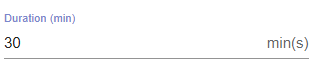
- How long is the task?
![image.png](https://ideals-doc.cite.hku.hk/uploads/images/gallery/2025-12/scaled-1680-/9tLimage.png)

Figure 5.41: Duration

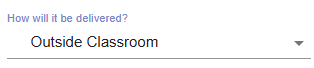
</td><td style="height: 142.05px;">30 mins</td></tr><tr style="height: 234.65px;"><td style="height: 234.65px;">**5. Delivery Mode**

- Possible Options: 
    - Face-to-Face (Inside Classroom, Outside Classroom)
    - Online (Synchronous, Asynchronous)
    - Hybrid
![image.png](https://ideals-doc.cite.hku.hk/uploads/images/gallery/2025-12/scaled-1680-/5LCimage.png)

Figure 5.42: Delivery Mode

</td><td style="height: 234.65px;">Outside Classroom</td></tr><tr style="height: 29.6px;"><td style="height: 29.6px;">**6. Social Organization**

- Possible Options: 
    - Whole Class
    - Group
    - Individual
    - Peer

![image.png](https://ideals-doc.cite.hku.hk/uploads/images/gallery/2025-12/scaled-1680-/9zoimage.png)

Figure 5.43: Social Organization

</td><td style="height: 29.6px;">Group, Size: 5

</td></tr><tr style="height: 29.6px;"><td style="height: 29.6px;">**7. Feedback Provider**

- You can select more than one feedback providers. 
    - Teacher
    - Peer
    - Self
    - Others

![image.png](https://ideals-doc.cite.hku.hk/uploads/images/gallery/2025-09/scaled-1680-/Vsoimage.png)

Figure 5.44: Feedback Provider

</td><td style="height: 29.6px;">Teacher</td></tr><tr style="height: 29.6px;"><td style="height: 29.6px;">**8. Assessment**

![image.png](https://ideals-doc.cite.hku.hk/uploads/images/gallery/2025-12/scaled-1680-/T6Qimage.png)

[![image.png](https://ideals-doc.cite.hku.hk/uploads/images/gallery/2025-12/scaled-1680-/pOfimage.png)](https://ideals-doc.cite.hku.hk/uploads/images/gallery/2025-12/scaled-1680-/pOfimage.png)
![image.png](https://ideals-doc.cite.hku.hk/uploads/images/gallery/2025-12/scaled-1680-/fKximage.png)

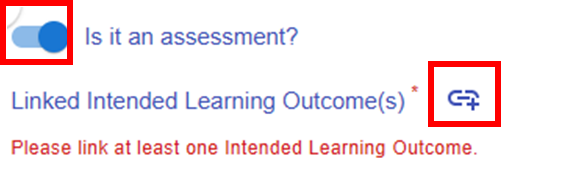
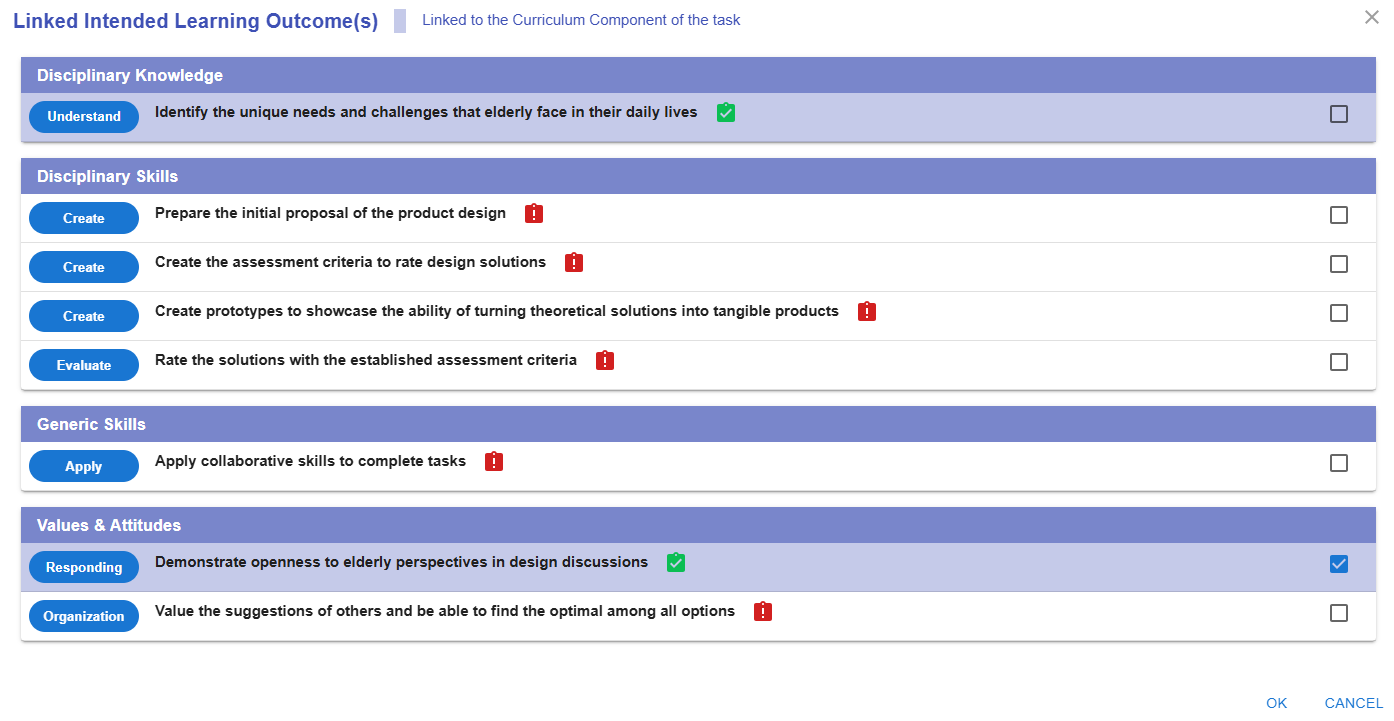
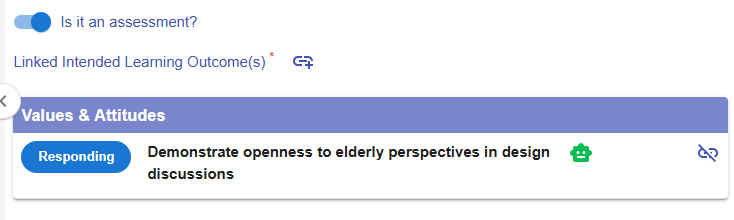
Figure 5.45: Triggering the Assessment Option in a Task

</td><td style="height: 29.6px;">A learning task can also serve as an assessment.

If you select the assessment option, you will need to

- assign the feedback provider(s), and
- specify the targeted learning outcomes for this task to be assessed  
      
    
    - e.g. Demonstrate openness to elderly perspectives in design discussions

</td></tr><tr style="height: 29.6px;"><td style="height: 29.6px;">**9. E-learning Tool**

![image.png](https://ideals-doc.cite.hku.hk/uploads/images/gallery/2025-12/scaled-1680-/MWWimage.png)

![image.png](https://ideals-doc.cite.hku.hk/uploads/images/gallery/2025-09/scaled-1680-/hyHimage.png)

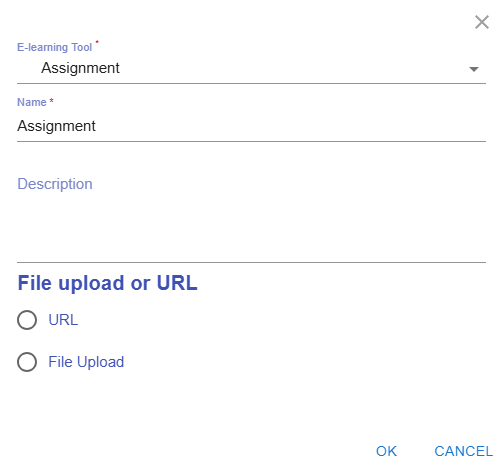
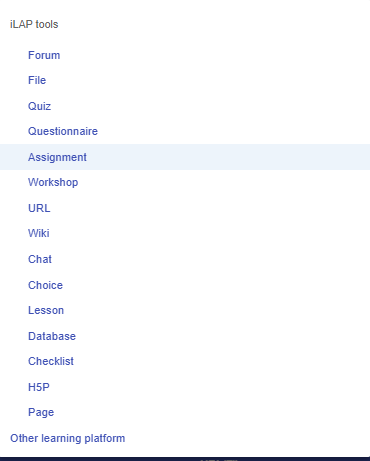
Figure 5.46: Interface for Adding E-learning Tool(s) to a Task

</td><td style="height: 29.6px;">The e-learning tools section allows you to select the type of tool you want to use to implement the task.

For example, if you want to create a space for students to submit their homework, you can choose the Assignment tool, as demonstrated here.

</td></tr><tr><td>**10. Resources**

![image.png](https://ideals-doc.cite.hku.hk/uploads/images/gallery/2025-12/scaled-1680-/Zxeimage.png)

![image.png](https://ideals-doc.cite.hku.hk/uploads/images/gallery/2025-12/scaled-1680-/2uRimage.png)

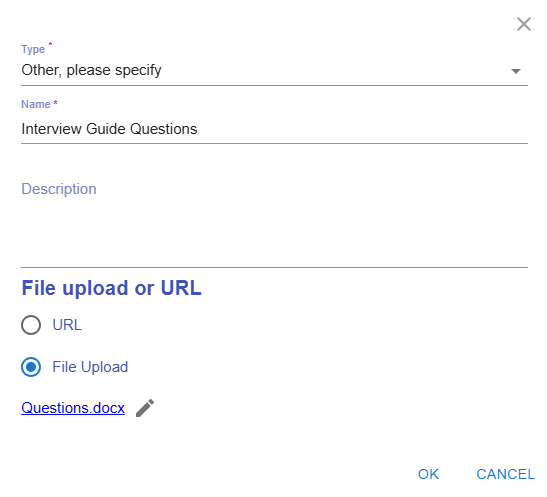
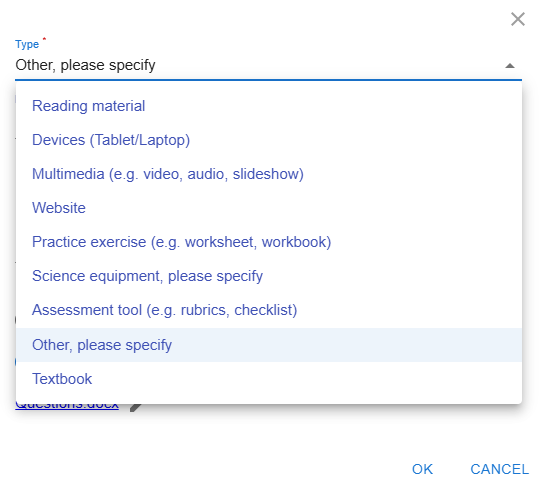
Figure 5.47: Interface for Adding Resource(s) to a Task

</td><td>The resource section allows you to select the type of resource or tool you want to use to support the learning process.

For example, you can upload the interview guiding questions and the interview skills rubric for use in the course.

</td></tr></tbody></table>

[![image.png](https://ideals-doc.cite.hku.hk/uploads/images/gallery/2025-12/scaled-1680-/ZbRimage.png)](https://ideals-doc.cite.hku.hk/uploads/images/gallery/2025-12/scaled-1680-/ZbRimage.png)Figure 5.48: Preview of a Learning Task

- The task appears in the CC page.

<span style="text-decoration: underline;">3.2 A Quick Reminder</span>

[![image.png](https://ideals-doc.cite.hku.hk/uploads/images/gallery/2025-12/scaled-1680-/RtWimage.png)](https://ideals-doc.cite.hku.hk/uploads/images/gallery/2025-12/scaled-1680-/RtWimage.png)

Figure 5.49: Preview of a CC

- The LDS will remind you to assign assessments to any unassessed learning outcomes within the CC.
- \* You can continue adding more tasks to complete your <span style="text-align: justify; color: rgb(68, 68, 68);">Curriculum </span>Component (CC), and add additional CCs to finalize your learning design by repeating the steps mentioned above.

<span style="text-decoration: underline;">3.3 Moving a Task</span>

[![image.png](https://ideals-doc.cite.hku.hk/uploads/images/gallery/2025-12/scaled-1680-/RG3image.png)](https://ideals-doc.cite.hku.hk/uploads/images/gallery/2025-12/scaled-1680-/RG3image.png)Figure 5.50: Moving a Task (1)

- By clicking the ![image.png](https://ideals-doc.cite.hku.hk/uploads/images/gallery/2025-09/scaled-1680-/m5Rimage.png) button, you will see a list of tasks for each CC.

[![image.png](https://ideals-doc.cite.hku.hk/uploads/images/gallery/2025-12/scaled-1680-/oAaimage.png)](https://ideals-doc.cite.hku.hk/uploads/images/gallery/2025-12/scaled-1680-/oAaimage.png)

Figure 5.51: Moving a Task (2)

- You can click any of the tasks to reallocate the current task to a position after it.

**Additional: Information Window, and Header**

- There is some additional information to help you analyze the learning design.

<table border="1" id="bkmrk-item-description-exa-1" style="border-collapse: collapse; width: 102.857%; height: 1796.26px; border-width: 1px;"><colgroup><col style="width: 19.1849%;"></col><col style="width: 47.4261%;"></col><col style="width: 33.3651%;"></col></colgroup><tbody><tr style="height: 46.5625px;"><th style="height: 46.5625px; border-width: 1px; vertical-align: middle;">**<span style="color: rgb(255, 255, 255);">Item</span>**

</th><th style="border-width: 1px; vertical-align: middle; height: 46.5625px;">**<span style="color: rgb(255, 255, 255);">Description</span>**

</th><th style="height: 46.5625px; border-width: 1px; vertical-align: middle;">**<span style="color: rgb(255, 255, 255);">Example</span>**

</th></tr><tr style="height: 450.391px;"><td style="height: 450.391px; border-width: 1px; vertical-align: middle;">1. Information Window</td><td style="border-width: 1px; vertical-align: middle; height: 450.391px;">![image.png](https://ideals-doc.cite.hku.hk/uploads/images/gallery/2025-12/scaled-1680-/tzSimage.png)

<span style="color: #444444;">Figure 5.52: Information Window in the CC Section</span>

</td><td style="height: 450.391px; border-width: 1px; vertical-align: middle;">In the CC section, the information window will visualise your overall CC design with the pie chart

- Distribution of time spent on learning task types
- Distribution of number of iLAP tools adopted
- Distribution of time spent on delivery modes

</td></tr><tr><td style="border-width: 1px; vertical-align: middle;">2. Header</td><td colspan="2" style="border-width: 1px; vertical-align: middle;">  
[![image.png](https://ideals-doc.cite.hku.hk/uploads/images/gallery/2025-12/scaled-1680-/DyQimage.png)](https://ideals-doc.cite.hku.hk/uploads/images/gallery/2025-12/scaled-1680-/DyQimage.png)

  
<span style="color: #444444;">Figure 5.53: An Example of a Curriculum Component Sequence</span>

Total Learning Time: 440 min

- It includes the time spent on all pre-class, in-class, and after-class activities.

 Designed Total In-Lesson Time: 335 / 490 min

- 335 min is the time spent on in-class activities.
- 490 min is the possible in-class time allocated for this course

 Expand all

- Expand all the CC to see the details

 Collapse all

- Collapse all the CC to hide the details

</td></tr></tbody></table>