5.3.2 Creating Curriculum Components (CCs) Part 2
Creating the First CC (Cont.)
Step 3: Creating the Task Sequence for the CC
- After deciding on the intended learning outcomes, workflow steps, and pedagogical focus of the CC, the next step is to assign and sequence the learning tasks and assessments.
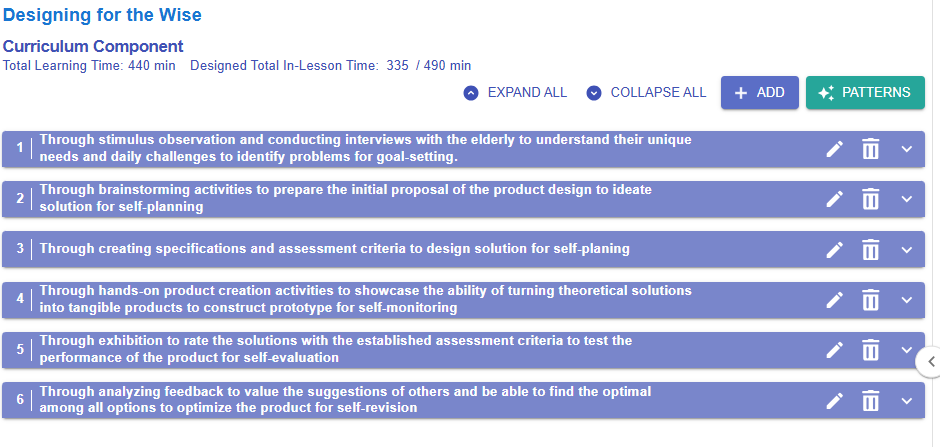
- Below is an example of a completed CC with well-sequenced tasks and assessments, which we will examine in this section.
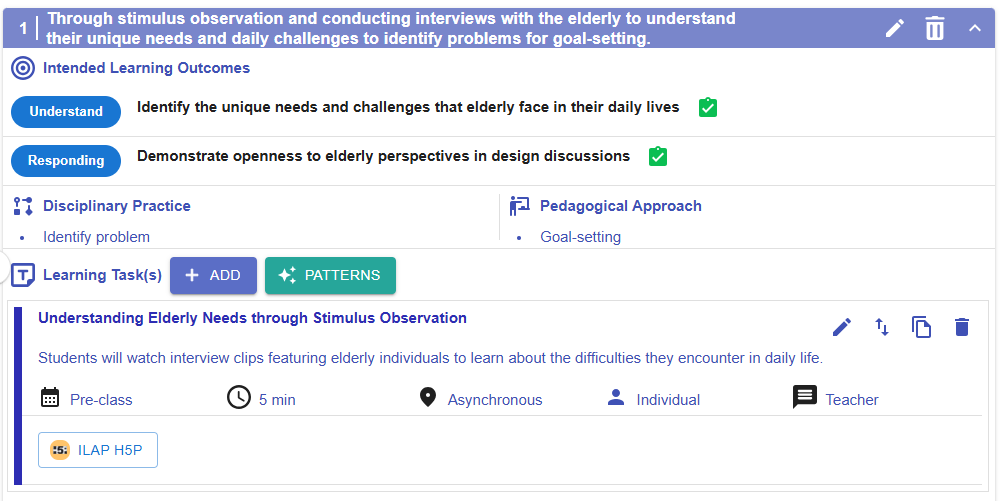
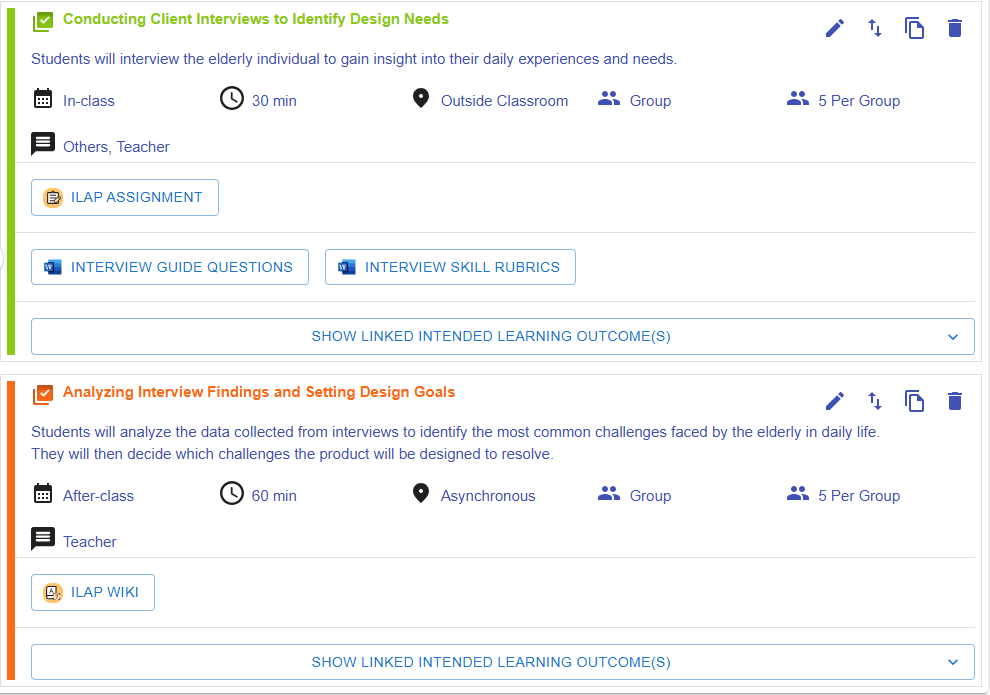
Figure 5.35: An Example of a Completed CC
3.1 Creating a Task
- We will use the "Conducting Client Interviews to Identify Design Needs" task to demonstrate how to add a task
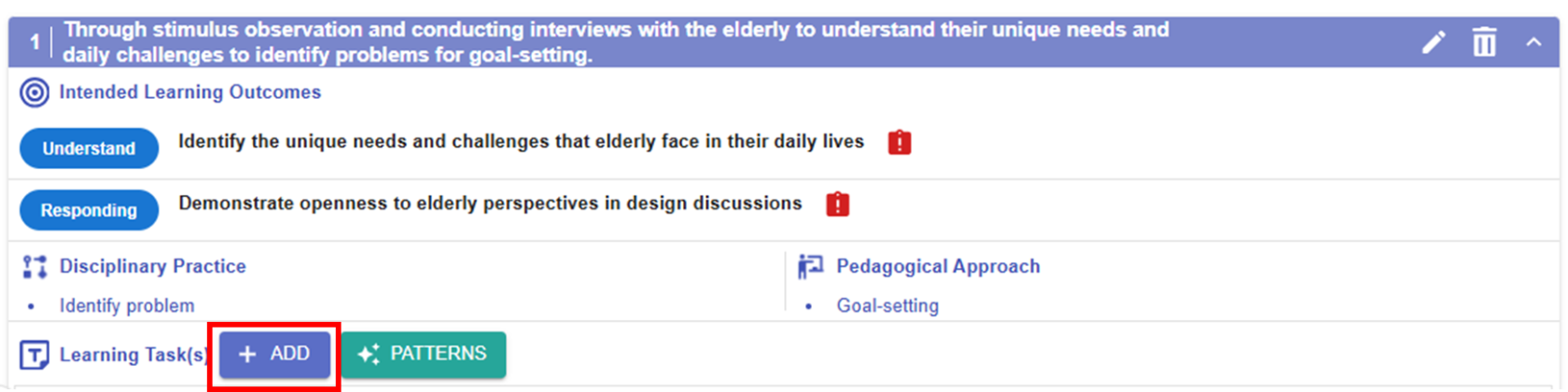
Figure 5.36: Adding New Learning Task(s)
- By clicking the
 button , you can open the Task builder.
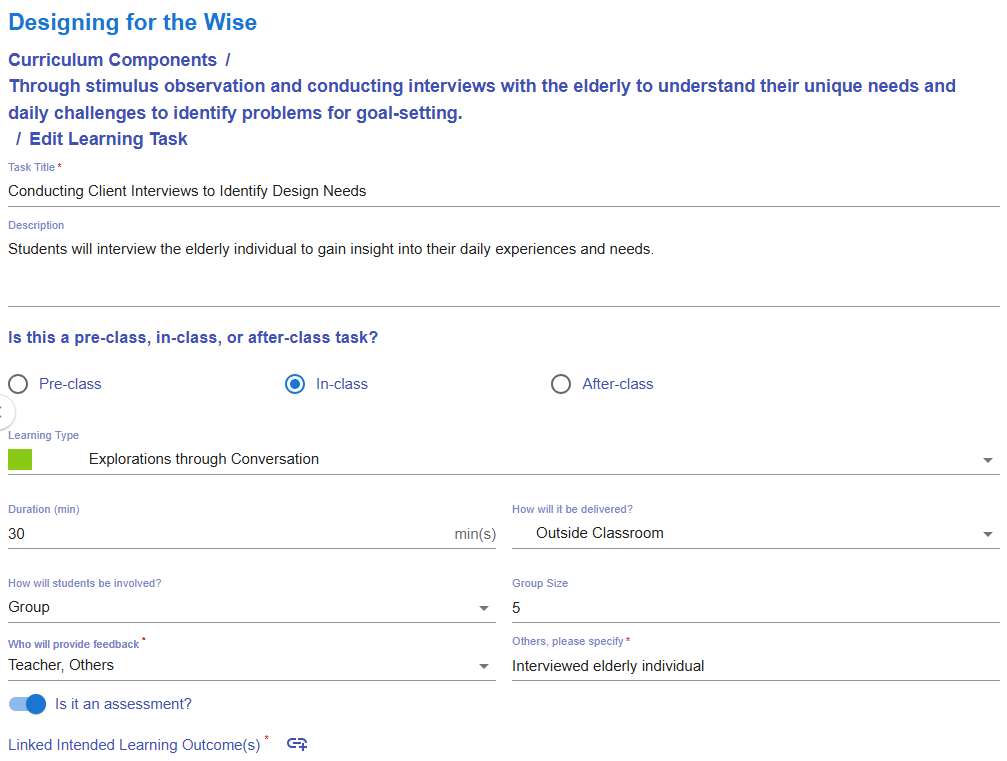
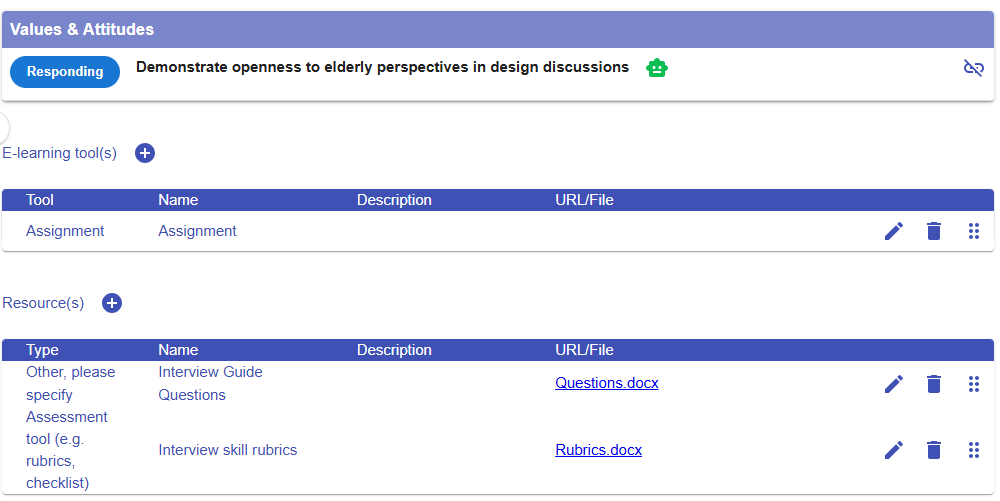
Figure 5.37: Interface of the Task Builder
- Please read the introduction below to guide you in creating a task.
|
Item |
Example of this CC |
|---|---|
|
1. Task Information
Figure 5.38: Task Information |
Task title: Conducting Client Interviews to Identify Design Needs
Description: Students will interview the elderly individual to gain insight into their daily experiences and needs. |
|
2. Stage
Figure 5.39: Stage |
In-class |
|
3. Task Type
Figure 5.40: Task Type
|
Explorations through Conversation |
|
4. Duration
Figure 5.41: Duration |
30 mins |
|
5. Delivery Mode
Figure 5.42: Delivery Mode |
Outside Classroom |
|
6. Social Organization
Figure 5.43: Social Organization |
Group, Size: 5 |
|
7. Feedback Provider
Figure 5.44: Feedback Provider |
Teacher |
|
8. Assessment
Figure 5.45: Triggering the Assessment Option in a Task |
A learning task can also serve as an assessment.
If you select the assessment option, you will need to
|
|
9. E-learning Tool
Figure 5.46: Interface for Adding E-learning Tool(s) to a Task |
The e-learning tools section allows you to select the type of tool you want to use to implement the task.
For example, if you want to create a space for students to submit their homework, you can choose the Assignment tool, as demonstrated here. |
|
10. Resources
Figure 5.47: Interface for Adding Resource(s) to a Task |
The resource section allows you to select the type of resource or tool you want to use to support the learning process.
For example, you can upload the interview guiding questions and the interview skills rubric for use in the course.
|


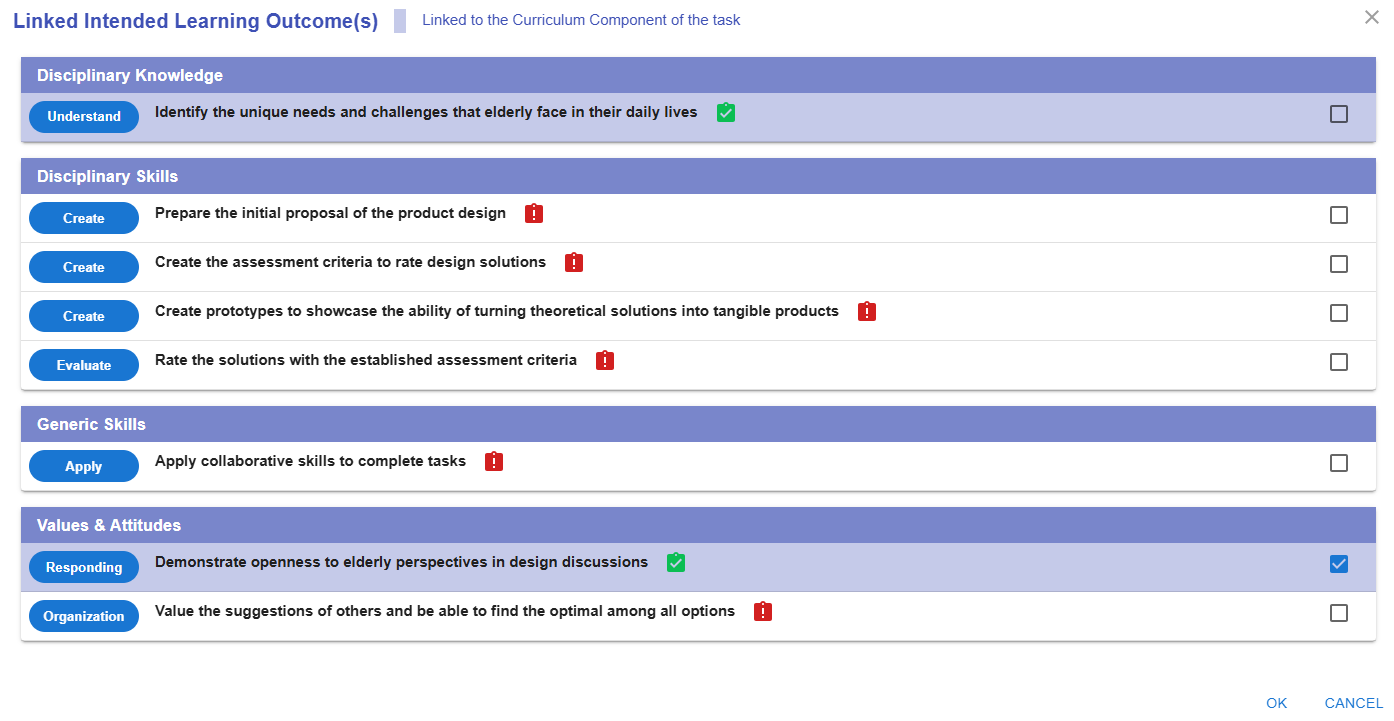


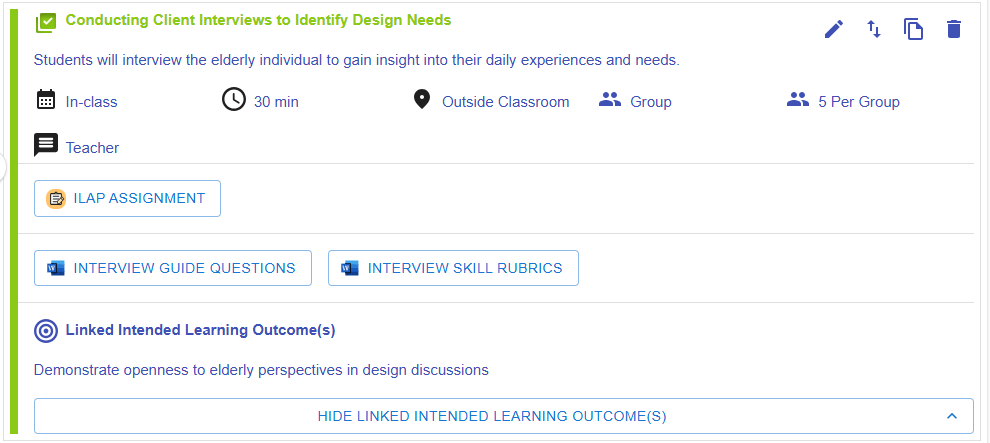 Figure 5.48: Preview of a Learning Task
- The task appears in the CC page.
3.2 A Quick Reminder
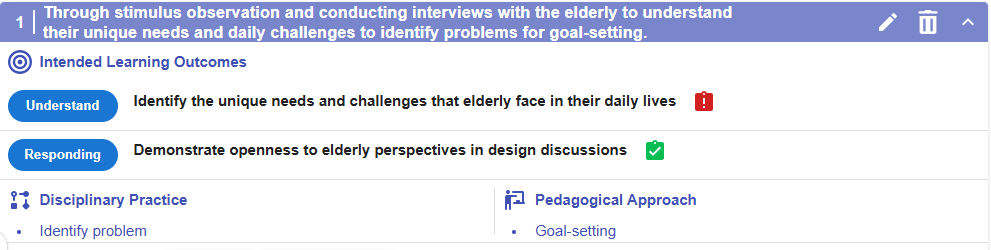
Figure 5.49: Preview of a CC
-
The LDS will remind you to assign assessments to any unassessed learning outcomes within the CC.
- * You can continue adding more tasks to complete your Curriculum Component (CC), and add additional CCs to finalize your learning design by repeating the steps mentioned above.
3.3 Moving a Task
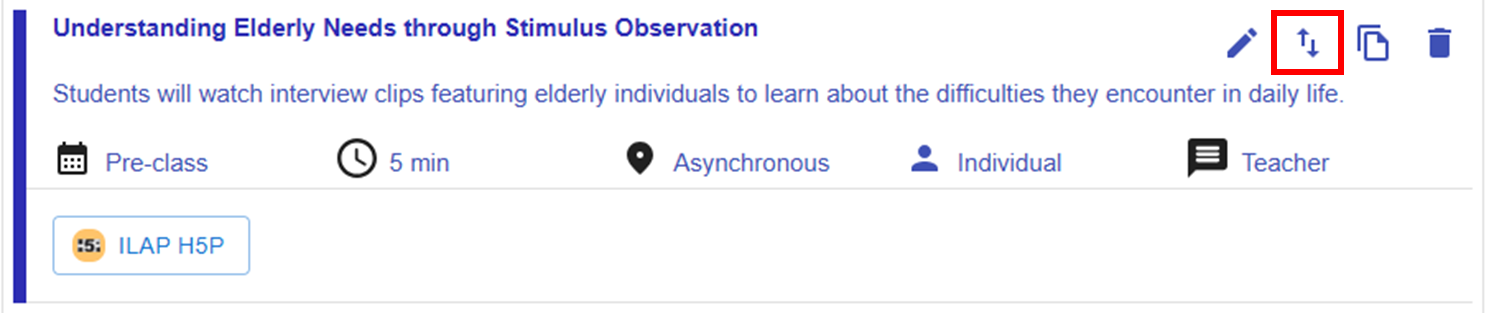 Figure 5.50: Moving a Task (1)
- By clicking the
 button, you will see a list of tasks for each CC.
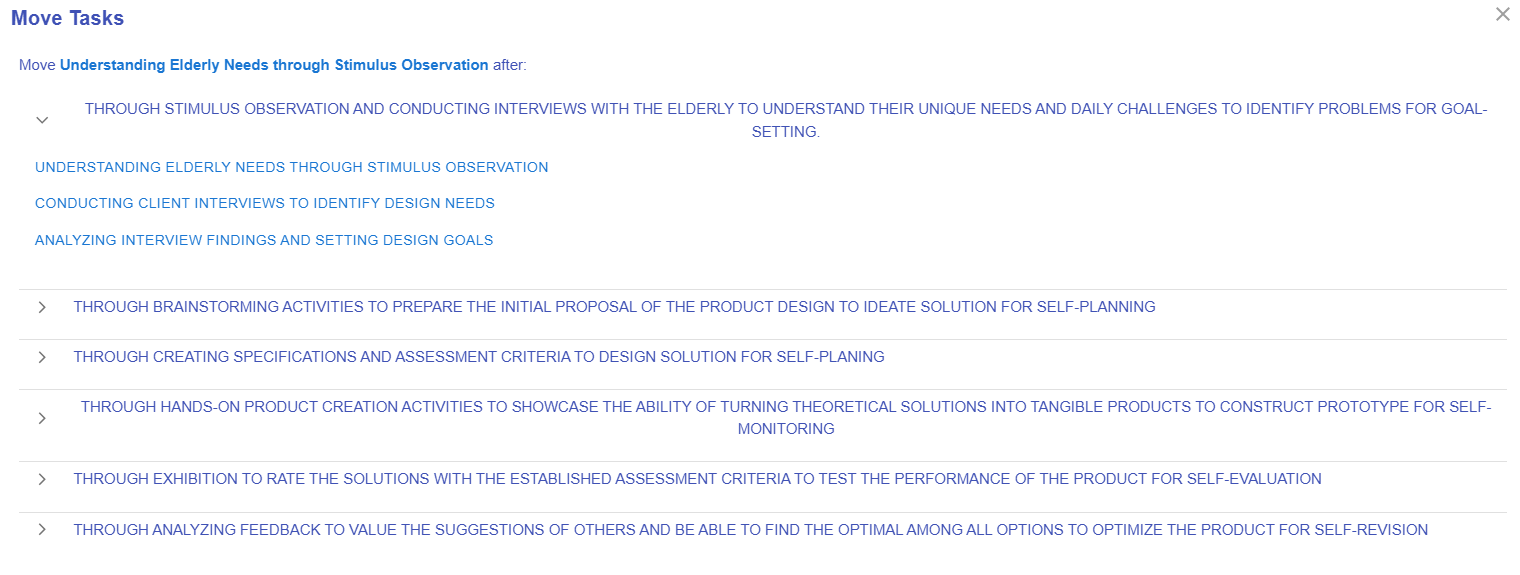
Figure 5.51: Moving a Task (2)
-
You can click any of the tasks to reallocate the current task to a position after it.
Additional: Information Window, and Header
- There is some additional information to help you analyze the learning design.
|
Item |
Description |
Example |
|---|---|---|
| 1. Information Window |
Figure 5.52: Information Window in the CC Section |
In the CC section, the information window will visualise your overall CC design with the pie chart
|
| 2. Header |
Figure 5.53: An Example of a Curriculum Component Sequence
Total Learning Time: 440 min
Designed Total In-Lesson Time: 335 / 490 min
Expand all
Collapse all
|
|