# 5.2.1 Intended Learning Outcomes (ILOs)

🌟 For guidance on developing strong ILOs, refer to **[Chapter 2.2 - Intended Learning Outcomes (ILOs)](https://ideals-doc.cite.hku.hk/books/learning-design-studio-user-guide/page/22-intended-learning-outcomes-ilos)**

In the Learning Design Studio (LDS), there are four categories of Intended Learning Outcomes (ILOs):

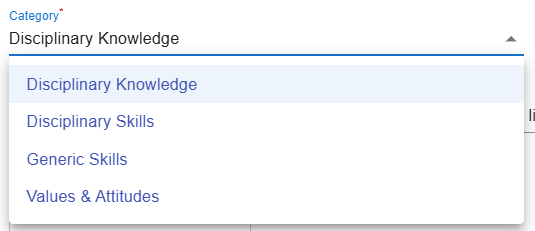
- **Disciplinary Knowledge**: The core concepts, theories, facts, and frameworks that are recognized and developed within a particular field or area of study.
- **Disciplinary Skills**: The specific techniques, methods, and competencies associated with a particular field or area of study.
- **Generic Skills**: The broad abilities that help people succeed in education, work, and daily life, regardless of a particular field or area of study.
- **Values &amp; Attitudes**: The beliefs, principles, and dispositions that guide a person's behavior, decision-making, and interactions with others.

####  **Adding a New ILO** 

There are two ways to add a new ILO: (1) writing it yourself, or (2) using the ILO patterns.

**1. Adding a New ILO - Writing it Yourself**

- You will write the full ILO to<span style="color: rgb(68, 68, 68);"> indicate what students is expected to achieve as a result of the learning process. </span>

![image.png](https://ideals-doc.cite.hku.hk/uploads/images/gallery/2025-12/scaled-1680-/EH2image.png)

Figure 5.3: Adding a New ILO

- If you have not added any ILOs before, you can click the ![image.png](https://ideals-doc.cite.hku.hk/uploads/images/gallery/2025-12/scaled-1680-/Uitimage.png) or ![image.png](https://ideals-doc.cite.hku.hk/uploads/images/gallery/2025-09/scaled-1680-/yp4image.png) button to add a new ILO.

![image.png](https://ideals-doc.cite.hku.hk/uploads/images/gallery/2025-12/scaled-1680-/082image.png)

Figure 5.4: Interface of the ILO Builder (1)

- We will review each field in the ILO Builder below.

<table border="1" id="bkmrk-1.-remember---recall" style="border-collapse: collapse; width: 100%; height: 882.201px; border-width: 0px;"><colgroup><col style="width: 99.9762%;"></col></colgroup><tbody><tr style="height: 46.5625px;"><td style="border-width: 0px; vertical-align: middle; height: 46.5625px;">**1. Subject/Discipline(s)**

 ![image.png](https://ideals-doc.cite.hku.hk/uploads/images/gallery/2025-09/scaled-1680-/Wlaimage.png)

Figure 5.5: Interface of the ILO Builder (2)

- Select the appropriate discipline(s) for each ILO as needed.

</td></tr><tr style="height: 80.0852px;"><td style="border-width: 0px; vertical-align: middle; height: 80.0852px;">**2. Category**

![image.png](https://ideals-doc.cite.hku.hk/uploads/images/gallery/2025-09/scaled-1680-/AeSimage.png)

Figure 5.6: Interface of the ILO Builder (3)

- Select the category of ILO: **Disciplinary Knowledge, Disciplinary Skills, Generic Skills, or Values &amp; Attitudes**.

</td></tr><tr style="height: 565.511px;"><td style="border-width: 0px; vertical-align: middle; height: 565.511px;">**3. Bloom's Taxonomy Level**

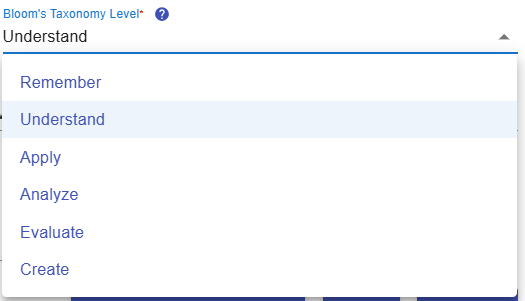
![image.png](https://ideals-doc.cite.hku.hk/uploads/images/gallery/2025-09/scaled-1680-/9ifimage.png)

Figure 5.7: Interface of the ILO Builder (4)

- Select the Bloom’s Taxonomy level that best reflects the intended skill, knowledge, or value for this outcome (e.g., Remember, Apply, Evaluate).
![image.png](https://ideals-doc.cite.hku.hk/uploads/images/gallery/2025-12/scaled-1680-/F3fimage.png)

  
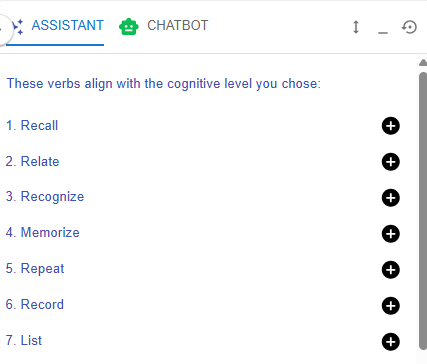
Figure 5.8: Writing a ILO with the Learning Design Facilitator

- After selecting the Bloom’s Taxonomy level, the Learning Design Facilitator will recommend suitable action verbs to help you formulate your ILOs.
- Choose the appropriate action verb that best reflects the skill, knowledge, or value targeted by your ILO.

</td></tr><tr style="height: 96.9176px;"><td style="border-width: 0px; vertical-align: middle; height: 96.9176px;">**4. ILO and Learning Design Facilitator**

![image.png](https://ideals-doc.cite.hku.hk/uploads/images/gallery/2025-12/scaled-1680-/zLJimage.png)

Figure 5.9: Interface of the ILO Builder (5)

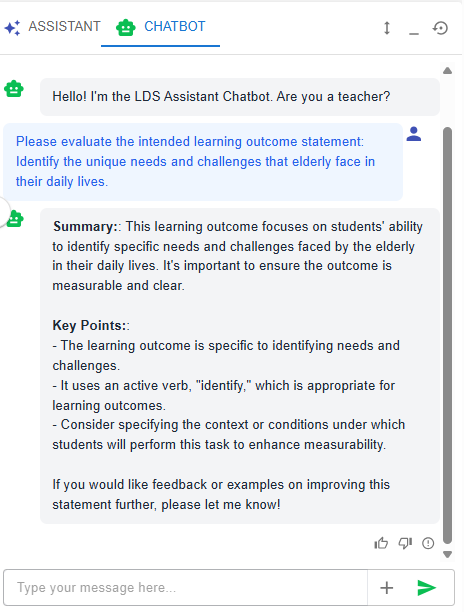
- Click the Learning Design Facilitator button![image.png](https://ideals-doc.cite.hku.hk/uploads/images/gallery/2025-12/scaled-1680-/f3Wimage.png)to request feedback from the chatbot on your ILO.
![image.png](https://ideals-doc.cite.hku.hk/uploads/images/gallery/2025-12/scaled-1680-/eAoimage.png)

Figure 5.10: Evaluating a ILO with the Chatbot

</td></tr><tr style="height: 46.5625px;"><td style="border-width: 0px; vertical-align: middle; height: 46.5625px;">**5. Sub-ILO(s)**

![image.png](https://ideals-doc.cite.hku.hk/uploads/images/gallery/2025-09/scaled-1680-/5Yfimage.png)

Figure 5.11: Interface of the ILO Builder (6)

- To provide greater clarity, an ILO can be subdivided into more detailed sub-ILOs as needed.

</td></tr></tbody></table>

**2. Adding a New ILO - Use the ILO Pattern**

- In addition to writing your own ILO, you may use our pre-defined pattern.

![image.png](https://ideals-doc.cite.hku.hk/uploads/images/gallery/2025-12/scaled-1680-/KfDimage.png)

Figure 5.12: Intended Learning Outcomes - Values &amp; Attitude

- For example, if you want to create an ILO for the **Values &amp; Attitude** category, we can create one by using the ILO patterns.

<table border="1" id="bkmrk-figure-6.13%3A%C2%A0-the-il" style="border-collapse: collapse; width: 100%; border-width: 0px; height: 971.463px;"><colgroup><col style="width: 50%;"></col><col style="width: 50%;"></col></colgroup><tbody><tr style="height: 304.163px;"><td style="border-width: 0px; height: 304.163px;">![image.png](https://ideals-doc.cite.hku.hk/uploads/images/gallery/2025-12/scaled-1680-/zjZimage.png)

</td><td style="border-width: 0px; height: 304.163px;">![image.png](https://ideals-doc.cite.hku.hk/uploads/images/gallery/2025-12/scaled-1680-/lzximage.png)

</td></tr><tr style="height: 667.3px;"><td class="align-center" colspan="2" style="border-width: 0px; height: 667.3px;">Figure 5.13: The ILOs Patterns in the LDS Facilitator

- After selecting the targeted ILO category in the Learning Design Facilitator, click the **"SHOW INTENDED LEARNING OUTCOME PATTERNS"** button to view suggested patterns. Alternatively, you can click the ![image.png](https://ideals-doc.cite.hku.hk/uploads/images/gallery/2025-12/scaled-1680-/Txiimage.png) button to instantly activate the pattern list.
- By clicking the ![image.png](https://ideals-doc.cite.hku.hk/uploads/images/gallery/2025-09/scaled-1680-/UsJimage.png)<span style="text-align: center;"> button, you can explore the details of the targeted ILO pattern. </span>

![image.png](https://ideals-doc.cite.hku.hk/uploads/images/gallery/2025-09/scaled-1680-/pngimage.png)

Figure 5.14: Details of the Targeted ILO Pattern (1)

- You can use the targeted ILO pattern directly by clicking **"COPY"** button in the pop-up window, or by clicking the ![image.png](https://ideals-doc.cite.hku.hk/uploads/images/gallery/2025-09/scaled-1680-/vDhimage.png) button in the Learning Design Facilitator. The ILO pattern details will be auto-filled into the LDS.

![image.png](https://ideals-doc.cite.hku.hk/uploads/images/gallery/2025-12/scaled-1680-/zrpimage.png)

Figure 5.15: Details of the Targeted ILO Pattern (2)

- You can edit the details of the targeted ILO pattern in the ILO builder if needed.

</td></tr></tbody></table>

![image.png](https://ideals-doc.cite.hku.hk/uploads/images/gallery/2025-12/scaled-1680-/Cmiimage.png)

Figure 5.16: An example of a completed ILO section