# 3.2 Learning Design Facilitator and Information Window

#### <span style="color: rgb(68, 68, 68);">**What is Learning Design Facilitator (LDF)?**</span>

To help you create your learning design, the IDEALS team has developed the **Learning Design Facilitator (LDF)**, which includes both the **LDS Assistant** and **Chatbot**.

The table below provides an overview of the LDF’s user interface.

<table border="1" id="bkmrk-figure-3.3%3A-interfac" style="border-collapse: collapse; width: 100%; height: 671.537px;"><colgroup><col style="width: 41.24%;"></col><col style="width: 58.76%;"></col></colgroup><tbody><tr style="height: 222.837px;"><td style="height: 335.387px;">![image.png](https://ideals-doc.cite.hku.hk/uploads/images/gallery/2025-11/scaled-1680-/3aBimage.png)

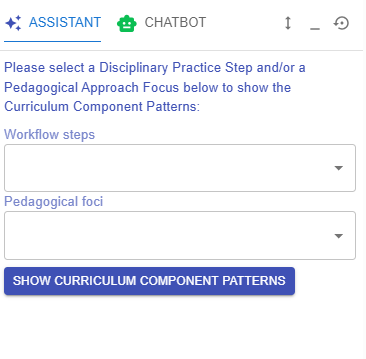
Figure 3.4: Interface of Learning Design Facilitator (1)

</td><td style="height: 222.837px;">**<span style="color: rgb(68, 68, 68);">LDS ASSISTANT</span>**

<span style="color: rgb(68, 68, 68);">When creating a learning design in the LDS, you will work through multiple phases: course level, curriculum component level, and task level. The LDS Assistant provides instructions and tips tailored to your current phase and acts as an interface for accessing the LDS Pattern Library, which offers well-defined templates for you to use in each phase. Further details about the LDS Pattern Library will be introduced in the next section.</span>

</td></tr><tr style="height: 168.075px;"><td style="height: 336.15px;">![image.png](https://ideals-doc.cite.hku.hk/uploads/images/gallery/2025-11/scaled-1680-/oEPimage.png)

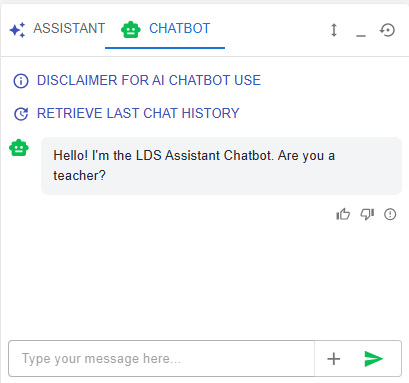
Figure 3.5: Interface of Learning Design Facilitator (2)

</td><td style="height: 168.075px;">**<span style="color: rgb(68, 68, 68);">CHATBOT  
</span>**

- <span style="color: rgb(68, 68, 68);">This AI-powered chatbot can answer your questions, provide suggestions, and support you throughout the learning design process. For example, you can ask for guidance in formulating intended learning outcomes or request feedback on your own ideas in the learning design.  
    </span>
- <span style="color: rgb(68, 68, 68);">To start a new conservation with the chatbot, you can click the "+" button.</span>

![image.png](https://ideals-doc.cite.hku.hk/uploads/images/gallery/2025-11/scaled-1680-/ybbimage.png)

Figure 3.6: Access to Learning Design Facilitator

- Sometimes, you may see the ![image.png](https://ideals-doc.cite.hku.hk/uploads/images/gallery/2025-11/scaled-1680-/XE7FLwimage.png) button in different locations, such as next to the Intended Learning Outcomes. Please feel free to click on it to request feedback .

</td></tr></tbody></table>


#### **What is Information Window?**

[![image.png](https://ideals-doc.cite.hku.hk/uploads/images/gallery/2025-11/scaled-1680-/mnaimage.png)](https://ideals-doc.cite.hku.hk/uploads/images/gallery/2025-11/scaled-1680-/mnaimage.png)

Figure 3.7: Interface of Information Window

The Information Window is located in the top right corner. It displays the key information you have inputted or visualizes your learning design. When your learning design becomes more complex, this feature becomes especially valuable, helping you review existing elements and make informed decisions throughout the design process.