# 10.4 Sharing Designs in Image Format
Sometimes, it can be difficult to communicate your learning design details with others due to the complexity and volume of information involved. When you want to show or discuss a specific part of the design, capturing screenshots yourself can be frustrating. In this section, you will learn how to export your Curriculum Component (CC) as images. You can then place them on a slide or add annotations as needed.
[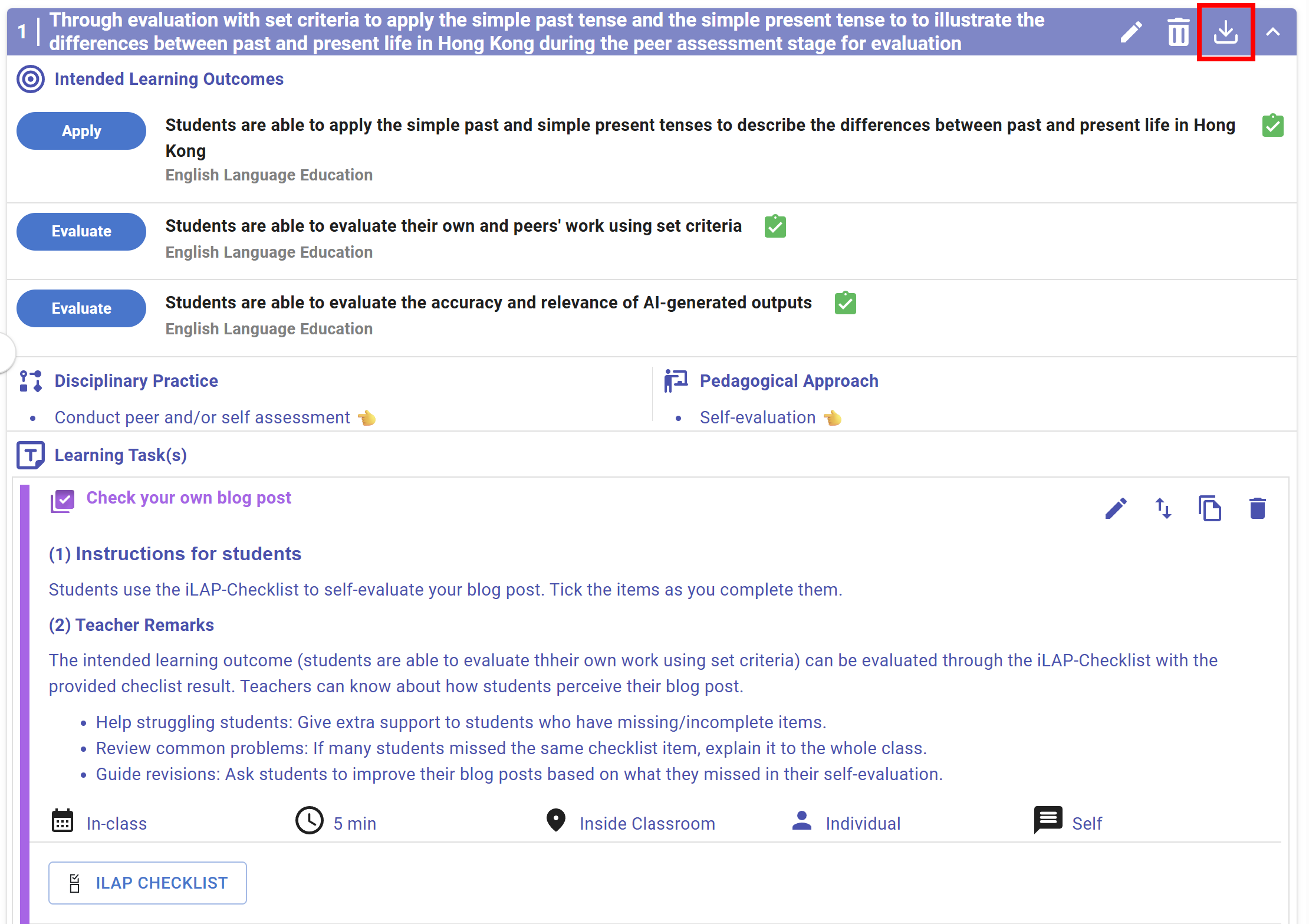](https://ideals-doc.cite.hku.hk/uploads/images/gallery/2026-07/I3Nimage.png)
Figure 10.20: An example of a CC
In each CC header, you can see a  button. By clicking it, a confirmation window will appear.
[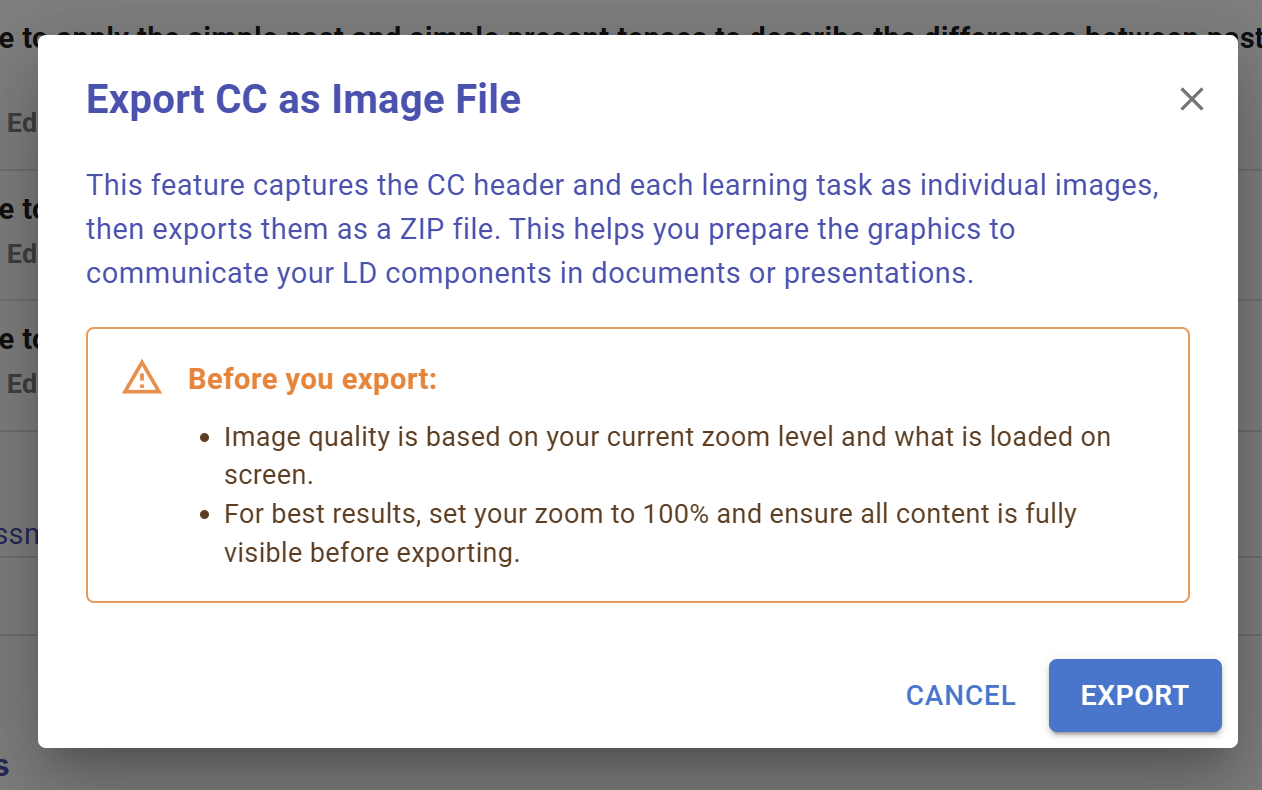](https://ideals-doc.cite.hku.hk/uploads/images/gallery/2026-07/0YSimage.png)
Figure 10.21: Export CC as Image File (1)
By Clicking the  button, a zip file will be downloaded containing individual images for the CC header and each learning task.
[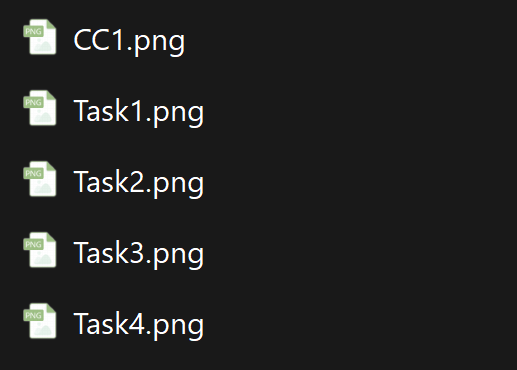](https://ideals-doc.cite.hku.hk/uploads/images/gallery/2026-07/ZYaimage.png)
Figure 10.21: Export CC as Image File (2)