# 8. Confirming the iLAP Section Arrangement

# 8.1 iLAP Section Arrangement

If you are subscribed to IDEALS, you can convert your completed learning design into a practical online course on the IDEALS Learning Management Platform (iLAP). ([Click here to subscribe!](https://web.edcity.hk/en/elafp/project/20210212/))

[![image.png](https://ideals-doc.cite.hku.hk/uploads/images/gallery/2026-04/scaled-1680-/image.png)](https://ideals-doc.cite.hku.hk/uploads/images/gallery/2026-04/image.png)Figure 8.1: iLAP Section Arrangement

We offer two modes for the conversion: Curriculum Component (CC) mode and Lesson mode.

- You can switch between the two modes at any time by clicking the![image.png](https://ideals-doc.cite.hku.hk/uploads/images/gallery/2025-12/scaled-1680-/Pyuimage.png) button in the top-right corner, without losing any data.
- In CC mode, the system automatically creates course sections based on your curriculum components, so no additional effort is required.
- In Lesson mode, you manually build course sections, arranging learning tasks into individual lessons—similar to a traditional lesson plan.

**Demonstration of the Lesson Mode**

[![image.png](https://ideals-doc.cite.hku.hk/uploads/images/gallery/2026-04/scaled-1680-/Rtnimage.png)](https://ideals-doc.cite.hku.hk/uploads/images/gallery/2026-04/Rtnimage.png)

<span style="color: #444444;">Figure 8.2: </span>Lesson Mode - Add a New Lesson

You can click the ![image.png](https://ideals-doc.cite.hku.hk/uploads/images/gallery/2025-09/scaled-1680-/Kfjimage.png) **"A NEW LESSON"** button to create an empty lesson block for assigning learning tasks later.

![image.png](https://ideals-doc.cite.hku.hk/uploads/images/gallery/2025-12/scaled-1680-/9i0image.png)

Figure 8.2: An Empty Lesson Block

#### **Adding a Task to a Lesson**

[![image.png](https://ideals-doc.cite.hku.hk/uploads/images/gallery/2025-12/scaled-1680-/39Jimage.png)](https://ideals-doc.cite.hku.hk/uploads/images/gallery/2025-12/39Jimage.png)

<span style="color: #444444;">Figure 8.3: Adding a Task to a Lesson (1)</span>

By clicking the ![image.png](https://ideals-doc.cite.hku.hk/uploads/images/gallery/2025-09/scaled-1680-/Kfjimage.png) button next to "Pre-class" "In-class" or "After-class", a pop-up window will appear, allowing you to view the created curriculum components and learning tasks.

![image.png](https://ideals-doc.cite.hku.hk/uploads/images/gallery/2025-12/scaled-1680-/7lXimage.png)

<span style="color: #444444;">Figure 8.4: Adding a Task to a Lesson (2)</span>

You can select the appropriate learning task(s) by clicking the checkbox in the top-right corner of each task. Then, click the **"LINK SELECTED TASK(S)"** button to assign the selected tasks to the targeted lesson.

#### **Revising and Rearranging a Task**

Below is a sample overrun lesson. We will need to revise the task details or move the task to a different stage or lesson.

![image.png](https://ideals-doc.cite.hku.hk/uploads/images/gallery/2025-12/scaled-1680-/pOPimage.png)![image.png](https://ideals-doc.cite.hku.hk/uploads/images/gallery/2025-12/scaled-1680-/o8Cimage.png)

<span style="color: #444444;">Figure 8.5: A sample Overrun Lesson</span>

<table border="1" id="bkmrk-1.-alert-of-the-over" style="border-collapse: collapse; width: 100%;"><colgroup><col style="width: 99.881%;"></col></colgroup><tbody><tr><td>**1. Alert for Overrun Lesson Plan**

![image.png](https://ideals-doc.cite.hku.hk/uploads/images/gallery/2025-12/scaled-1680-/xArimage.png) ![image.png](https://ideals-doc.cite.hku.hk/uploads/images/gallery/2025-09/scaled-1680-/sBrimage.png)

<span style="color: #444444;">Figure 8.6: Alert for Overrun Lesson Plan</span>

- Only tasks assigned as in-class activities are counted toward the "**Designed In-Lesson Time"**. If the total time for in-class activities exceeds the **35-minute limit set in the Course Information section** at the beginning, you will see **"<span style="color: rgb(224, 62, 45);">95</span>/35 min"** displayed in red as a reminder, along with a ![image.png](https://ideals-doc.cite.hku.hk/uploads/images/gallery/2025-09/scaled-1680-/M38image.png)button next to the In-Class Session.

</td></tr><tr><td>**2. Rearranging a Task**

- To address the lesson overrun issue, you can consider utilizing pre-class and after-class time to make teaching and learning more flexible.
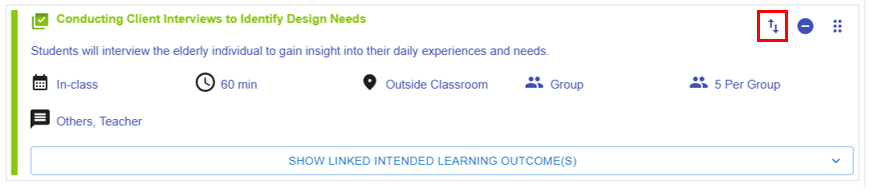
- Please refer to the introduction below for instructions on how to move a task in the lesson builder.
![image.png](https://ideals-doc.cite.hku.hk/uploads/images/gallery/2025-09/scaled-1680-/rObimage.png)

<span style="color: #444444;">Figure 8.6: Moving a Task (1)</span>

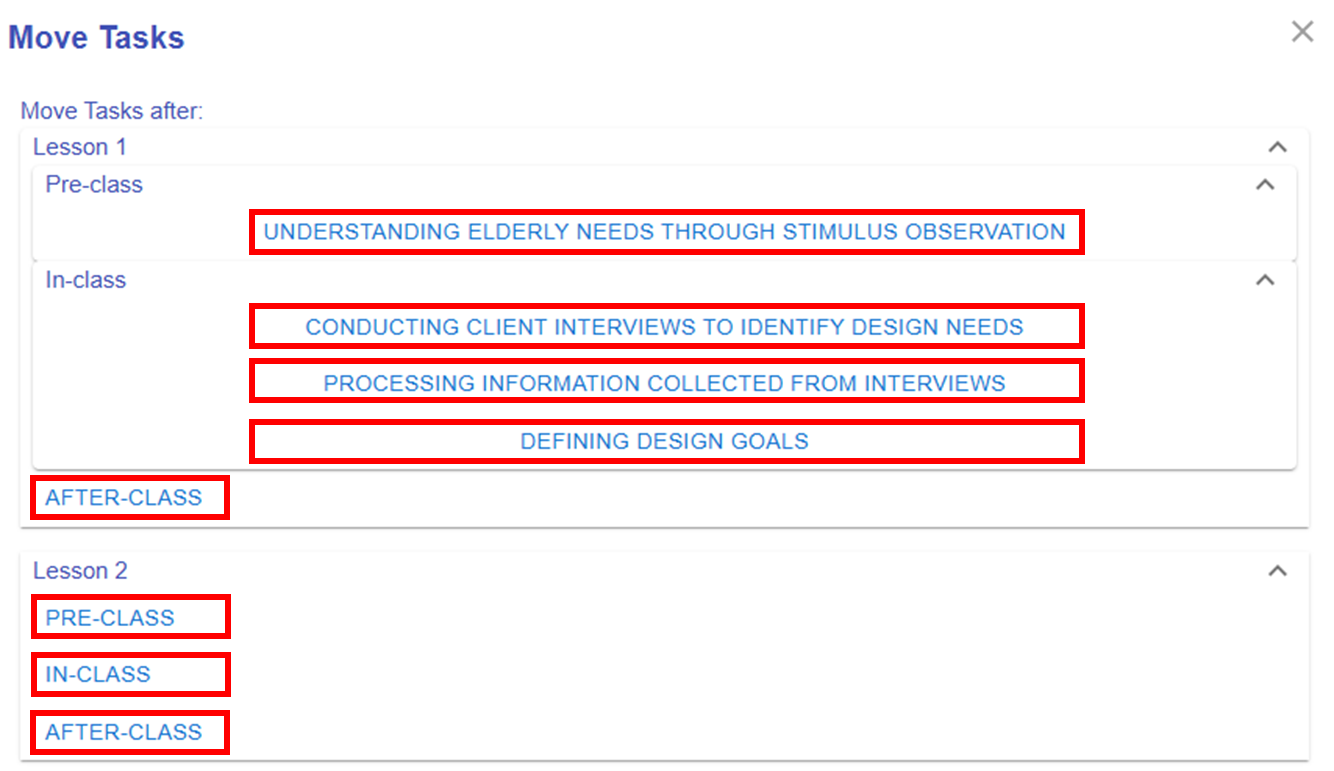
- <span style="color: #444444;">By clicking the </span>![image.png](https://ideals-doc.cite.hku.hk/uploads/images/gallery/2025-09/scaled-1680-/LpAimage.png) button, a pop-up window will appear, allowing you to move the task to a stage in a different lesson.
![image.png](https://ideals-doc.cite.hku.hk/uploads/images/gallery/2025-09/scaled-1680-/bOyimage.png)

<span style="color: #444444;">Figure 8.7: Moving a Task (2)</span>

- Tasks can be moved to a specific stage in the targeted lesson by clicking either an empty block (**"Pre-class"**, **"In-Class"**, or **"After-class"**) or an existing task name.

</td></tr></tbody></table>

\*Please repeat the mentioned steps to complete the lesson plan.