# 3. Learning Design Studio (LDS)
# 3.1 UI Overview and Terminology
Welcome to the **Learning Design Studio (LDS)**! Starting with this chapter, you will begin exploring the LDS interface and features to create your own learning design.
#### **Main User Interface Overview**
[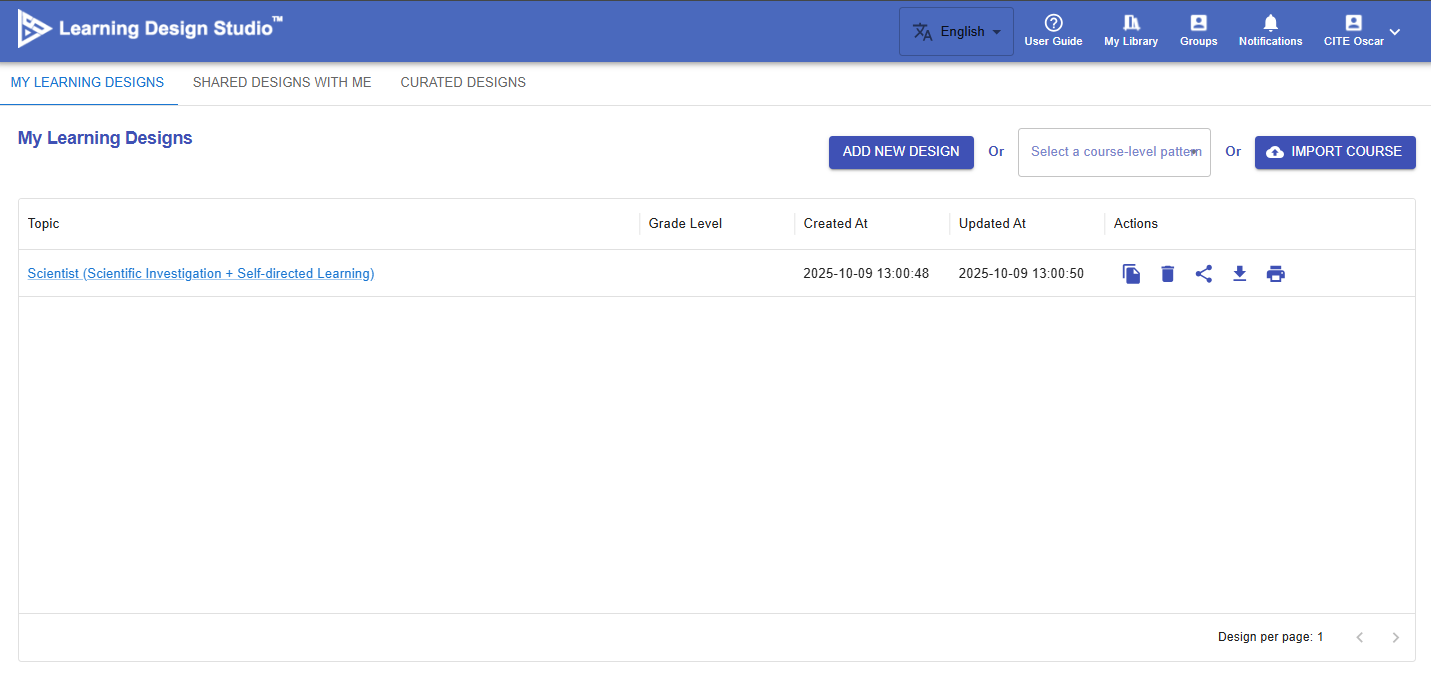](https://ideals-doc.cite.hku.hk/uploads/images/gallery/2025-11/scaled-1680-/EZBimage.png)
Figure 3.1: Main User Interface
The main navigation items are summarized in the table below. You can find more detailed instructions for each feature in the specific tutorial chapters.
[](https://ideals-doc.cite.hku.hk/uploads/images/gallery/2025-12/C6himage.png)
Figure 3.2: Navigation
| **Item**
| **Description**
| **Tutorial**
|
|---|
| 1. Languages | The LDS currently supports English, Traditional Chinese, and Simplified Chinese.
| N/A
|
| 2. User Guide | A simple navigation to the LDS.
| N/A
|
| 3. My Library | You can access and manage your learning designs in one place. Create new designs, edit existing ones, and easily view designs shared with you by others.
| Ch 4-9
|
| 4. Groups | You can create groups for your school or organization, invite members to join, and collaboratively share and co-create learning designs.
| Ch 10
|
| 5. Notifications | You will receive a notification when there are important updates or invitations from the group.
| N/A
|
| 6. Profile | You can update your email address and display name in the LDS.
| N/A
|
#### **Learning Design Interface Overview**
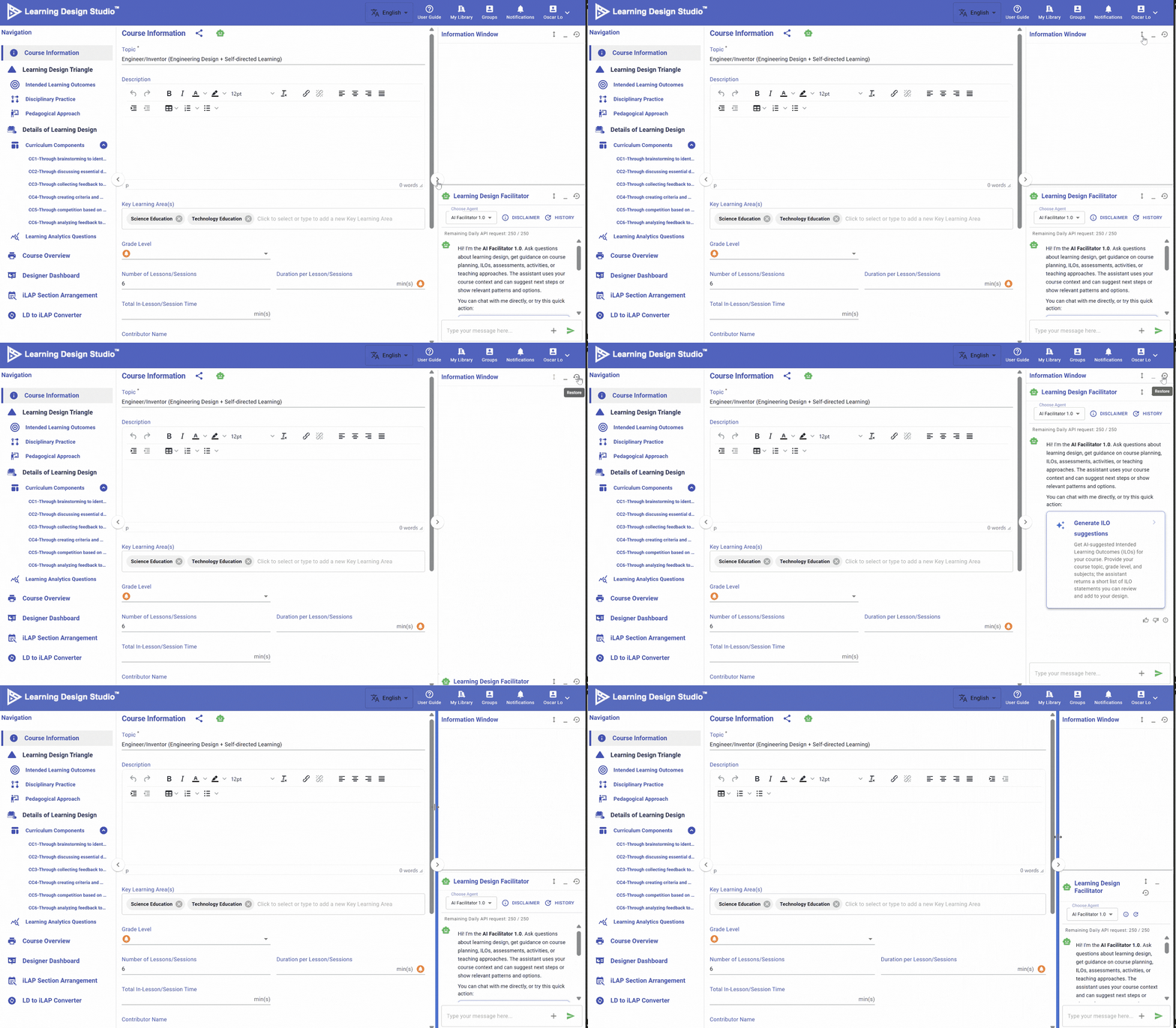
When you enter the Learning Design section, the user interface is divided into three panels:
- **Left panel:** Navigation menu
- **Middle panel:** Main interface
- **Right panel:** Learning Design Facilitator (LDF) and Information Window
[](https://ideals-doc.cite.hku.hk/uploads/images/gallery/2026-07/untitled-design-4.gif)
Figure 3.3 Panel-Based Interface
You can drag the edge of a panel to resize it, or click the  button to collapse or expand the panel.
# 3.2 Information Window
**What is Information Window?**
[](https://ideals-doc.cite.hku.hk/uploads/images/gallery/2026-07/HgJimage.png)
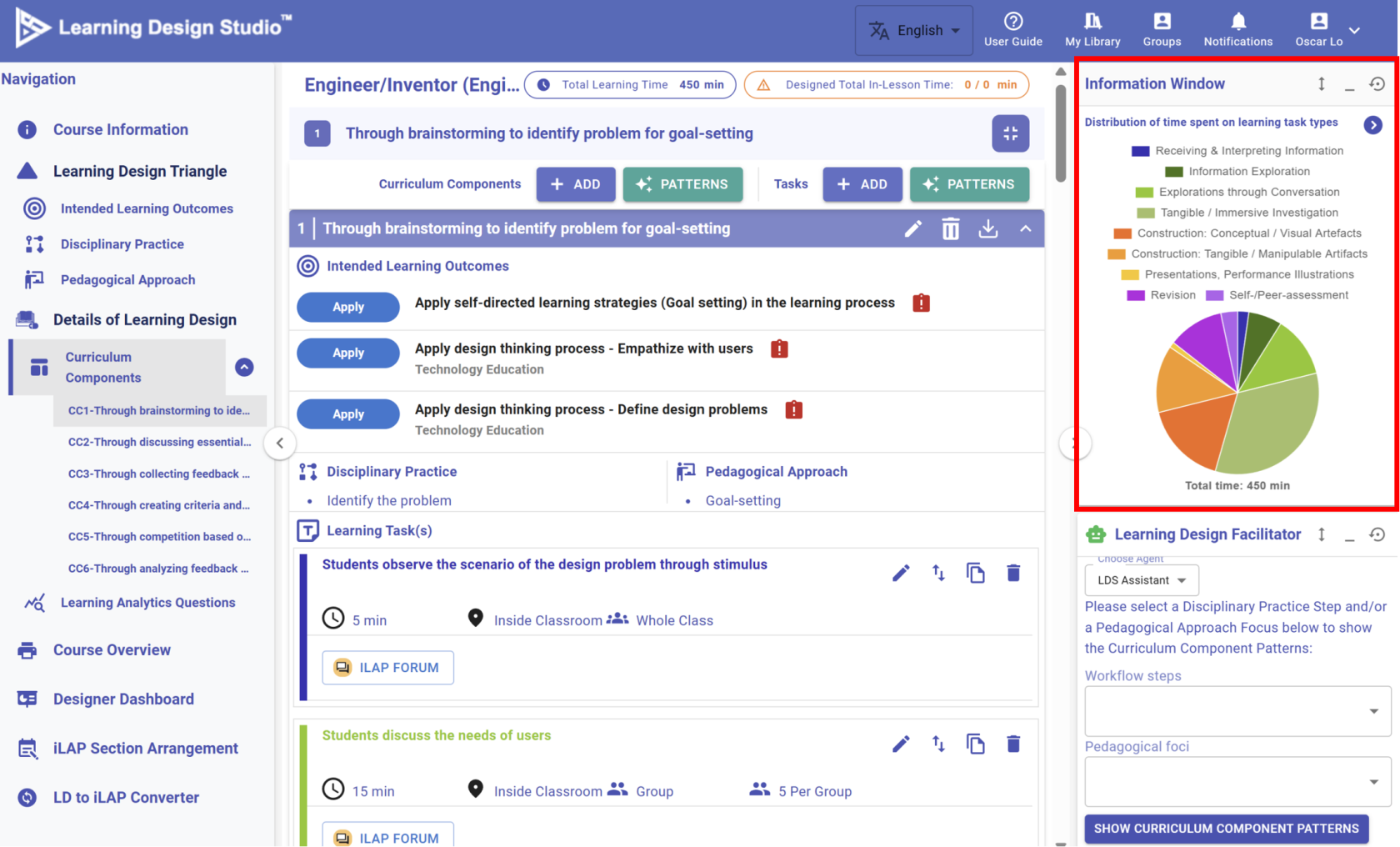
Figure 3.4: Interface of Information Window
The Information Window is located in the top right corner. It displays the key information you have inputted or visualizes your learning design. When your learning design becomes more complex, this feature becomes especially valuable, helping you review existing elements and make informed decisions throughout the design process.
# 3.3 Learning Design Facilitator (LDF)
#### **What is Learning Design Facilitator (LDF)?**
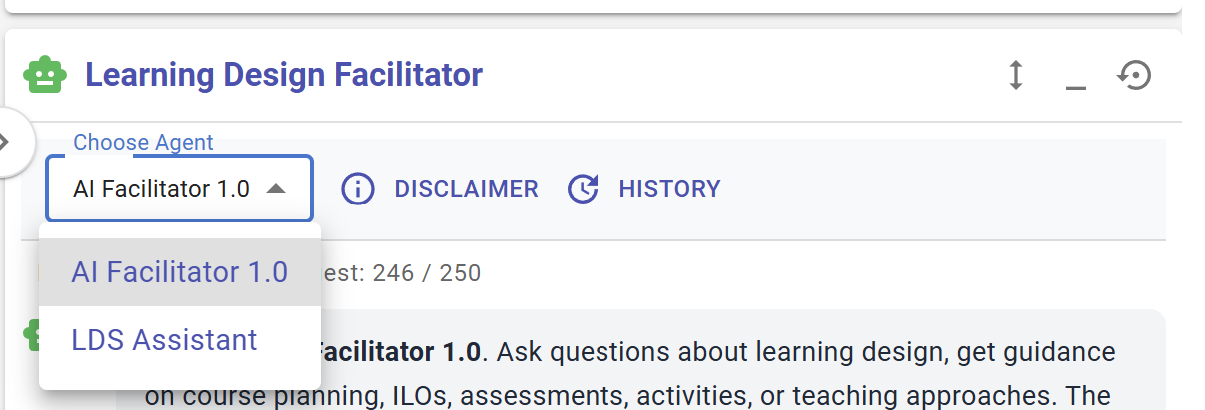
To help you create your learning design, the IDEALS team has developed the **Learning Design Facilitator (LDF)**, which includes different agents to answer your questions, provide suggestions, and support you throughout the entire learning design process. Currently, we have both the **AI Facilitator** and the **LDS Assistant** available.
[](https://ideals-doc.cite.hku.hk/uploads/images/gallery/2026-07/Dmuimage.png)
Figure 3.5: Interface of Learning Design Facilitator (1)
You can switch the LDF between two agents in the **"Choose Agent"** menu.
#### **AI Facilitator**
The AI Facilitator is an LLM-powered agent that currently serves two main functions: it can **1) act as a chatbot for conversation**, and it can **2) provide suggestions and make changes to your current design**. It is part of an ongoing development process and will support more features in the future.
**1) Act as a chatbot for conversation**
**[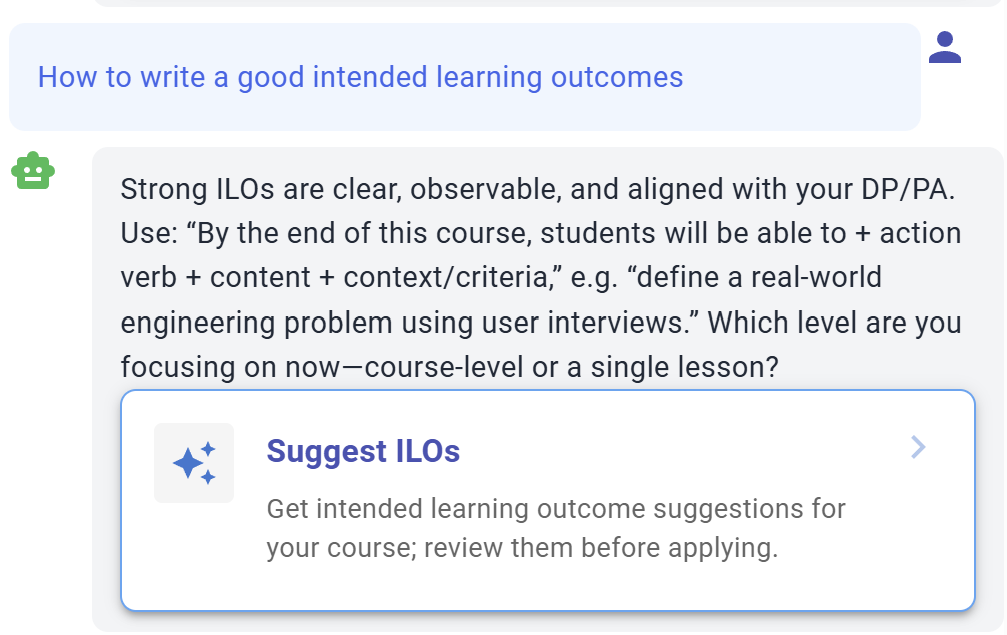](https://ideals-doc.cite.hku.hk/uploads/images/gallery/2026-07/KQrimage.png)**
Figure 3.8: Communication with the LDF
When completing a full learning design, you will input various details, such as intended learning outcomes, disciplinary practices, pedagogical approaches, learning tasks, and assessments. You can communicate with the LDF to receive guidance or exchange ideas throughout this process.
**2) Provide suggestions and make changes to your current design**
The LDF can currently read your course information, including topic, description, and grade level, to provide suggestions on intended learning outcomes.
[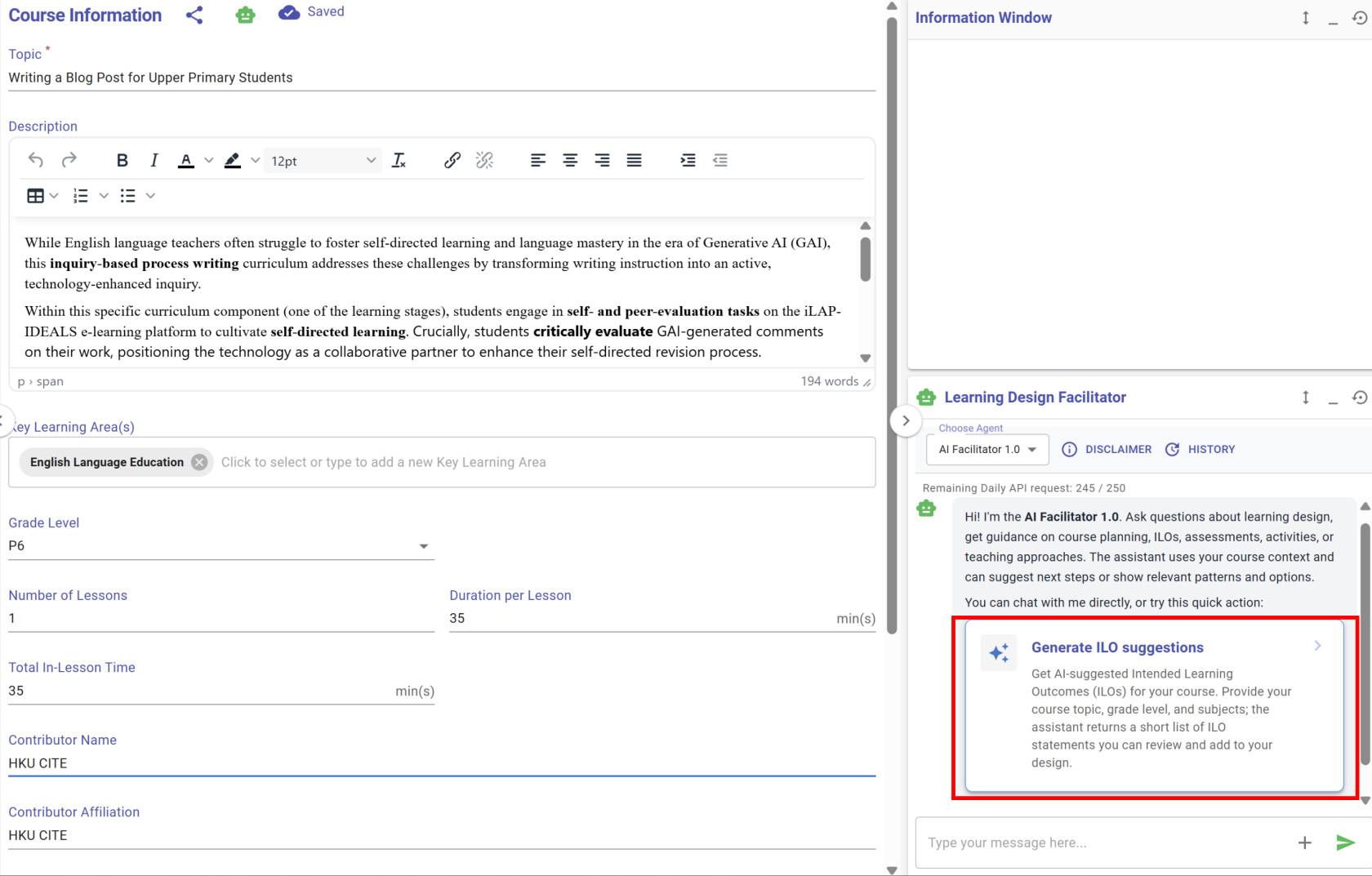](https://ideals-doc.cite.hku.hk/uploads/images/gallery/2026-07/xSyimage.png)
Figure 3.9: Receiving suggestions from the LDF (1)
By clicking 'Generate ILO suggestions', a panel will appear on the left side of the LDS, showing a few LDF-suggested ILO options across different Bloom's levels and ILO types for you to choose from.
By clicking the "Apply Suggestion" button, you can adjust the content if needed, and then click the "Save" button to add the ILO.
[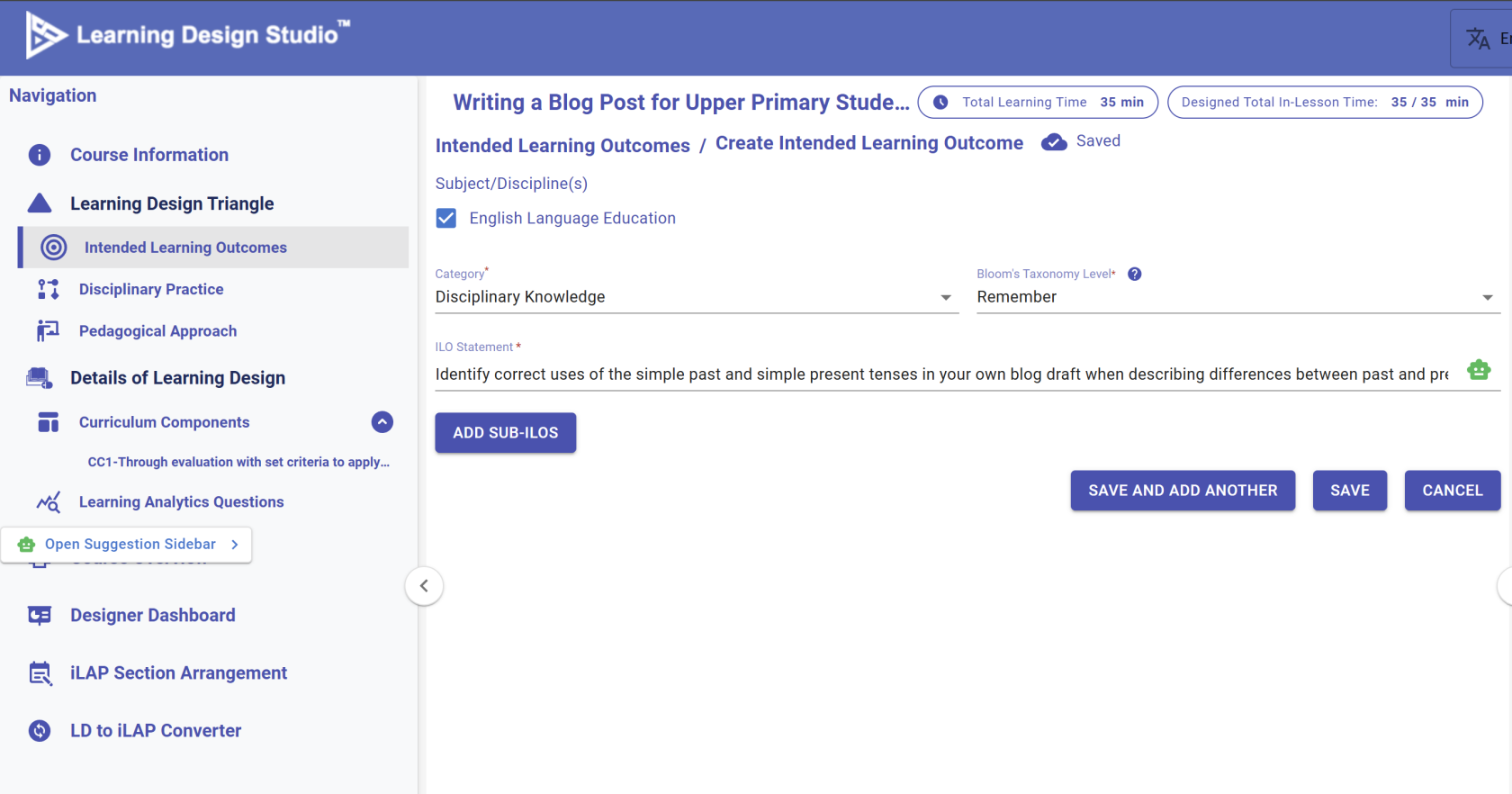](https://ideals-doc.cite.hku.hk/uploads/images/gallery/2026-07/KcOimage.png)
Figure 3.11: Receiving suggestions from the LDF (3)
The LDF-suggested ILO has now been added to the **"Intended Learning Outcomes"** section.
[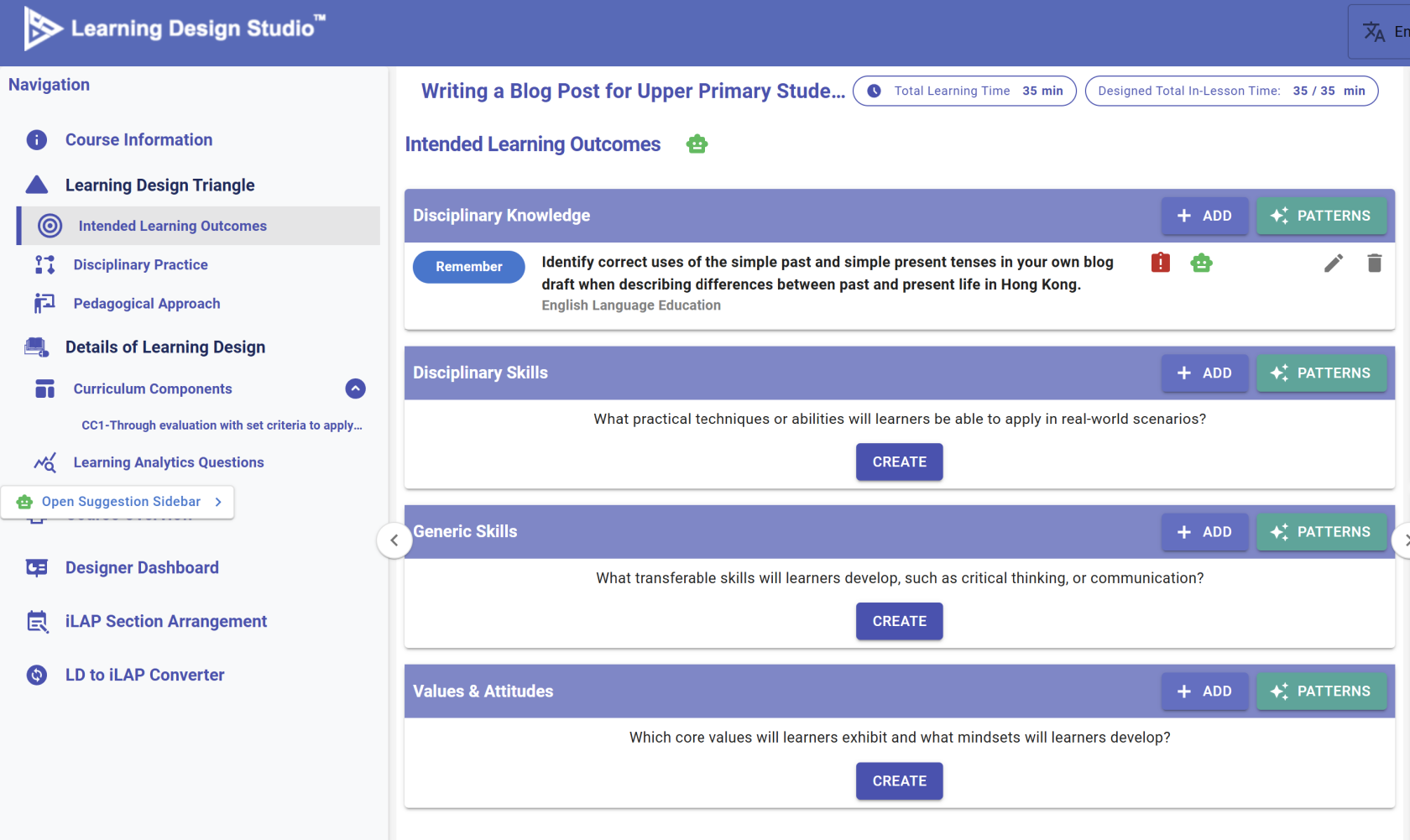](https://ideals-doc.cite.hku.hk/uploads/images/gallery/2026-07/XM3image.png)
Figure 3.12: Receiving suggestions from the LDF (4)
Apart from suggesting completely new ideas, the LDF can also provide feedback on your current design.
#### **LDS Assistant**
When creating a learning design in the LDS, you will work through multiple phases: course level, curriculum component level, and task level. The IDEALS team has developed a set of reusable templates for you to adopt in your own design. The LDS Assistant serves as the main interface for accessing these templates through the LDS Pattern Library.
\* Further details about the LDS Pattern Library will be introduced in the next section.
# 3.4 Pattern Library
🌟 For guidance on using the Pattern Library, refer to [**Chapter 6 - Create a New Design from Patterns**](https://ideals-doc.cite.hku.hk/books/learning-design-studio-user-guide/chapter/6-creating-a-new-design-from-patterns)
To better support creating a learning design, the IDEALS team developed the Pattern Library, which **provides pre-defined, hands-on resources** for IDEALS users.
[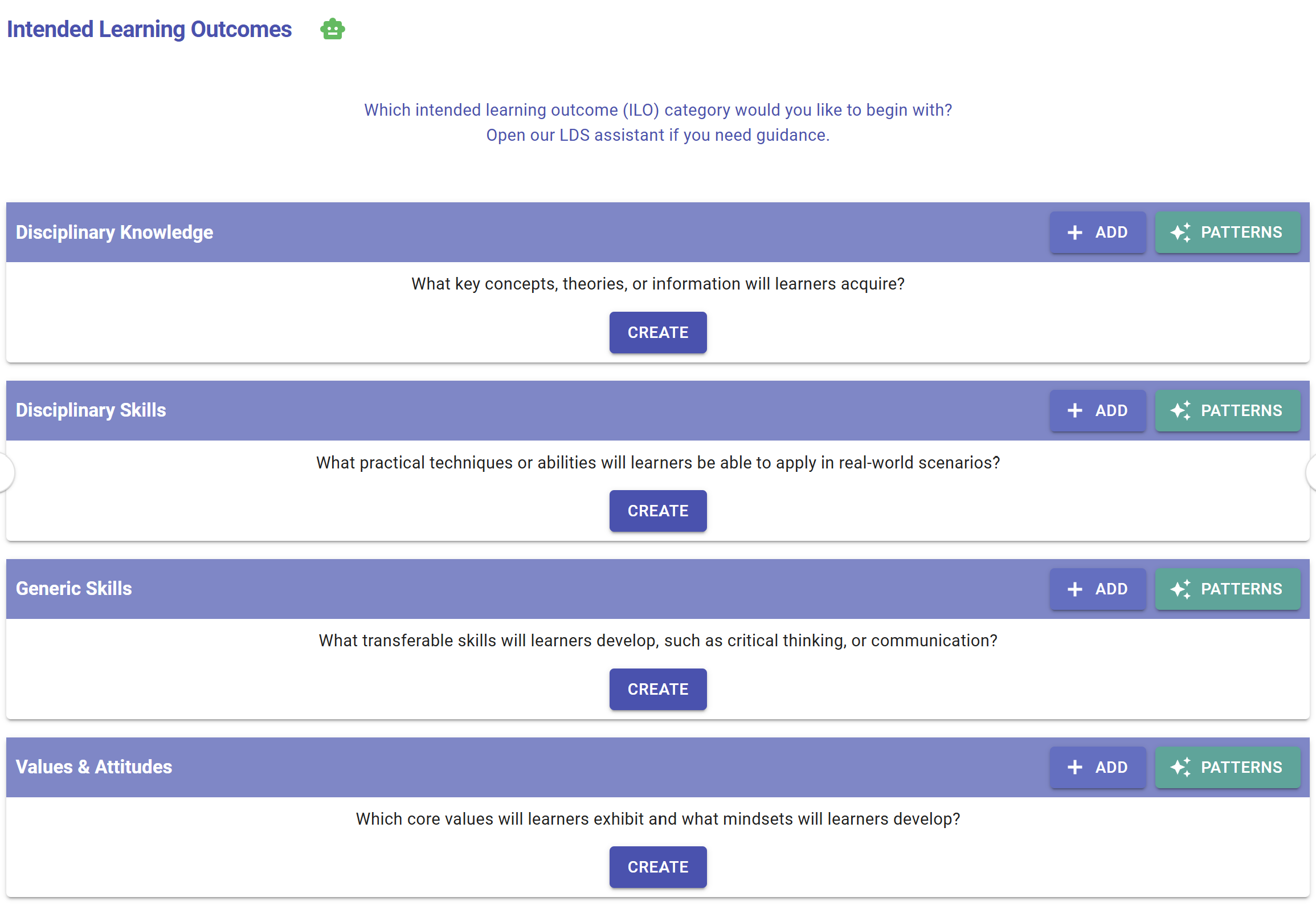](https://ideals-doc.cite.hku.hk/uploads/images/gallery/2026-07/cQ5image.png)
Figure 3.14: Patterns Button on the LDS Interface
Please be aware of this  button. When you see it, the Learning Design Facilitator (LDF) can offer patterns for you to use.
[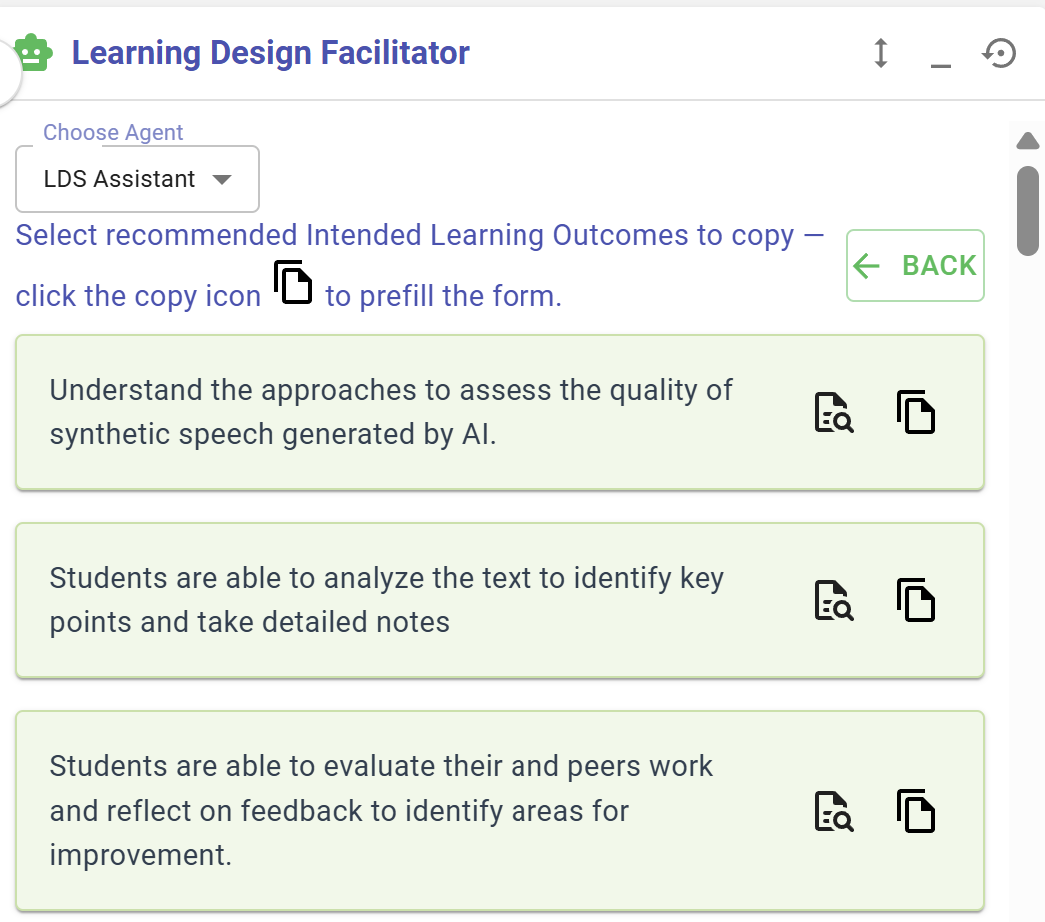](https://ideals-doc.cite.hku.hk/uploads/images/gallery/2026-07/7vyimage.png)
Figure 3.15: Pattern Library in the LDS Assistant
In addtion to the  button, you can also access the Pattern Library actively by selecting the "LDS Assistant" agent in the Learning Design Facilitator.
#### **1. Course-level Patterns**
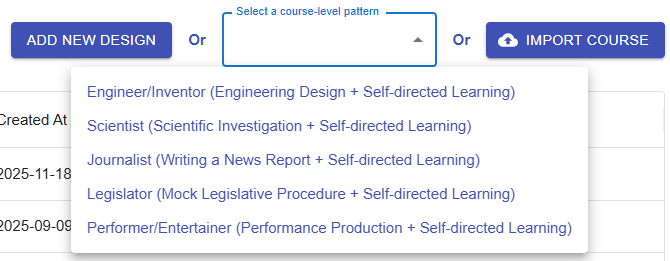
Figure 3.16: Course-level Patterns
The LDS provides course-level patterns that offer most of the information needed to complete the learning design for a specific topic, such as engineering design. Each course-level pattern includes intended learning outcomes, a disciplinary practice and a pedagogical approach, a curriculum component sequence, and learning tasks.
#### **2. Curriculum Component Patterns**
The LDS provides curriculum component patterns. Each pattern recommends a sequence of tasks for a specific phase of learning, designed to scaffold student learning.
#### **3. Task Patterns**
The LDS provides task patterns. Each pattern specify the details of each task—such as task type, delivery mode, e-learning tool, and learning resources.
#### **4. Intended Learning Outcomes (ILOs) Patterns**
The LDS provides intended learning outcome patterns for all four categories of ILOs across different subjects.
#### **5. Disciplinary Practice (DP) Patterns**
[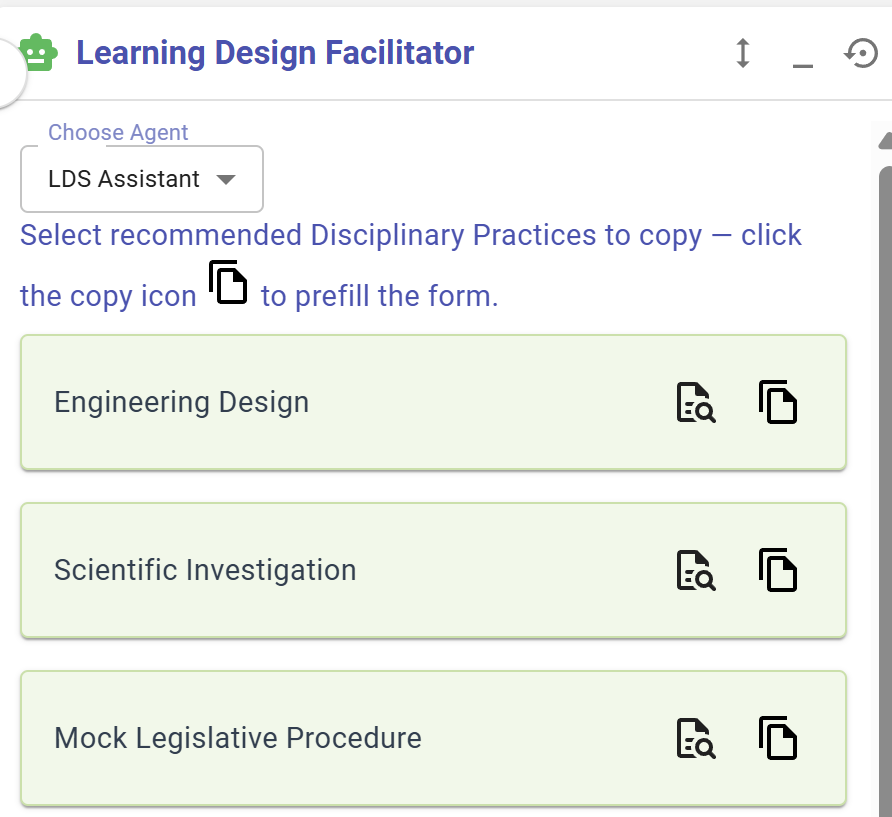](https://ideals-doc.cite.hku.hk/uploads/images/gallery/2026-07/ytmimage.png)
Figure 3.20: Disciplinary Practice Patterns
The LDS provides disciplinary practice patterns such as Engineering Design and Scientific Investigation.
#### **6. Pedagogical Approach (PA) Patterns**
[](https://ideals-doc.cite.hku.hk/uploads/images/gallery/2026-07/dO3image.png)
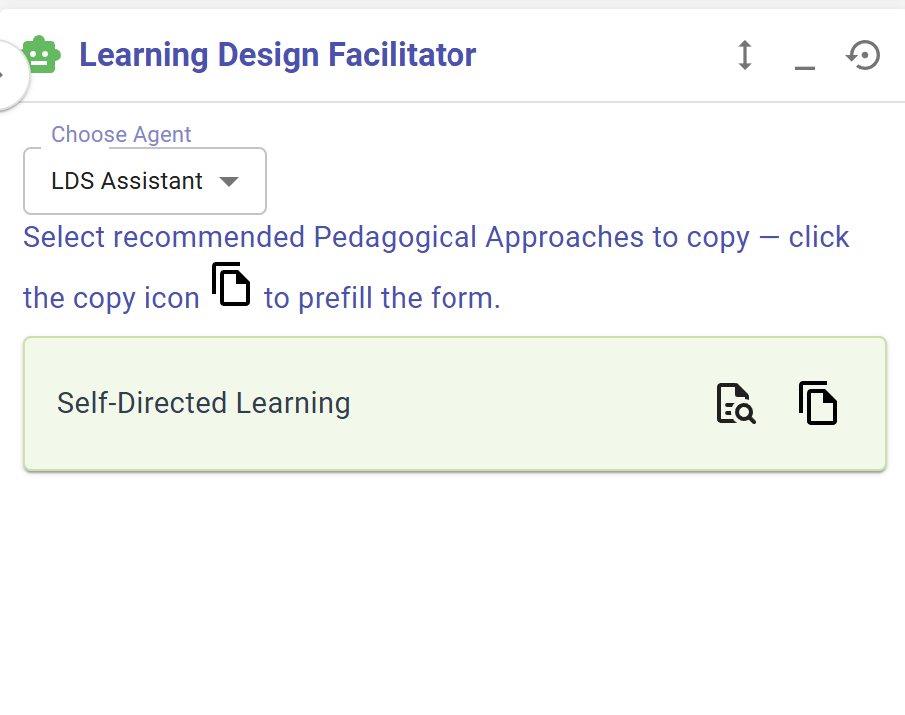
Figure 3.21: Pedagogical Approach Patterns
The LDS provides pedagogical approach patterns such as Self-directed Learning.