1.2 Backup a Course
Since iLAP is developed based on Moodle, courses can also be backed up as offline compressed files. In addition to restoring the backup within iLAP, teachers may also restore the backup file to a compatible version of Moodle, such as a school-hosted Moodle platform.
As iLAP has additional plugins installed beyond standard Moodle, including both custom-developed plugins and free third-party plugins, some activities or resources may not display or function properly when restored to another Moodle platform. The completeness of the restoration also depends on the Moodle version. If subscribing schools require further support in this area, please contact the project team at ideals@hku.hk .
After logging in to iLAP, go to the homepage and select any course to enter its course main page.
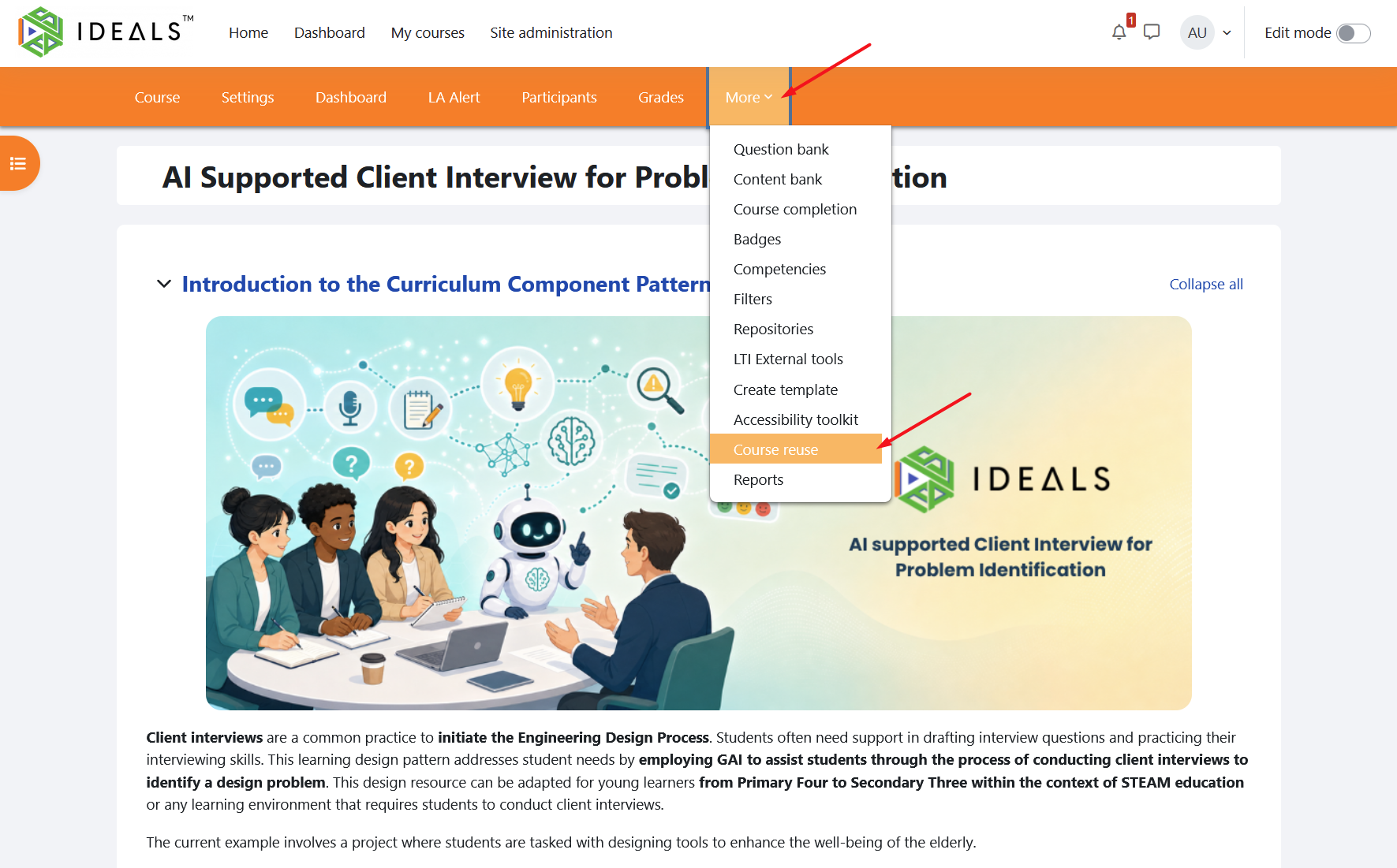
In the course menu, click "More", then click "Course reuse".
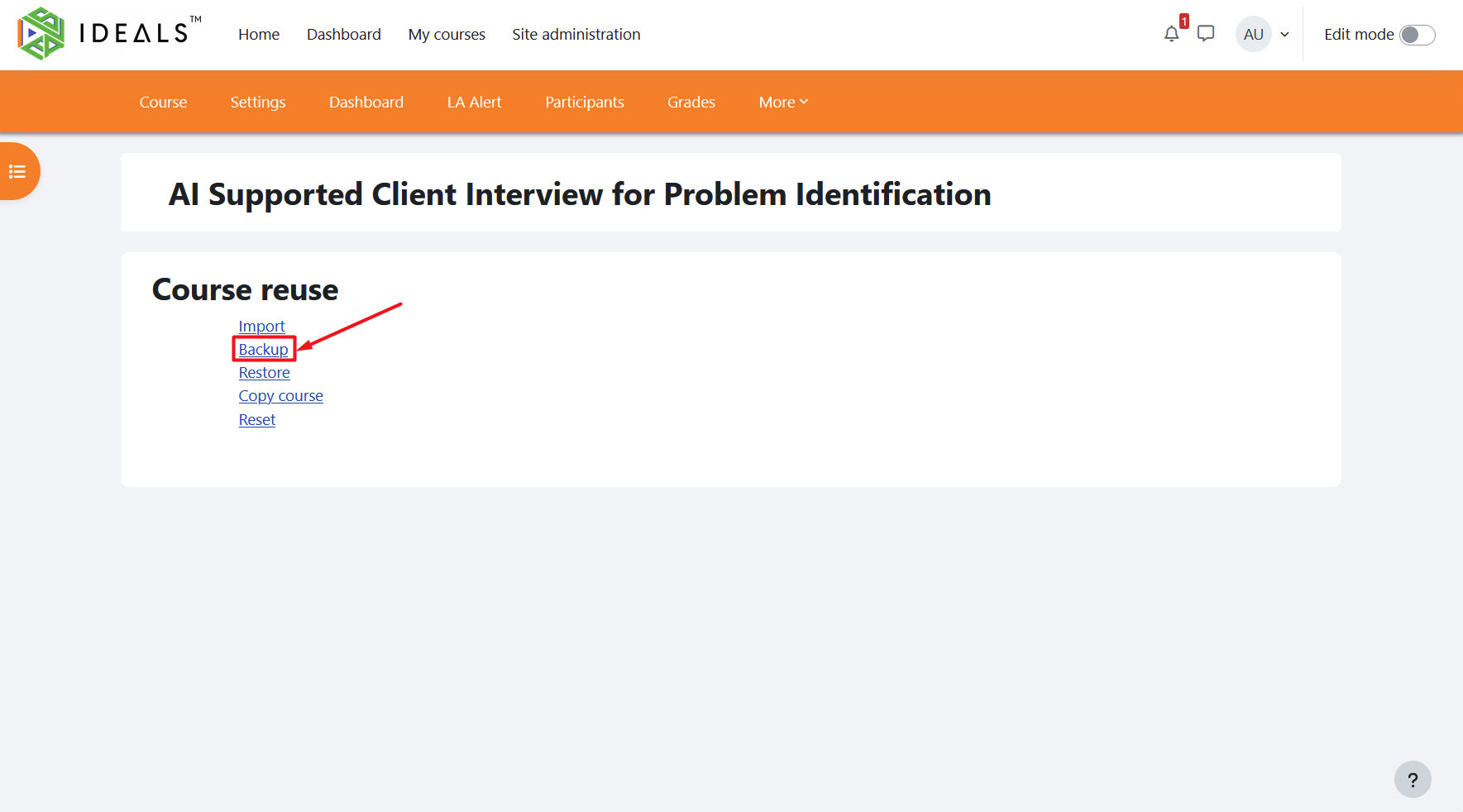
On the new page, select "Backup".
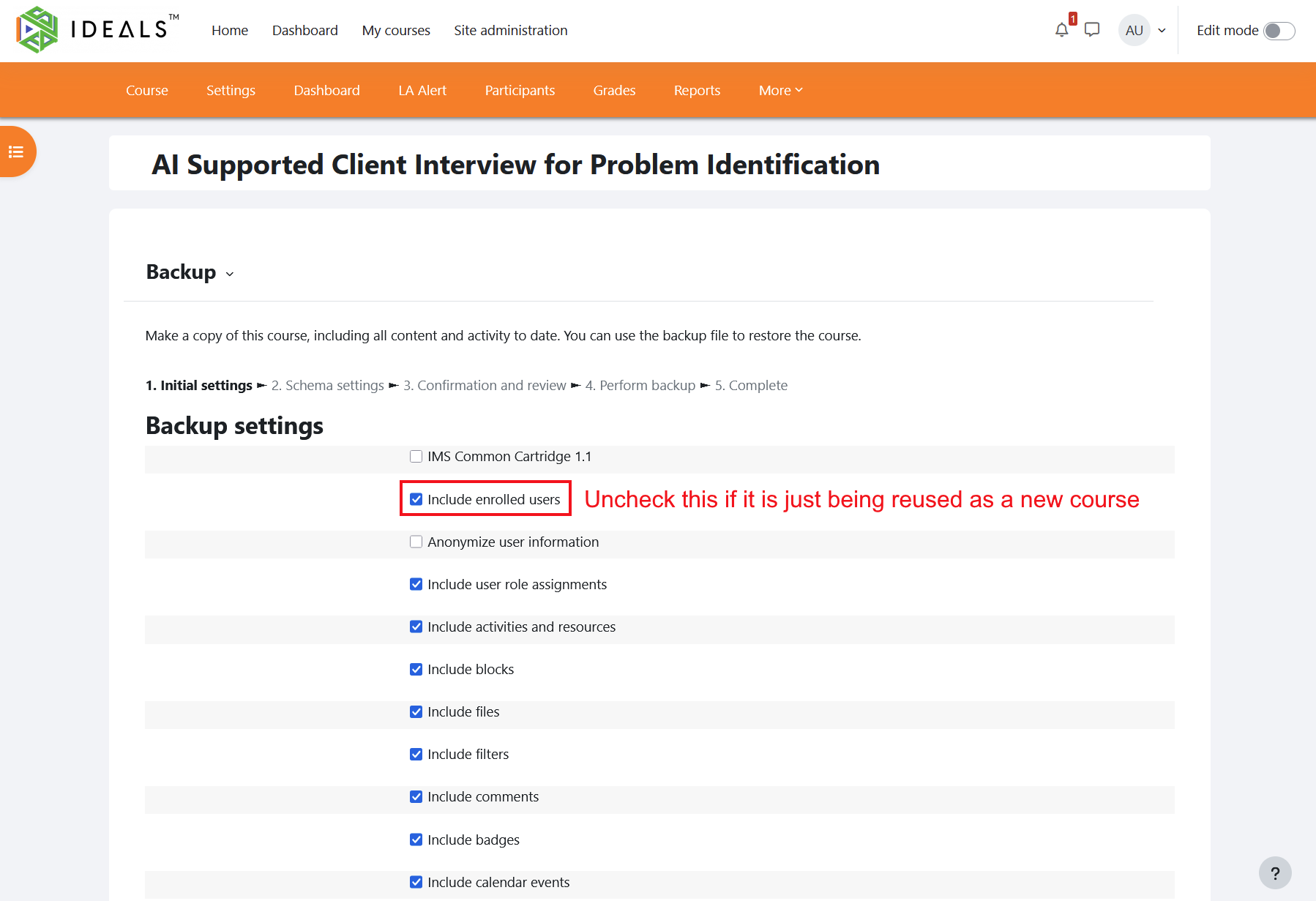
On the "Backup" settings page, the default settings will back up the course together with user data, including the accounts of all users in the course and the data they have generated. If you are backing up the course only to reuse resources in a new course, you may uncheck "Include enrolled users". This can also effectively reduce the size of the backup file.
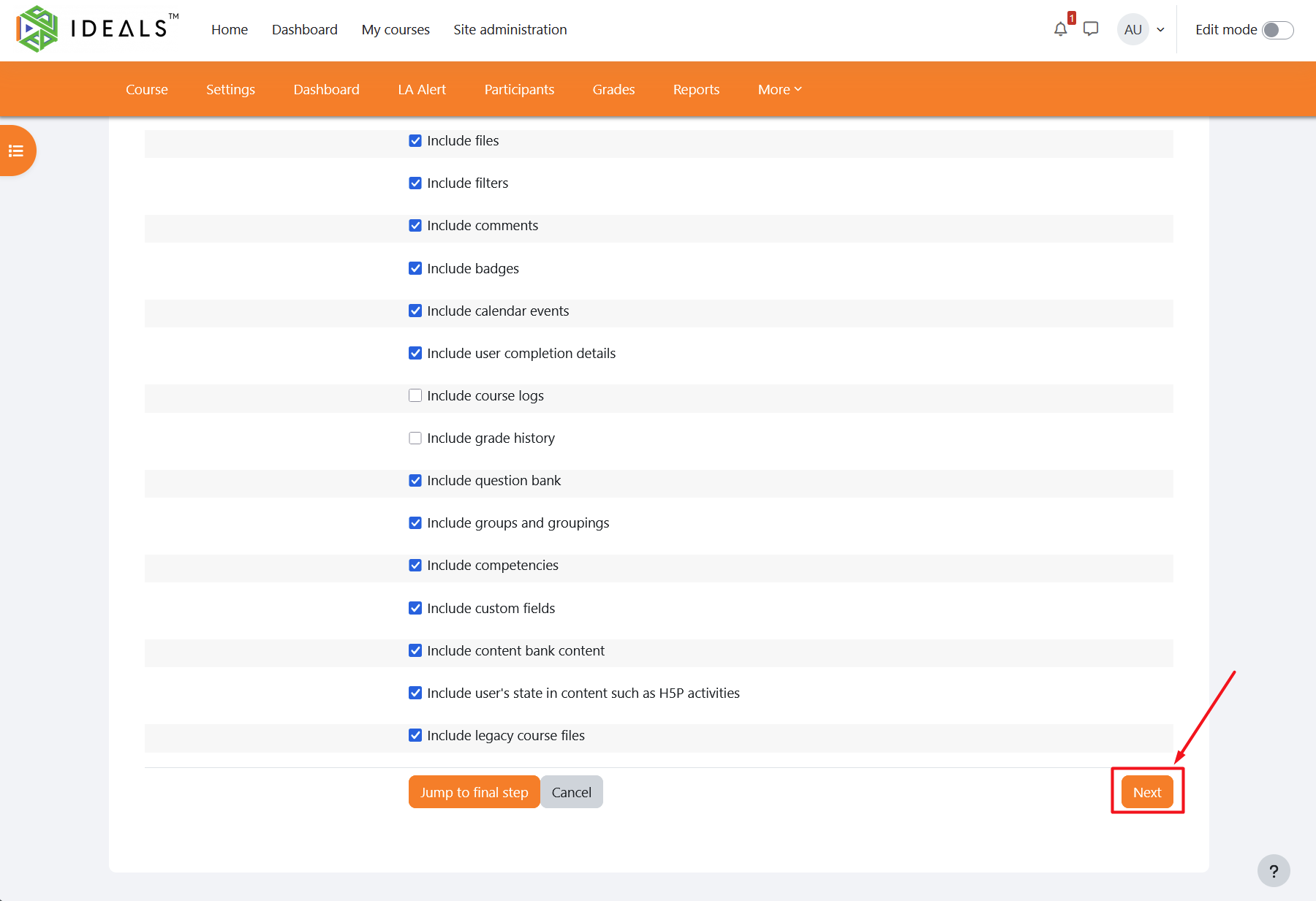
After completing the backup settings, scroll down to the bottom of the page and click "Next".
(If you do not need to select the course content to be backed up item by item, you may also click "Jump to final step".)
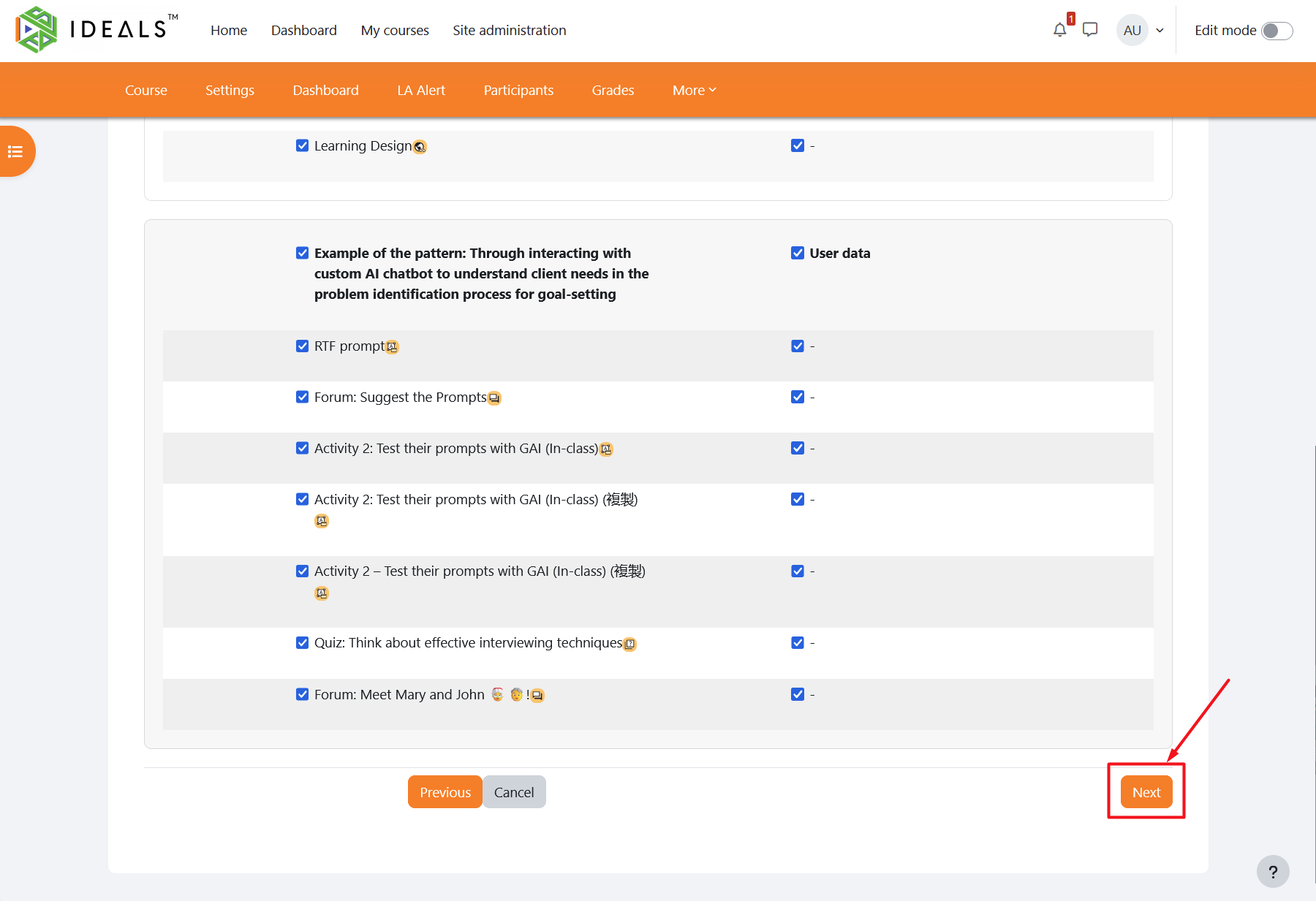
On this page, you can select the course content to be backed up item by item (by default, all items are selected). You may choose which sections, activities, and resources to include, and whether to include user data. When you have finished, scroll down to the bottom of the page and click "Next".
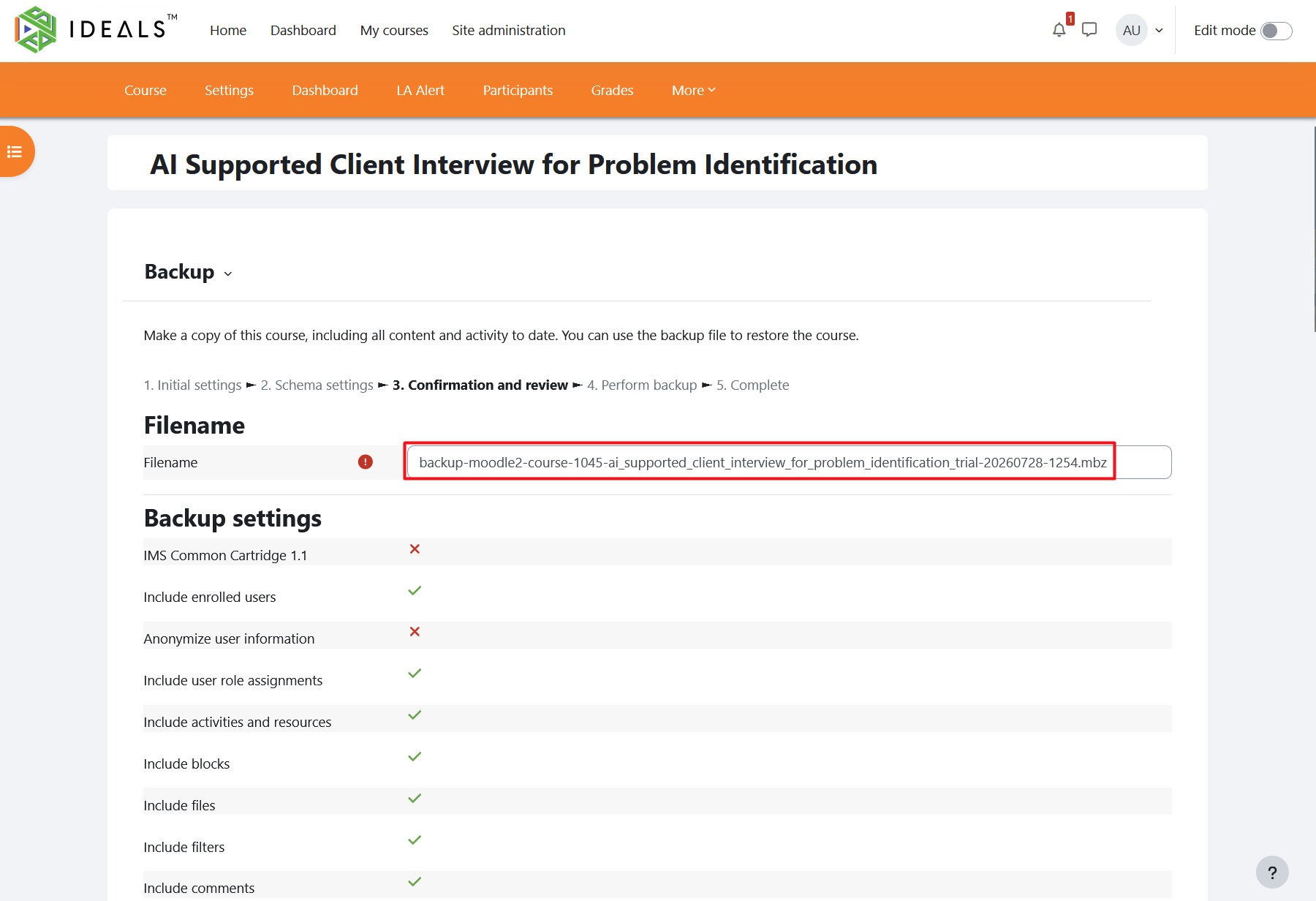
On the next page, confirm and review the backup settings you have selected. You may also change the automatically generated file name.
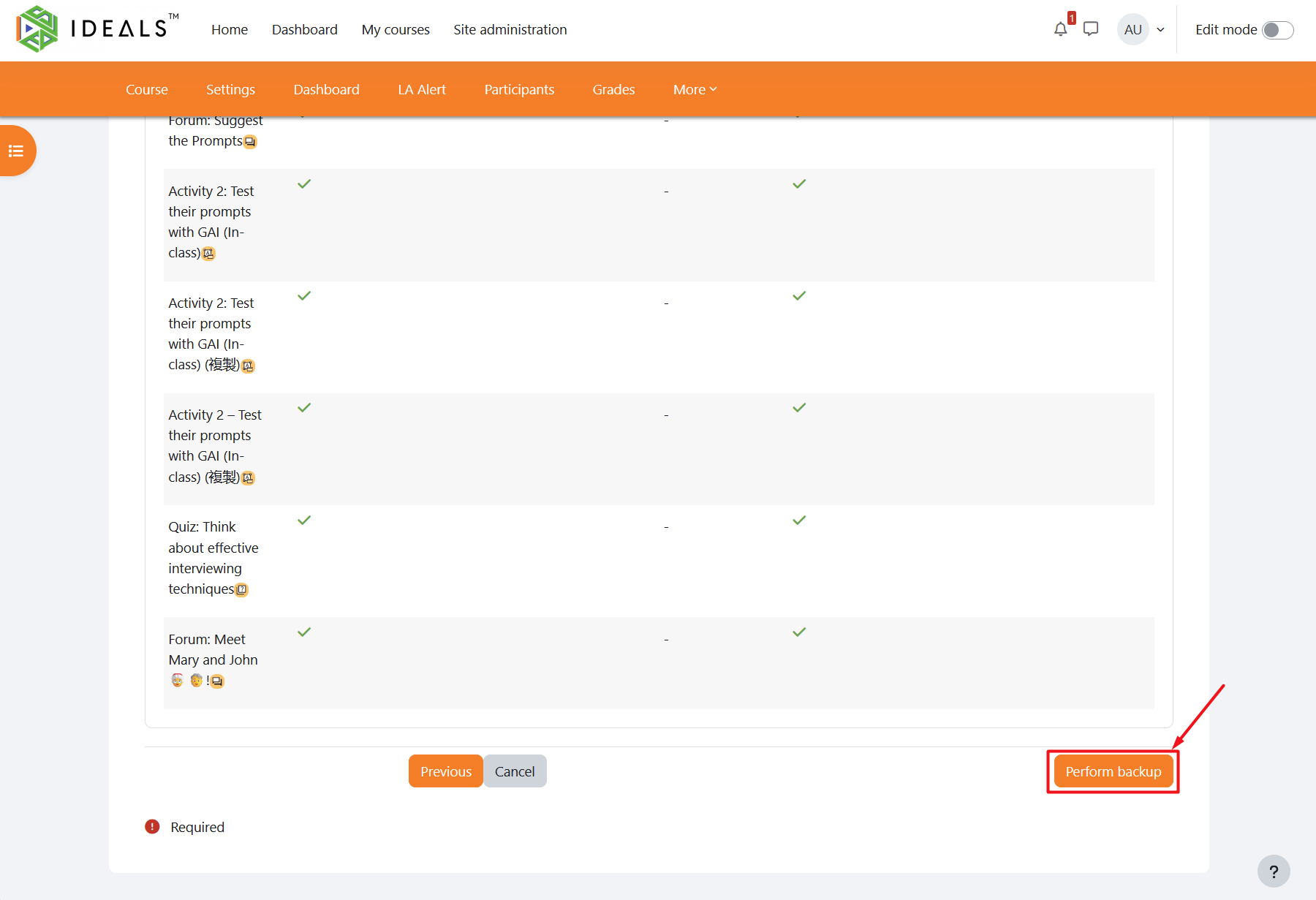
Finally, scroll down to the bottom of the page and click "Perform backup". The system will then start the backup process.
The time required for the backup depends on the number of activities and resources in the course and whether user data is included. In general, it should be completed within a few seconds to several tens of seconds.
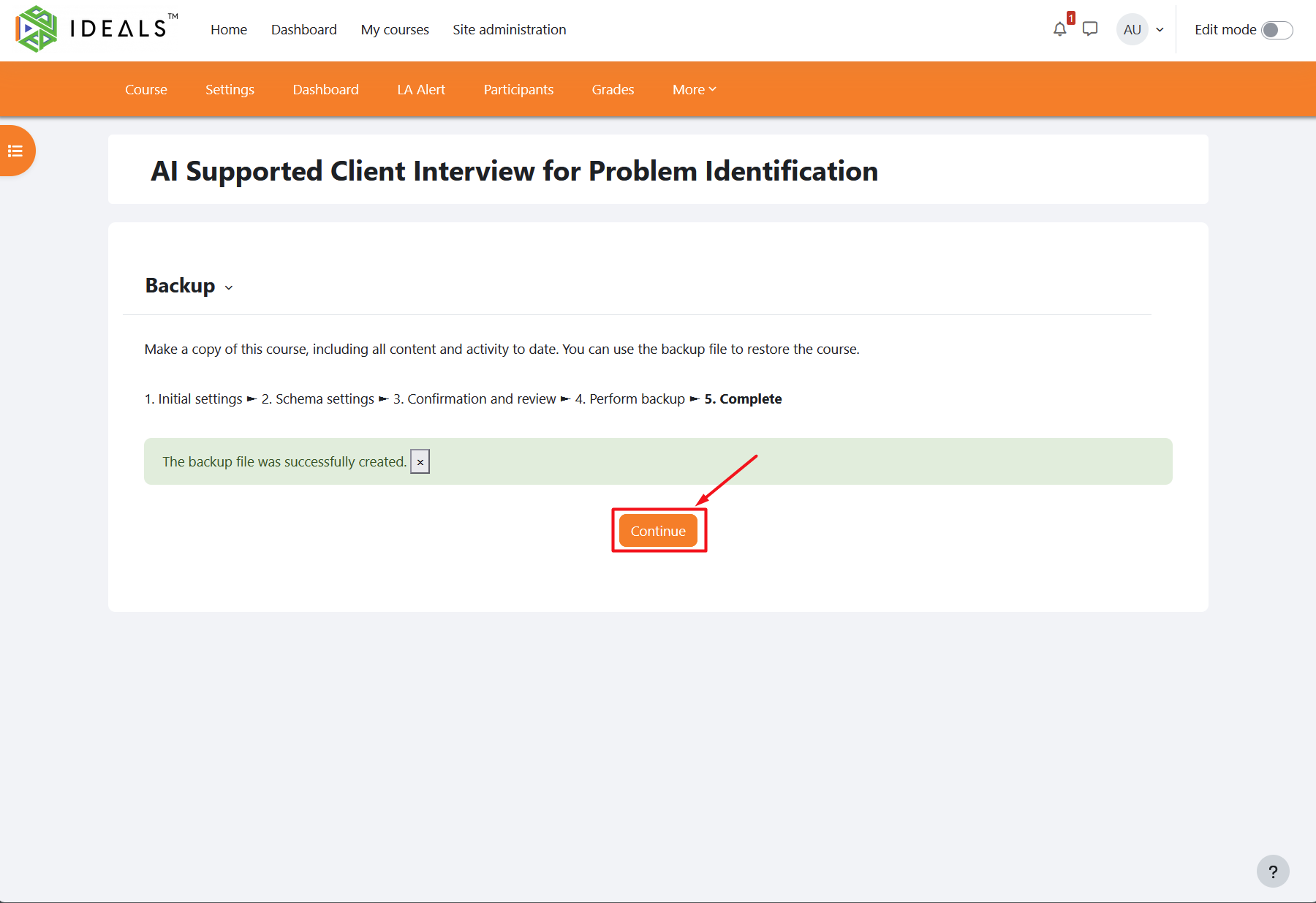
When the backup is complete, the message "The backup file was successfully created" will be displayed. Click "Continue".
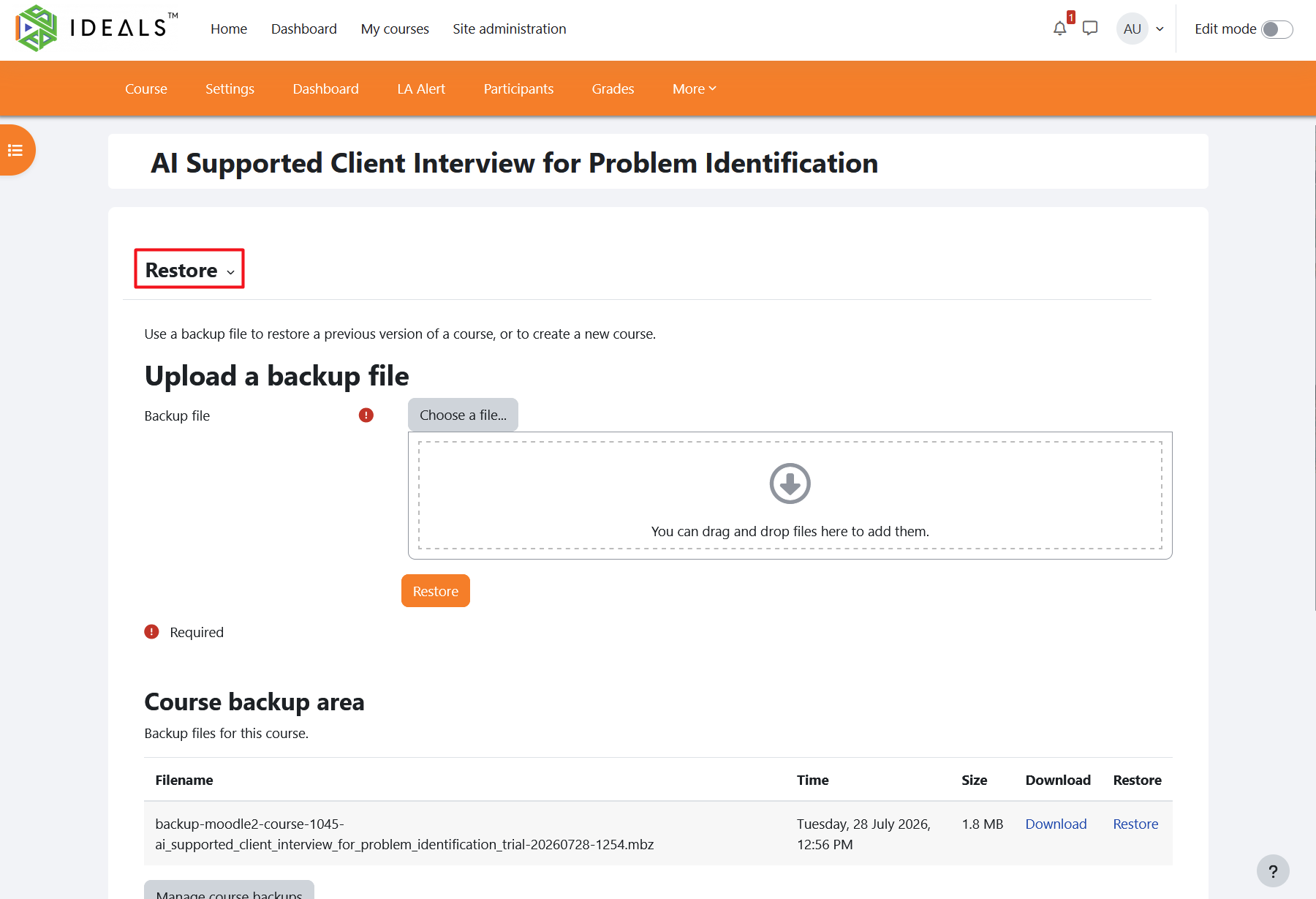
After being redirected to the course "Restore" page, scroll down to the "User private backup area".
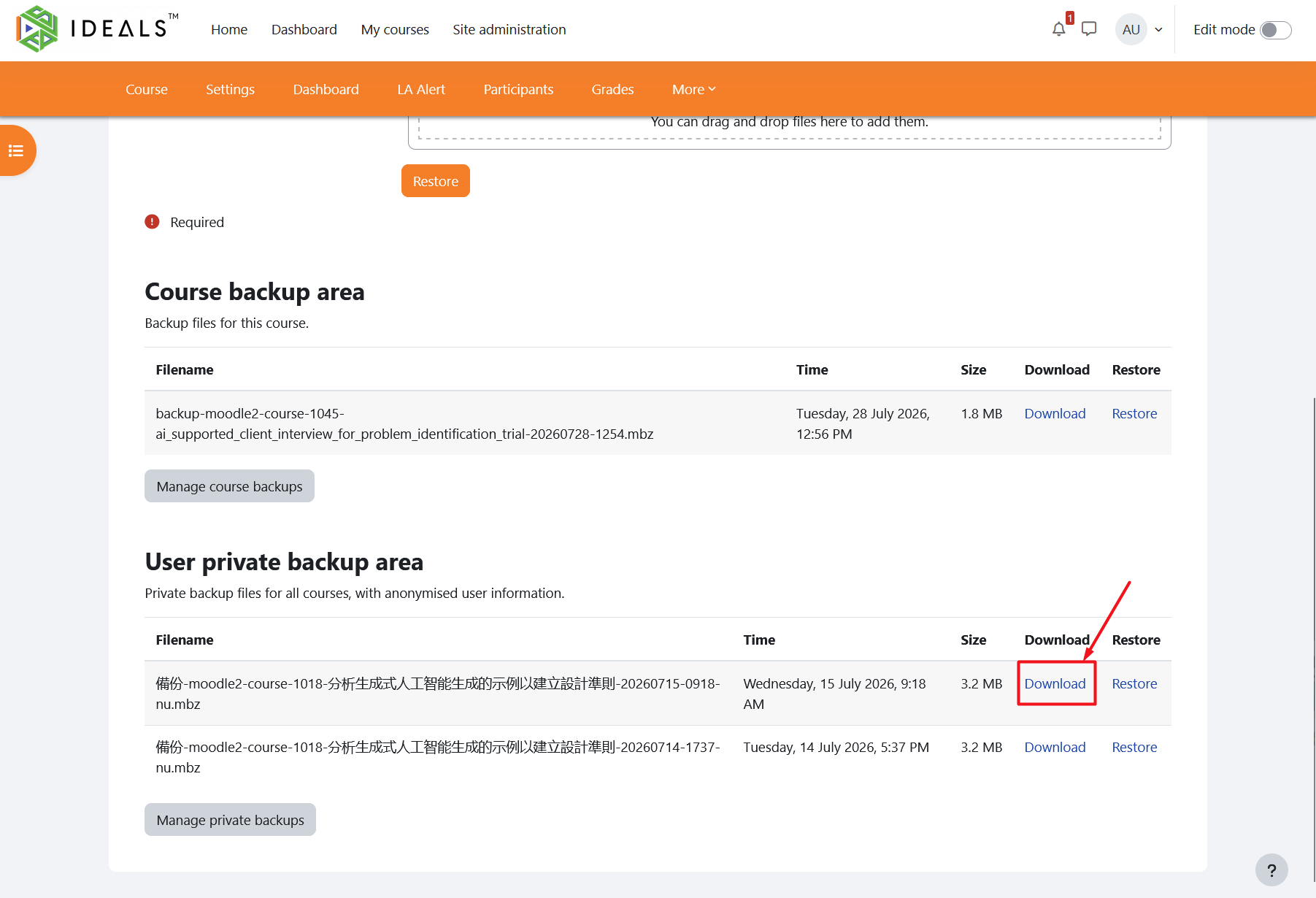
In the "User private backup area", you can find the course you just backed up, as well as previous course backups, by checking the file name or time.
Click the "Download" link beside the file to download the backup file in MBZ format to your computer.
If you would like to restore the course backup to another Moodle platform, please refer to Moodle's official user guide: https://docs.moodle.org/405/en/Course_restore.