1. Course Management
The iLAP platform organizes teaching and learning activities/resource around “Courses,” allowing teachers to freely create courses of different topics, levels, or subjects. Unlike some traditional teaching platforms that manage based on school, grade level, or class hierarchies, iLAP does not have a preset school structure. This enables teachers to arrange teaching content and groupings more flexibly. It is recommended that teachers name and design course structures themselves based on actual teaching needs when planning courses. This not only accommodates the school’s arrangements but also makes full use of the platform’s flexible advantages.
This section is closely related to Section 2: Managing Course Categories, and the reading order can be switched. If you wish to organize course categories and levels first, you may refer to that section of the guide beforehand.
1.1 Create a course
After logging into iLAP and entering the homepage, first select any course category to serve as the "parent category" for the new course.
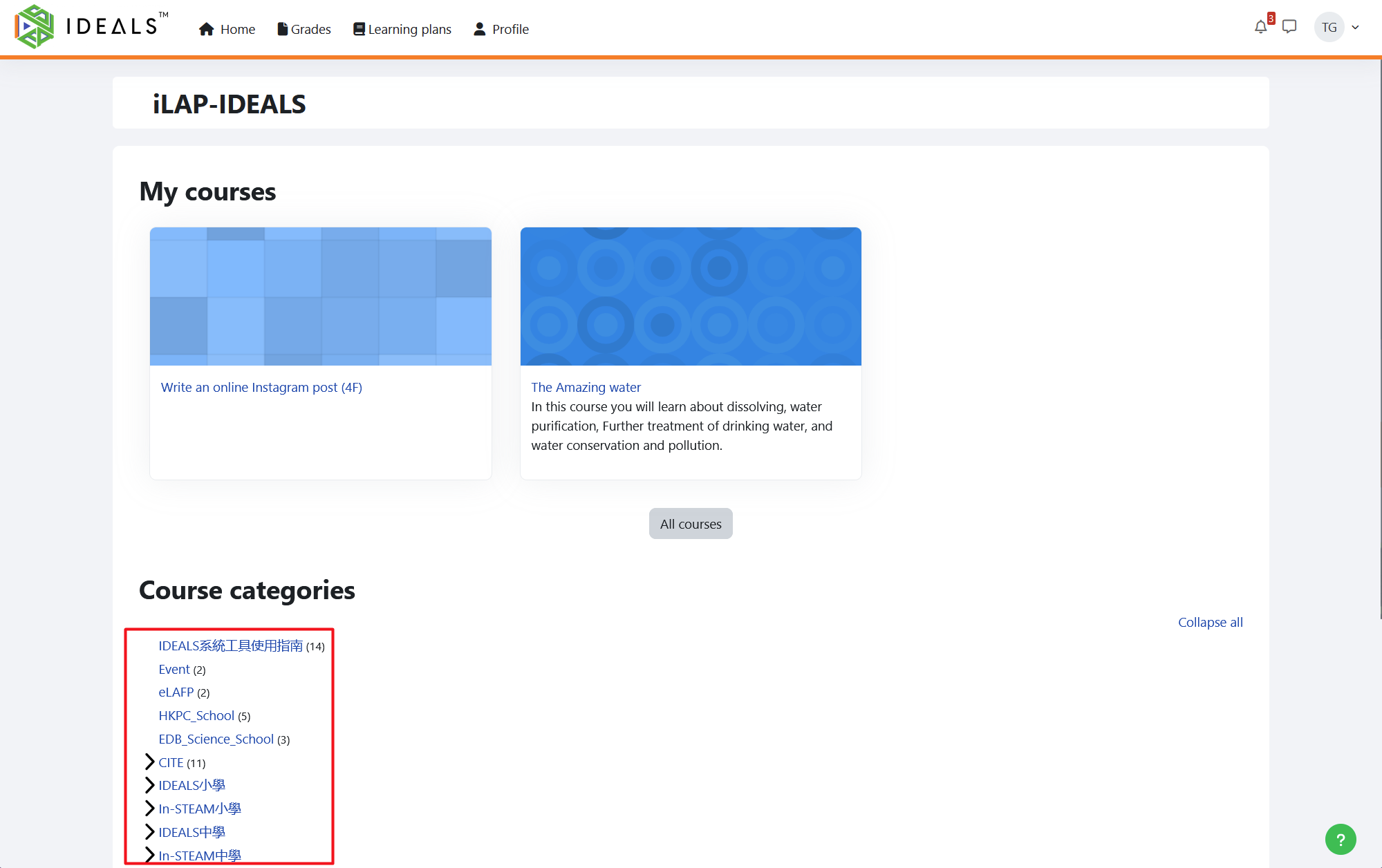
After entering the course category, click the "Create a course" button at the top left.
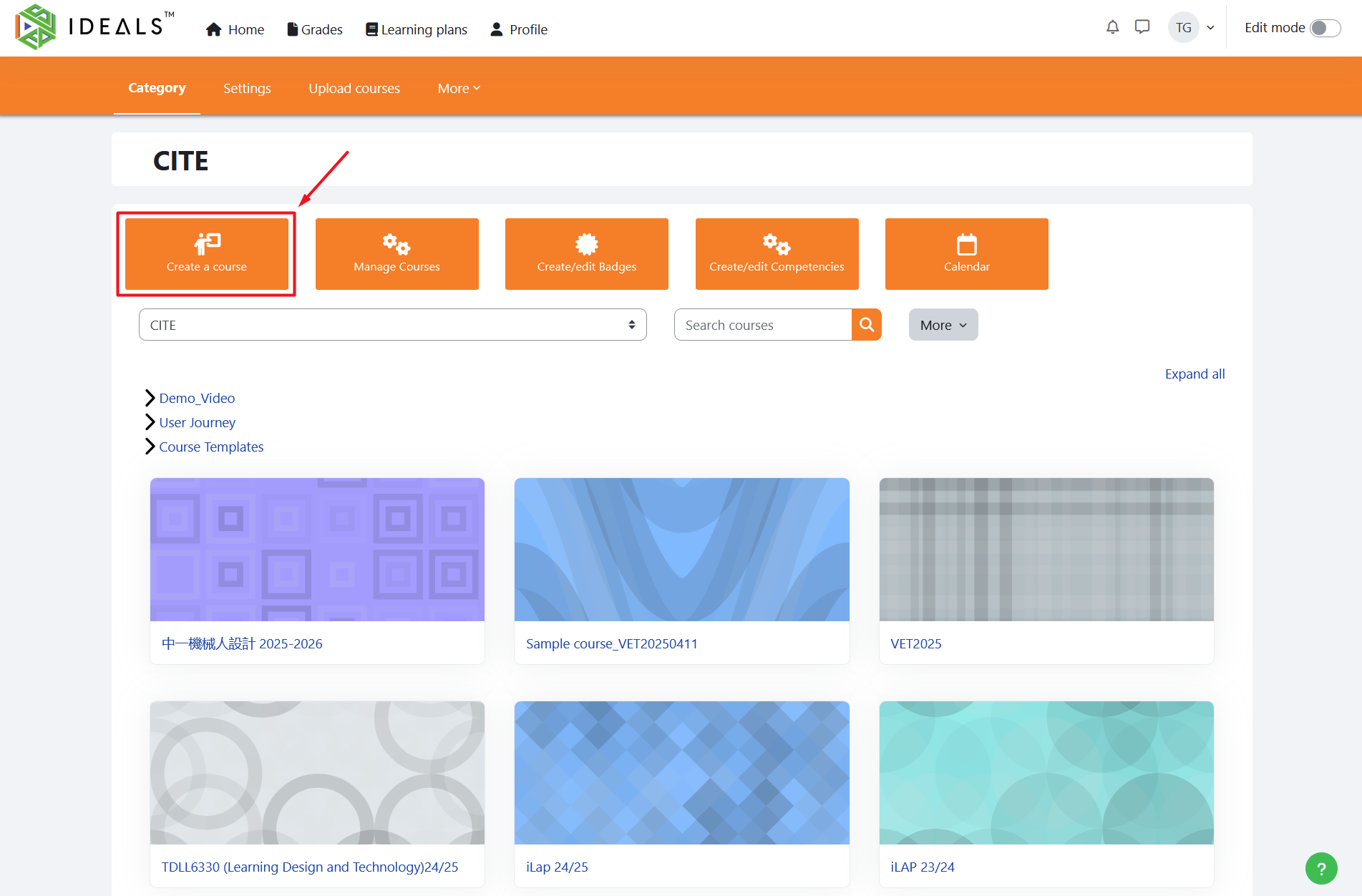
On the "Add a new course" form, fill in the basic course information. Only three fields are required:
- Course full name: The detailed name of the course (e.g., S1 Robotics Design 2025-2026)
- Course short name: Used when interface space is limited, such as in page paths, and must be unique within the platform (e.g., Robotics_2526)
- Course category: (Already selected)
All other settings are optional. The following explains some commonly used settings:
- Course visibility: If you want to hide the course from students initially, you can select "Hide".
- Course start/end date: If you want students to only access the course within a specific period, you can set a time range.
- Course summary: You can enter a brief course introduction to let students and teachers know the details of the course.
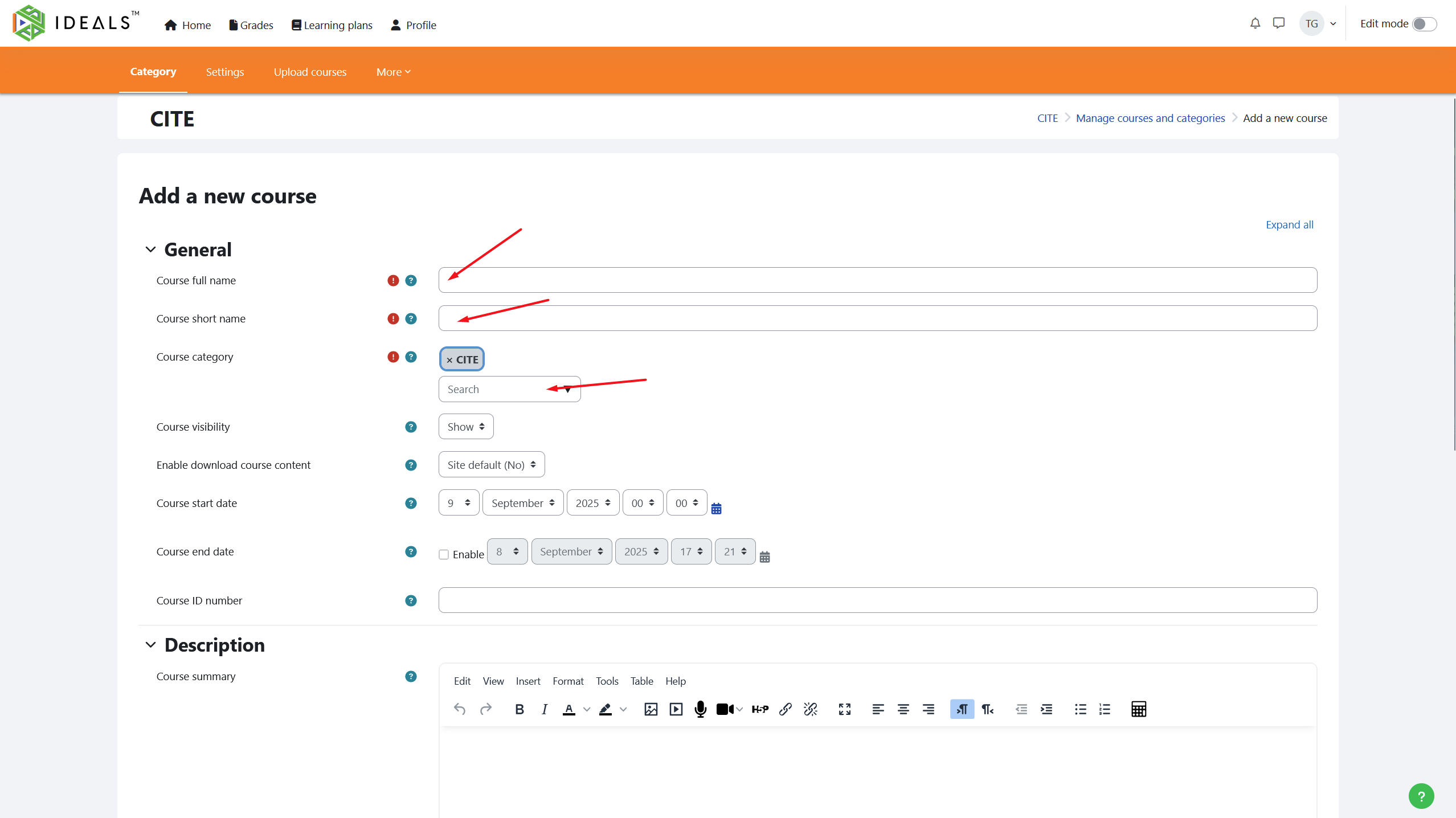
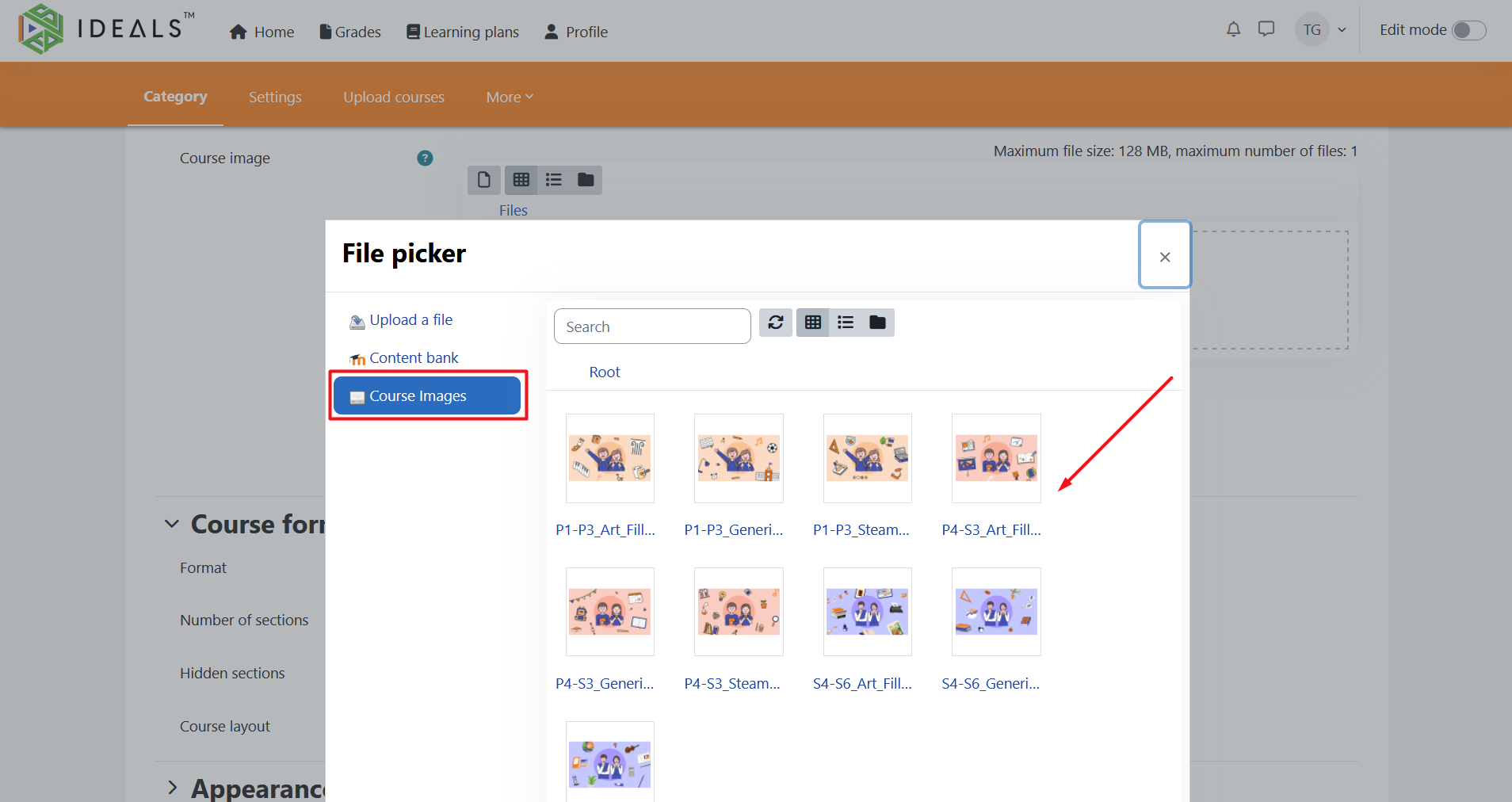
- Course image: This optional image will be displayed as decoration under "My Courses" and on the homepage. You can upload an image yourself, just drag and drop the image into the dashed box.
You can also click the dashed box to open the "File Picker," then click "Course Images" on the left, where some default images are provided for users to use freely.
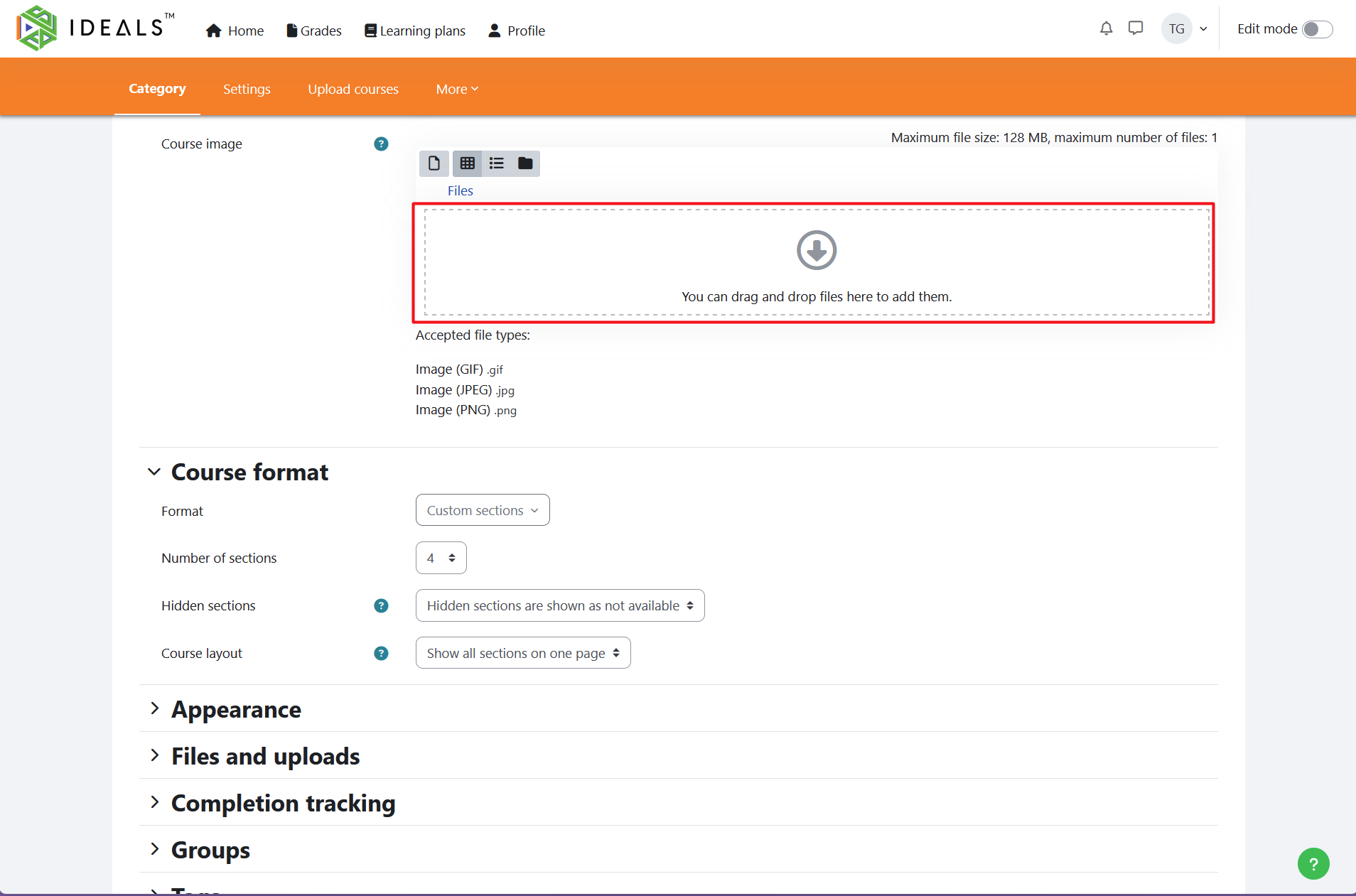
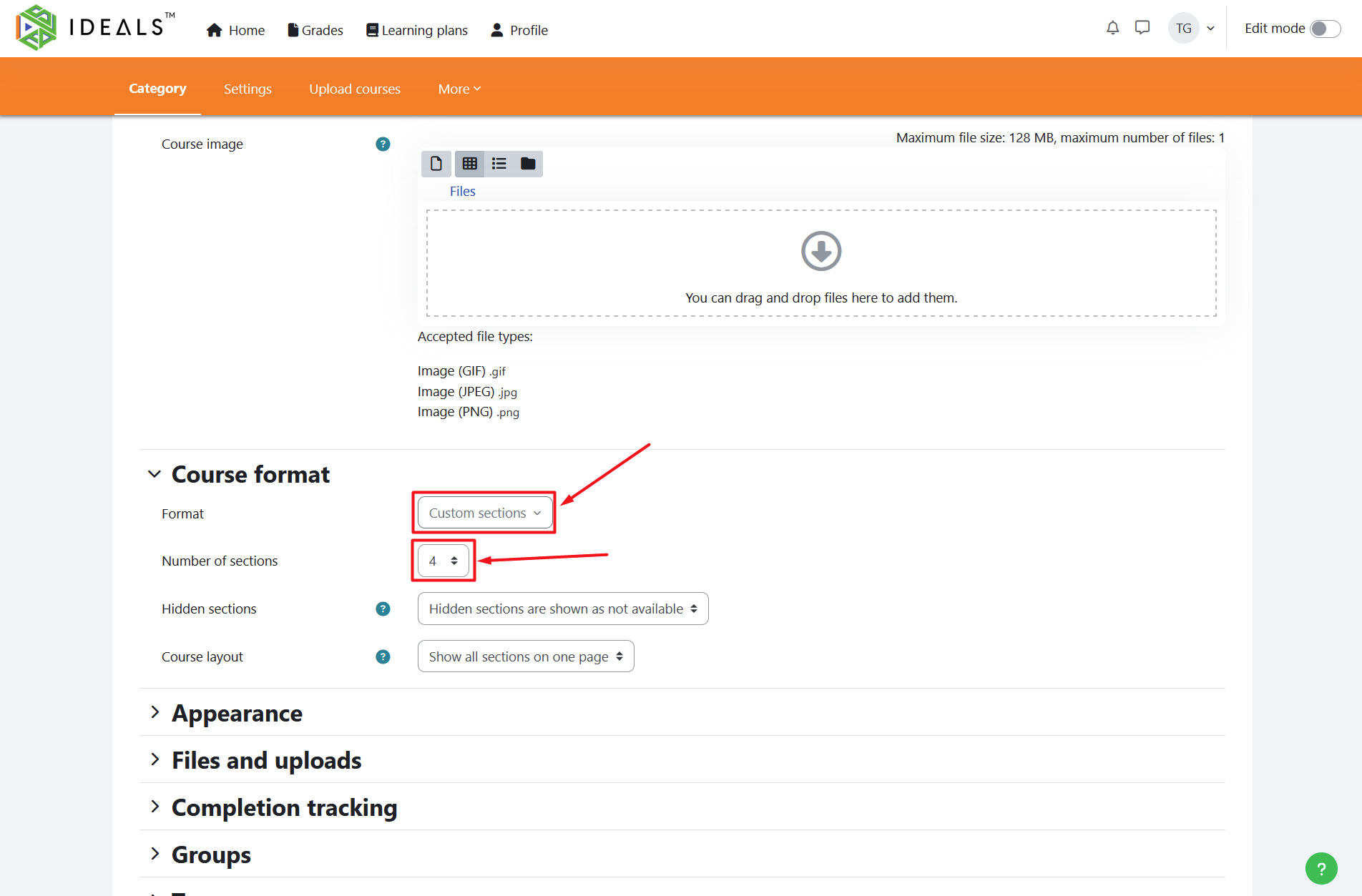
- Course format: The default "Custom sections" should be suitable for most situations. You may want to increase or decrease the "Number of sections" (default is 4). This number determines how many sections are available in the central area of the course layout for you to organize activities and resources.
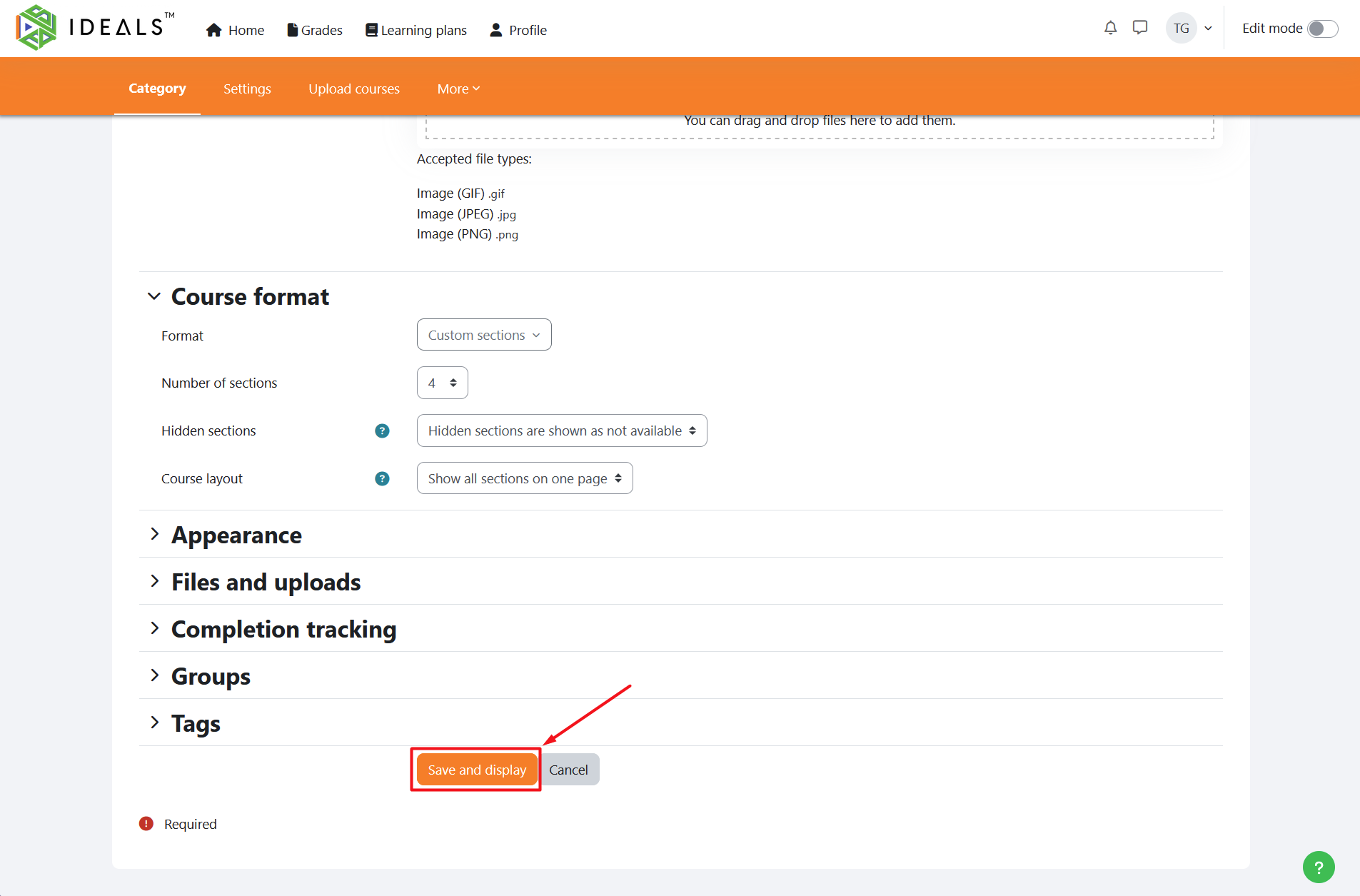
After completing the settings, please click the "Save and display" button at the bottom of the page to view the course page.
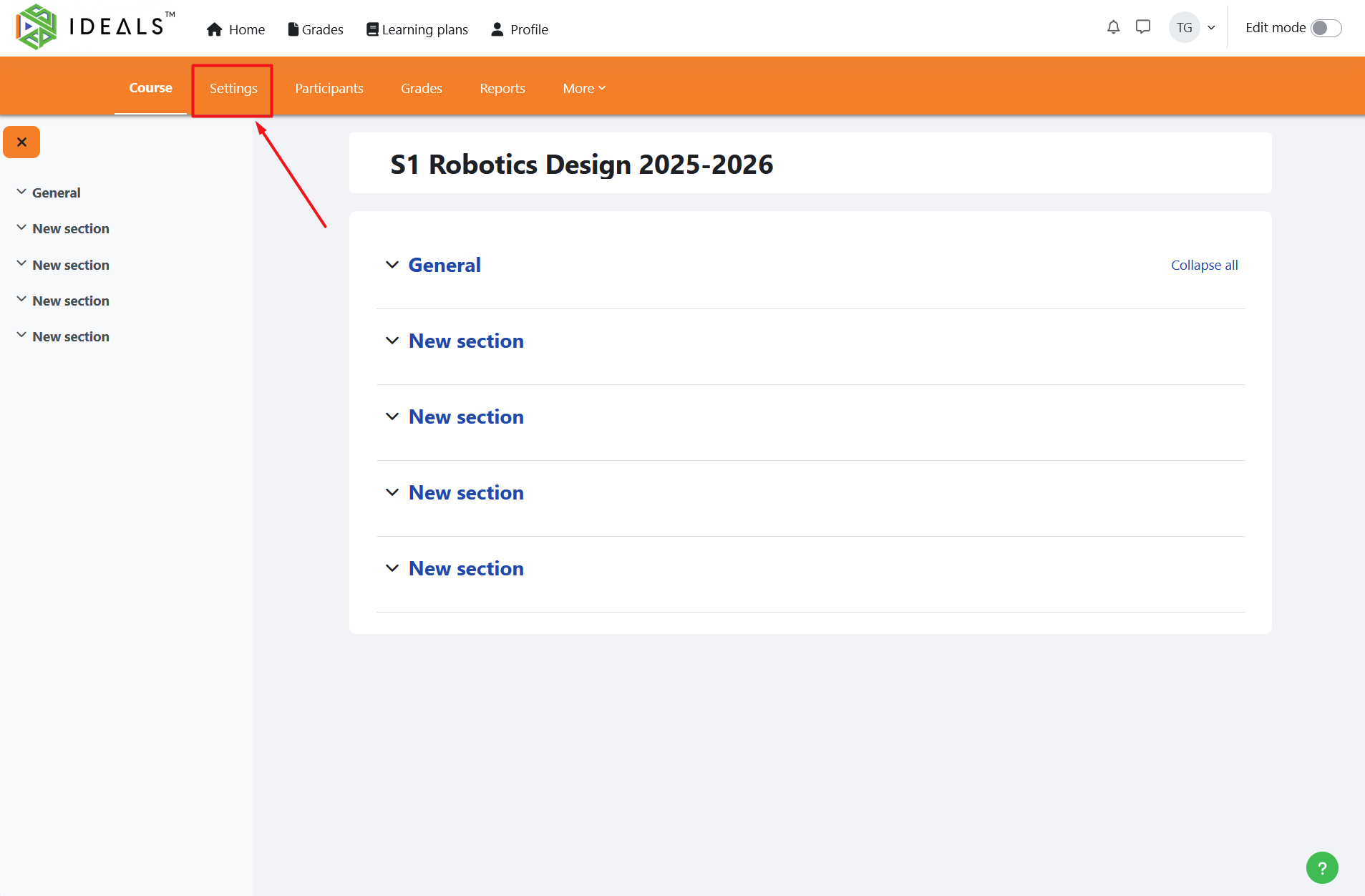
You should now see the main page for the newly created course. You can click "Settings" at any time to make changes to the course settings.
The next step you may want to take is to enroll students to the newly created course. Please refer to the Student Enrollment Management Guide.
1.2 Backup a Course
Since iLAP is developed based on Moodle, courses can also be backed up as offline compressed files. In addition to restoring the backup within iLAP, teachers may also restore the backup file to a compatible version of Moodle, such as a school-hosted Moodle platform.
As iLAP has additional plugins installed beyond standard Moodle, including both custom-developed plugins and free third-party plugins, some activities or resources may not display or function properly when restored to another Moodle platform. The completeness of the restoration also depends on the Moodle version. If subscribing schools require further support in this area, please contact the project team at ideals@hku.hk .
After logging in to iLAP, go to the homepage and select any course to enter its course main page.
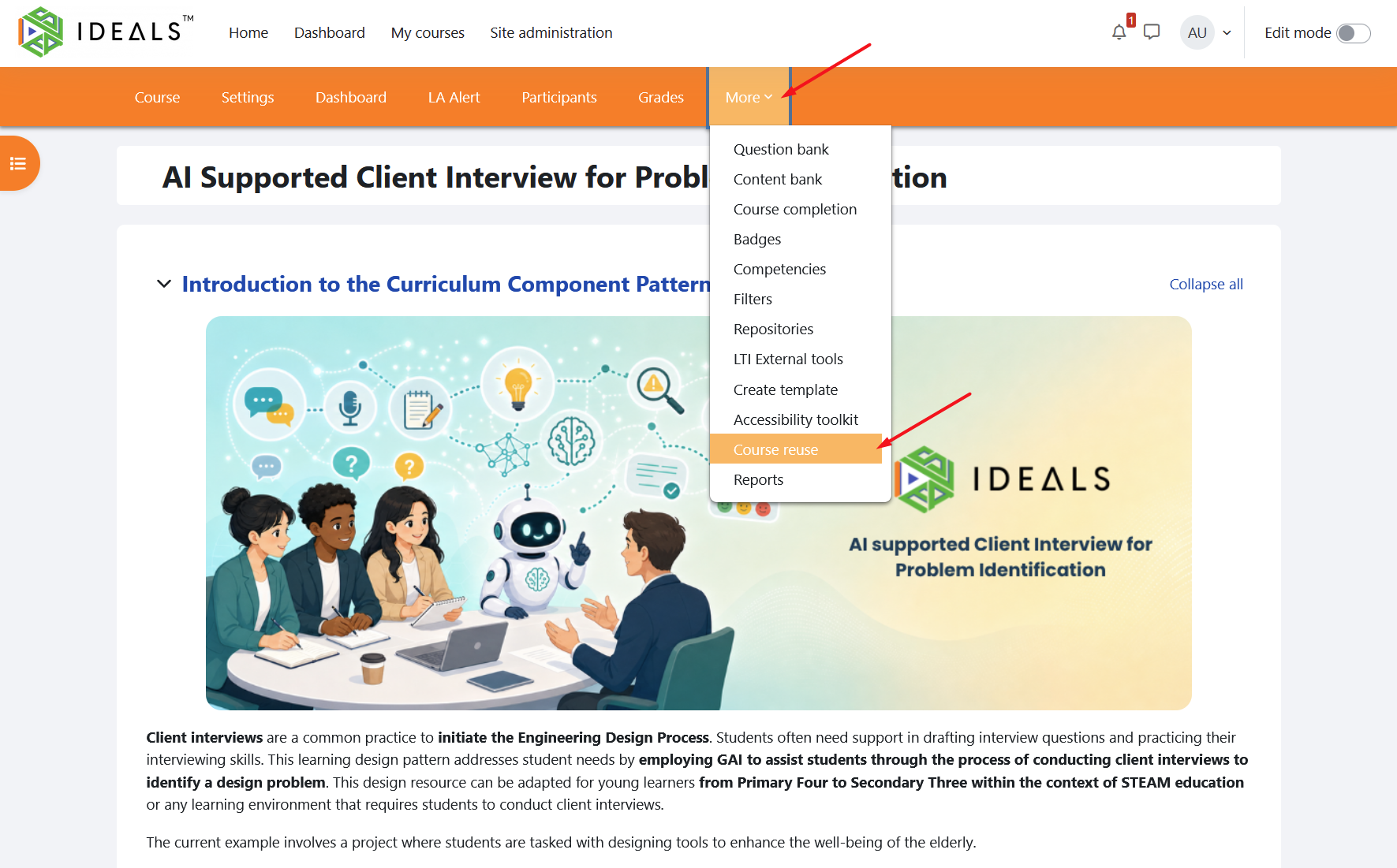
In the course menu, click "More", then click "Course reuse".
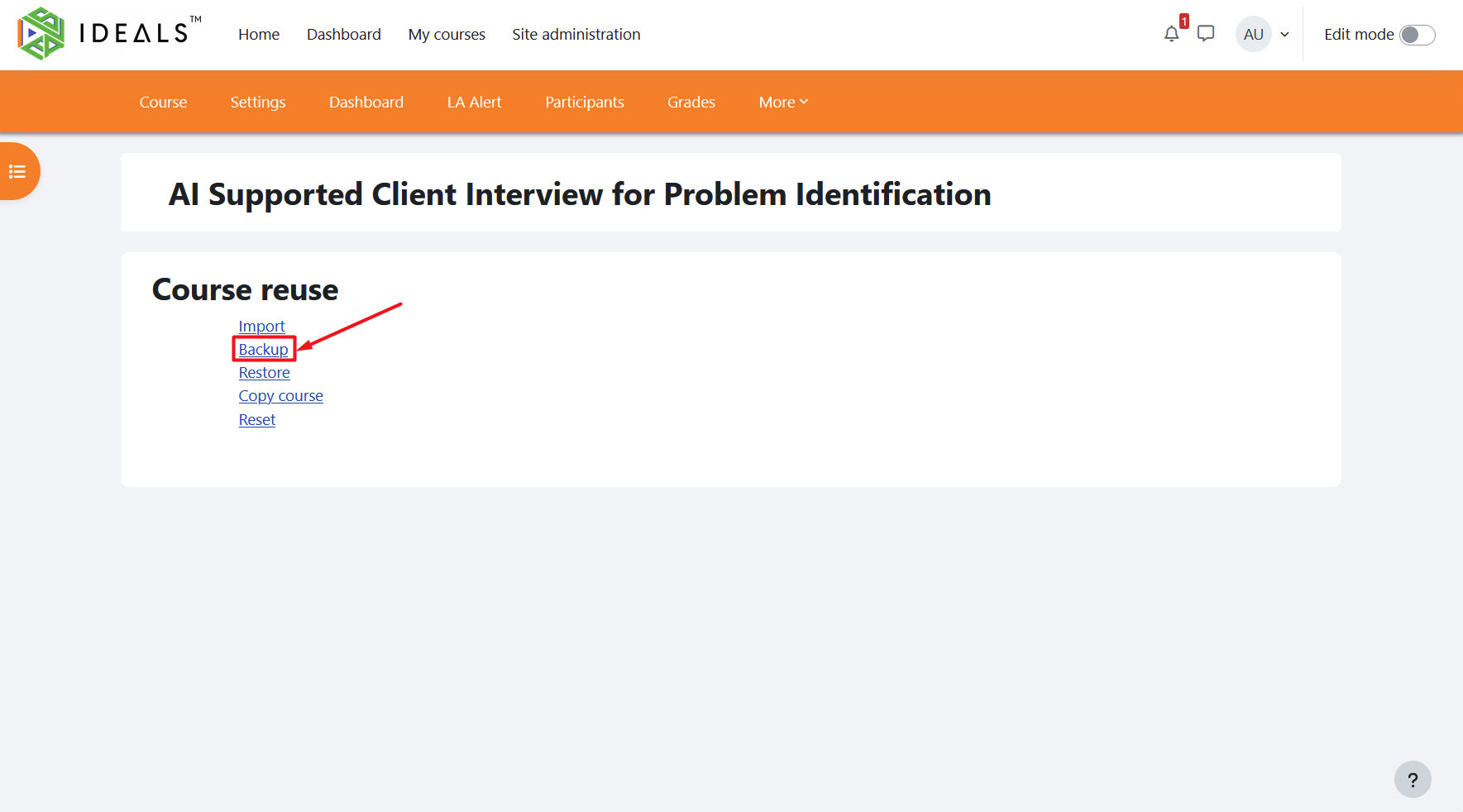
On the new page, select "Backup".
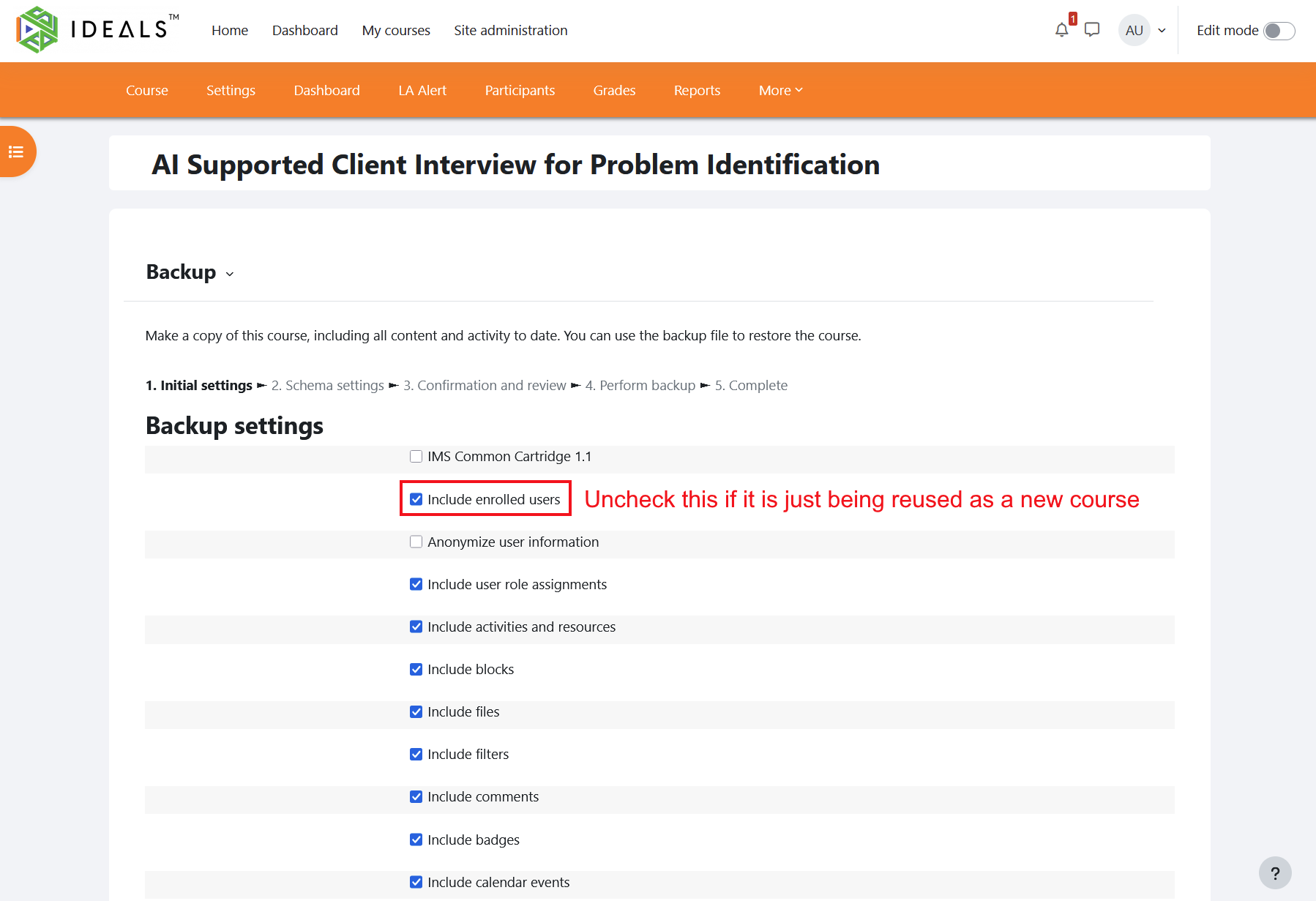
On the "Backup" settings page, the default settings will back up the course together with user data, including the accounts of all users in the course and the data they have generated. If you are backing up the course only to reuse resources in a new course, you may uncheck "Include enrolled users". This can also effectively reduce the size of the backup file.
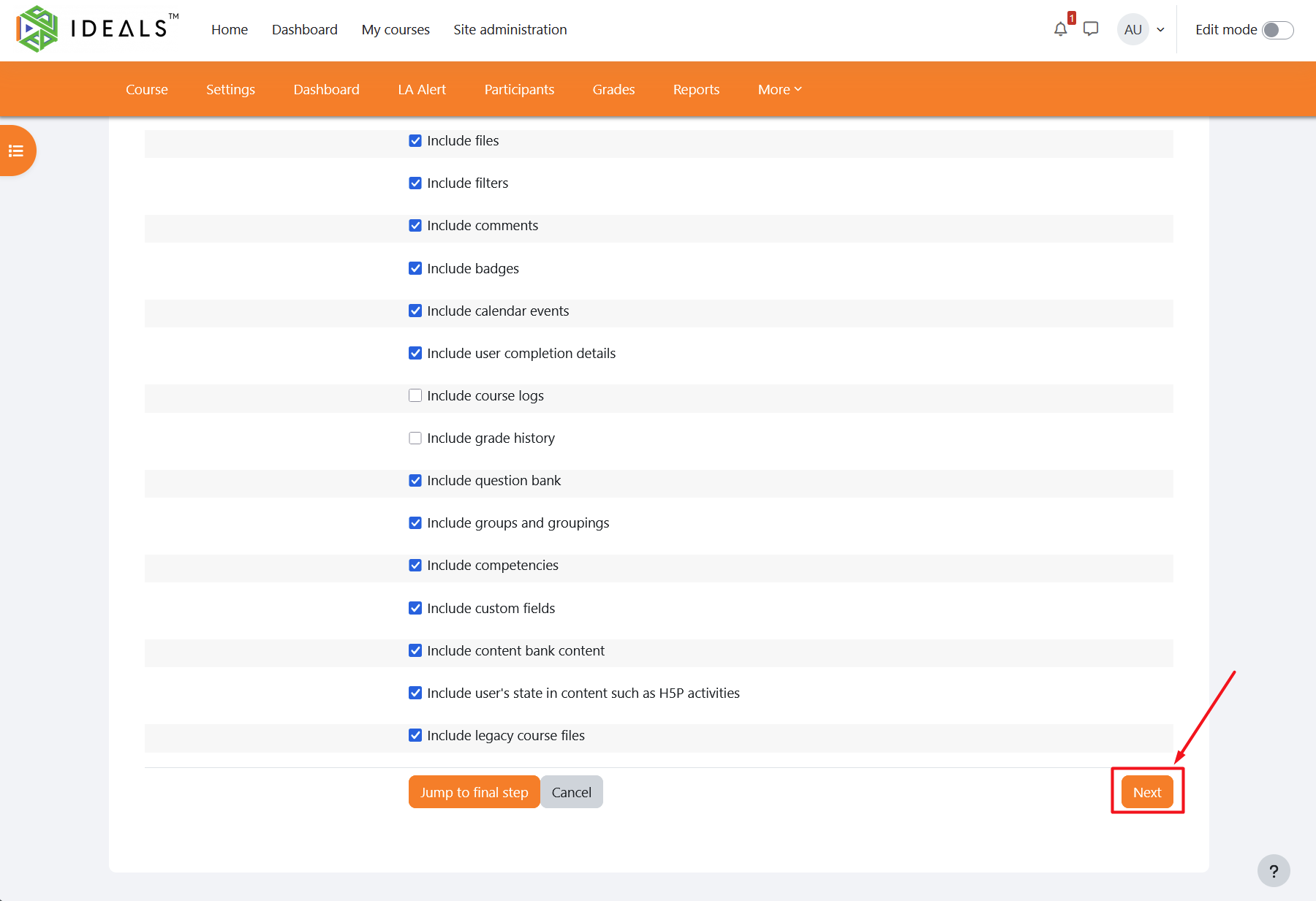
After completing the backup settings, scroll down to the bottom of the page and click "Next".
(If you do not need to select the course content to be backed up item by item, you may also click "Jump to final step".)
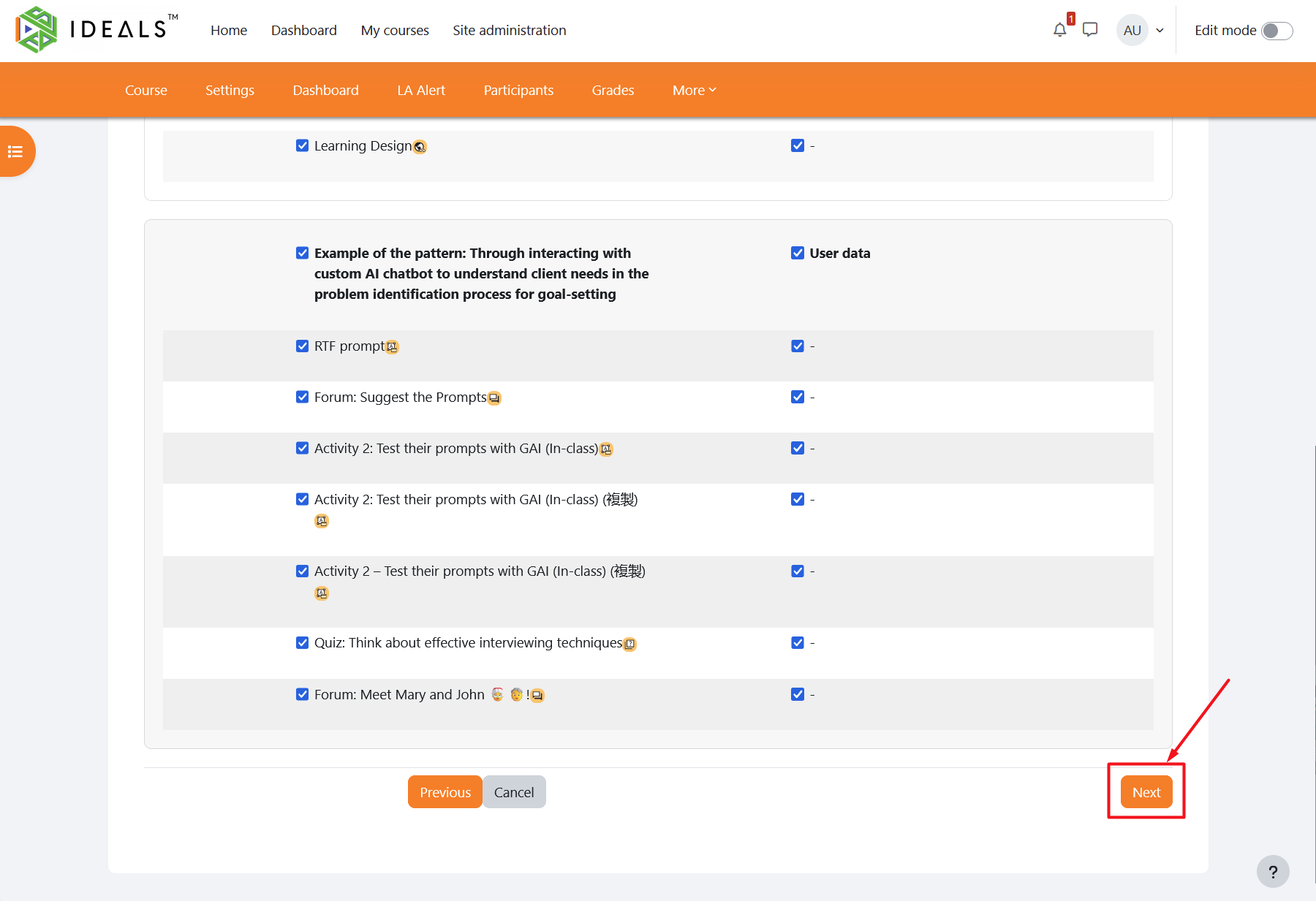
On this page, you can select the course content to be backed up item by item (by default, all items are selected). You may choose which sections, activities, and resources to include, and whether to include user data. When you have finished, scroll down to the bottom of the page and click "Next".
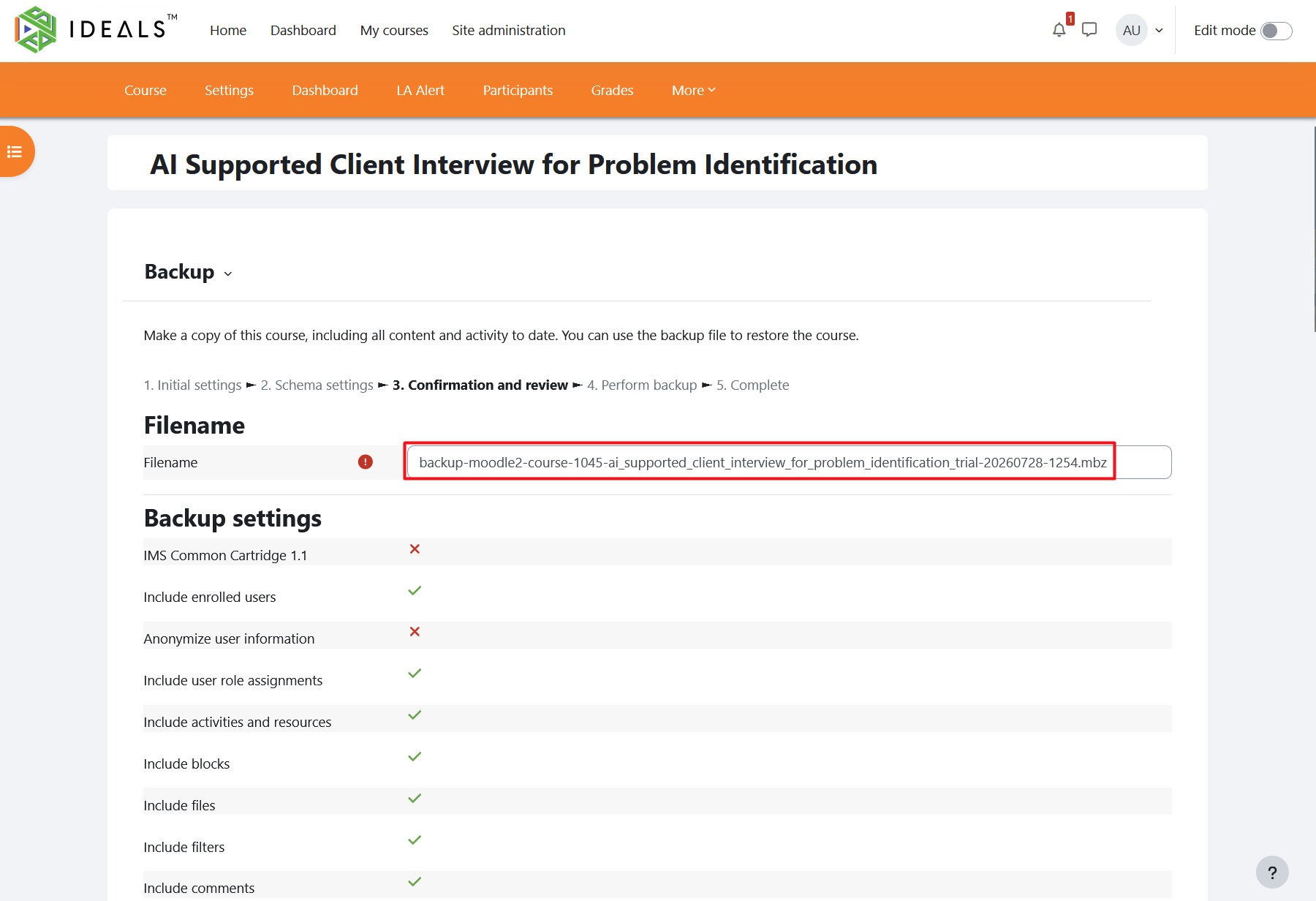
On the next page, confirm and review the backup settings you have selected. You may also change the automatically generated file name.
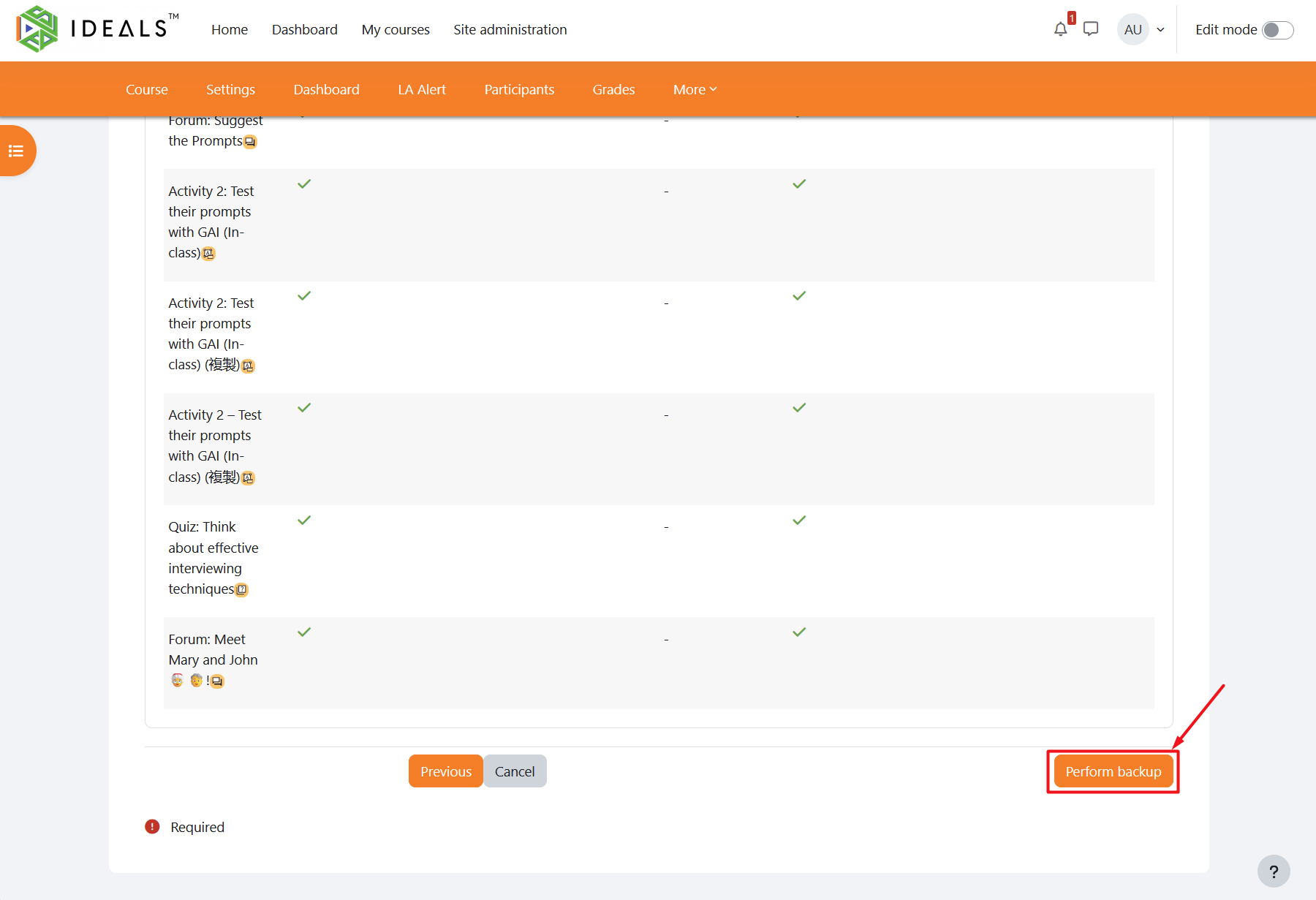
Finally, scroll down to the bottom of the page and click "Perform backup". The system will then start the backup process.
The time required for the backup depends on the number of activities and resources in the course and whether user data is included. In general, it should be completed within a few seconds to several tens of seconds.
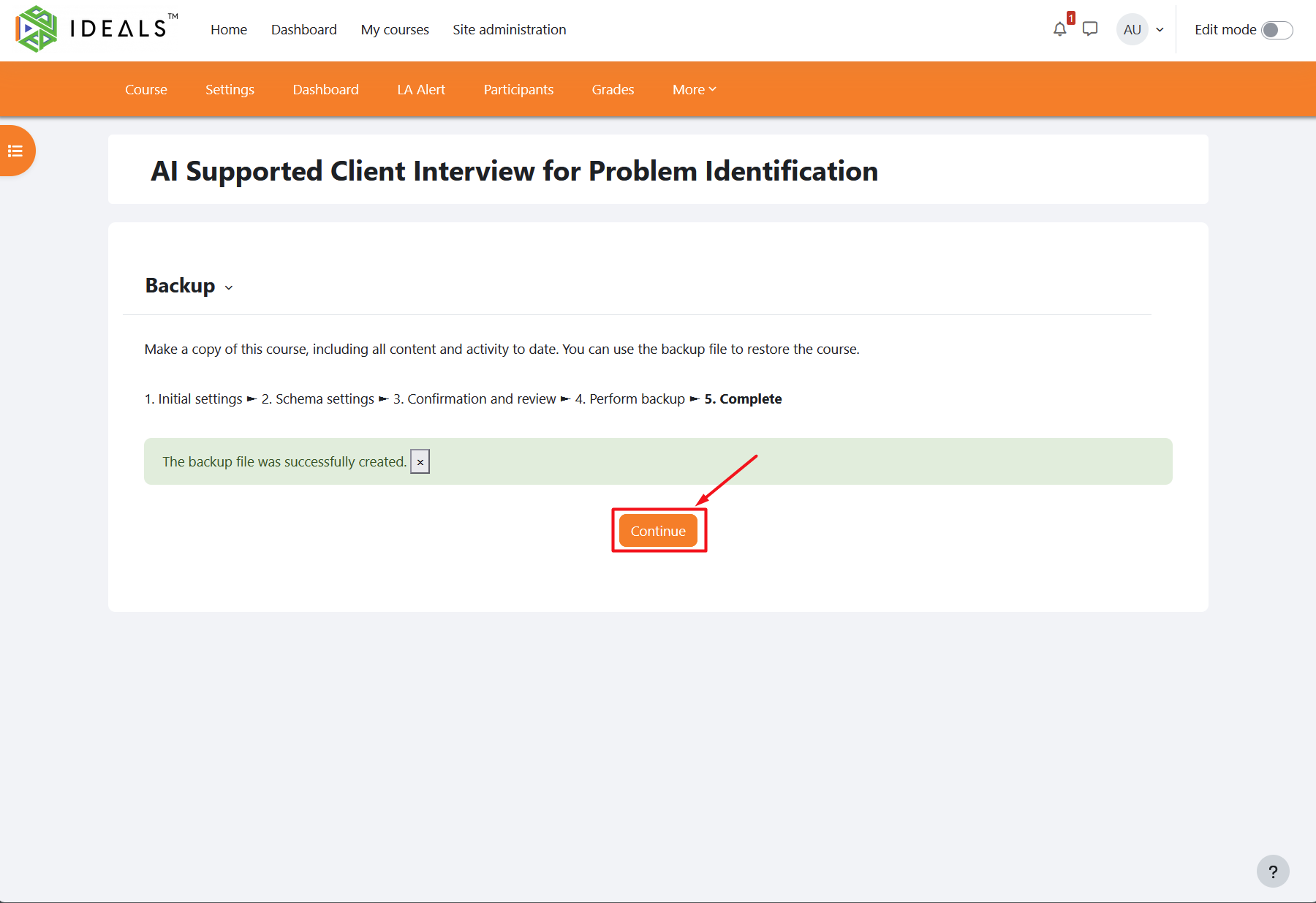
When the backup is complete, the message "The backup file was successfully created" will be displayed. Click "Continue".
After being redirected to the course "Restore" page, scroll down to the "User private backup area".
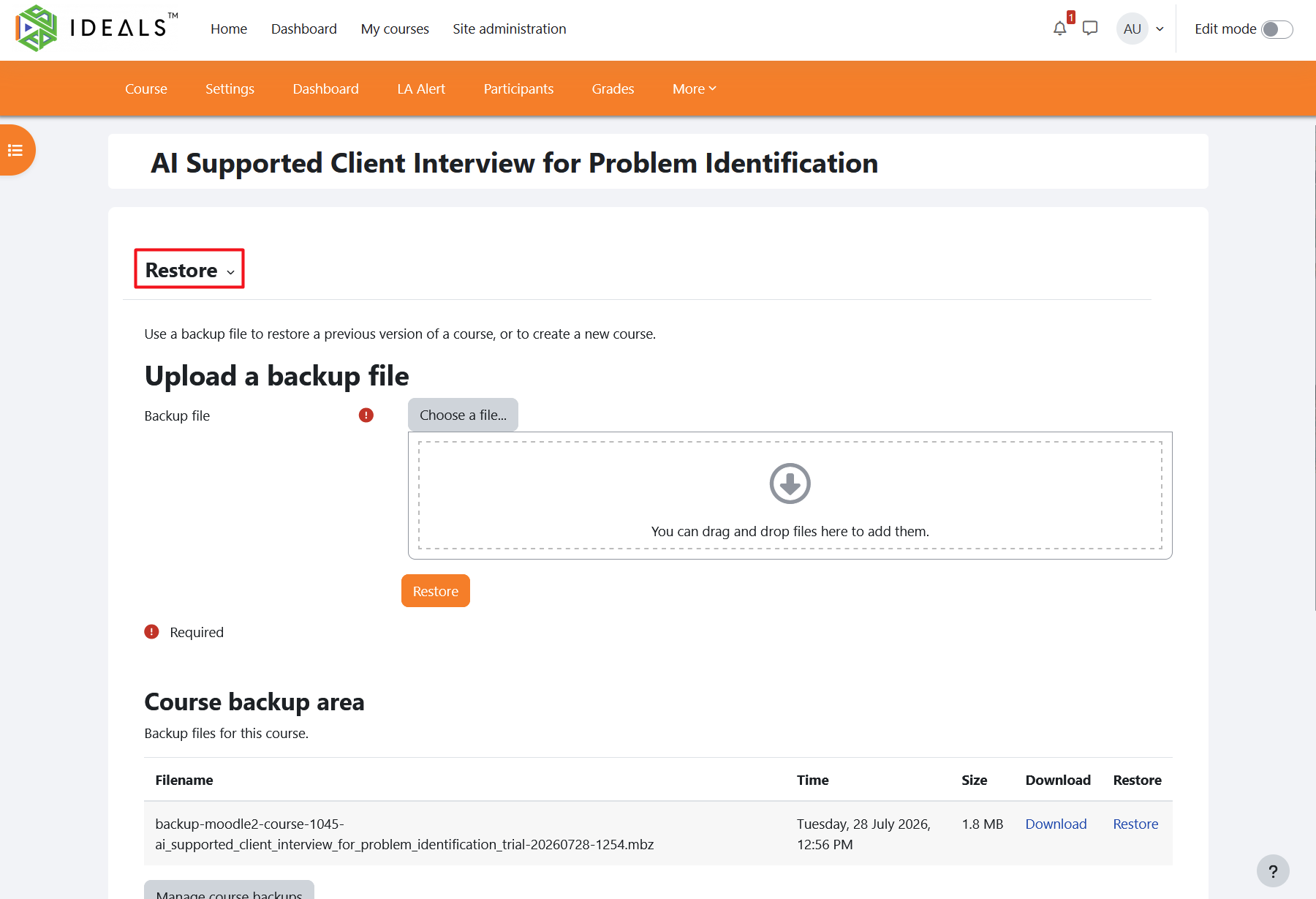
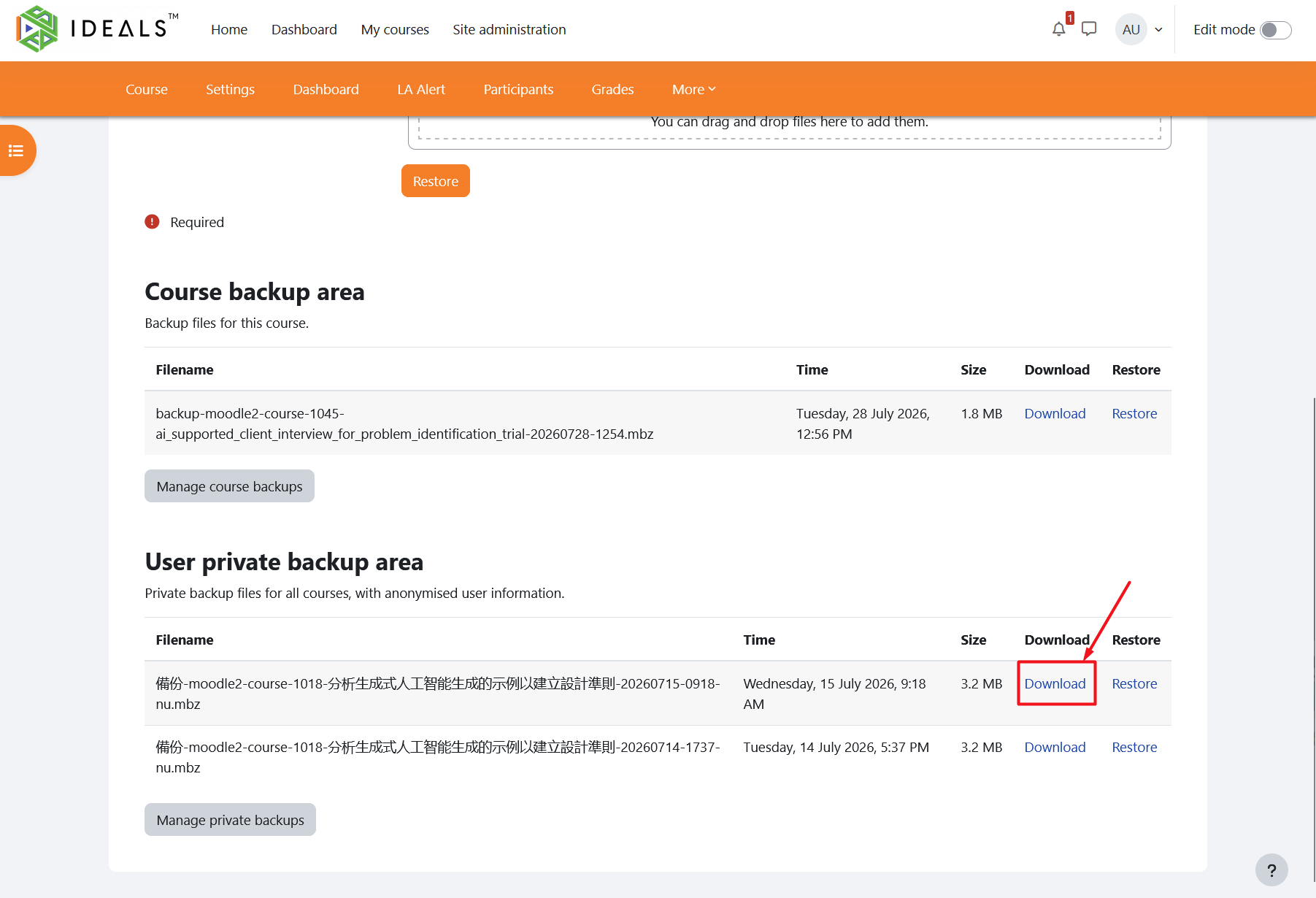
In the "User private backup area", you can find the course you just backed up, as well as previous course backups, by checking the file name or time.
Click the "Download" link beside the file to download the backup file in MBZ format to your computer.
If you would like to restore the course backup to another Moodle platform, please refer to Moodle's official user guide: https://docs.moodle.org/405/en/Course_restore.