Before proceeding, please refer to the ["Prerequisite" section](https://ideals-doc.cite.hku.hk/books/ideals-login-guide/page/prerequisite) to check if you are eligible to use the IDEALS System.
# Prerequisite Ensure your school has subscribed to the IDEALS system through EdCity and has received confirmation that the setup is complete. For Subscription details, please visit QEF e-Learning Ancillary Facilities Programme (eLAFP) - EdCity: [https://web.edcity.hk/en/elafp/project/20210212/](https://web.edcity.hk/en/elafp/project/20210212/) # 1. Logging into the IDEALS Portal # 1.1 Accessing the IDEALS Portal Visit the IDEALS Portal: [https://ideals-portal.cite.hku.hk/](https://ideals-portal.cite.hku.hk/) This is the Home Page. For users in schools that have subscribed to the IDEALS System, only the first **"Login with HKedCity" button** is relevant. You can switch the language to English, Traditional Chinese, or Simplified Chinese. [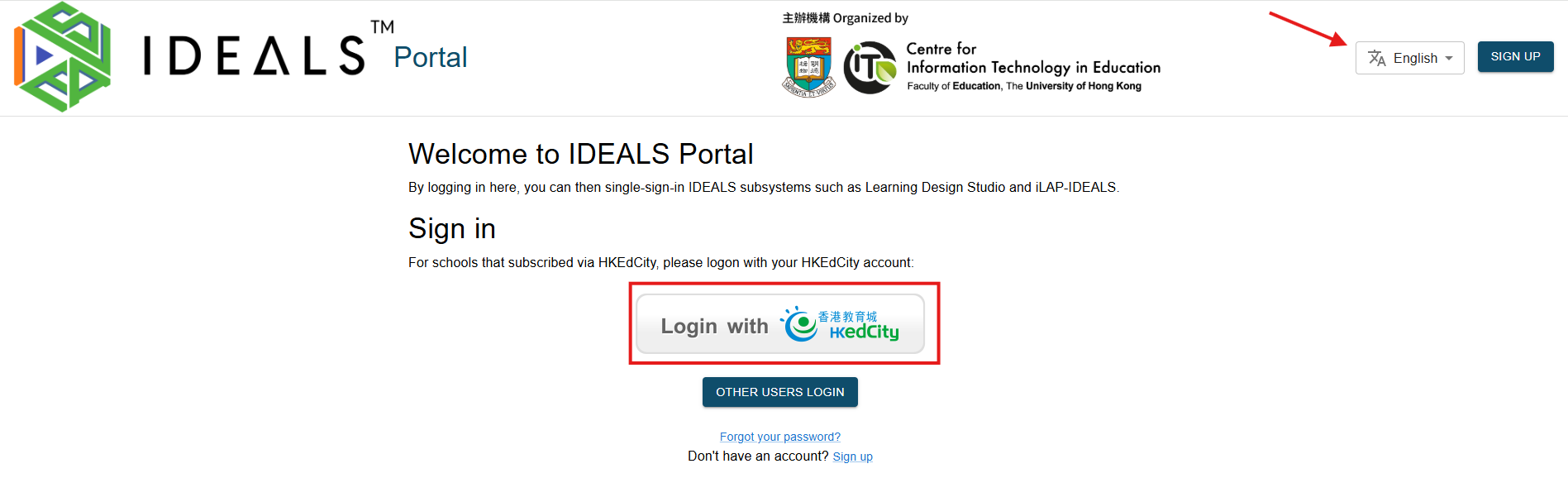](https://ideals-doc.cite.hku.hk/uploads/images/gallery/2026-07/lh7image.png) # 1.2 Login with your HKEdCity account On the Home Page of the IDEALS Portal, click the **"Login with HKedCity" button**. [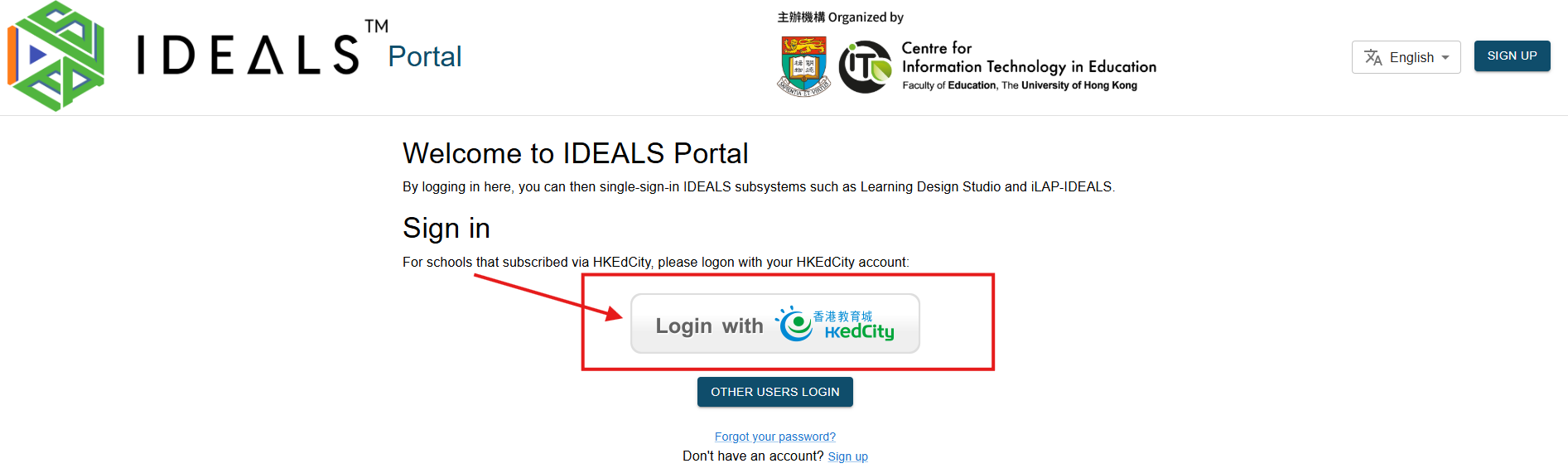](https://ideals-doc.cite.hku.hk/uploads/images/gallery/2026-07/ZVlimage.png) You will be redirected to the EdConnect Login Page by HKedCity. Ensure you log in with the HKedCity account that you or your school administrator have registered with HKedCity. [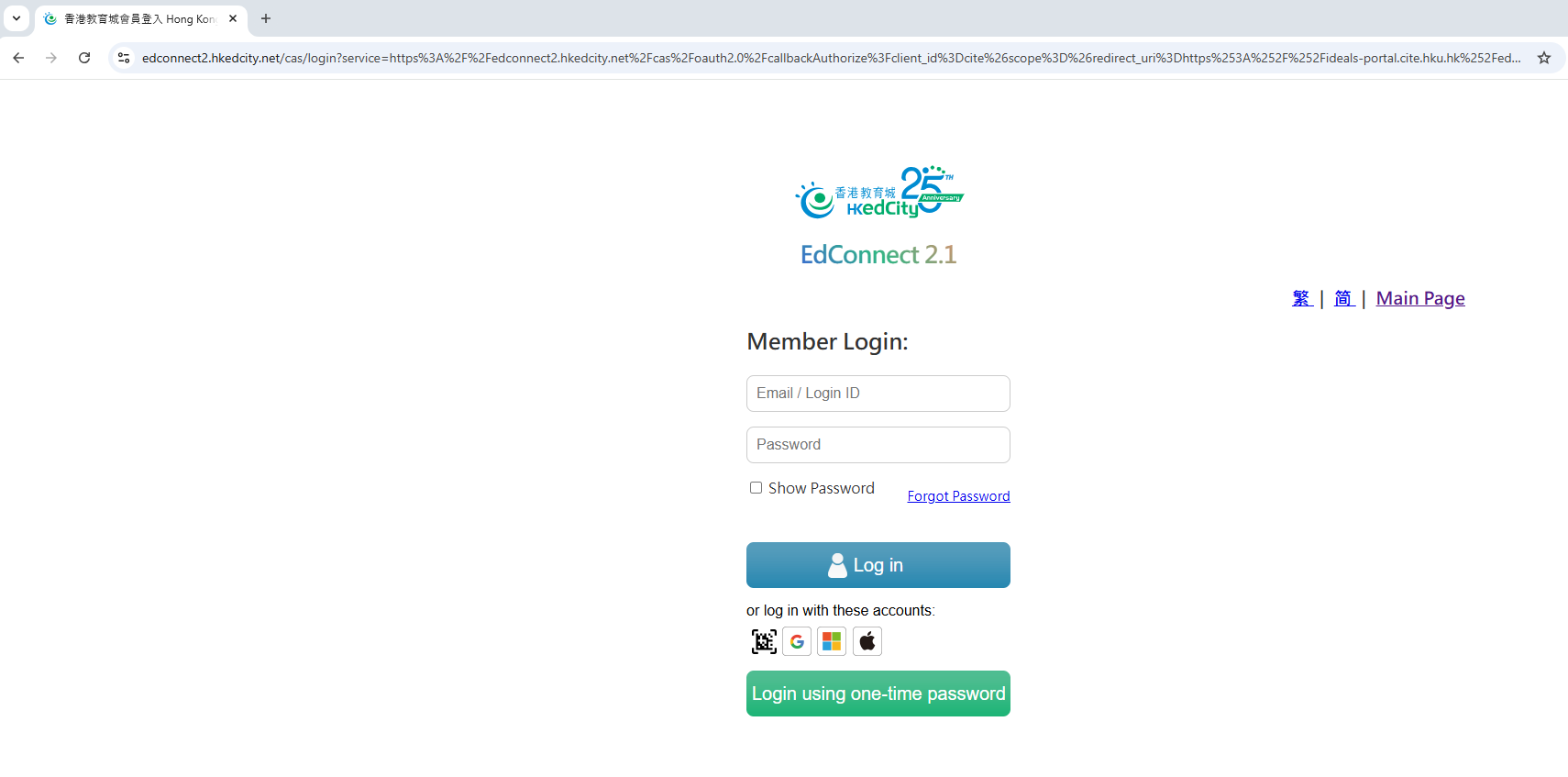](https://ideals-doc.cite.hku.hk/uploads/images/gallery/2025-08/qtVimage.png) When you log in using EdConnect, the system will redirect you to an authorization consent page. Please click the **"Confirm" button** to proceed with the next steps. [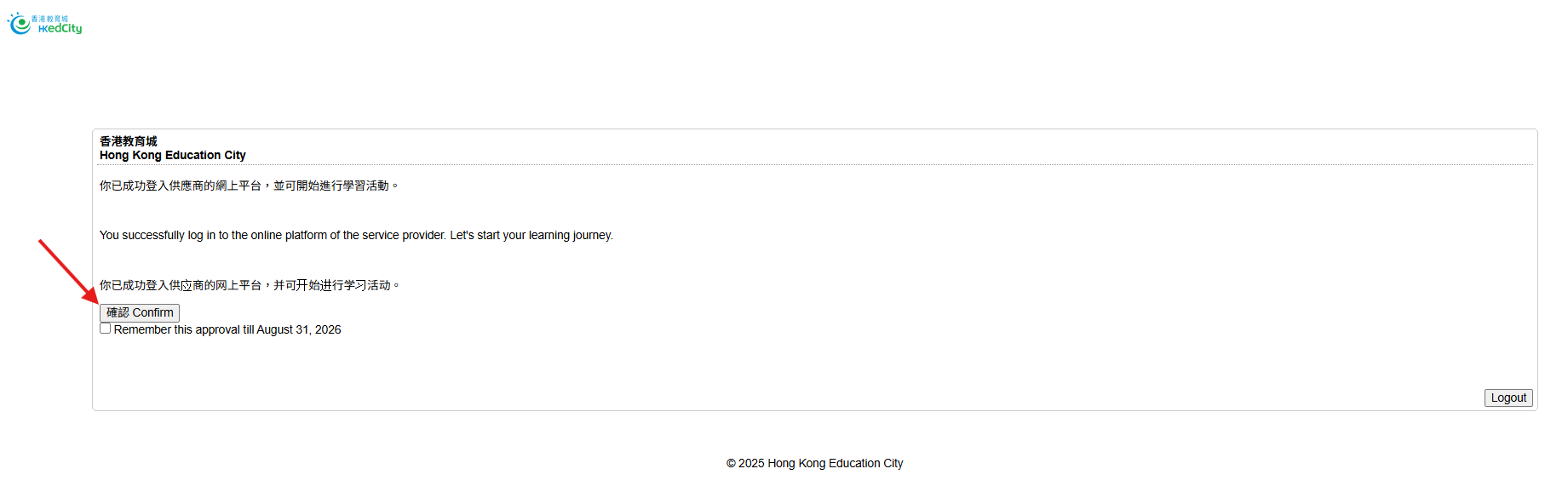](https://ideals-doc.cite.hku.hk/uploads/images/gallery/2025-08/NHMimage.png) # 1.3 Verifying Your Account as a Teacher by email Skip this step if you are not a teacher at EdCity. If you are a teacher at EdCity, you will be redirected to the "Edit Profile" page to verify your email. This step is necessary because all IDEALS sub-systems require a verified email, and EdData currently does not provide teachers' email addresses to service providers. [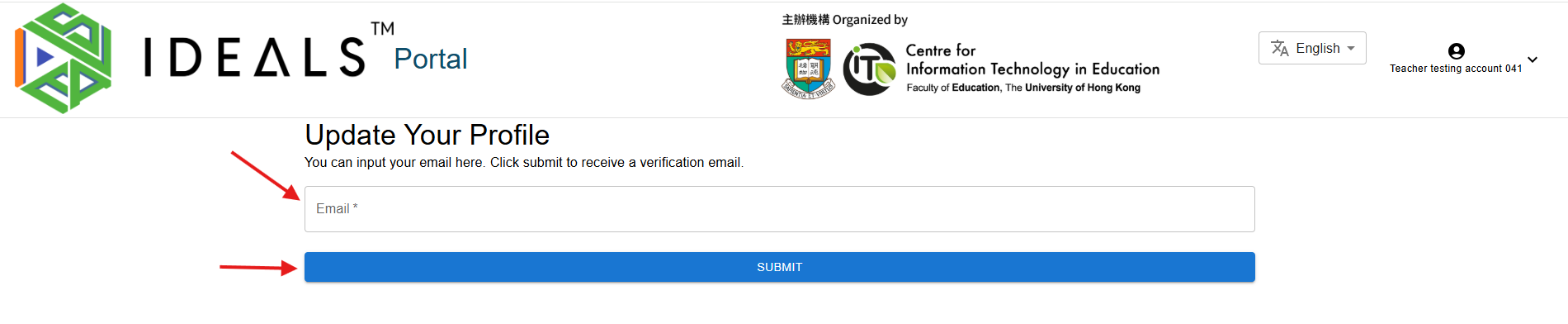](https://ideals-doc.cite.hku.hk/uploads/images/gallery/2025-08/kkBimage.png) Enter your email address carefully, as you will receive a verification email. Click **"Submit"** to receive the verification email. A confirmation message will appear indicating the email has been sent successfully. [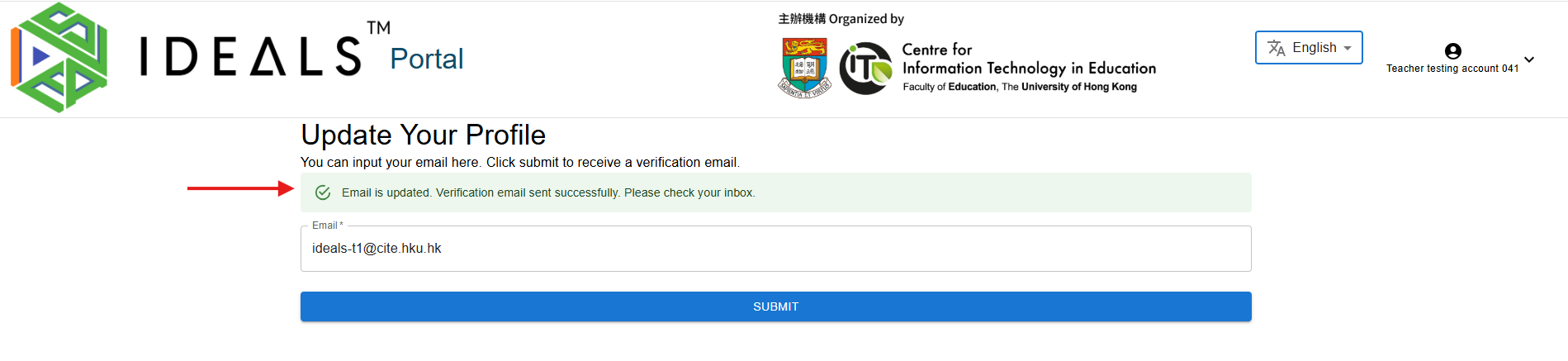](https://ideals-doc.cite.hku.hk/uploads/images/gallery/2025-08/Ygrimage.png) Wait 2–3 minutes, then check your email inbox for the verification email from the IDEALS Portal. Click the **verification link** in the email. [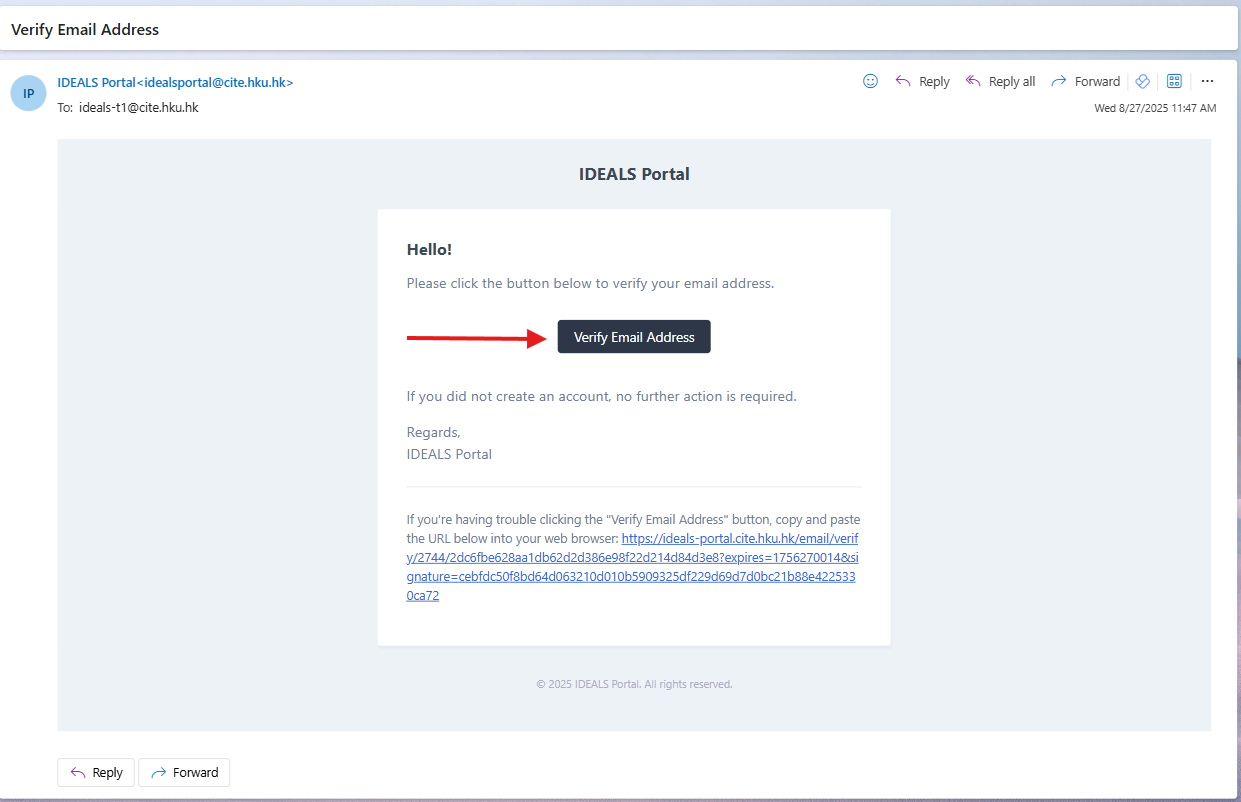](https://ideals-doc.cite.hku.hk/uploads/images/gallery/2025-08/2muimage.png) You should then be directed to the Gateway Page, where you'll see two login buttons. Stay on this screen and proceed to the next step. [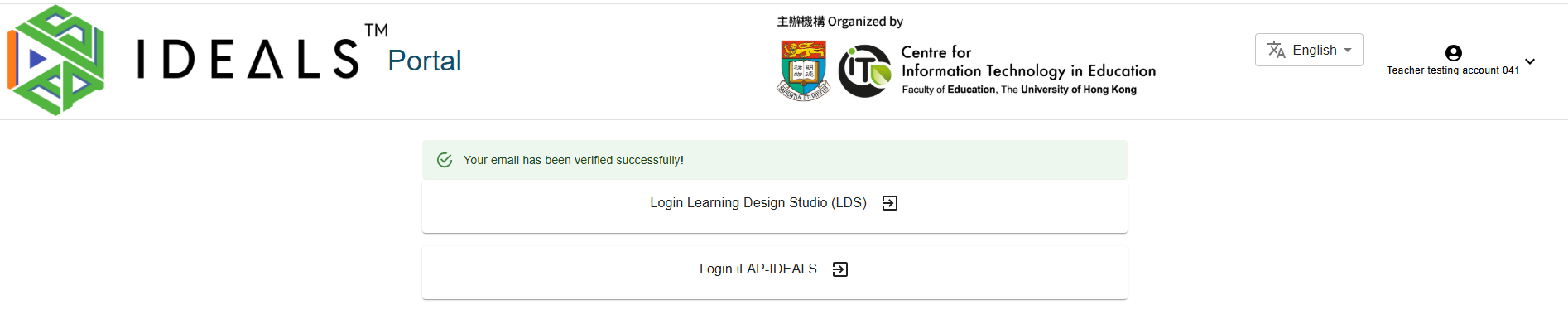](https://ideals-doc.cite.hku.hk/uploads/images/gallery/2025-08/Jimimage.png) # 1.4 Navigating the Gateway PageYour next step may be to read the Learning Design Studio User Guide (final link will be provided soon).
# 3. Accessing iLAP-IDEALS # 3.1. Preparation Ensure you have followed the previous step: **1. Logging into the IDEALS Portal**. Also, log out of iLAP-IDEALS before proceeding. # 3.2. Single-Sign-On to iLAP-IDEALS From the Gateway Page (h[ttps://ideals-portal.cite.hku.hk/gateway](ttps://ideals-portal.cite.hku.hk/gateway)), click the card **"**Go to the e-learning platform**"**. [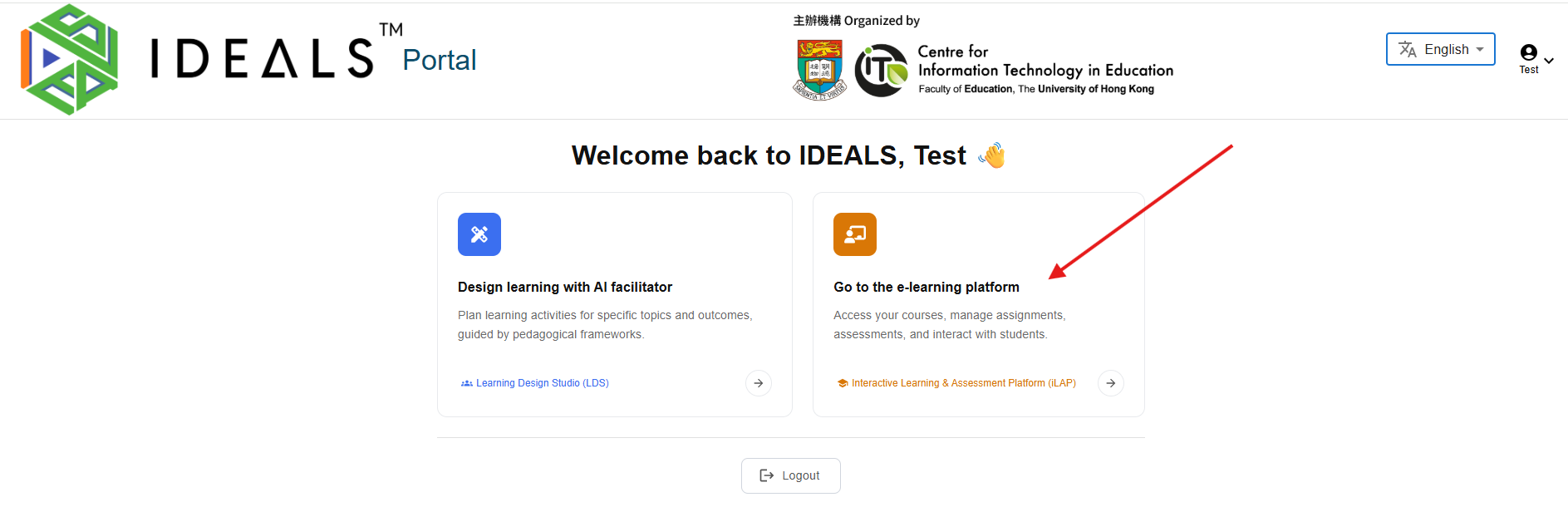](https://ideals-doc.cite.hku.hk/uploads/images/gallery/2026-07/M2zimage.png) Due to Moodle's security requirements, you must explicitly click the **"IDEALS Portal Login" button** when prompted. [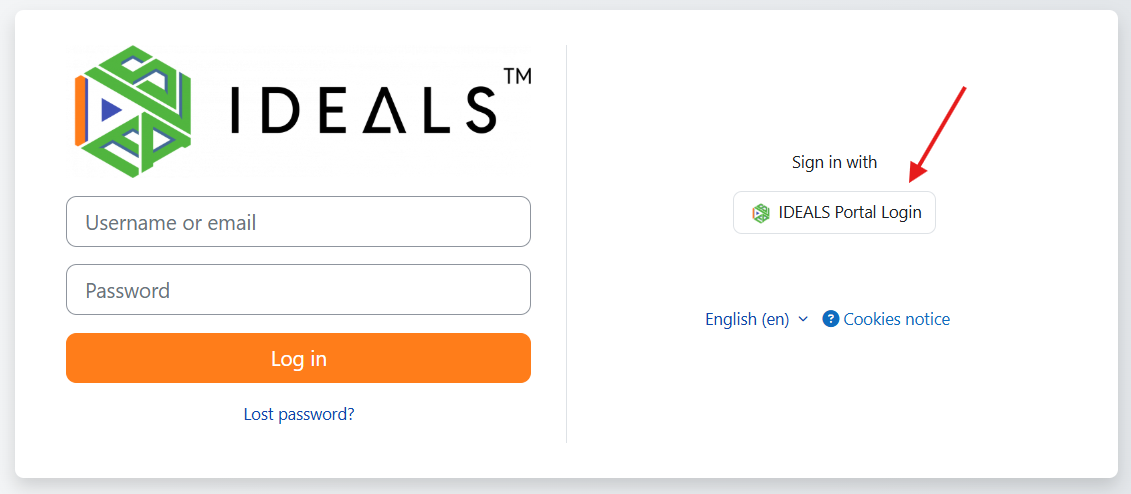](https://ideals-doc.cite.hku.hk/uploads/images/gallery/2025-08/1pQimage.png) The portal will ask for authorization to allow iLAP-IDEALS to access your account. Click **"ALLOW"**. [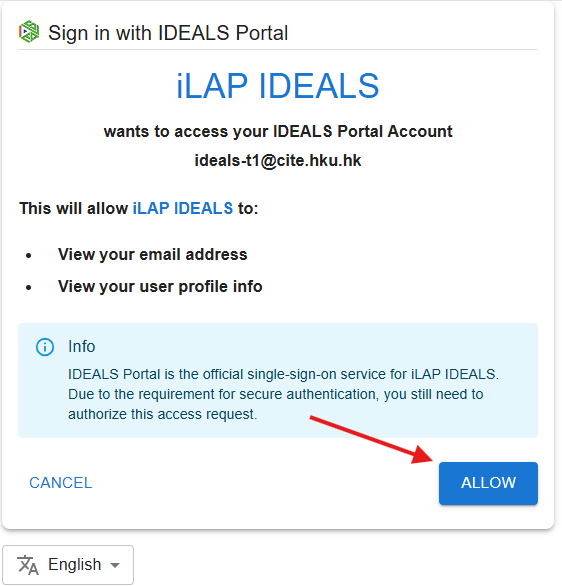](https://ideals-doc.cite.hku.hk/uploads/images/gallery/2025-08/DEDimage.png) Once authorized, you will be logged into iLAP-IDEALS. [](https://ideals-doc.cite.hku.hk/uploads/images/gallery/2025-08/JTdimage.png)Your next step may be to read the [iLAP School Administration Guide](https://ideals-doc.cite.hku.hk/books/ilap) to learn more about the iLAP platform. (An English version will be coming soon.)
# 4. Logging out of the IDEALS Portal # 4.1 Logging out of the IDEALS Portal If you have finished using the IDEALS system, you can log out from both the IDEALS Portal and EdConnect from the Gateway Page. Click the **"Logout IDEALS Portal and EdConnect" button** to sign out of the portal and end your EdConnect single-sign-on session. After logging out you will be redirected to the IDEALS Portal Home page. For added security, we recommend closing your browser window after logging out, especially when using a shared or public computer. [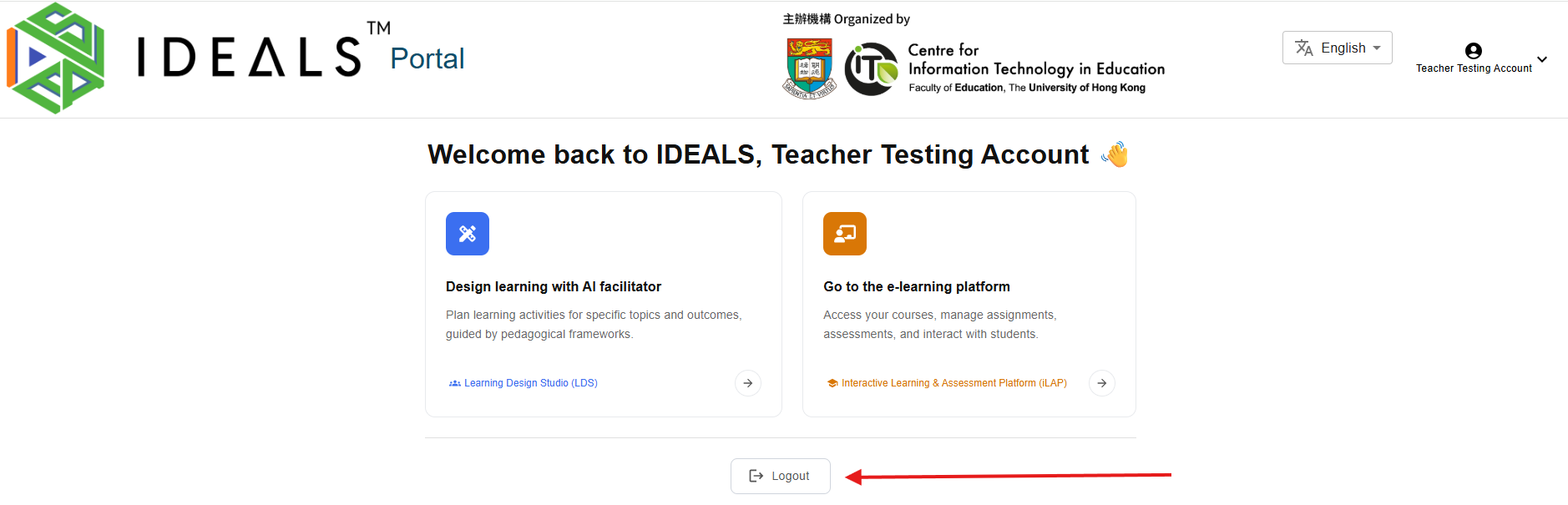](https://ideals-doc.cite.hku.hk/uploads/images/gallery/2026-07/GAlimage.png)