1. Logging into the IDEALS Portal
- 1.1 Accessing the IDEALS Portal
- 1.2 Login with your HKEdCity account
- 1.3 Verifying Your Account as a Teacher by email
- 1.4 Navigating the Gateway Page
1.1 Accessing the IDEALS Portal
Visit the IDEALS Portal: https://ideals-portal.cite.hku.hk/
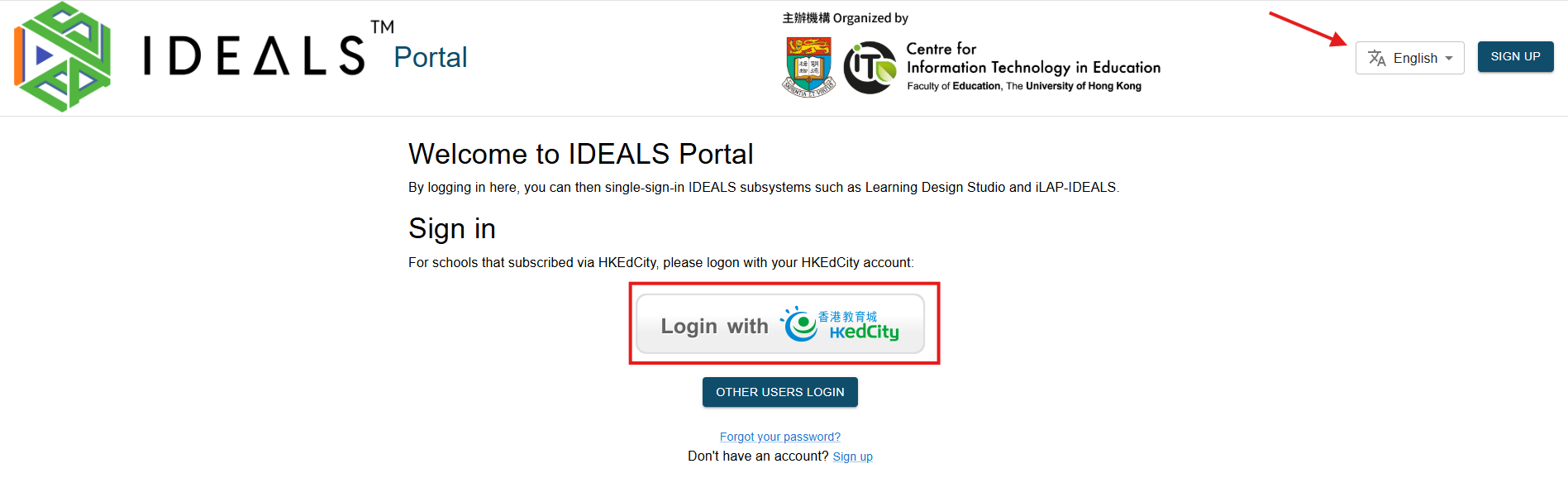
This is the Home Page.
For users in schools that have subscribed to the IDEALS System, only the first "Login with HKedCity" button is relevant.
You can switch the language to English, Traditional Chinese, or Simplified Chinese.
1.2 Login with your HKEdCity account
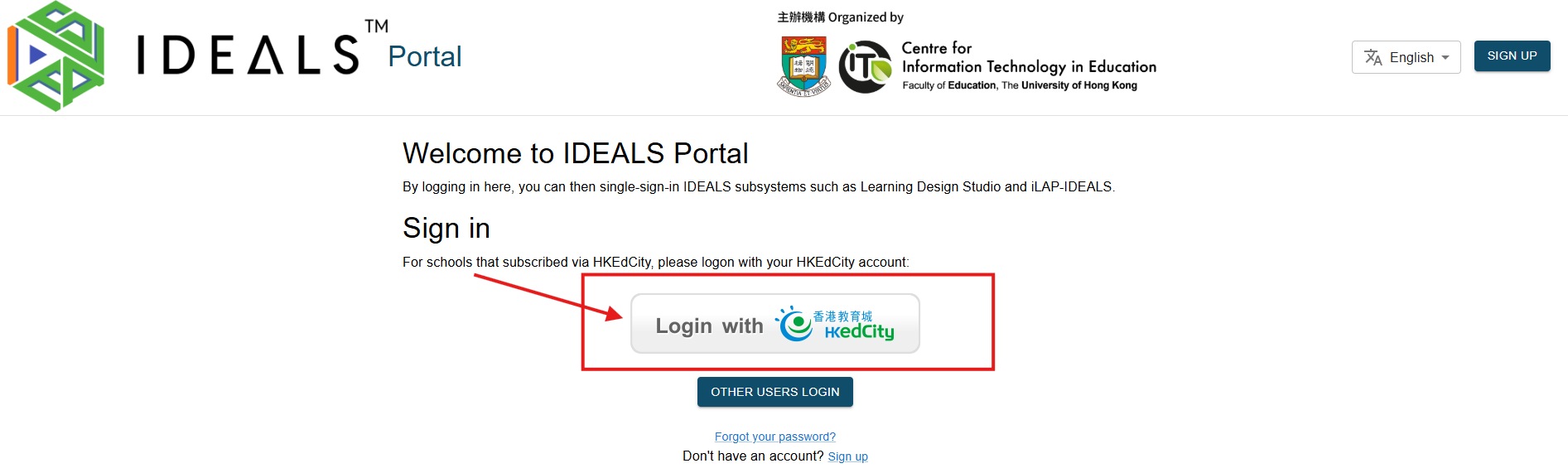
On the Home Page of the IDEALS Portal, click the "Login with HKedCity" button.
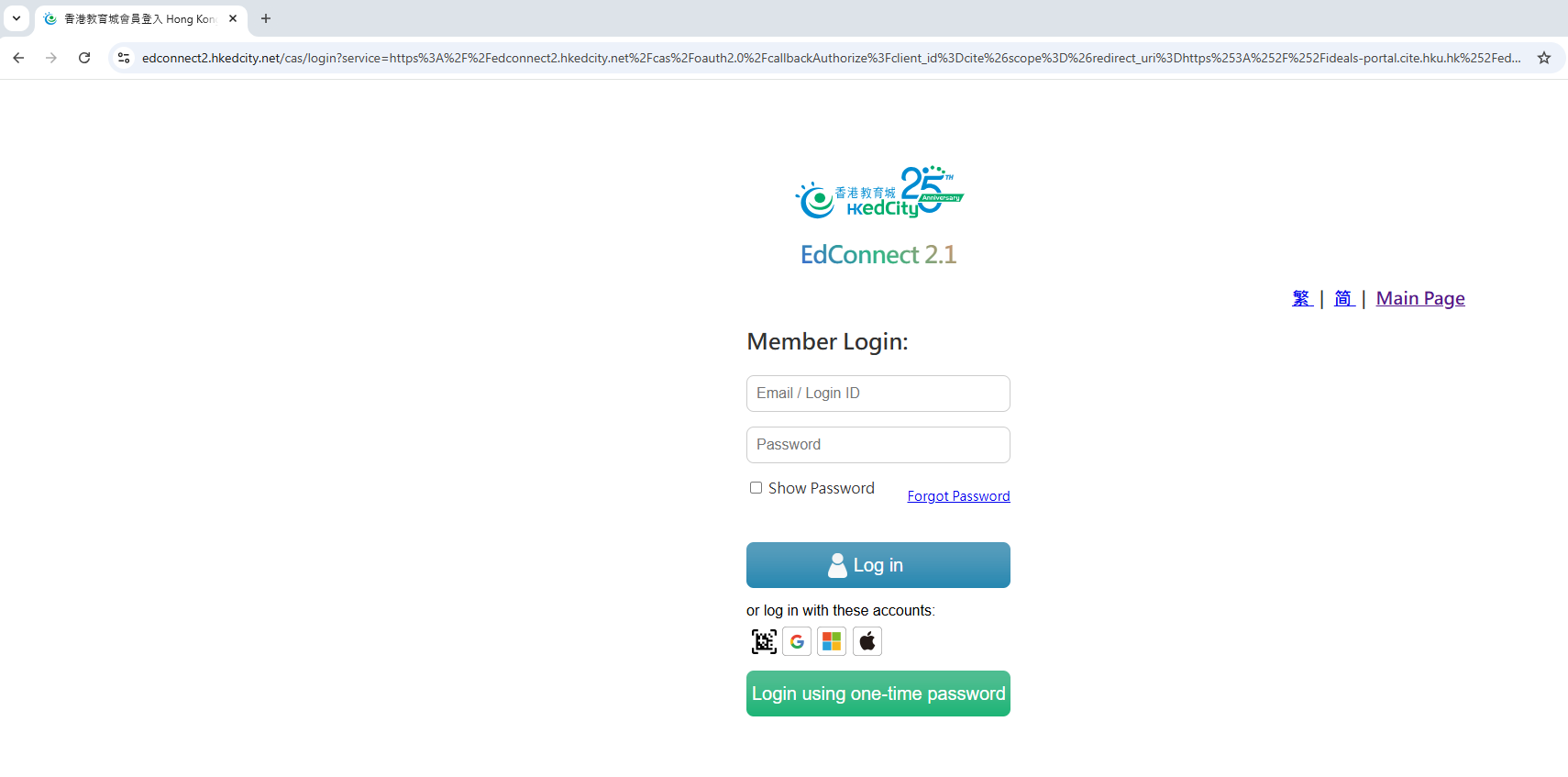
You will be redirected to the EdConnect Login Page by HKedCity.
Ensure you log in with the HKedCity account that you or your school administrator have registered with HKedCity.
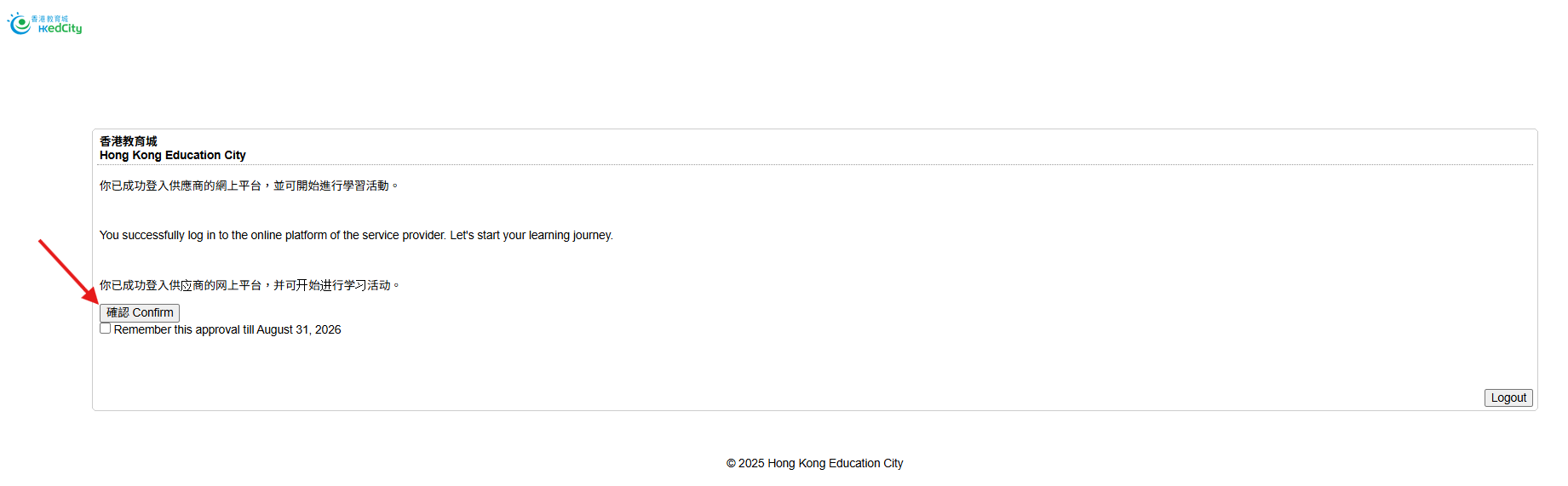
When you log in using EdConnect, the system will redirect you to an authorization consent page. Please click the "Confirm" button to proceed with the next steps.
1.3 Verifying Your Account as a Teacher by email
Skip this step if you are not a teacher at EdCity.
If you are a teacher at EdCity, you will be redirected to the "Edit Profile" page to verify your email. This step is necessary because all IDEALS sub-systems require a verified email, and EdData currently does not provide teachers' email addresses to service providers.
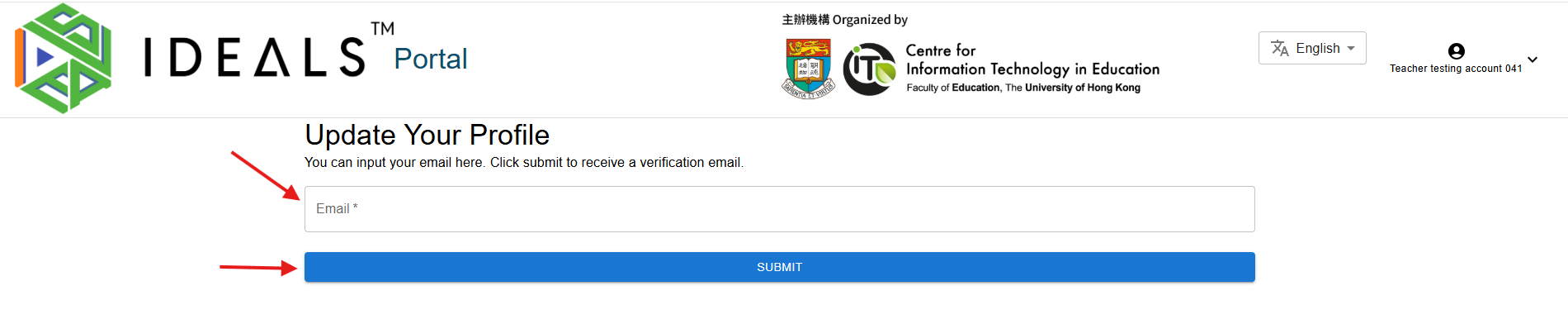
Enter your email address carefully, as you will receive a verification email.
Click "Submit" to receive the verification email. A confirmation message will appear indicating the email has been sent successfully.
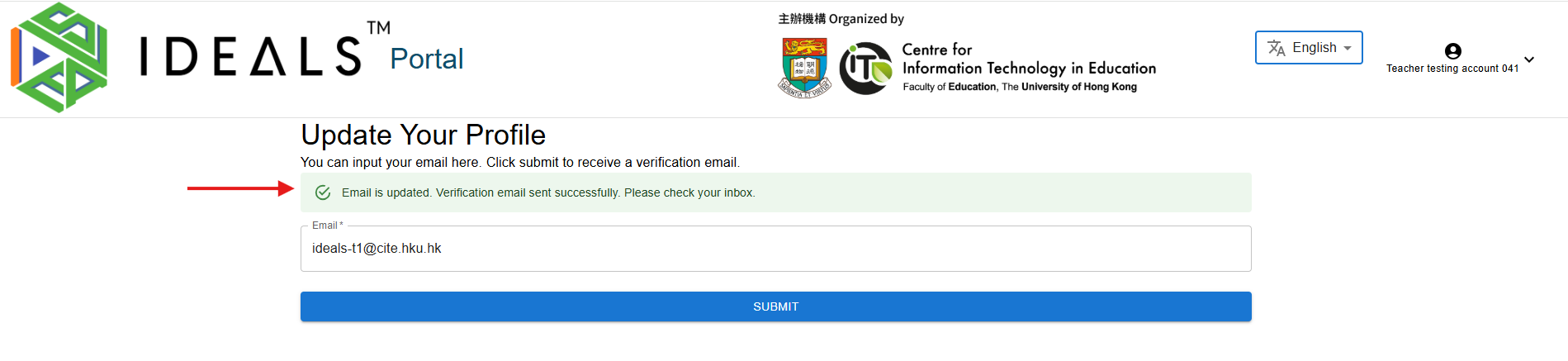
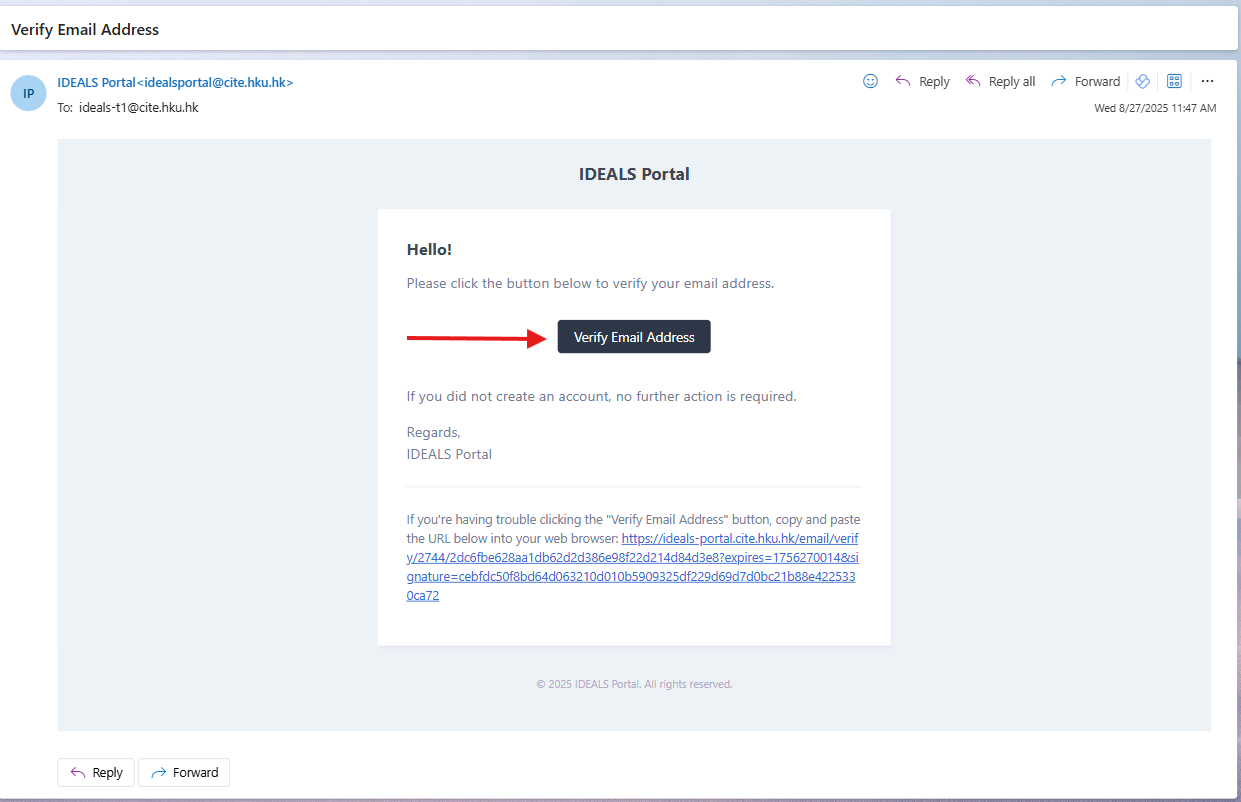
Wait 2–3 minutes, then check your email inbox for the verification email from the IDEALS Portal. Click the verification link in the email.
You should then be directed to the Gateway Page, where you'll see two login buttons. Stay on this screen and proceed to the next step.
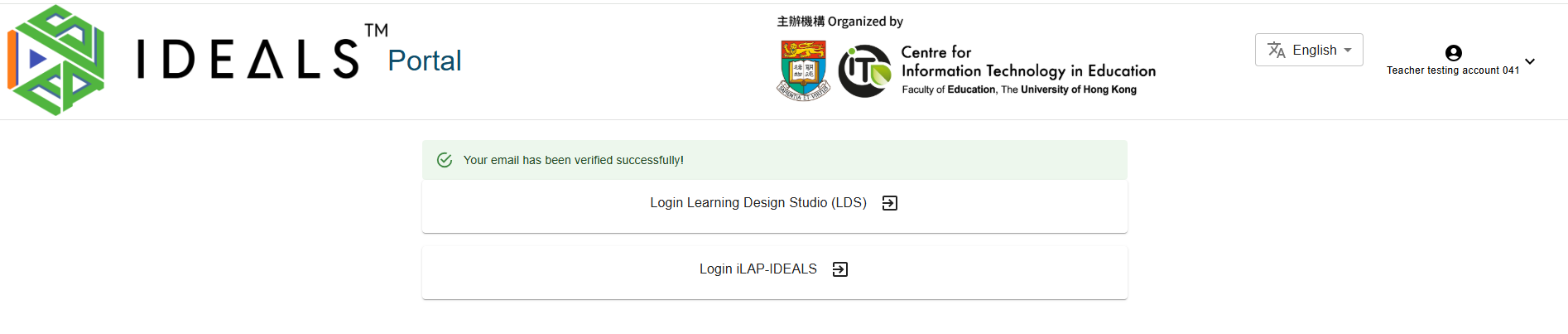
1.4 Navigating the Gateway Page
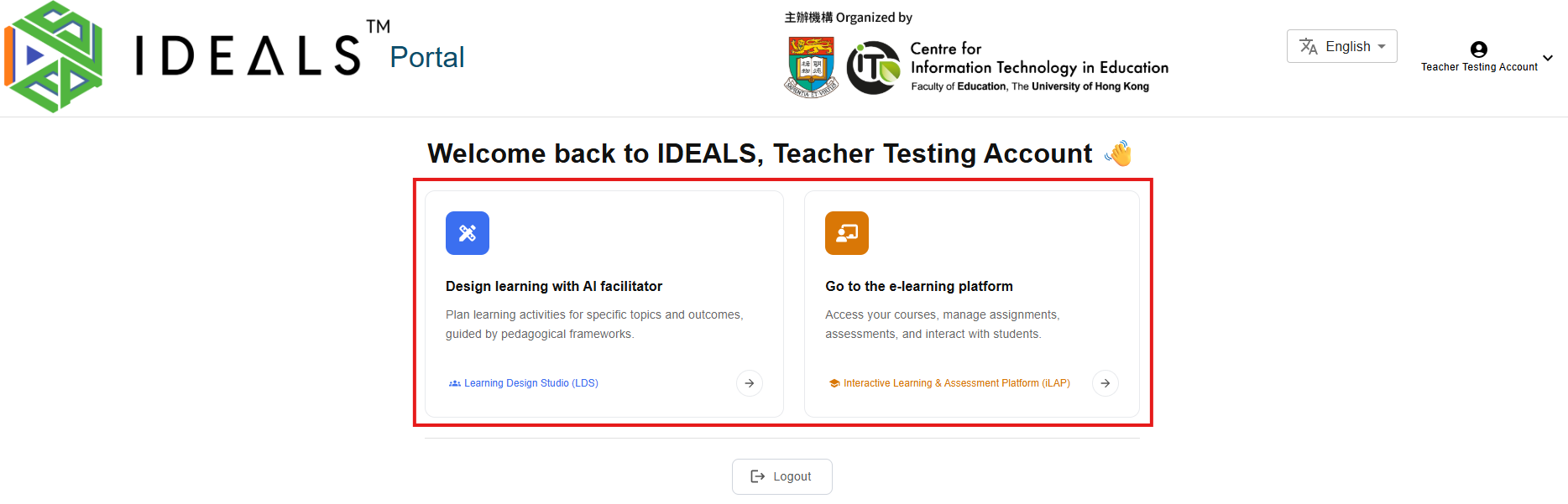
For Teachers
- Design learning with AI facilitator (Blue icon)
- Description: "Plan learning activities for specific topics and outcomes, guided by pedagogical frameworks."
- Click this card or the "Learning Design Studio (LDS)" link to access LDS
- Go to the e-learning platform (Orange icon)
- Description: "Access your courses, manage assignments, assessments, and interact with students."
- Click this card or the "Interactive Learning & Assessment Platform (iLAP)" link to access iLAP-IDEALS